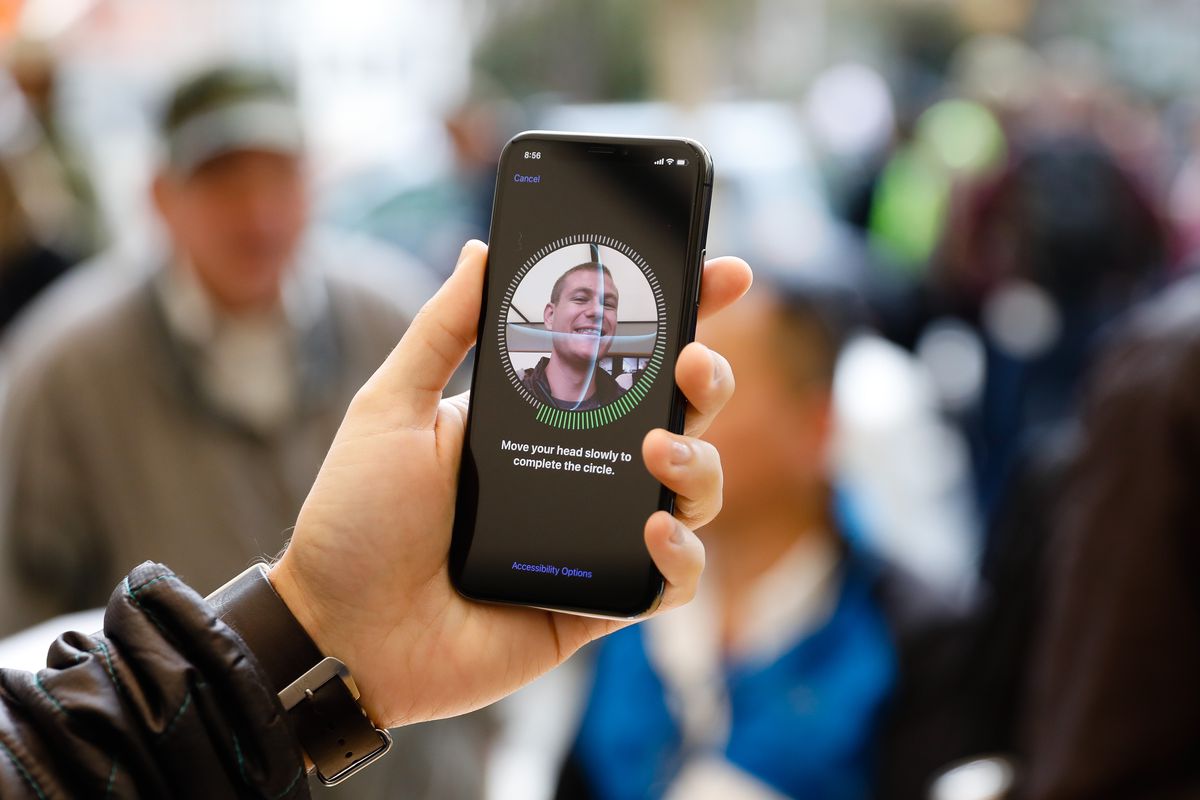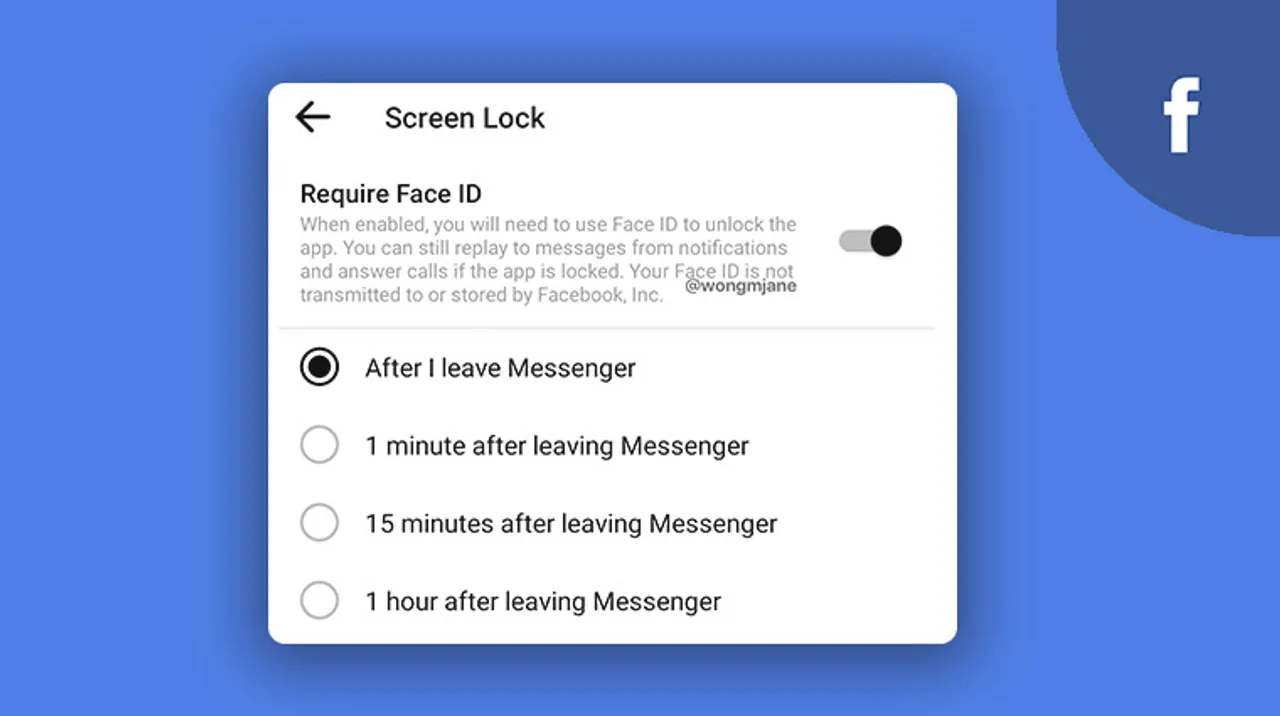
To put Face ID on Facebook, you need to set up a passkey, which lets you log into the app quickly and securely using your iPhone's Face ID instead of typing your password. This works because Face ID is a device-level security feature that Facebook integrates with, not a separate Facebook feature.
How to put Face ID on Facebook with a passkey
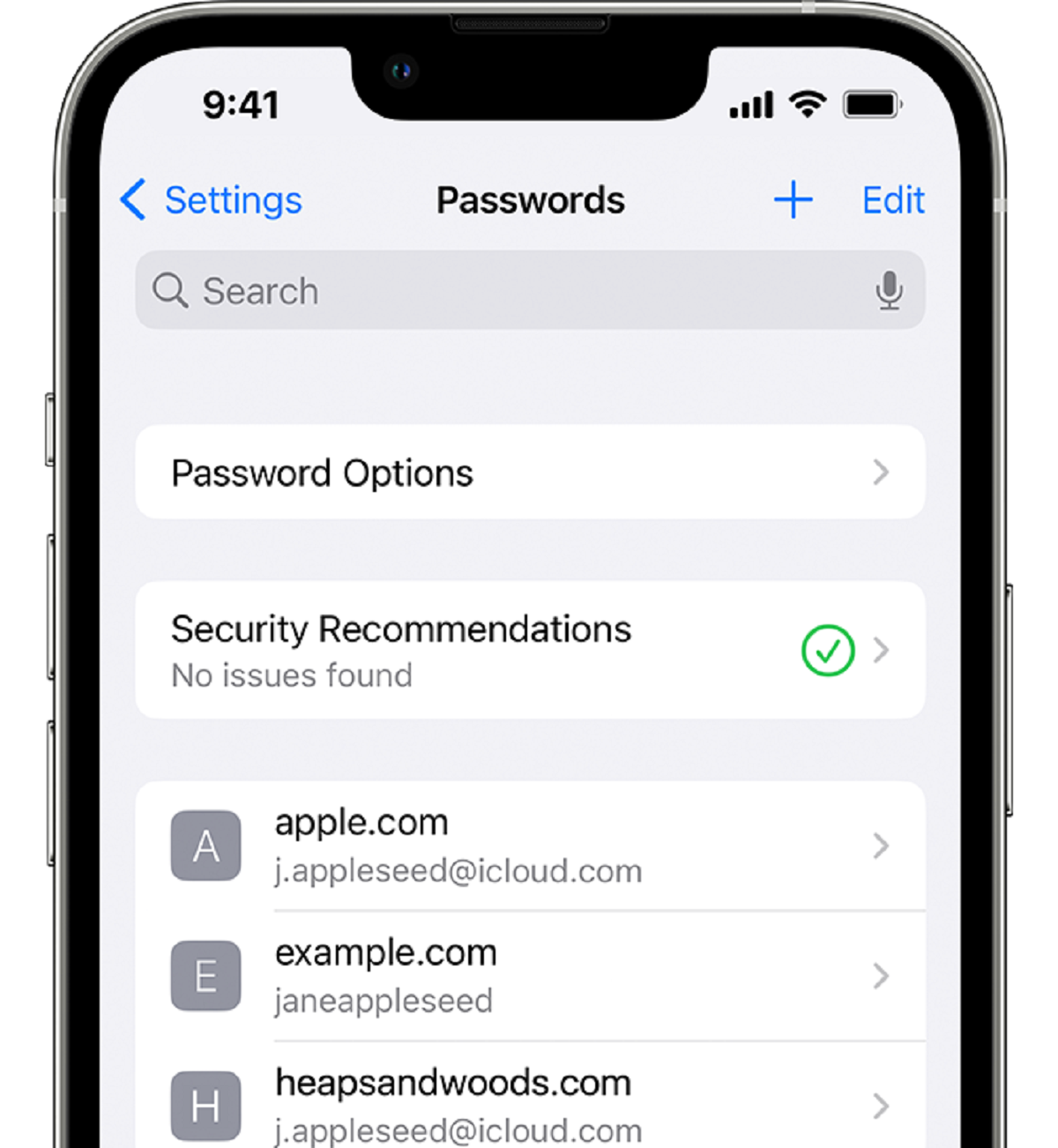
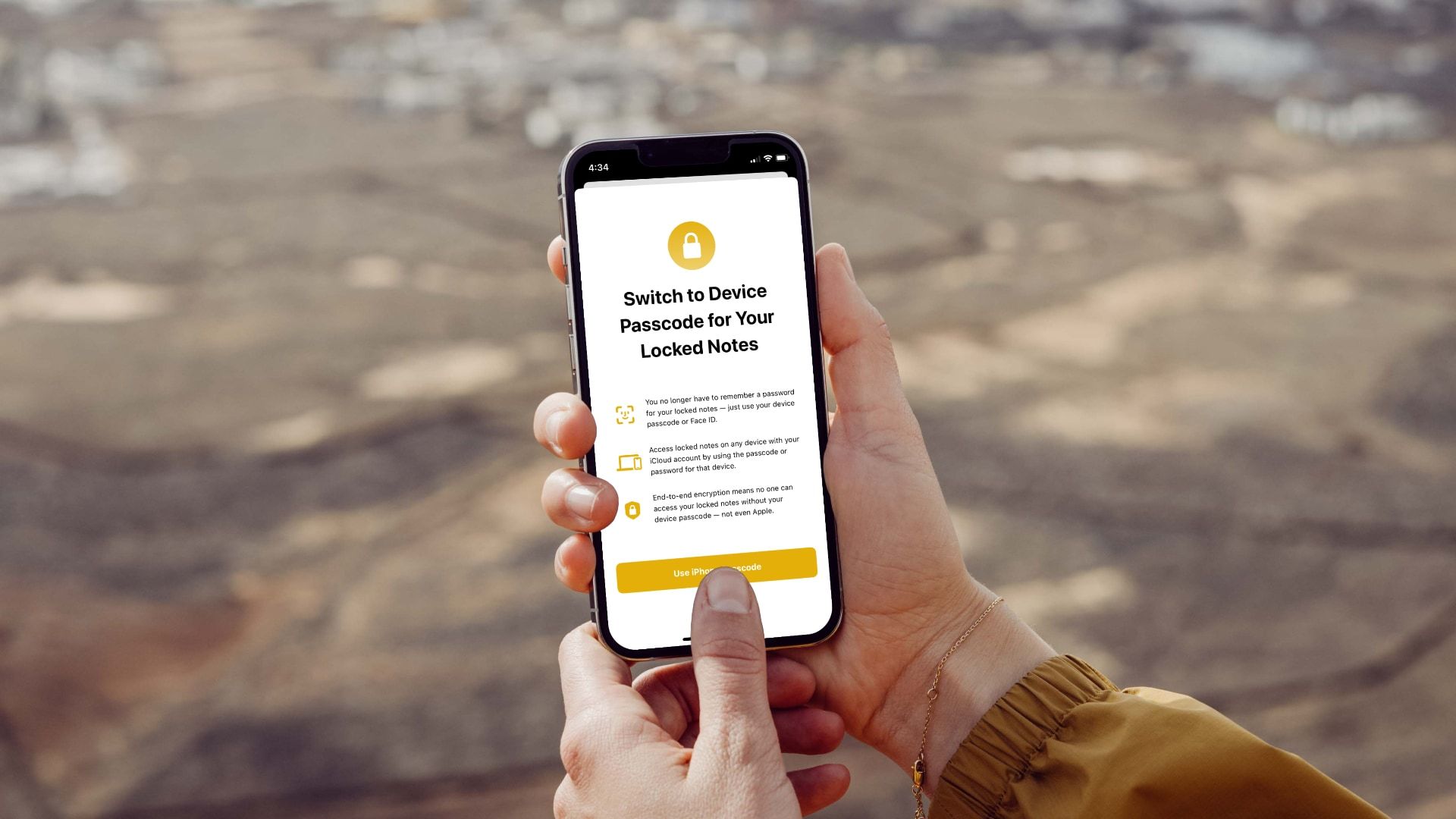
A passkey is a modern authentication method that replaces passwords by using your device's built-in biometric security, such as Face ID, Touch ID, or your device's PIN. When you create a passkey for Facebook, your iPhone stores a unique cryptographic key, and you authenticate with Face ID to confirm it is really you. This is the correct and only way to use Face ID for logging into the Facebook app, and you can similarly put a face id on Snapchat to lock the app itself behind biometric security.
Why use a passkey for Facebook login
Passkeys offer significant advantages over traditional passwords and one-time SMS codes. They are resistant to phishing and theft because a passkey never leaves your device and is tied to the specific Facebook website or app. This means even if a scammer tricks you into visiting a fake login page, your passkey will not work for them. Additionally, your biometric data, such as your face scan, never leaves your iPhone and is never shared with Meta, ensuring your privacy. The login process is also much faster, just a glance at your phone and you are in, with no need to remember or type a password.
Setting up a passkey in the Facebook app
Follow these steps to create a passkey and enable Face ID login on your iPhone:
- Open the Facebook app and tap your profile picture or the menu icon.
- Go to Settings, then tap Accounts Center.
- Select Password and security, then tap Passkey.
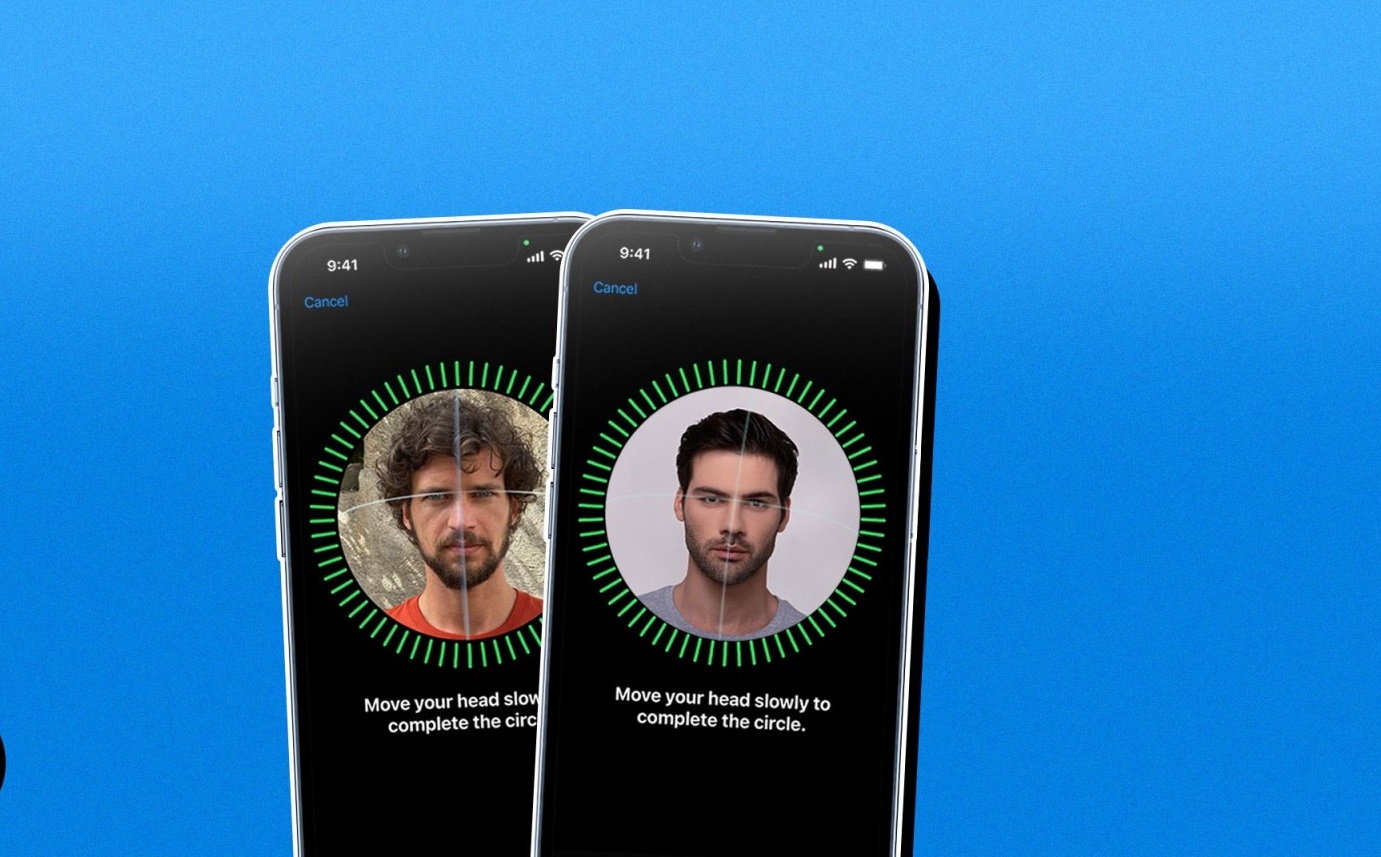
- Tap Create a passkey and follow the on-screen prompts to scan your face using Face ID.
Once completed, your passkey is stored securely on your device. A single passkey can also work for Messenger, and the same feature is rolling out to other Meta apps like Instagram, Threads, and Horizon.
Logging in with Face ID
After setting up your passkey, logging in is simple. When you open the Facebook app and reach the login screen, you will see a prompt to Use Passkey or an option to select it from your device's autofill dropdown menu. Tap it, and your iPhone will prompt you to authenticate with Face ID. Once your face is recognized, you are logged in instantly without needing to enter a password.
Troubleshooting Face ID login issues
If Face ID does not recognize you, first check that your face is well-lit and that the camera is not obstructed by a case, screen protector, or smudges. Remove any glasses or hats that might interfere. If the problem persists, you can re-enable the passkey by going back to Accounts Center > Password and security > Passkey and deleting and recreating it. Remember, a password always remains a backup option, so you can still log in manually if needed.
Important security notes
Do not create a passkey on a public or shared device, as anyone with access to that device could potentially use it to log into your Facebook account. If you are enrolled in Facebook's Advanced Protection program, you may be required to create a passkey for additional security. Meta also uses facial recognition technology separately for identity verification in higher-security scenarios like account recovery, which is different from using Face ID for login.
For those interested in using and managing Face ID across other apps, the same passkey system allows you to add face id on Instagram once the feature rolls out to that platform.