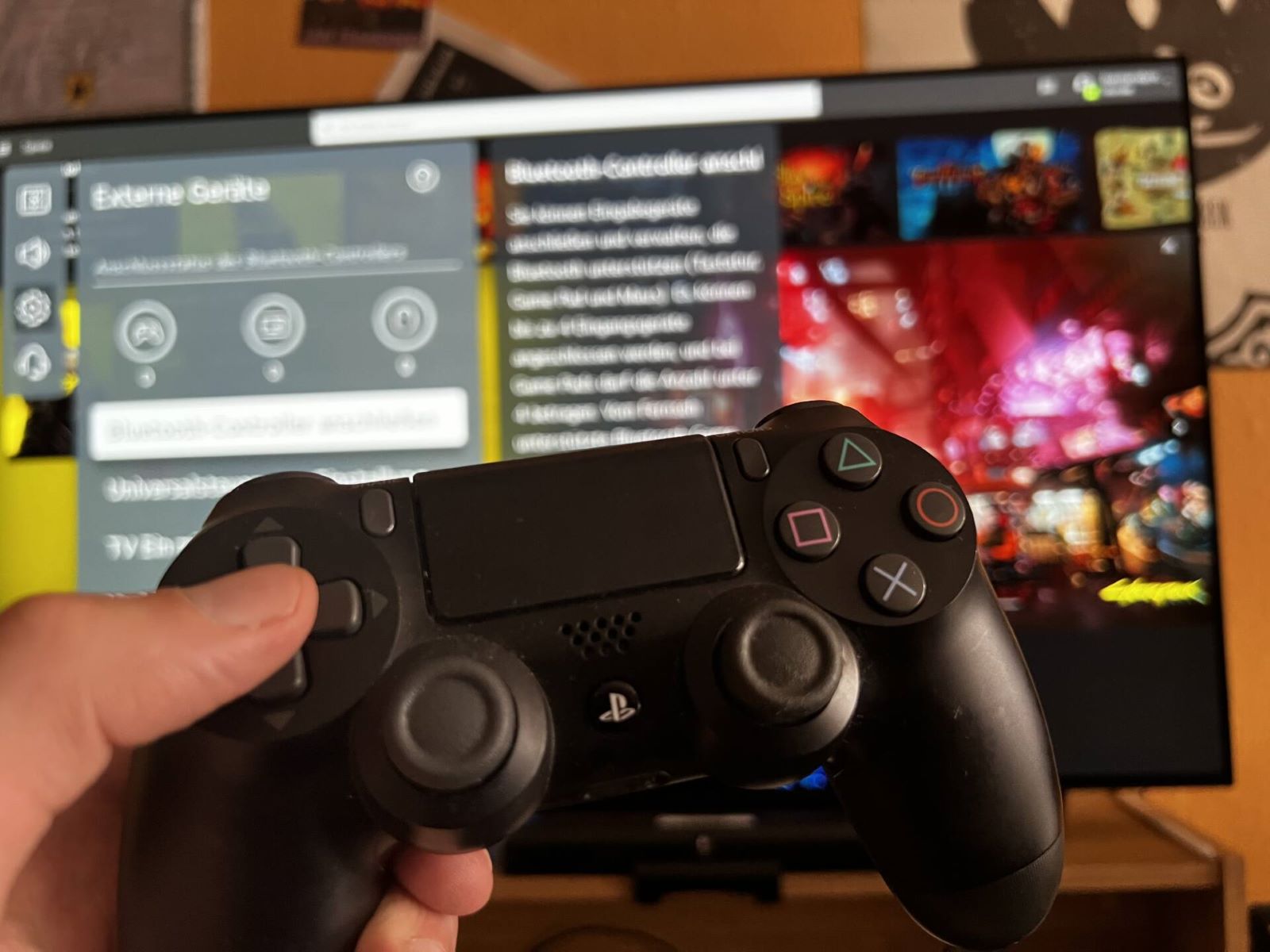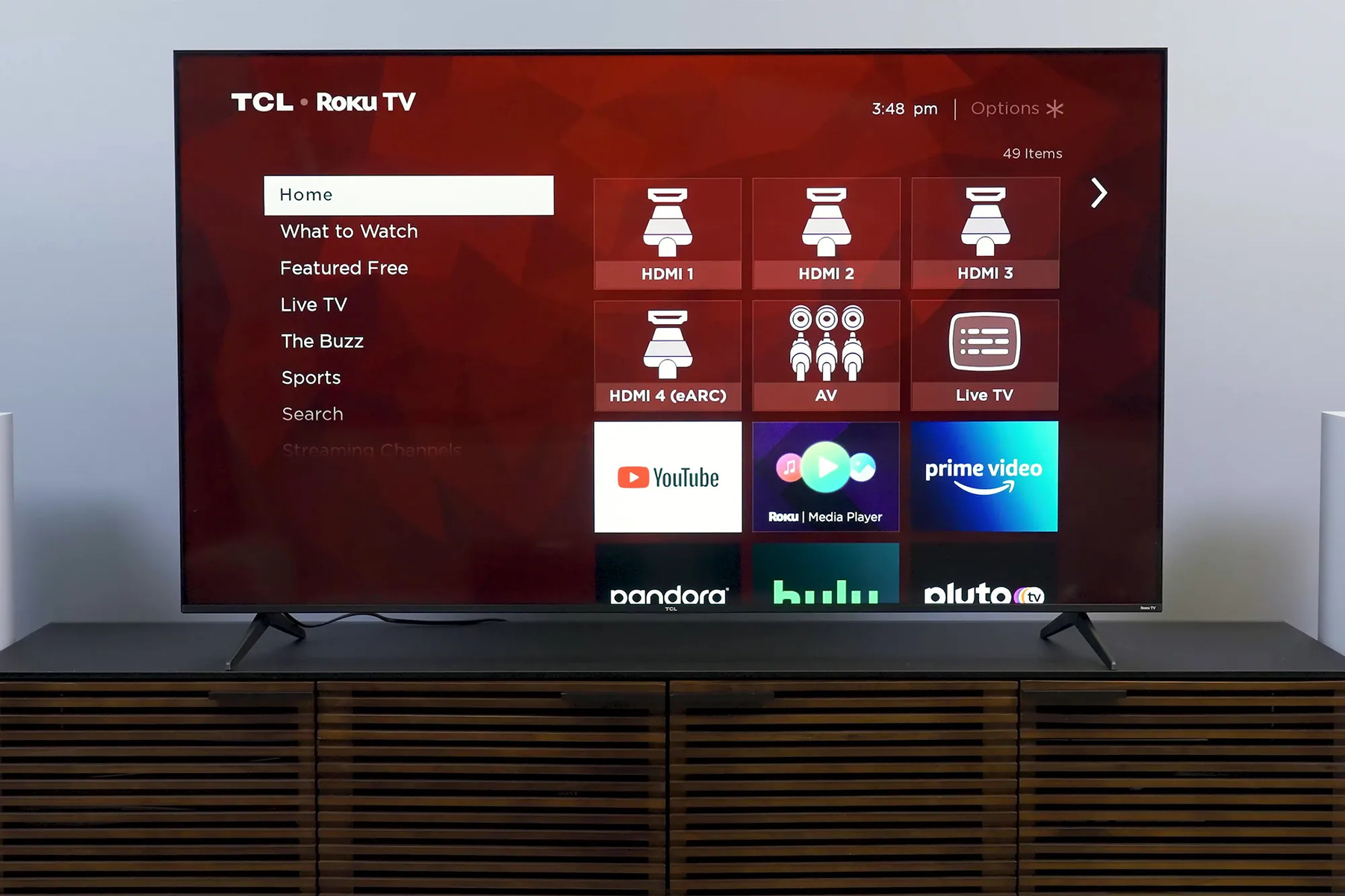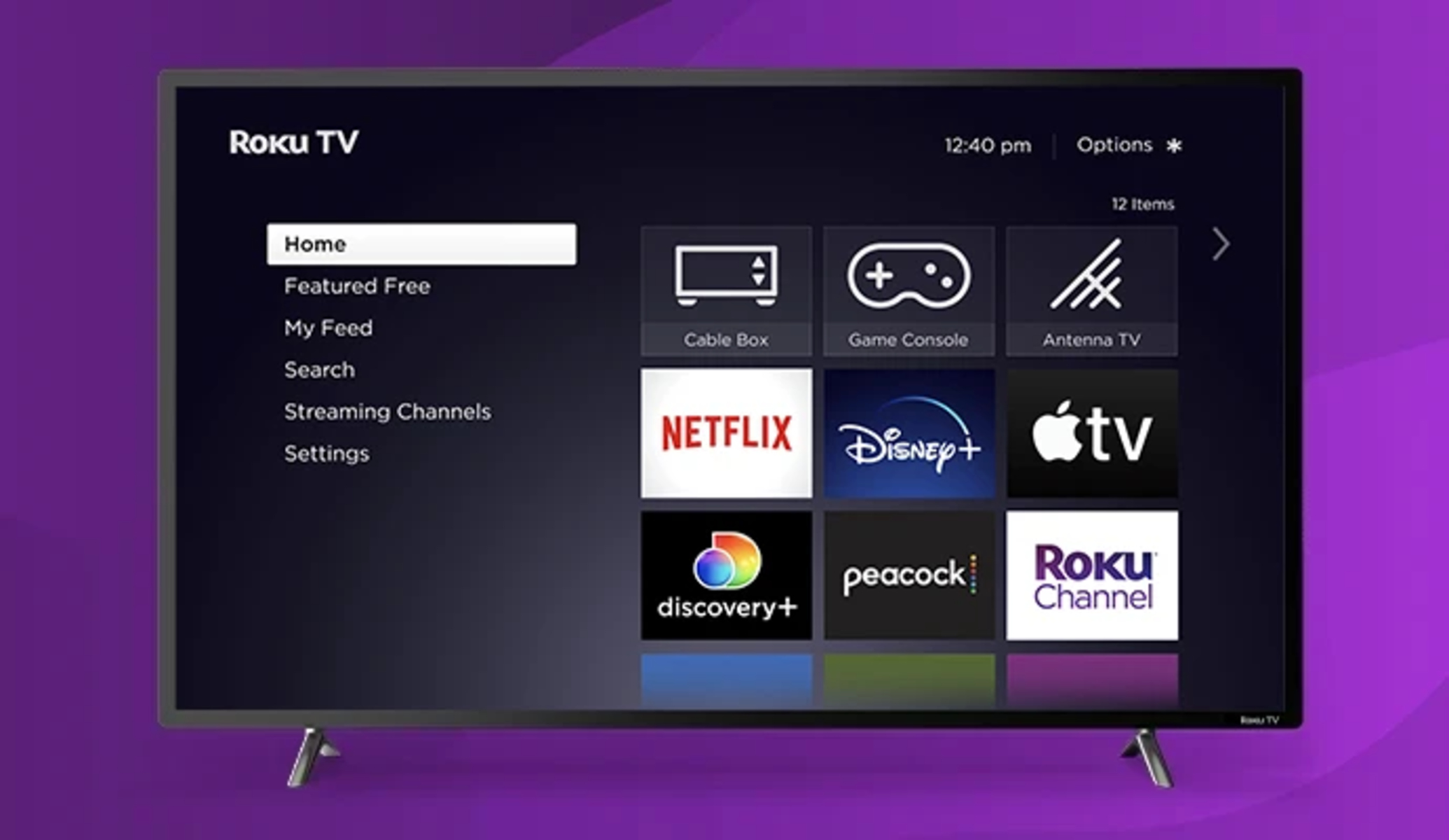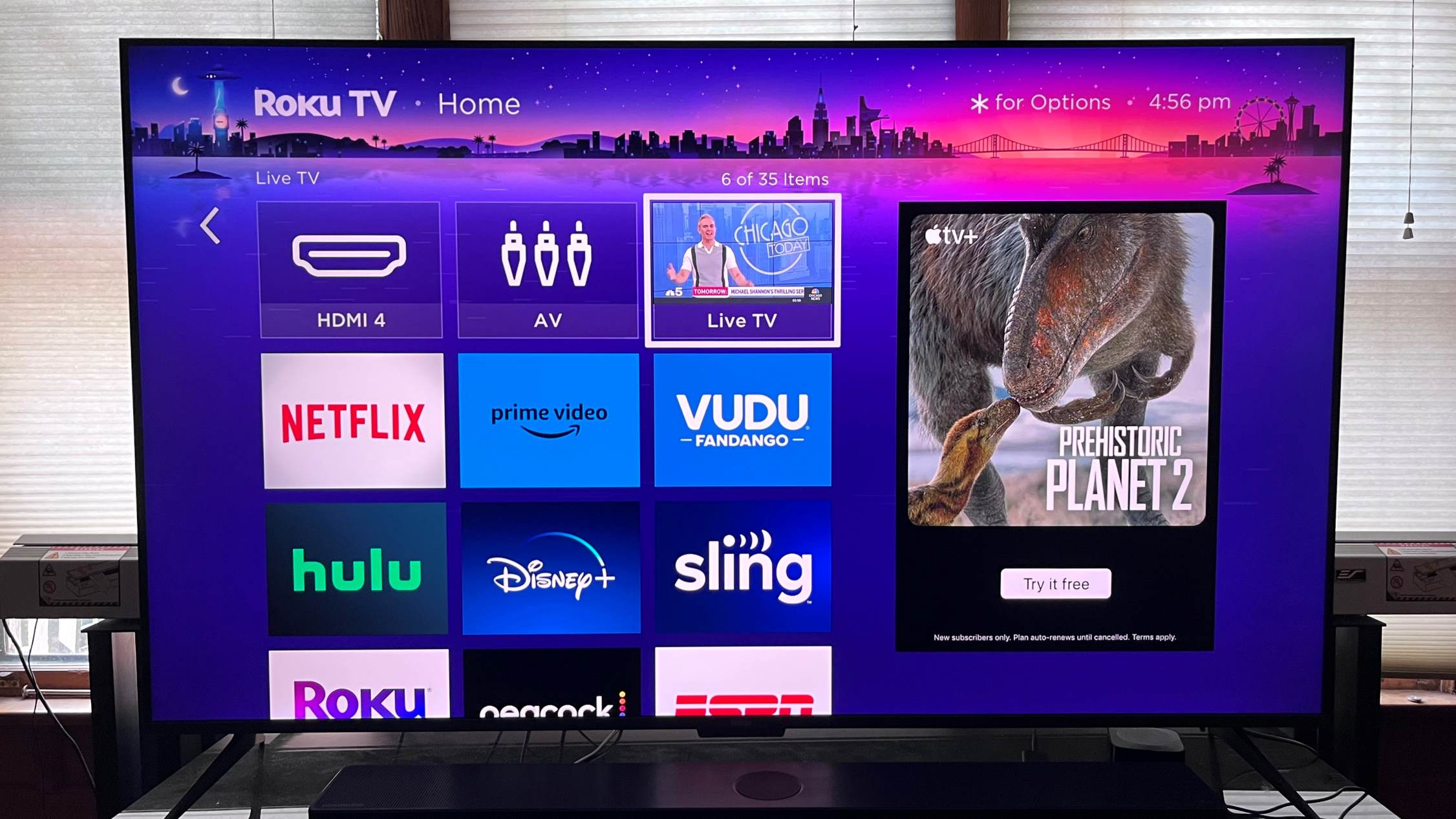
To connect a game controller to a Roku TV, you must use a game console like an Xbox, PlayStation, or Nintendo Switch plugged into an HDMI port, because Roku TVs do not support direct Bluetooth or USB game controller connections for gaming. While Roku TVs are designed primarily for streaming audio from devices like headphones or soundbars, gaming requires a console to provide the controller support and processing power. If you need to figure out my Roku pin, you may need it to unlock restricted games or channels on your Roku TV, and you can also connect TV antenna to a Roku device to access free over-the-air channels alongside your streaming content.
Can you connect a game controller directly to a Roku TV?
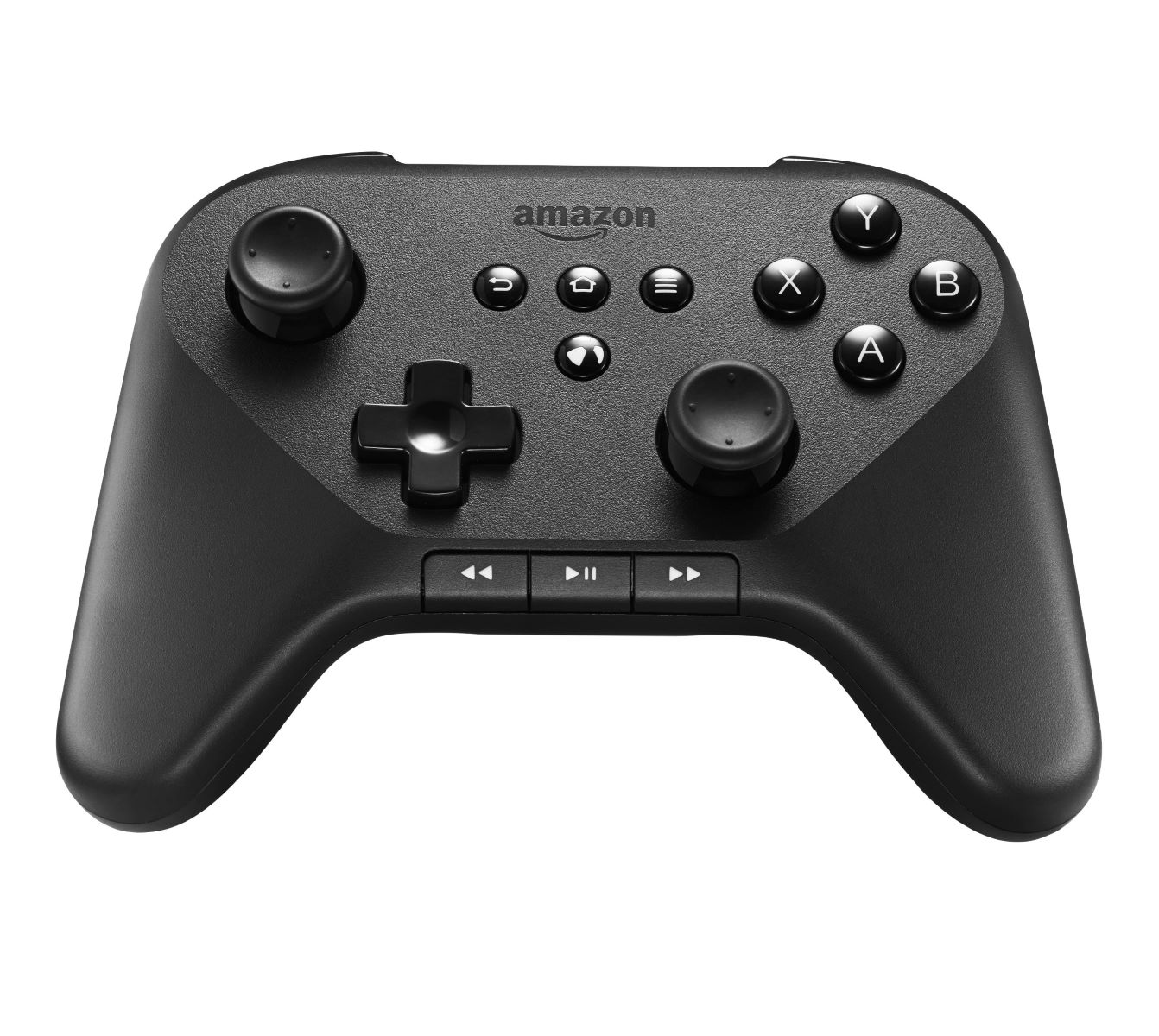
No, you cannot connect a game controller directly to a Roku TV for gaming. Roku TVs only support Bluetooth for audio devices such as headphones, soundbars, smartphones, tablets, or computers for streaming audio. Some newer Roku TV models, like the Roku Plus Series, Pro Series, and Select Series 4K TVs, may support direct Bluetooth device connections, but official instructions still focus on audio streaming, not game controllers. Even if you pair a Bluetooth controller, the Roku TV system will not recognize it for gameplay. The only way to use a game controller with a Roku TV is to connect a game console via HDMI, which handles all controller input and game processing.
How to game on your Roku TV with a console
Gaming on a Roku TV is typically done by connecting a game console through an HDMI port. Follow these steps to set up your console and controller:
- Connect your game console (Xbox, PlayStation, or Nintendo Switch) to any available HDMI port on the Roku TV using an HDMI cable.
- Turn on the console and the Roku TV. The TV should automatically detect the new input.
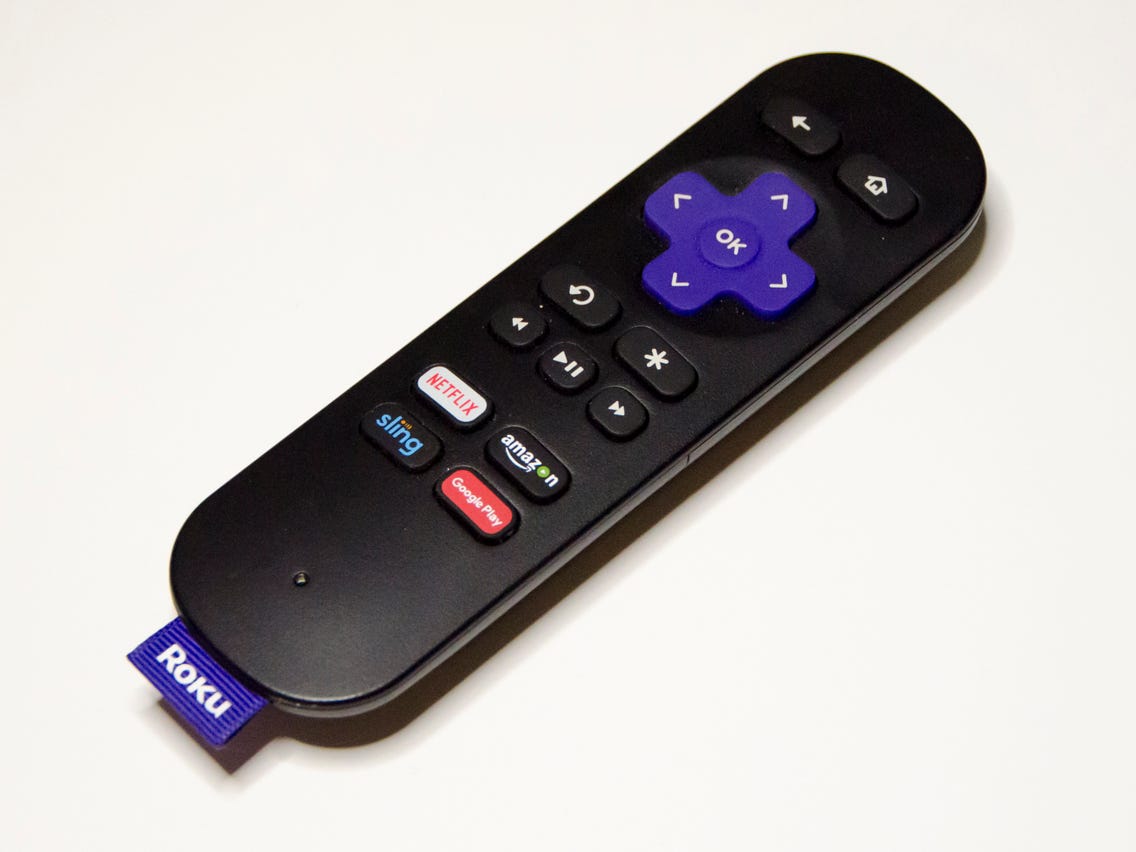
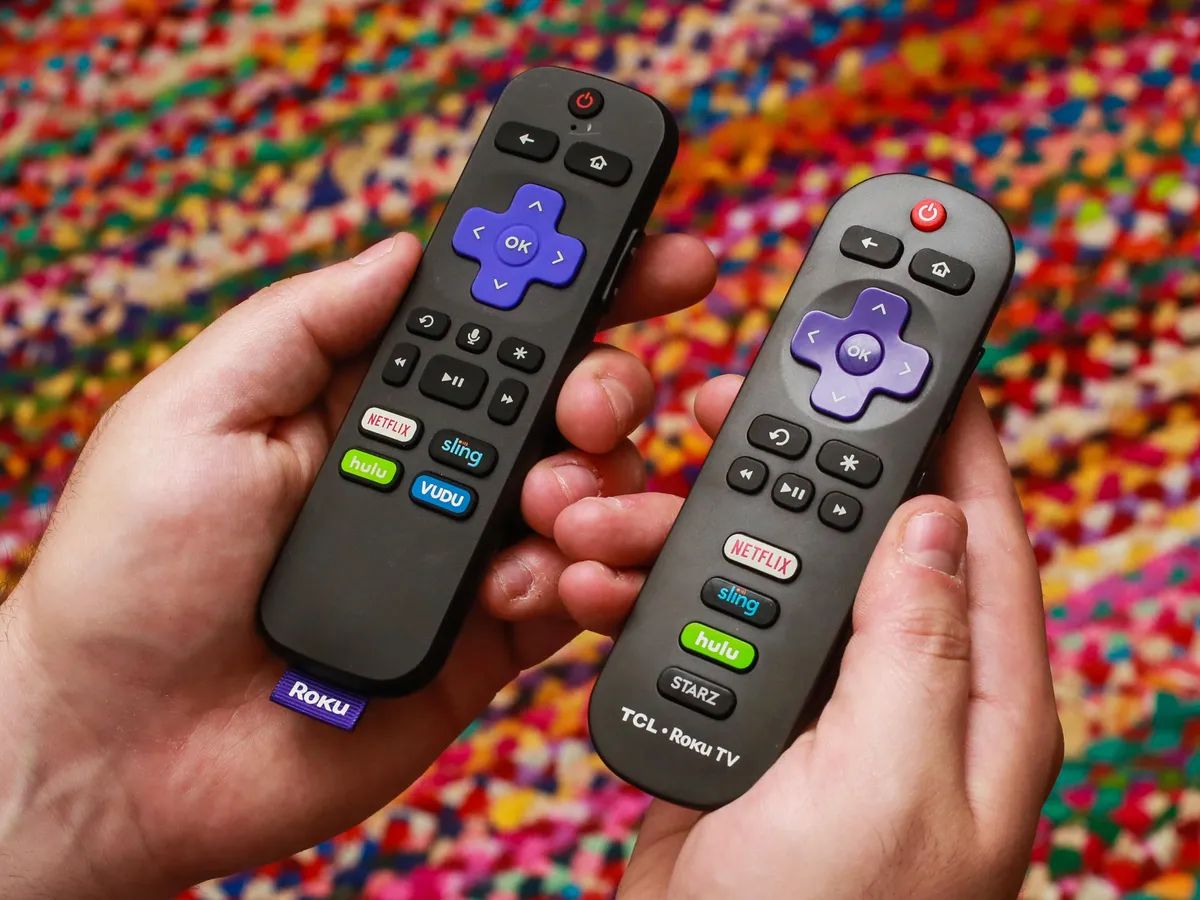
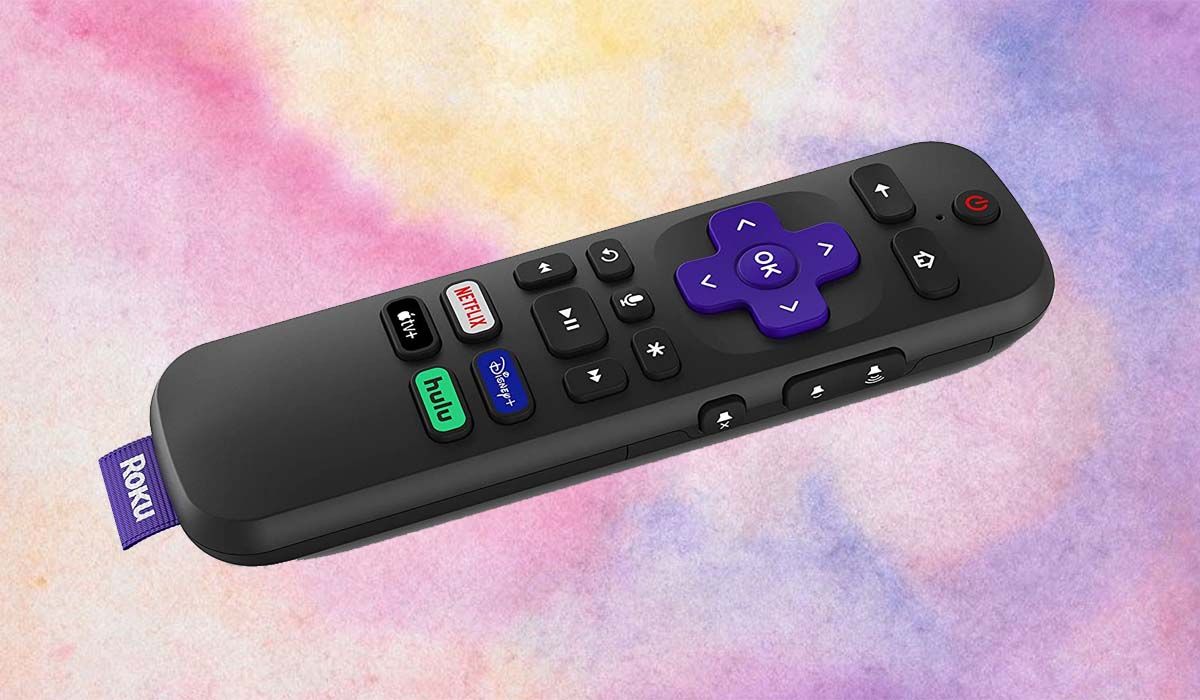
- Press the Input button on your Roku remote and select the HDMI input where the console is connected.
- Pair or connect your game controller to the console following the console’s instructions (not the Roku TV).
- Launch a game to confirm the controller works. The Roku TV may automatically enable gaming features like Game Mode, HDR, ALLM, VRR, or HFR when it detects a supported console.
If you encounter issues with the console or controller, you can contact Roku support for help. Their team can assist with HDMI input problems or compatibility questions.
Enabling Game Mode for the best performance
Game Mode reduces input lag between controller input and on-screen action, making gameplay more responsive. To manually turn it on:
- Switch to the HDMI input where your console is connected.
- Press the Star button on your Roku remote to open the options menu.
- Select "Picture settings," then "Customize Picture."
- Turn "Game mode" to On.
Many Roku TVs also support Auto Low-Latency Mode (ALLM), which automatically switches your TV into Game Mode when a game launches and switches back when you leave. ALLM is supported on all 4K Roku TVs except those with model numbers starting with "6". This feature ensures you get low latency without needing to adjust settings manually every time you play.
Advanced gaming features on select Roku TVs
Certain Roku TV models offer advanced features to enhance your gaming experience. High Frame Rate (HFR) allows your TV to show games at up to 120 frames per second on select models and specific HDMI ports, providing smoother motion in fast-paced titles. Variable Refresh Rate (VRR) synchronizes the TV’s refresh rate with the console’s output, reducing screen tearing and stuttering for a more fluid gameplay experience. These features activate automatically when you connect a supported console and game, but you can check your TV’s settings to confirm they are enabled. For the best performance, always use the HDMI port labeled for high-bandwidth features, as indicated in your Roku TV’s user manual.