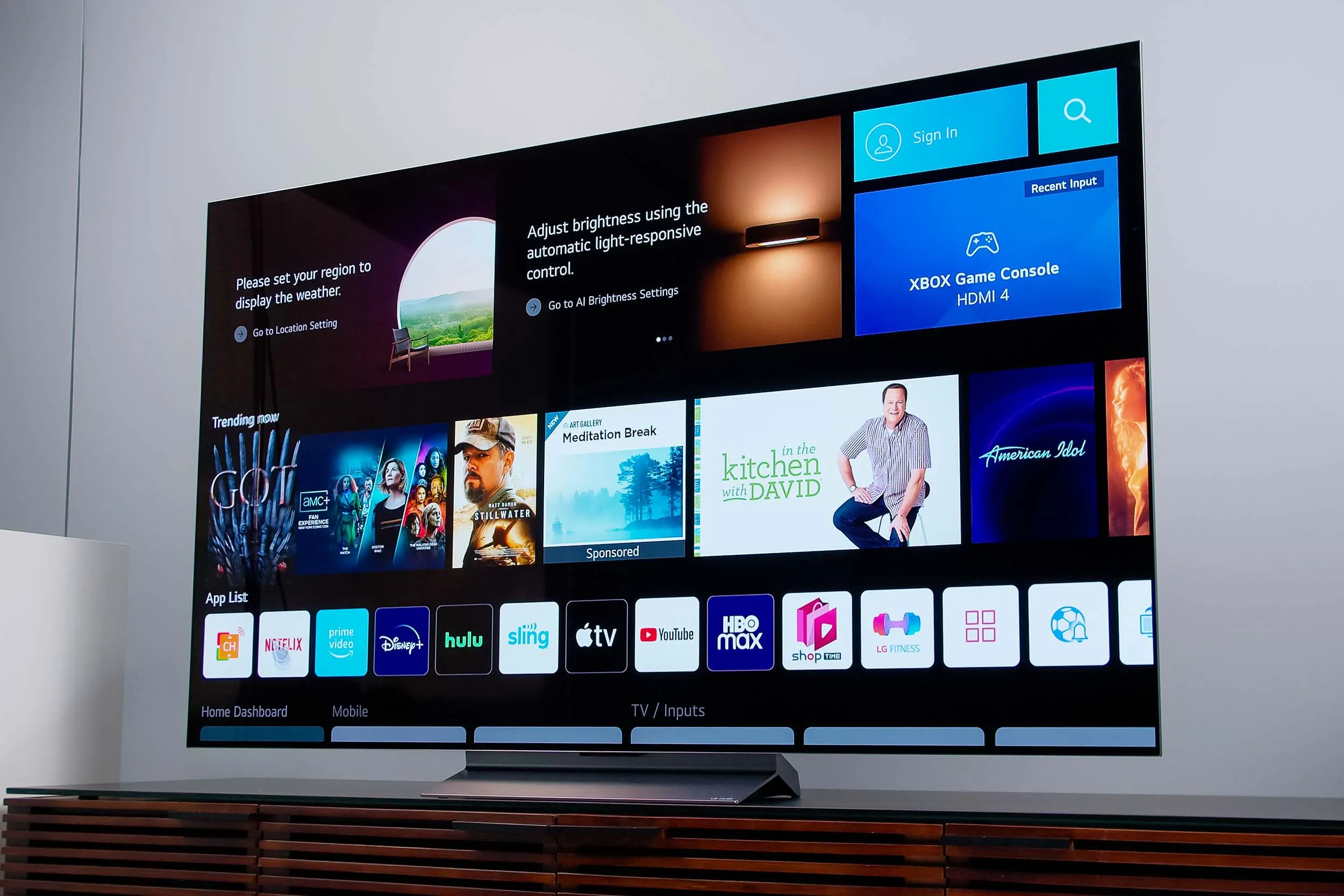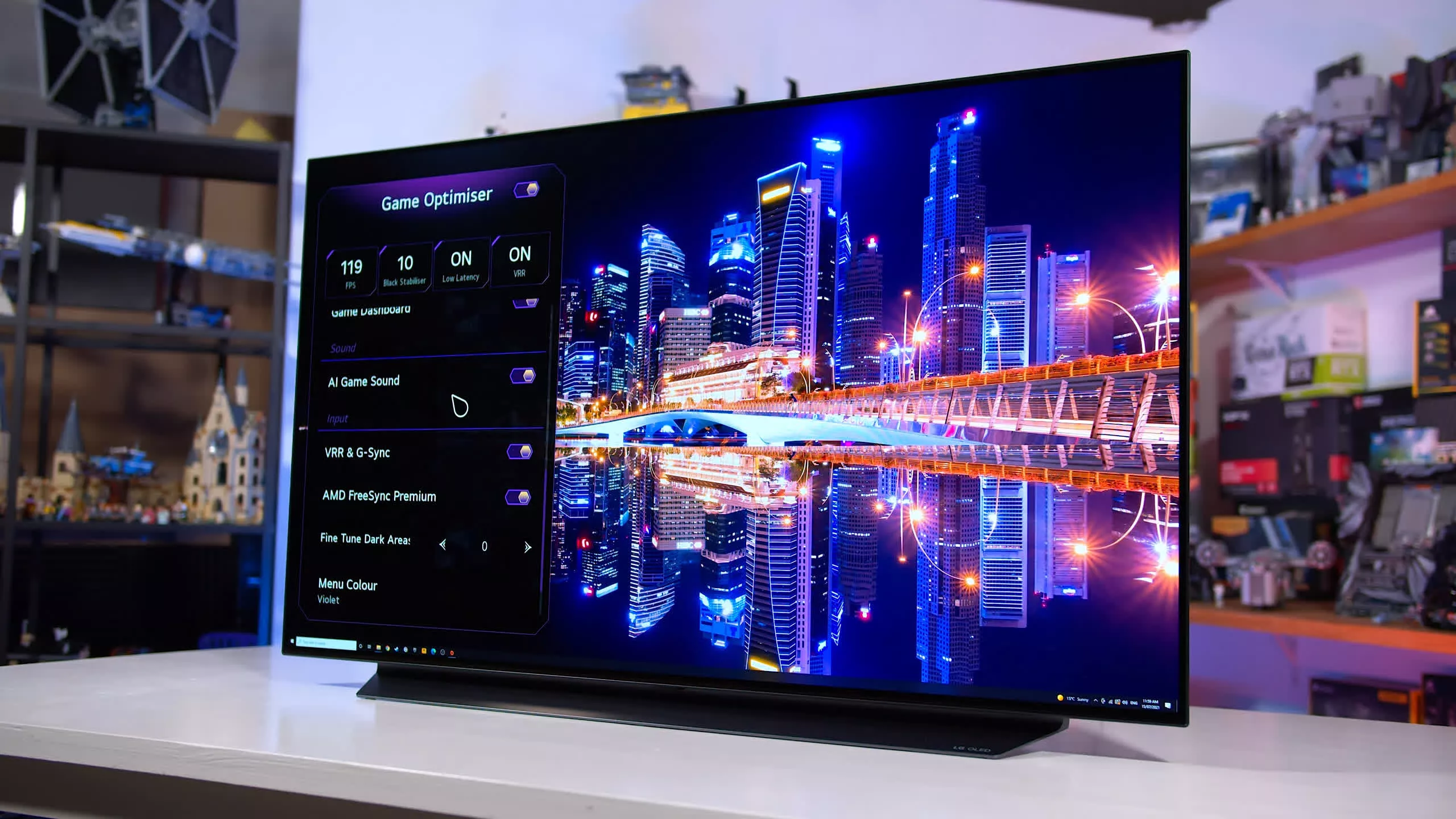
To change the frame rate on your LG OLED TV, you don't manually set a number, you enable Variable Refresh Rate (VRR), which syncs the TV's refresh rate to your console or PC's frame rate in real time. This eliminates screen tearing and stuttering, making gameplay feel dramatically smoother, and it's the single most important setting for gamers who want to get the most out of their display.
How to change frame rate on LG OLED TV with VRR and G-Sync
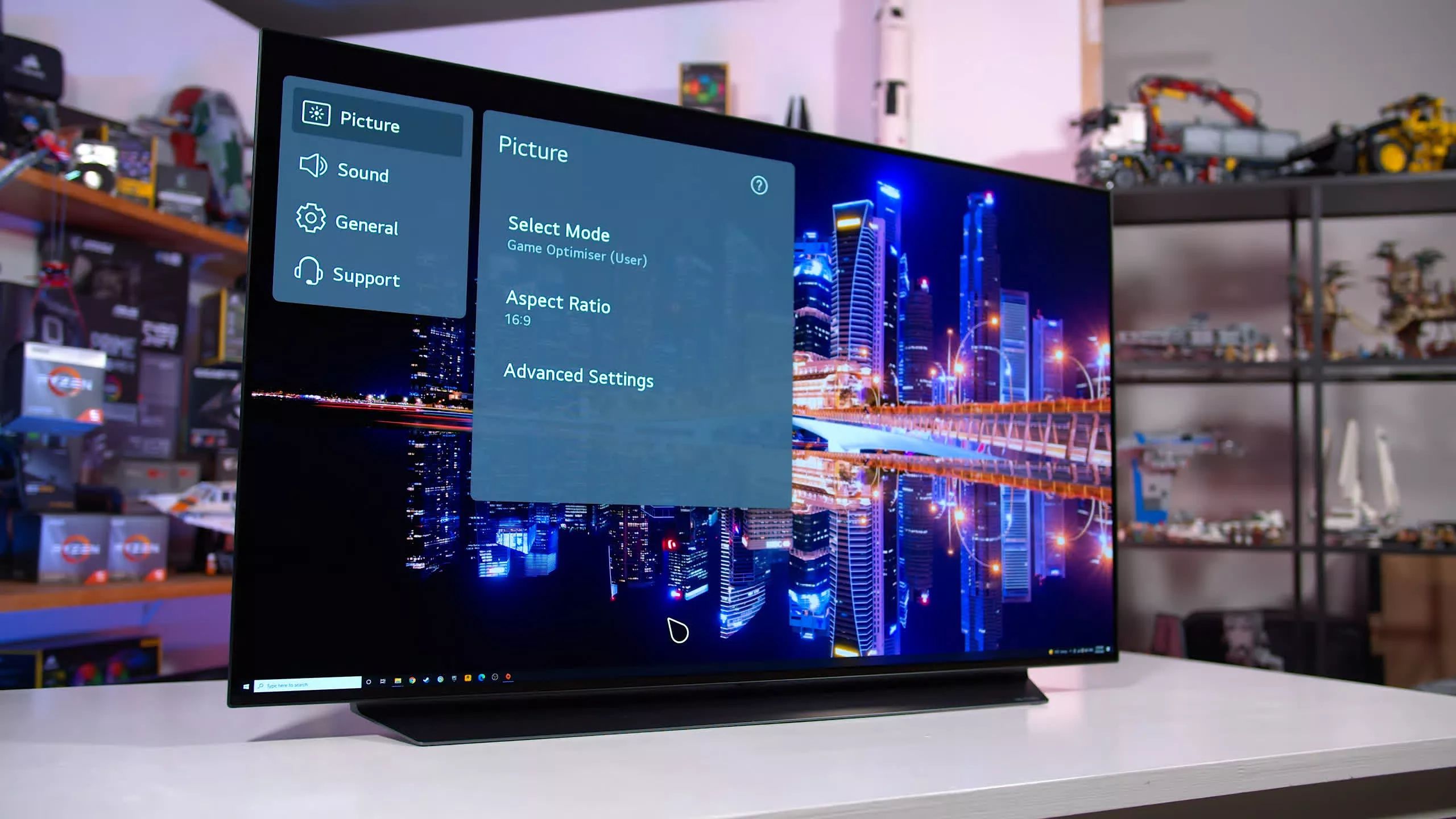
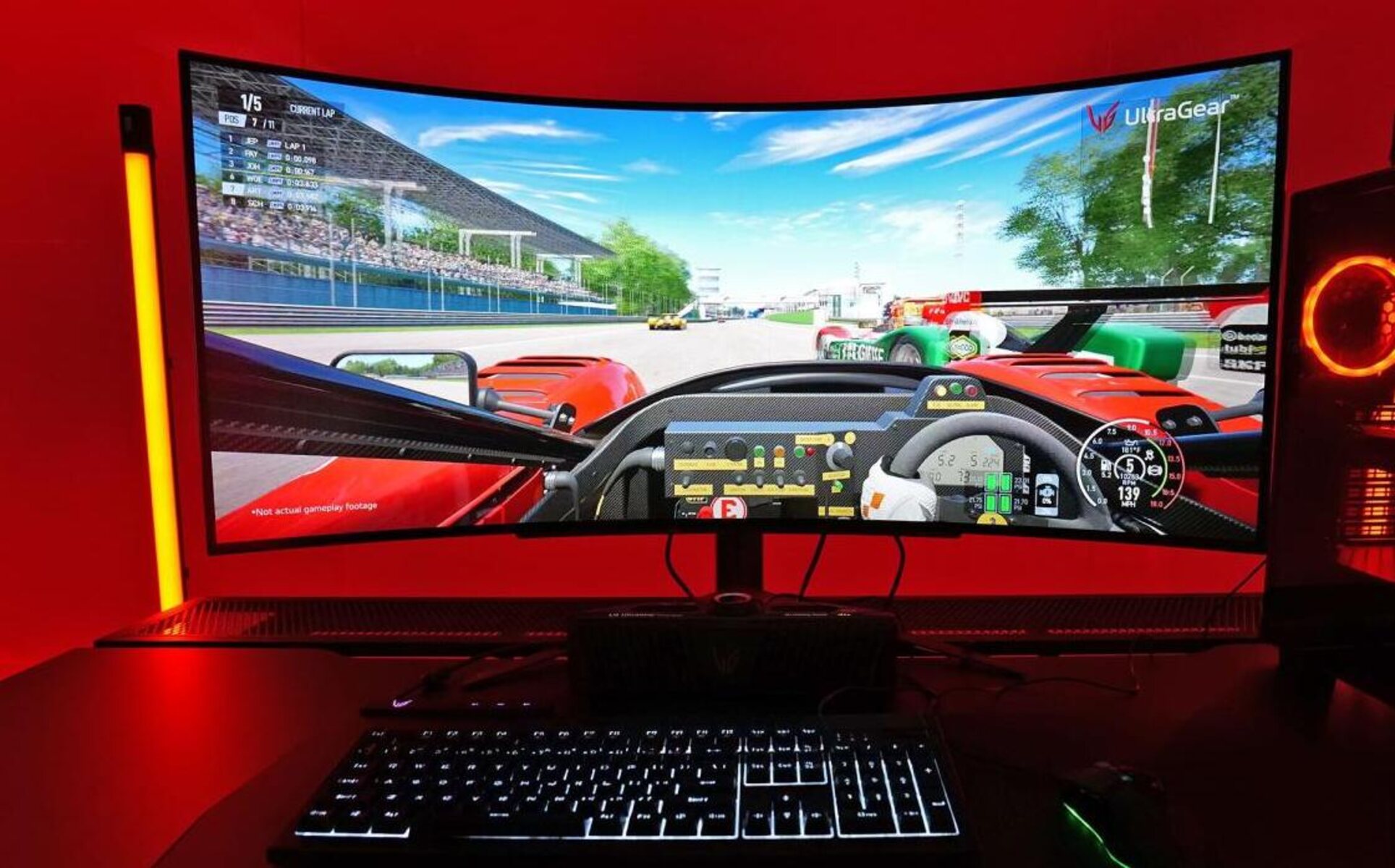
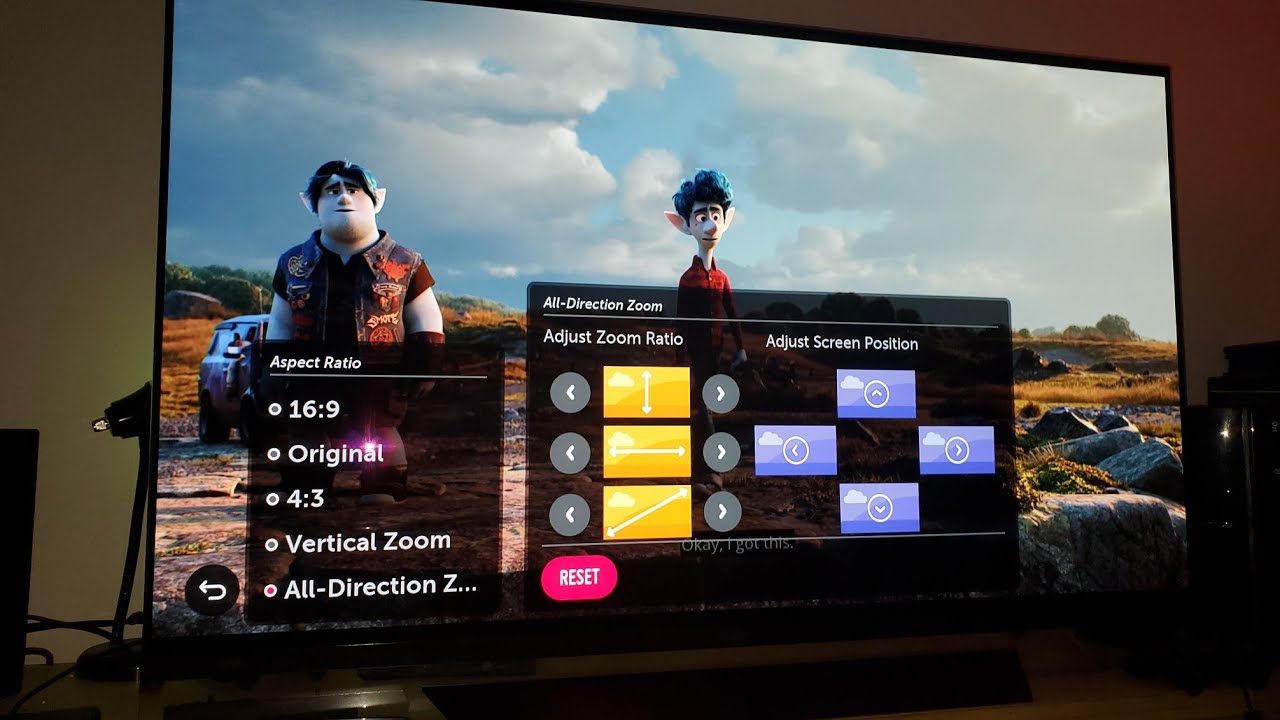
When you search for how to change frame rate on an LG OLED TV, what you're really asking is how to turn on VRR. This feature dynamically adjusts the TV's refresh rate to match the frames your GPU or console is outputting, so if your game runs at 48 fps, the TV refreshes at 48Hz, and if it jumps to 100 fps, it refreshes at 100Hz. The result is zero screen tearing and no stuttering, even during fast camera pans or intense action sequences. LG OLED TVs support VRR, NVIDIA G-Sync, and AMD FreeSync, and you enable them through the Game Optimizer menu, where you can also change aspect ratio on LG OLED TV to ensure your game fills the screen correctly.
- Press the Settings button on your remote to open the main menu.
- Navigate to All Settings → General → Game Optimizer.
- Select Game from the Game Optimizer submenu.
- Find VRR & G-Sync and toggle it to On.
Once enabled, the TV will automatically adjust its refresh rate to match your source device's frame rate. You don't need to change this setting per game, it stays active until you turn it off.
Prerequisites for VRR on your LG TV
VRR and G-Sync won't activate unless two conditions are met. First, your source device must be connected via an HDMI cable, not through the TV's built-in apps, not over Wi-Fi, and not through any wireless streaming device. The HDMI connection is mandatory because VRR requires a direct, high-bandwidth link between the GPU and the TV's panel. Second, the TV's picture mode must be set to Game Optimizer. If you're using a modern console like an Xbox Series X or a PlayStation 5, the TV can switch to Game Optimizer automatically thanks to ALLM (Automatic Low Latency Mode), which detects a game signal and applies the low-latency preset without you touching the remote. If you're on a PC, you may need to manually select Game Optimizer from the Picture Mode menu before VRR options become available.
These prerequisites exist because VRR is a gaming-specific feature, it's not designed for movie watching or general TV viewing. When you're in Game Optimizer mode, the TV also reduces input lag, which is the delay between pressing a button and seeing the action on screen. That combination of VRR and low input lag is what makes competitive gaming feel responsive and fluid on an OLED panel.
Optimizing AMD FreeSync and fixing flickering
If you're using an AMD graphics card or an Xbox console, you'll have access to AMD FreeSync, which works alongside VRR. The LG OLED TV lets you adjust the FreeSync VRR range between two options: Wide (48Hz, 120Hz) and High (90Hz, 120Hz). The Wide setting covers a broader range of frame rates, which is ideal if your games frequently dip below 60 fps, the TV will still sync properly at lower frame rates. However, some users experience screen flickering with the Wide setting, especially when frame rates fluctuate rapidly. If you notice flickering or brightness pulsing during gameplay, switch to High instead. The High setting restricts VRR to the 90-120Hz range, which eliminates most flicker issues because the TV only varies its refresh rate within a narrower, more stable window. This trade-off is worth it: you lose VRR support below 90 fps, but you gain a flicker-free experience at high frame rates, which is where most modern games run on capable hardware anyway.
To change this setting, go back to the Game Optimizer menu, select AMD FreeSync, and choose either Wide or High. If you're unsure which to pick, start with Wide and only switch to High if you actually see flickering, many users never encounter it, and Wide gives you the best overall coverage for frame rate fluctuations.
How to get the correct frame rate for movies
For home cinema viewing, the goal is different: you want the TV to display 24fps film content at exactly 24Hz, matching the original cinematic frame rate. Most movies and TV shows are shot at 24 frames per second, and if your TV refreshes at 60Hz or 120Hz without proper handling, you'll see judder, a subtle stuttering or uneven motion that's especially noticeable during slow pans. LG OLED TVs include a setting called Real Cinema that solves this. When enabled, the TV groups the 24fps signal into the correct refresh rate multiples (like 48Hz or 72Hz on a 120Hz panel), which reproduces the film's motion exactly as the director intended. This also disables the soap opera effect, the overly smooth, video-like look that comes from motion interpolation. To enable Real Cinema, go to Settings → All Settings → Picture → Picture Mode Settings, then find Real Cinema and set it to On. This is a one-time setting, once enabled, it applies to all movie content you watch through any HDMI input or streaming app, though you may first need to change HDMI settings on LG OLED TV to ensure your source device outputs an unaltered 24Hz signal.
Note that Real Cinema only works when the source content is actually 24fps. If you're watching a 30fps broadcast or a 60fps sports event, the TV will display those at their native frame rates instead, which is correct behavior. You don't need to manually switch between Game Optimizer and Cinema modes for movies, the TV handles the frame rate automatically once Real Cinema is on.
Troubleshooting VRR and frame rate issues
If VRR isn't working, the first thing to check is whether your LG OLED TV model supports it. If you've connected via HDMI and set the picture mode to Game Optimizer but the VRR & G-Sync option is grayed out or missing, your hardware combination is likely the culprit. Check your GPU's specifications for VRR or G-Sync compatibility, and verify your TV's model year and firmware version. LG periodically releases firmware updates that add VRR support to newer models, so make sure your TV is running the latest software. For PCs, also confirm that your graphics driver is up to date and that VRR is enabled in the GPU control panel, on NVIDIA, this is called G-Sync Compatible, and on AMD, it's called FreeSync. When everything is configured correctly, VRR will engage automatically whenever you launch a game, and you'll see the refresh rate dynamically change on screen without any input from you.
For the wider topic, see LG OLED TV settings.