To reconnect your Shark robot vacuum to Wi-Fi after a router or password change, you must use the SharkClean app to re-add the device as if it were new. The entire process hinges on connecting your vacuum to a 2.4GHz network, which is the only band these robots support.
Before you reconnect your Shark robot vacuum to Wi-Fi: The mandatory 2.4GHz network requirement
Shark robot vacuums require a 2.4GHz Wi-Fi network and do not support 5GHz networks. If your router broadcasts both bands under a single network name (SSID), your vacuum may fail to connect. You need to separate the bands in your router settings to ensure your vacuum sees only the 2.4GHz network. For routers like Jio Fiber, disable "Band Steering"; for Eero routers, you can temporarily pause the 5GHz band during setup. Before starting, confirm that your smartphone is connected to the same 2.4GHz Wi-Fi network you intend to use for the vacuum, and if you need the full setup steps, connect shark to wifi with the app. Many smart home devices share this 2.4GHz requirement, so you can connect pit boss to wifi using the same band-splitting approach.
How to put your Shark robot vacuum in pairing mode
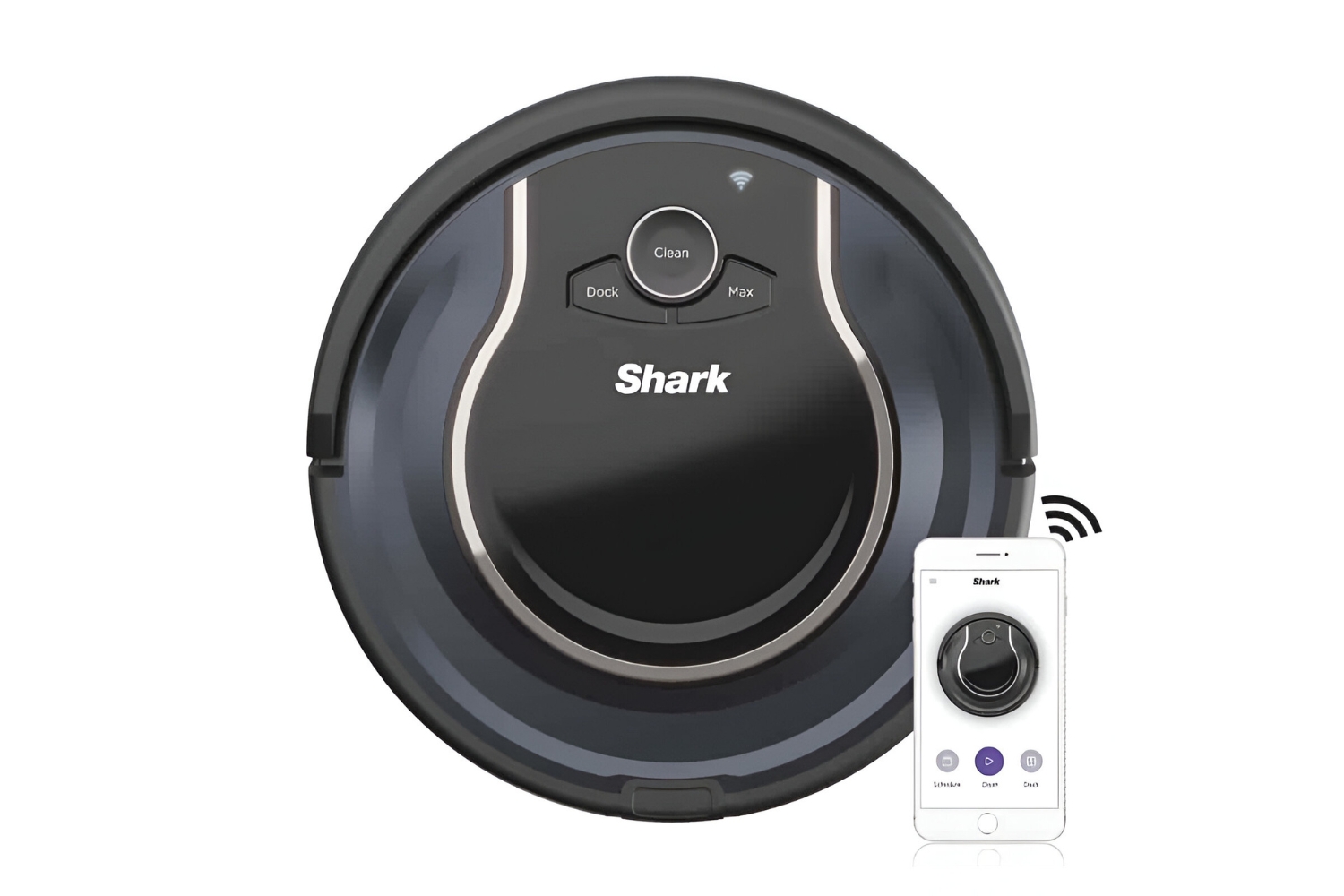
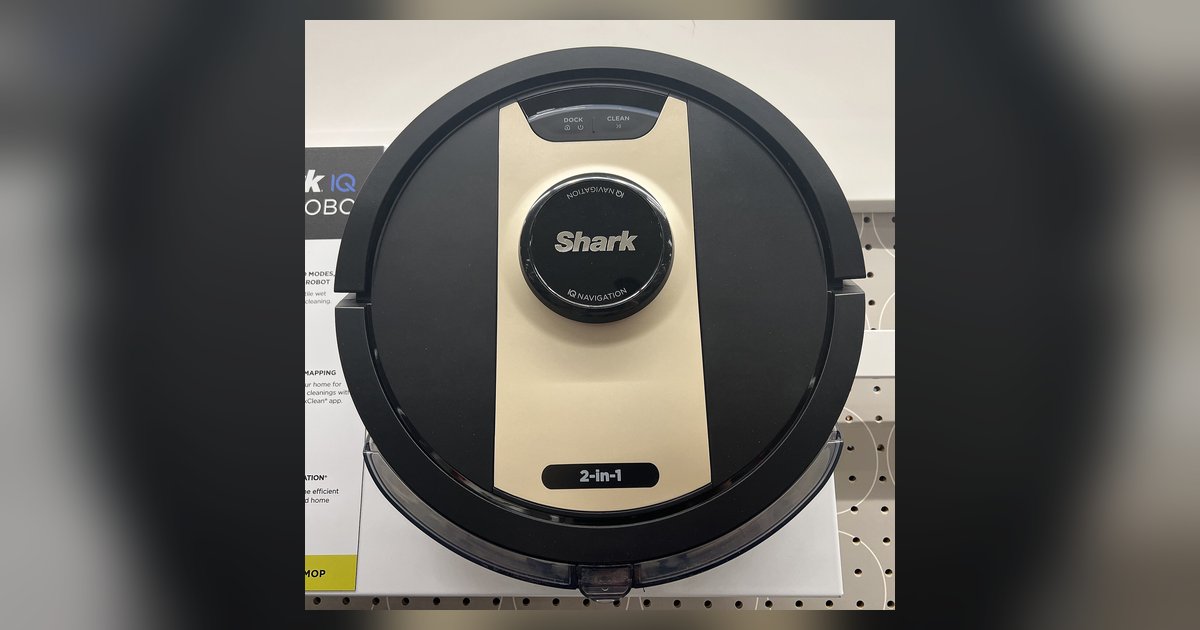
To make your robot discoverable, press and hold the "Dock" and "Clean" buttons simultaneously for approximately 10 seconds. You will hear a tone, and the Wi-Fi indicator light will begin flashing blue. This signals the robot is in pairing mode. For Shark ION Robot models, press and hold "Dock" and "Spot" buttons instead; for IQ Robot models, press and hold "Dock" and "Max" buttons.
Reconnect using the SharkClean app
- Open the SharkClean app on your smartphone and tap "Add Device" or the "+" button.
- Select "Robot Vacuum" and then choose your specific Shark model.
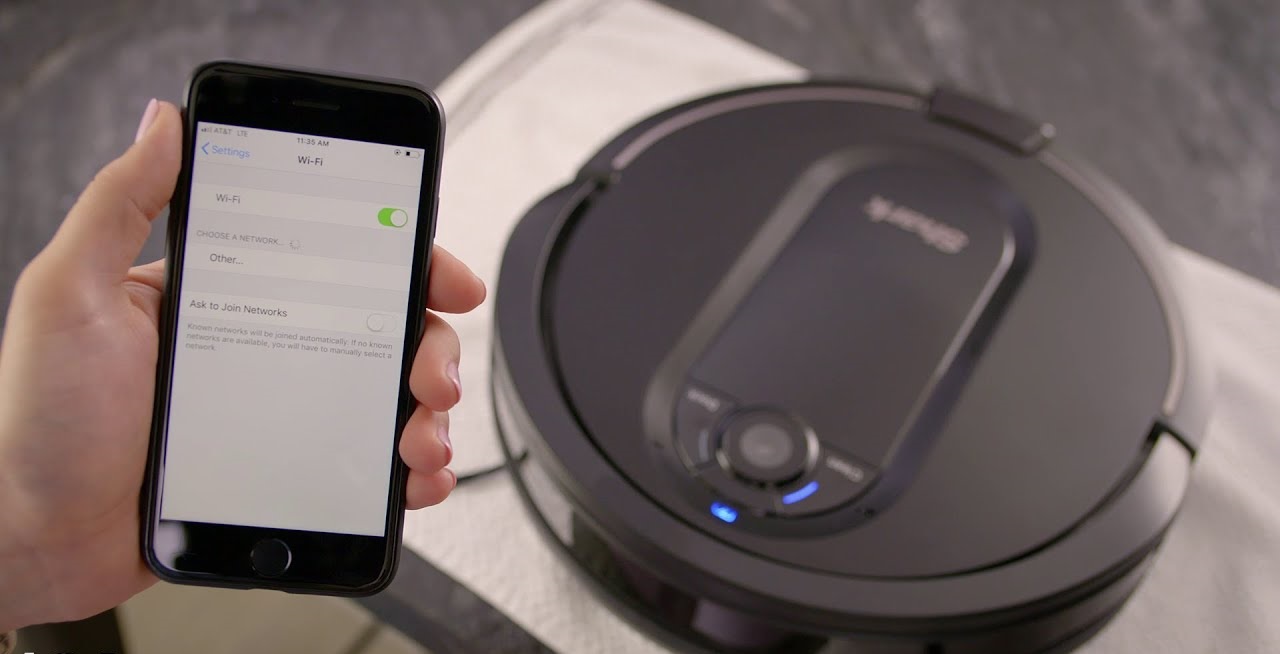
- The app will prompt you to connect your phone to the vacuum's temporary Wi-Fi network, typically named "SharkIoT-XXXX". Go to your phone's Wi-Fi settings and connect to this network.
- Once connected, return to the app. It will show a list of available home Wi-Fi networks. Select your home's 2.4GHz network and enter its password.
- Wait for the app to confirm the connection. The robot's Wi-Fi indicator light should stop flashing and remain solid.
This is the primary method to reconnect your Shark robot vacuum to Wi-Fi, and it works after a router change, password update, or any lost connection.
Troubleshooting: Shark robot won't reconnect
If the robot still won't reconnect, start by power cycling your Wi-Fi router (unplug it for 30-60 seconds), the robot vacuum (turn it off for 10 seconds), and your smartphone. This clears temporary glitches. Ensure the robot vacuum is within close range of your Wi-Fi router during setup to guarantee a strong signal. Temporarily disable any VPNs active on your smartphone, as they can block the connection. As a last resort, remove the robot from the SharkClean app entirely and then re-add it as a new device, following the steps above from scratch. This often resolves persistent pairing issues.
\nRelated reading: How To Hard Reset Shark Robot Vacuum.