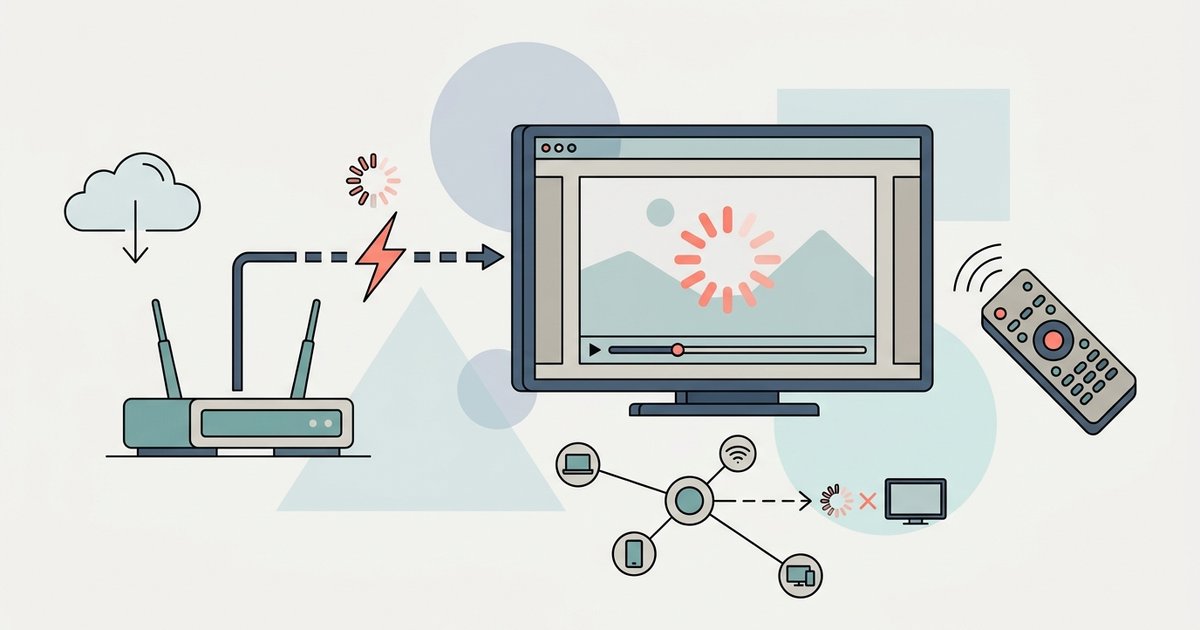
Live TV apps buffer more because they can't pre-load as much video as on-demand apps, so they're far more sensitive to Wi-Fi interference. The fix is usually to force your Vizio TV to use a 5 GHz Wi-Fi network instead of the crowded 2.4 GHz band, or switch to a wired Ethernet connection.
Why live TV causes more Vizio TV buffering than Netflix
On-demand apps like Netflix download several seconds of video ahead of time, storing it in a buffer that smooths over brief network drops. Live TV streaming apps, such as YouTube TV or Hulu Live, cannot do this because they are delivering video in near-real-time. They keep only a small buffer, often just two or three seconds, to minimize the delay between the broadcast and your screen. Any hiccup in your Wi-Fi signal, even a half-second dropout, exhausts that tiny buffer and forces the app to pause and re-fill. That is why your internet speed test may look fine, but live TV still stutters.
Check if your Vizio TV is on the wrong Wi-Fi band
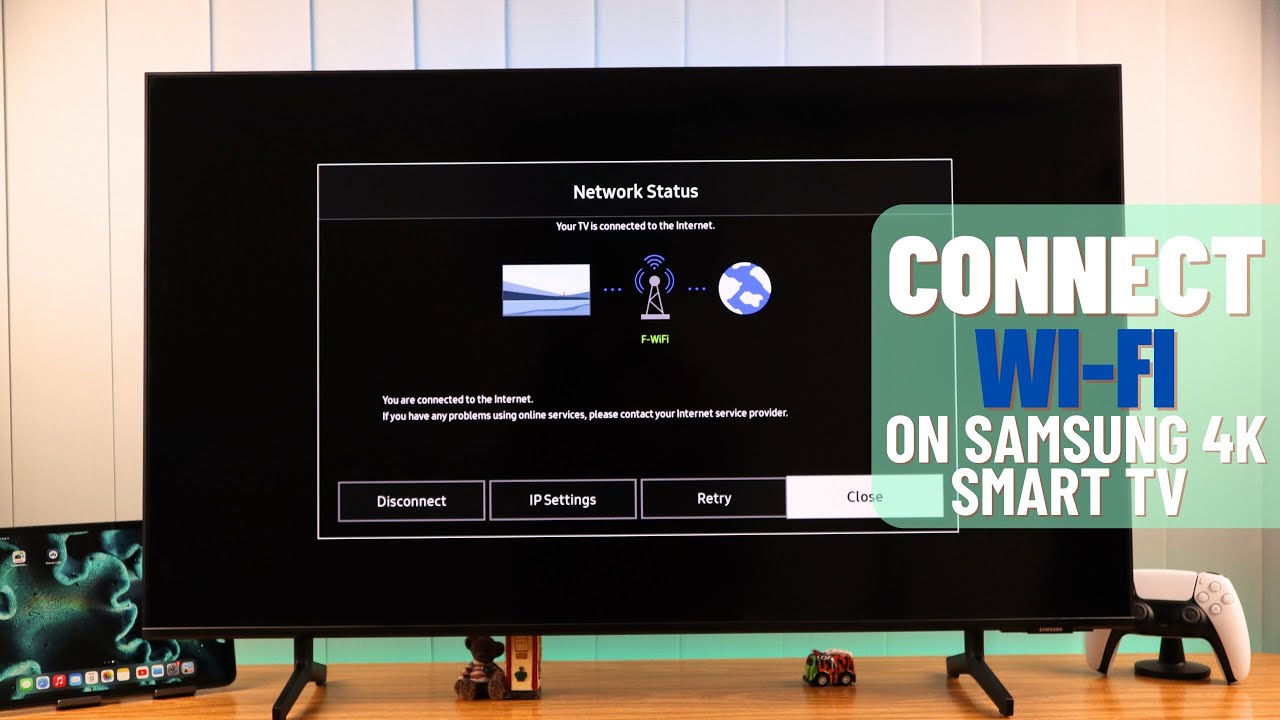
Your Vizio TV likely defaults to the 2.4 GHz band because it offers longer range, but that band is also shared by every microwave, baby monitor, and neighbor’s router in range. To force the TV onto 5 GHz, go to the TV’s Settings menu, select Network, then choose Wireless. Look for the network name (SSID) that ends in “5G” or “5GHz” and select it. If your router uses the same SSID for both bands, you must log into your router’s admin panel and either separate the bands (rename the 5 GHz SSID) or disable 2.4 GHz temporarily. Once the TV connects to 5 GHz, live buffering often stops immediately. If you are trying to watch local TV on Vizio smart TV, a stable 5 GHz connection is especially critical because local channels stream at variable bitrates that punish packet loss. This same network fix also lets you watch abc on Vizio smart TV without the frustrating mid-show freezes that ruin live broadcasts.
When the TV is too far from the router
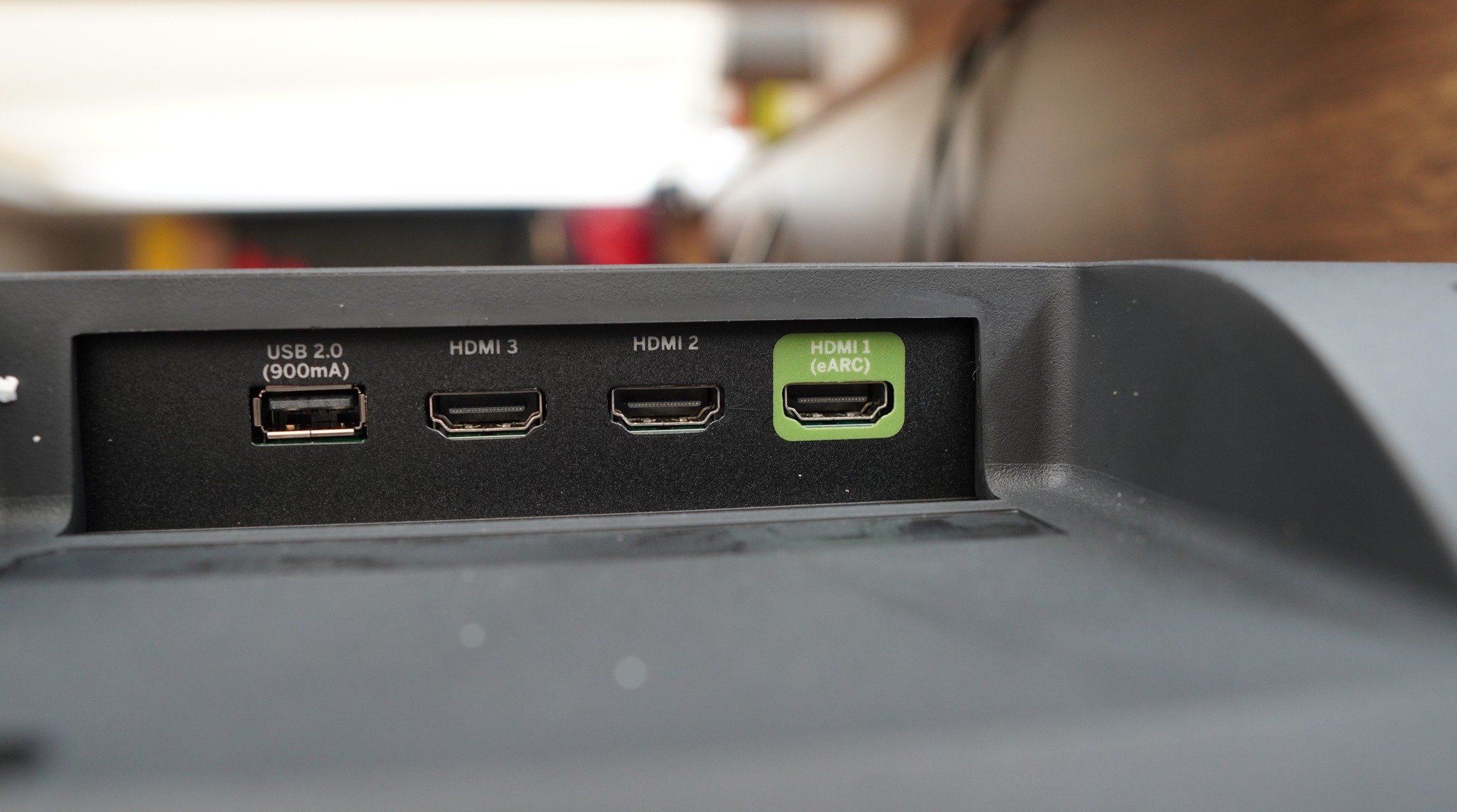
5 GHz signals weaken significantly through walls and over distance. If your Vizio is more than 30 feet from the router or separated by two or more walls, the 5 GHz band may be too weak to hold a stable connection. In that case, the best solution is a wired Ethernet cable directly from the router to the TV. Vizio TVs have an Ethernet port on the back; a simple Cat6 cable will give you the most reliable connection for live streams. If running a cable is impractical, consider a Wi-Fi mesh system or a powerline adapter that sends internet through your home’s electrical wiring. These options eliminate the interference that plagues wireless live TV.
Clear the app cache and limit other devices
Even with the right network band, a corrupted cache inside the streaming app can cause repeated buffering. On your Vizio remote, press the V button or Menu button, navigate to the app on the home screen, remove it, restart the TV, then re-add it from the App Library. Do not choose Clear Data unless you want to re-login. After clearing the cache, power-cycle the TV by unplugging it for 60 seconds. Also, check how many other devices are using your Wi-Fi during live TV streaming. A single 4K stream on another TV, a video call, or a large game download can saturate your connection. Pause those activities or use your router’s Quality of Service (QoS) settings to prioritize the Vizio TV’s traffic. Simply closing other apps on the TV itself does nothing, the network competition comes from outside the television. If you still need to get local channels on your Vizio smart TV, and buffering persists even after these steps, consider using a dedicated streaming device like a Roku or Apple TV, which often have better Wi-Fi radios than built-in smart TV hardware. Unlike generic troubleshooting guides, this diagnosis identifies the specific mechanism of live TV buffering as a buffer-exhaustion problem unique to real-time streams, not a generic speed or signal issue.
\nRelated reading: Why Does My Samsung Smart TV Keep Buffering.