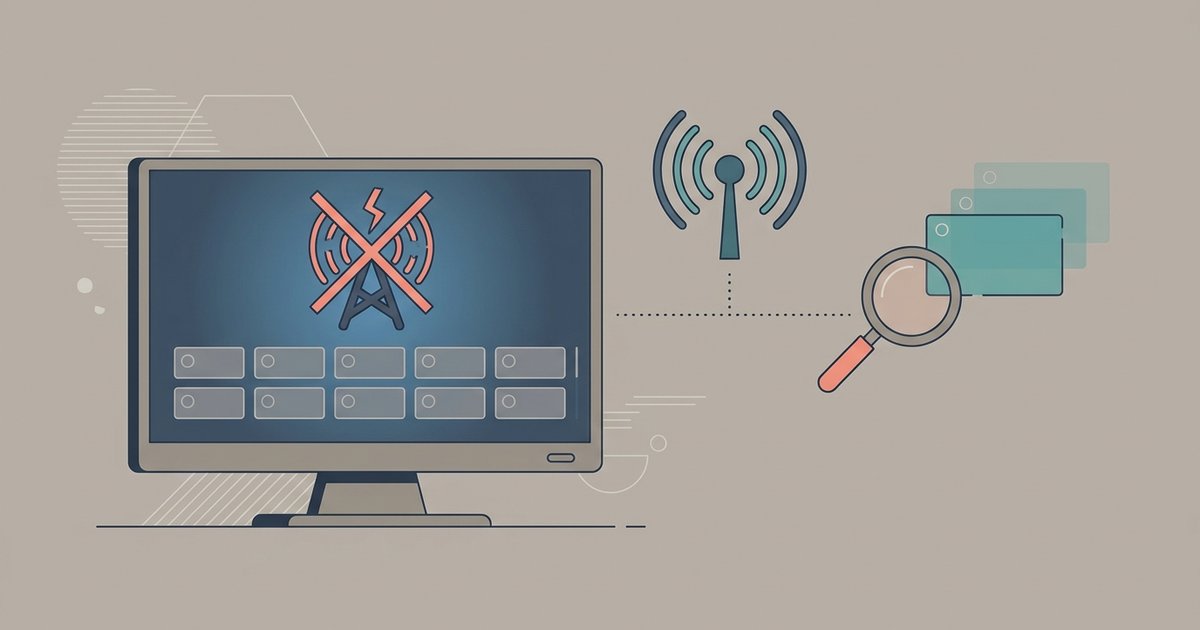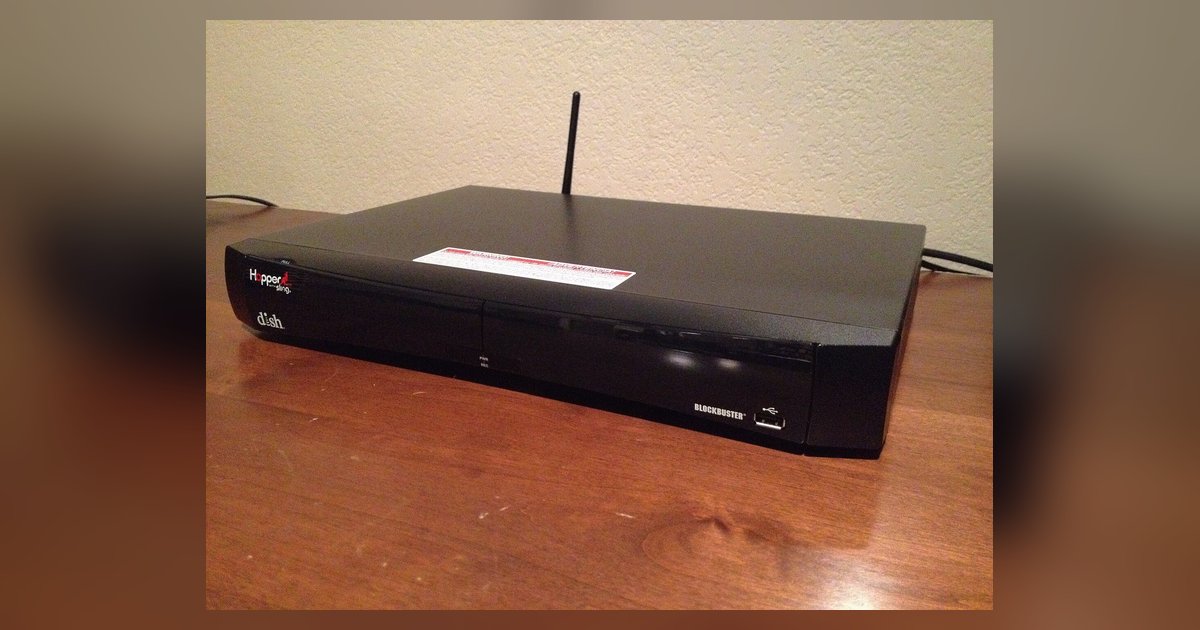
A 'Dish Hopper no signal' error on one specific TV is almost always an HDCP handshake failure or an unsupported resolution setting. Perform a hard reset of the Hopper with that specific TV connected to force a fresh HDMI negotiation, or blind-navigate the output to a lower setting like 720p. Because the Hopper works on another TV, the unit and its HDMI port are functional, leaving the problem isolated to how the Hopper communicates with that particular display.
Why the dish hopper no signal issue happens on one TV
The two core technical causes are HDCP copy protection mismatches and signal format incompatibility. HDCP (High-bandwidth Digital Content Protection) is an authentication protocol between the Hopper and your TV. Older TVs or certain HDMI chipsets on budget models fail to complete this security check if the Hopper sends an HDCP key that the TV does not recognize, resulting in a blank screen. Separately, the Hopper may be set to output a 4K or 1080p signal that the specific TV cannot decode, for example, a 1080p TV receiving a 4K signal will show "No Signal" even though the cable is good. When you connect the Hopper to a different TV, that TV’s chipset successfully negotiates HDCP and accepts the display mode, which is why the same Hopper works there. To permanently fix this, you need to either reset the digital link or lower the output format.
Force a new HDMI handshake
Book 10 minutes for this fix. Turn on both the Hopper and the problematic TV. Unplug the Hopper’s power cord from the wall outlet, wait 10 seconds, then plug it back in. The Hopper will reboot and automatically attempt a new HDCP negotiation with the connected TV. Do not change inputs or unplug the HDMI cable during this reboot. In most cases, this clears a stuck HDCP key and the Dish logo appears within two minutes. If the screen remains black, proceed to the next section. This procedure is also a standard first step when you setup smart TV with dish, as many linking issues are resolved by a full power cycle.
Blindly lower the display resolution
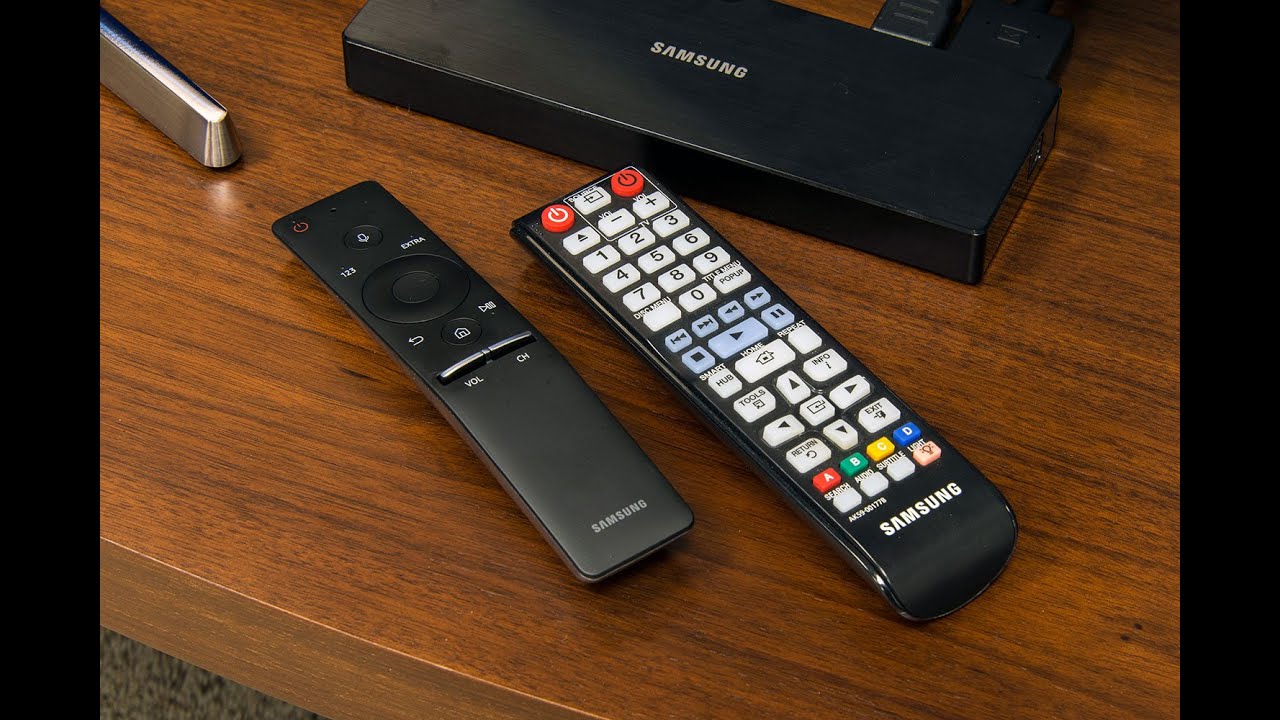
If the hard reset fails, the Hopper is likely sending a 4K signal to a 1080p TV. You must change the output format without seeing the screen. With the Hopper on and connected to the problematic TV, press the Home button twice on your Dish remote. Then navigate to Settings > TV > Video Resolution and select a lower resolution like 720p. Navigate to Settings > TV > Video Resolution and select 720p as the output mode. Confirm by pressing Select again. The screen should flash and then display the Hopper interface at 720p. If the screen stays black, repeat the navigation to Settings > TV > Video Resolution and try selecting 480p. Once the picture appears, you can later adjust to 1080i if the TV supports it. This method is essential when you connect dish to Samsung smart TV, as some Samsung models reject 4K signals from Hopper 3 units unless the TV is explicitly set to HDMI UHD Color mode.
When the HDMI port or cable length is the real culprit
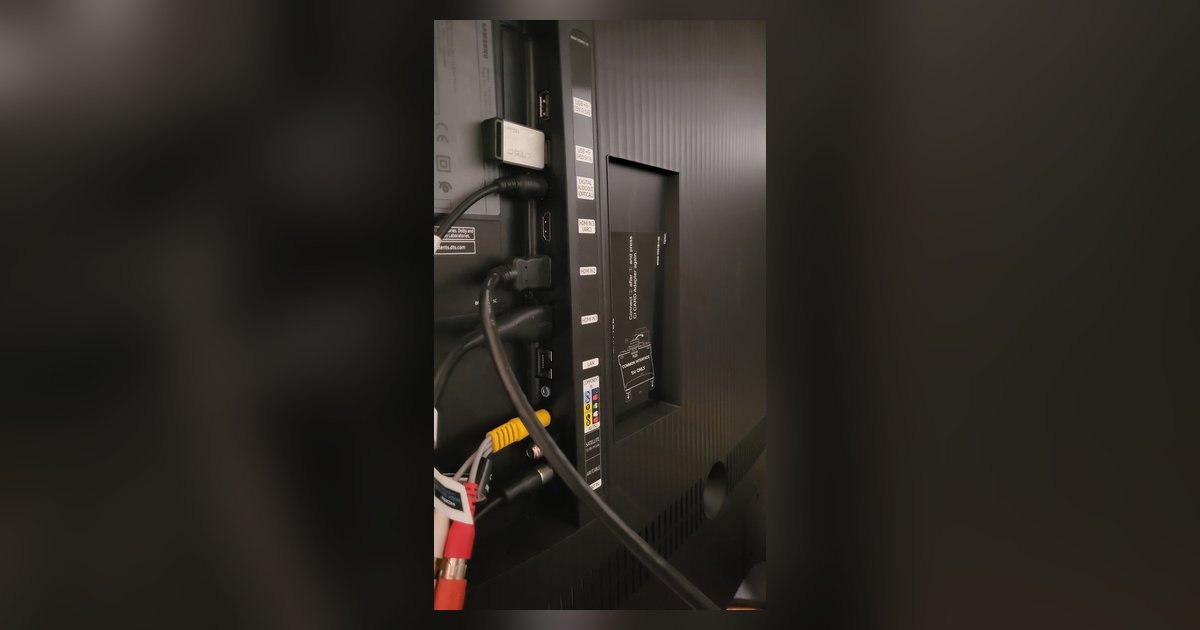
Skip the cable swap until you test a different HDMI port on the same TV. Use HDMI port 1 or 2, not the HDMI ARC port, which may not negotiate HDCP with a Hopper. If the picture still does not appear, swap your current cable for a 6-foot certified High Speed HDMI cable. The final test is to move the Hopper next to the problematic TV and use the shortest cable you own. If the picture appears, the original cable length or port is the cause. Finally, if the TV has a "Smart" home screen that intercepts inputs, press the Input button repeatedly until you reach the HDMI source directly to get back to regular TV from smart TV, bypassing any smart overlay that could block the authentication.
Unlike other guides, this page provides a method to force 720p output without ever seeing the screen by navigating to Settings > TV > Video Resolution, a fix that works only on Dish Hopper receivers.
For the wider picture, see watching live TV on a smart TV.