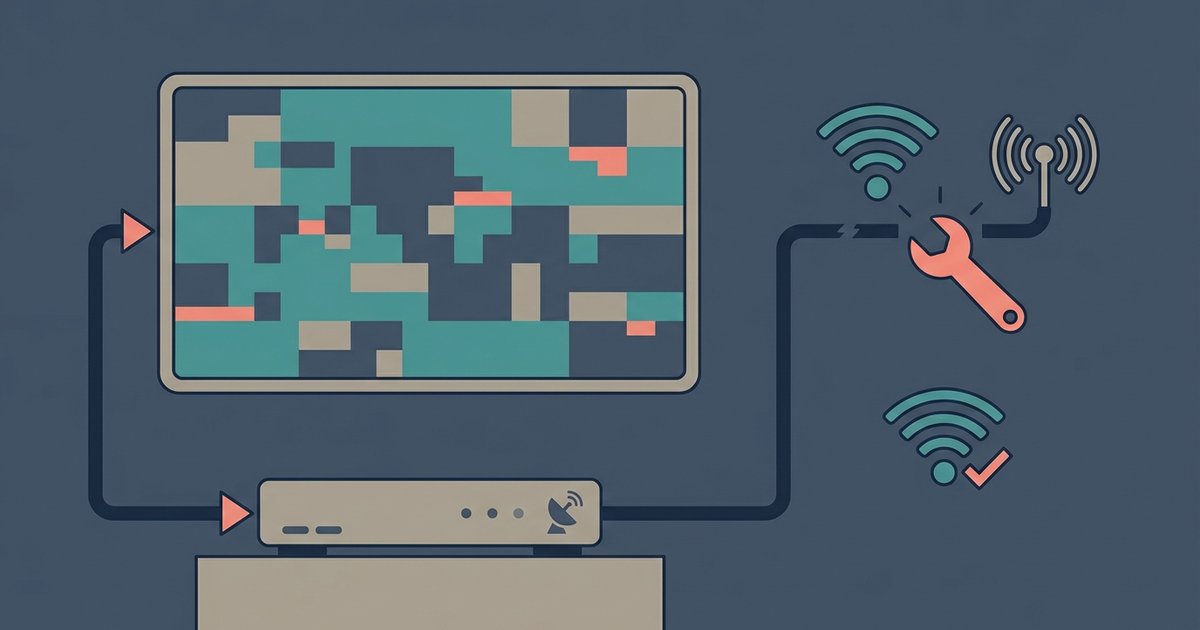
This is almost always an HDMI handshake failure between the Dish receiver and Samsung TV, not a signal issue. Disable HDMI-CEC (Anynet+) on the Samsung TV and set the Dish receiver's video output to a fixed resolution like 1080i instead of 'Auto' to stop the constant renegotiation.
Disable HDMI-CEC (Anynet+) to stop dish picture cutting out
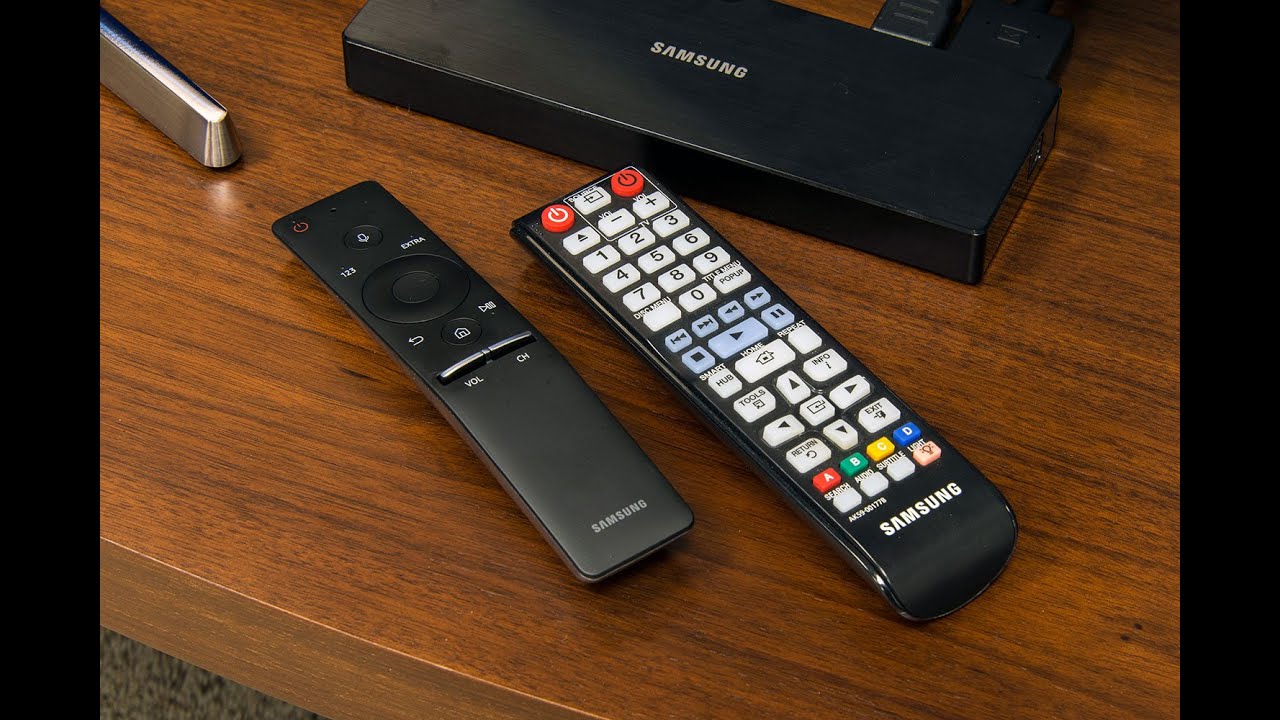
Samsung’s Anynet+ is their name for HDMI-CEC. This feature lets the TV remote control connected devices. When it is enabled, the TV constantly polls the Dish unit to see if it can take command. That polling can interrupt the HDMI handshake, causing a black screen for two to three seconds. To fix it, press the Home button on your Samsung remote. Go to Settings, then navigate to the External Device Manager section (path may vary by model year). Toggle Anynet+ (HDMI-CEC) to Off. This stops the TV from repeatedly trying to take control of the set-top box and breaking the video stream. After you disable it, the TV will simply display whatever signal the box sends without interference. If you later need to setup smart TV with dish, you can re-enable Anynet+ temporarily, but for stable viewing it should stay off.
Force a fixed resolution on the dish receiver
The Dish unit’s default video output is often set to ‘Auto’. That means it changes resolution depending on the channel: 1080i for HD channels, 720p for some locals, and 480i for SD channels. Each time the resolution changes, the TV and the satellite box must renegotiate the HDMI link. That negotiation can cause a two-second black screen or a complete dropout. To stop this, press the Menu button on your Dish remote. Go to Settings, then Display. Change the Video Output from Auto to 1080i. If your Samsung TV is 720p native, choose 720p instead. Locking it to a single resolution stops the screen from going black during channel changes or commercials, because the HDMI link stays stable and never has to renegotiate.
Test with a different HDMI cable and port
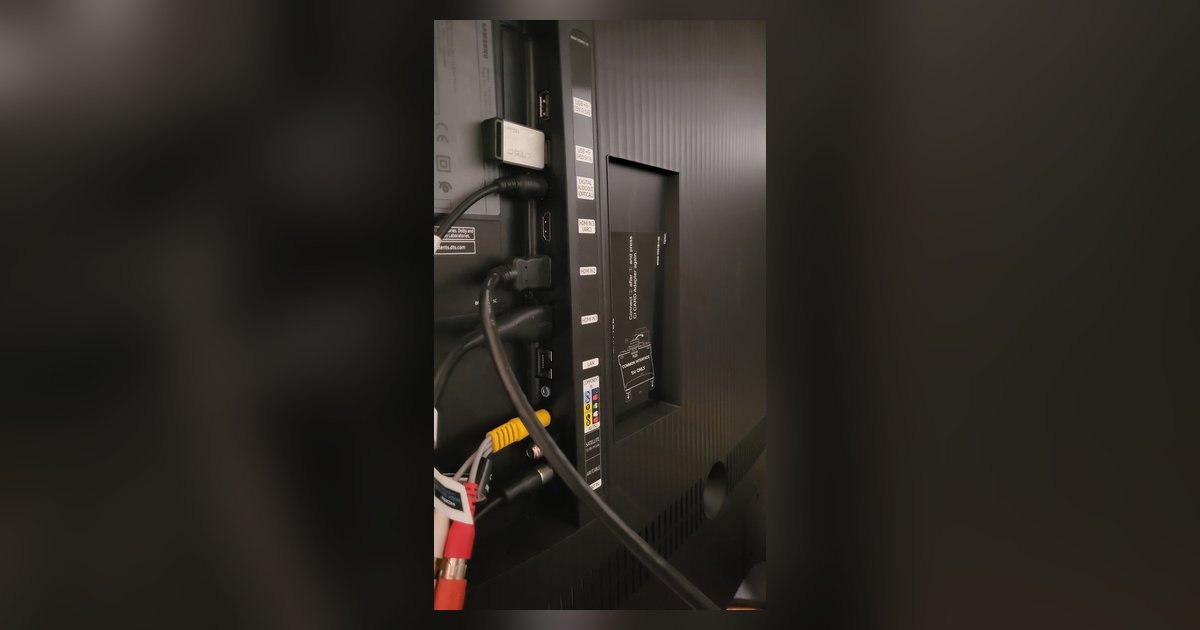
Even after disabling Anynet+ and fixing the resolution, a failing HDMI cable can produce identical symptoms: flickering, black screens, or audio dropouts. Use a high-speed HDMI cable rated for 18 Gbps or higher. Try a different HDMI port on the Samsung TV. If your TV uses a Samsung One Connect box, test a different port on that box as well, because those ports can fail over time. A bad cable or port mimics the exact symptoms of a handshake issue, so this step rules out physical hardware before you blame the satellite box.
When the dish receiver itself is the problem
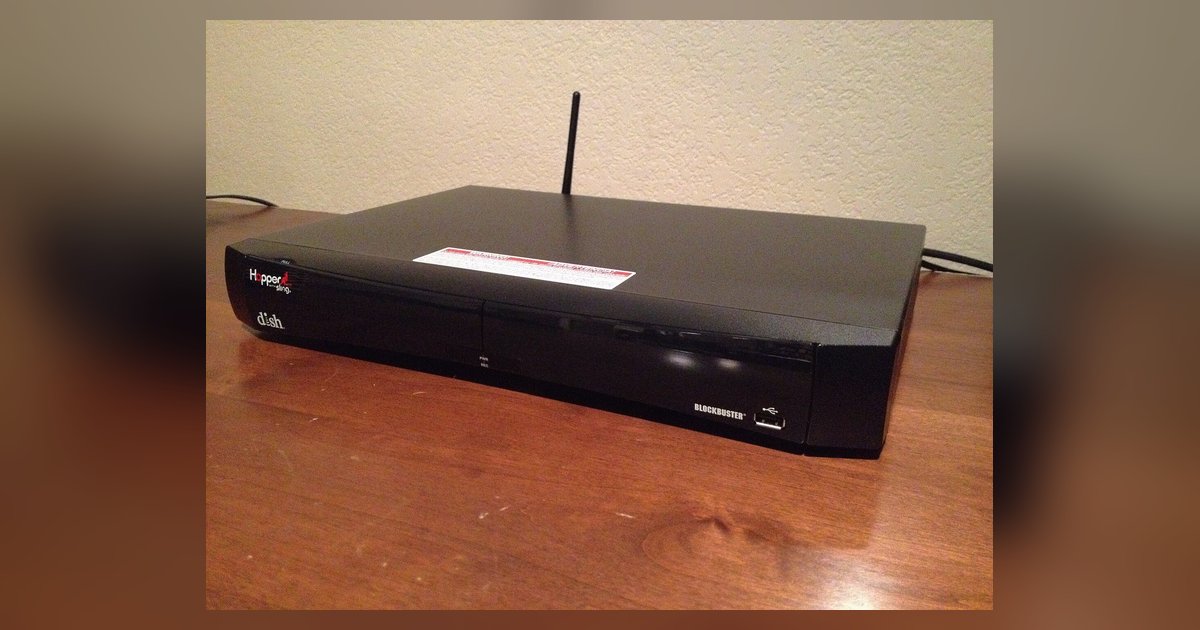
If the picture still cuts out after all the above steps, the Dish hardware, typically a Hopper or Joey, may have a fault. Overheating is common. If the unit is in a closed cabinet or stacked on other electronics, the internal temperature triggers signal loss. A failing hard drive in a Hopper can also cause intermittent black screens because the unit cannot buffer the stream properly. No TV setting will fix a hardware fault that requires a replacement from Dish. Call Dish support and ask for a replacement unit. In the meantime, if you want to get back to regular TV, you can switch to the TV’s built-in tuner for over-the-air channels, but that will not fix the Dish signal. The only permanent solution is a new box.
Once you complete these two steps, the intermittent black screens should stop immediately, because you are preventing the TV and receiver from arguing over who controls the video stream every time the content changes.
For the wider picture, see watching live TV on a smart TV.