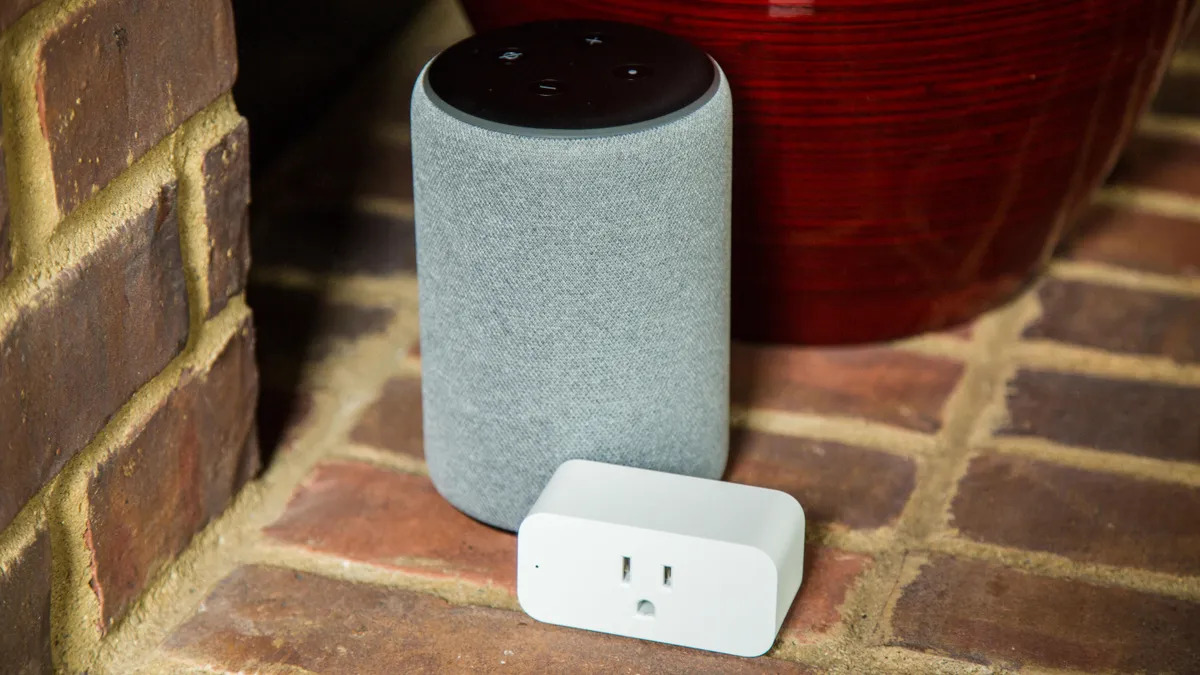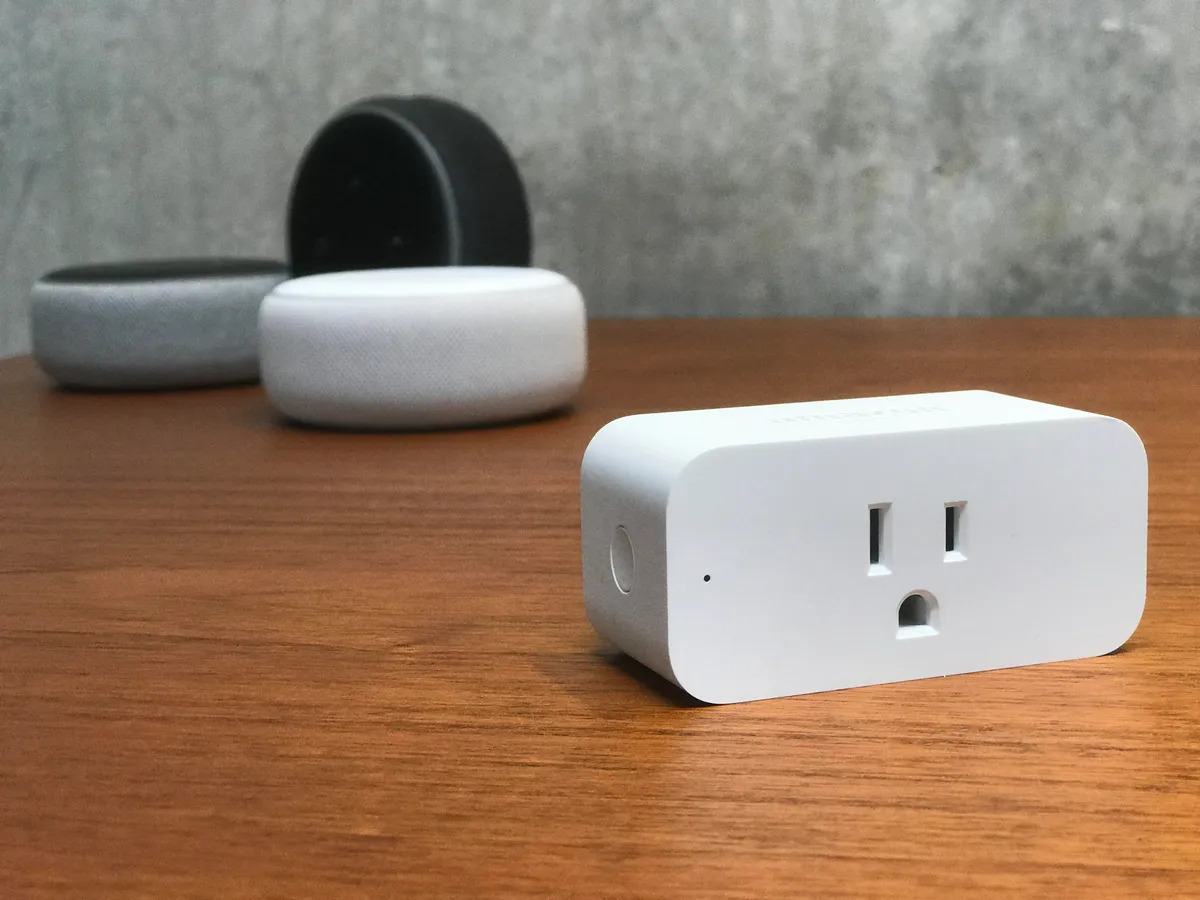
To schedule an Amazon Smart Plug to turn on and off, you must create two separate Routines in the Alexa app, there is no built-in schedule feature for the plug itself. If you manage multiple plugs, first rename smart plug on Alexa to avoid confusion when selecting the right device for each Routine. This method gives you the precise control needed to automate a lamp or appliance at specific times, ensuring your home looks occupied or your morning coffee is ready exactly when you want it.
How to schedule Amazon Smart Plug with Alexa Routines
Scheduling requires creating two distinct Routines in the Alexa app: one to turn the plug on and another to turn it off. Each Routine operates independently, so you set a time trigger for each action. This approach works for any device connected to the Amazon Smart Plug, from lamps to coffee makers, and it’s the only way to set recurring timers.
Creating a routine to turn the plug on
- Open the Alexa app and tap the Routines tab (usually at the bottom of the screen).
- Tap the + icon in the top-right corner to create a new Routine.
- Give the Routine a name, such as "Lamp On Morning."
- Tap Add trigger, then select Schedule. Choose the time you want the plug to turn on and select the days of the week.
- Tap Add action, then select Smart Home. Choose your Amazon Smart Plug from the list.
- Ensure the power state is set to On. Tap Save.
This Routine will now automatically turn the plug on at the specified time. Use this for your morning lamp or to power a device before you wake up.
Creating a routine to turn the plug off
To schedule the plug to turn off, you must create a separate routine by repeating the steps above, setting a different time and ensuring the "On" switch is turned off for the action. This separate routine is mandatory because Alexa treats each power state as an independent command.
- Go back to the Routines tab and tap the + icon.
- Name the Routine something like "Lamp Off Night."
- Tap Add trigger > Schedule. Set a different time (e.g., 10:00 PM) and choose the same days.
- Tap Add action > Smart Home and select the same plug.
- This time, ensure the power state is set to Off. Tap Save.
Now both Routines work together to automate your plug’s on/off cycle. You can create multiple pairs for different times or days.
Troubleshooting common scheduling issues
If your plug doesn’t follow the schedule, check these common problems:
Wi-Fi connectivity problems
A weak Wi-Fi signal can cause the plug to miss commands. Move the plug closer to your router or use a Wi-Fi extender. This ensures your schedules run reliably, so you never come home to a dark house.
Unresponsive plugs
If the plug stops responding, unplug it for 10 seconds and plug it back in. Then, in the Alexa app, go to Devices, select the plug, and tap Reset to factory defaults if needed. This resolves most glitches and keeps your automation on track.
Time zone inaccuracies
Incorrect time zone settings in the Alexa app will cause schedules to fire at the wrong time. Go to Settings > Device settings and confirm your time zone is correct. This prevents your plug from turning on at 3:00 AM instead of 7:00 AM.
Conflicting routine triggers
If you have two Routines set for the same time (one to turn on and one to turn off), they may conflict. Review your Routines list and ensure no two have the same trigger time. This avoids the plug flipping on and off repeatedly.
Behavior after power outages
After a power outage, the plug may lose its schedule. Simply check the Routines in the Alexa app, they remain saved, but the plug may need a manual power cycle to reconnect. This ensures your automation resumes without re-entering all your times.