To download a Canva presentation as a PowerPoint file, click the Share button in the top-right corner of the editor, then choose Download and select Microsoft PowerPoint (.pptx) from the file type options. This instantly exports your entire design as a .pptx file that opens directly in Microsoft PowerPoint for editing or presenting.
How to download Canva as PowerPoint instantly
Open the presentation you want to convert in the Canva editor, then click the Share button in the top-right corner of the screen. From the dropdown menu that appears, select Download, choose Microsoft PowerPoint (.pptx) as the file type, and click the Download button to save the file to your device.
Step 1: Click the share button
In the Canva editor, the Share button sits in the top-right corner of the interface. This is the current control you need; older instructions may reference a Download button in that same corner, but Canva has since moved the export controls behind the Share menu. Click it once to open the dropdown with all sharing and export options.
Step 2: Select download from the menu
After clicking Share, a dropdown menu appears with several options like sending a link, inviting collaborators, or exporting the file. Choose Download from this menu to open the file type selection panel. This works for both free and Canva Pro accounts, so you don't need a paid plan to export your presentation as a PowerPoint file, a flexibility you'll also find when you download Prezi presentation without pro. If you want to avoid any unexpected watermarks or quality limits, you can download from Canva for free with the right export settings.
Step 3: Choose Microsoft PowerPoint as the file type
In the file type options, select Microsoft PowerPoint (.pptx). Canva exports slides in the newer PPTX format, not the legacy PPT format, so the file will open in any modern version of PowerPoint or compatible software like Google Slides or Apple Keynote. After selecting the format, click the Download button to start the export process, Canva will convert and download your design as a .pptx file to your device.
Optional: Download specific pages
Before clicking Download, you can choose to export all slides or select specific pages from your design. This is useful if you only need a portion of the presentation in PowerPoint format, saving time and reducing file size.
Tips to keep your formatting perfect
To minimize formatting issues, design your Canva presentation using standard PowerPoint ratios like 16:9 or 4:3. Sticking to common fonts available in both Canva and PowerPoint (e.g., Arial, Calibri) can help prevent font changes, and grouping elements in Canva before downloading can help prevent them from shifting during conversion. These three habits, correct aspect ratio, safe fonts, and grouped elements, are the most reliable ways to keep your slide layout intact when the file lands in PowerPoint.
What breaks in the conversion (and how to fix it)
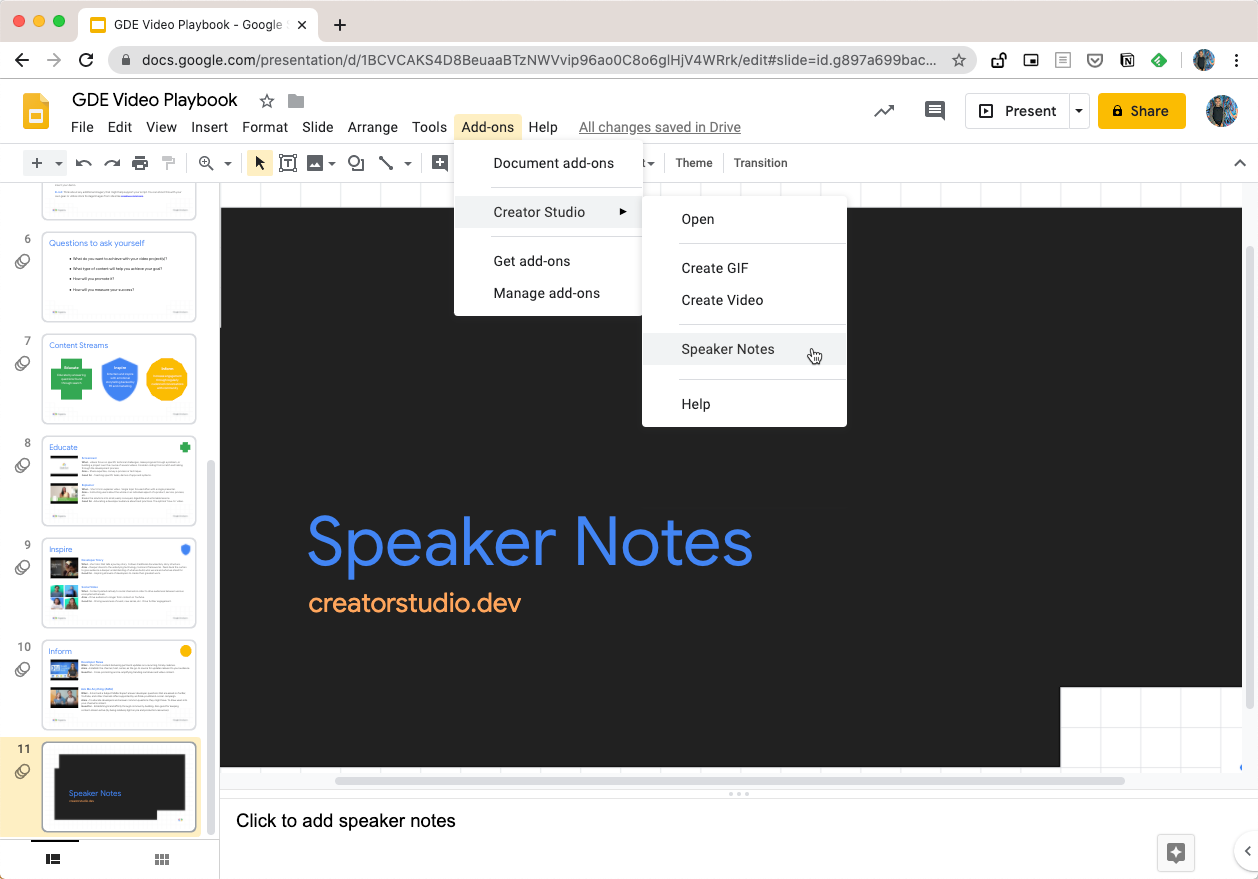
Canva animations and transitions will not transfer to PowerPoint; animated elements will become static, so you will need to re-add animations within PowerPoint after the download. Some fonts used in Canva may be replaced if they are not available in PowerPoint, potentially affecting spacing and layout, you can fix this by swapping to a common font before exporting or manually adjusting text boxes after opening the file. Complex layouts and elements might shift slightly or appear misaligned after conversion, requiring manual adjustments in PowerPoint, so it is recommended to review and make any necessary adjustments to text, images, and alignment within PowerPoint after the download. Low-resolution images used in Canva may appear lower in quality or blurry after exporting, so check image quality before you start. The exported Canva presentation will use a "blank" PowerPoint template, with design elements appearing as images and color backgrounds rather than integrated into PowerPoint's master slide format, this means you can't edit design elements as native PowerPoint shapes, but most text, images, and layouts remain editable in PowerPoint after conversion. Speaker notes created in Canva can carry over to the downloaded PowerPoint file, so your presentation notes will be waiting for you in the Notes pane. To fix any remaining issues, open the .pptx file directly in Microsoft PowerPoint for editing or presenting, and make your adjustments there, this is the final step that turns a decent export into a polished presentation.