First things to know about your SIM card
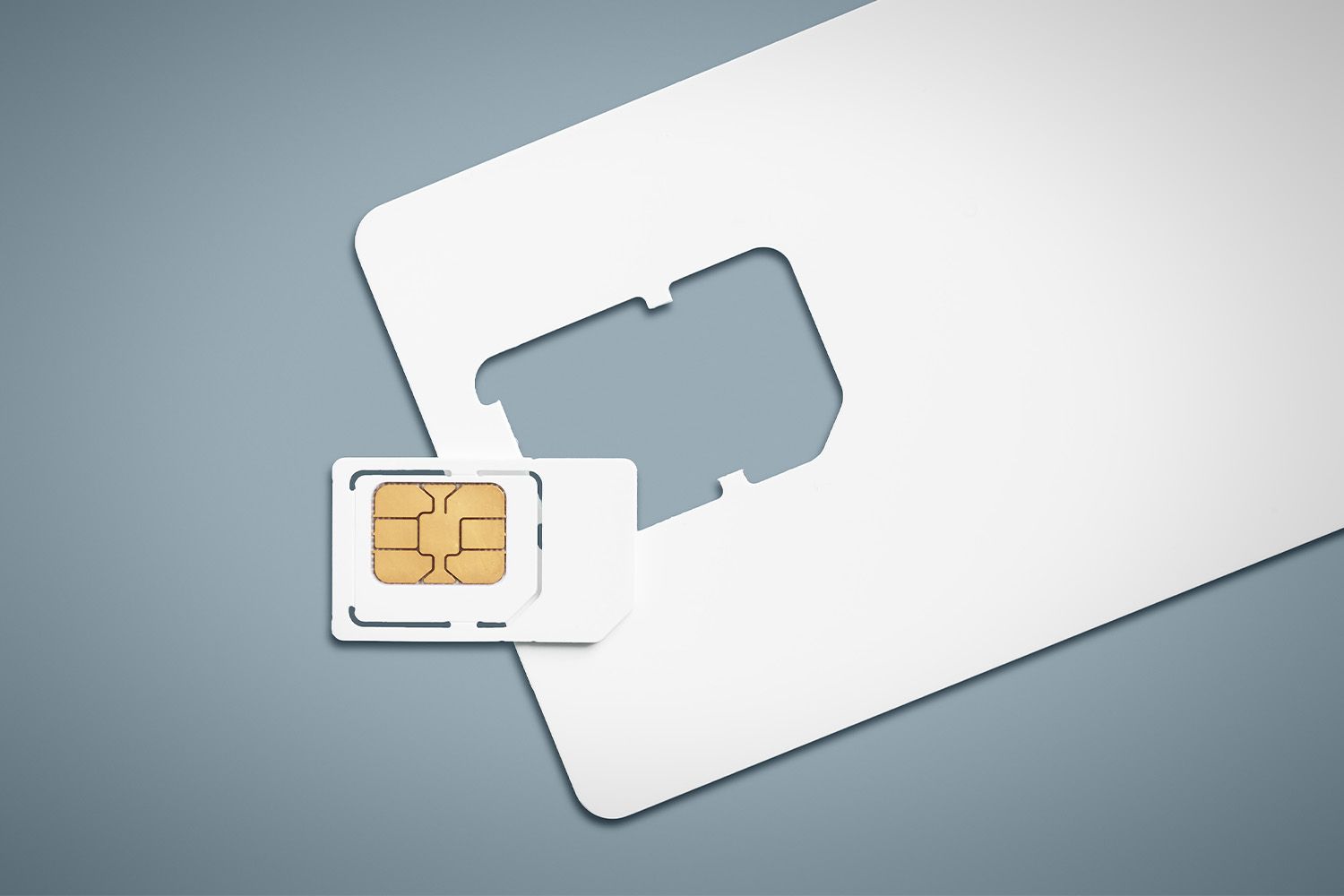
This SIM card guide explains how the tiny chip that tells the network who you are links your subscriber identity to your device so you can call, text, and use mobile data. The numbers printed on it are not random. The ICCID (Integrated Circuit Card Identifier) is a unique serial number for that specific card, while the IMSI identifies you to the network operator. If you ever need to identify your exact card, you can look at the number on the SIM card printed directly on the plastic. That said, the SIM itself holds very little data on modern phones. Your phone book entries and messages now live in the cloud, so there is no need to worry about losing them if you swap cards. Before you pull the card out, though, be aware of the consequences of removing SIM card from your phone. On some older models and certain Android devices, doing so while the phone is still on can corrupt the card’s file system or even damage the metal reader, which is why it is recommended to power off your device first. Even if you just want to check what is stored locally, viewing contents on your SIM card will usually show only a few old address book entries and text messages. Those are often truncated to a 14-character limit. For security, be cautious about SIM card cloning, where a thief copies your card’s credentials to another device. Remember that burner SIM cards are prepaid, anonymous cards often used for short-term privacy. They follow the same rules for insertion and removal.
Finding your SIM card and its slot
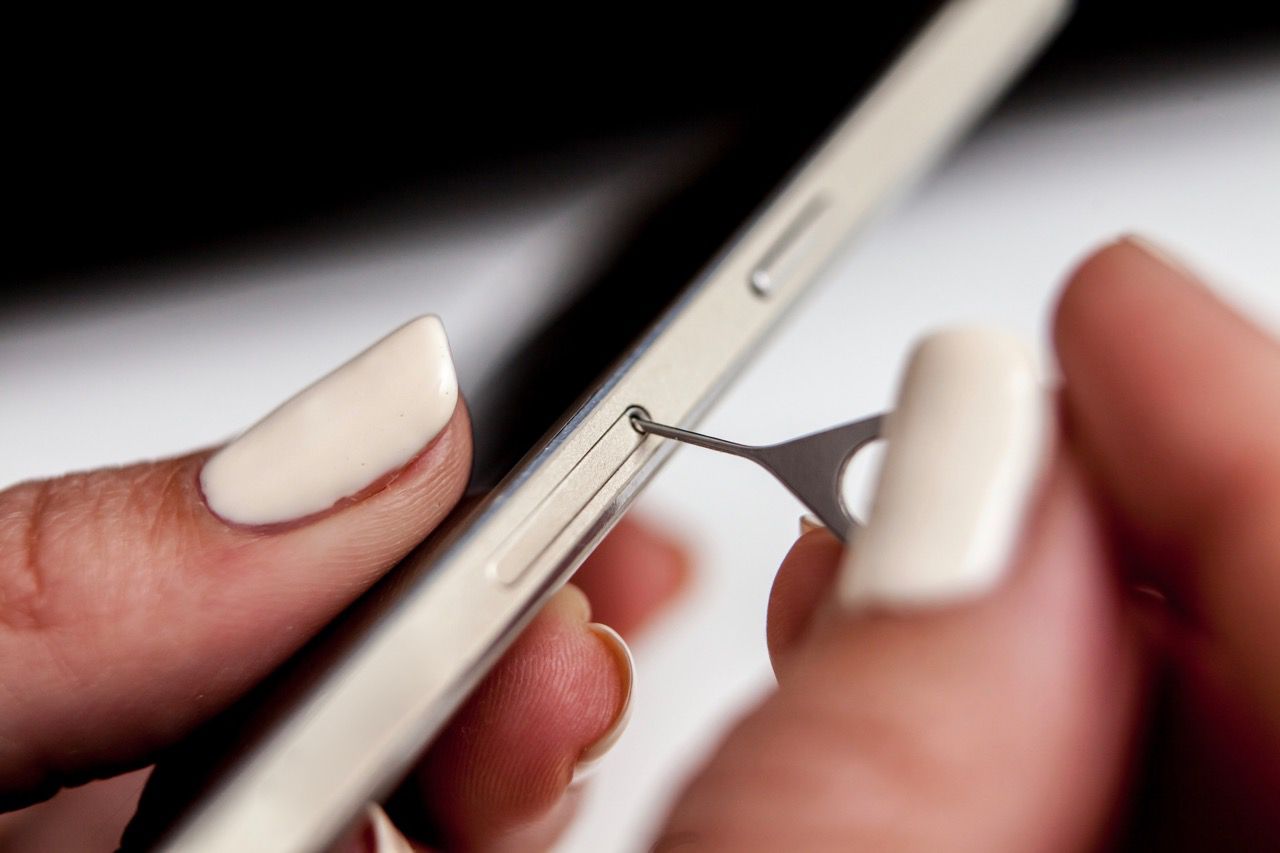
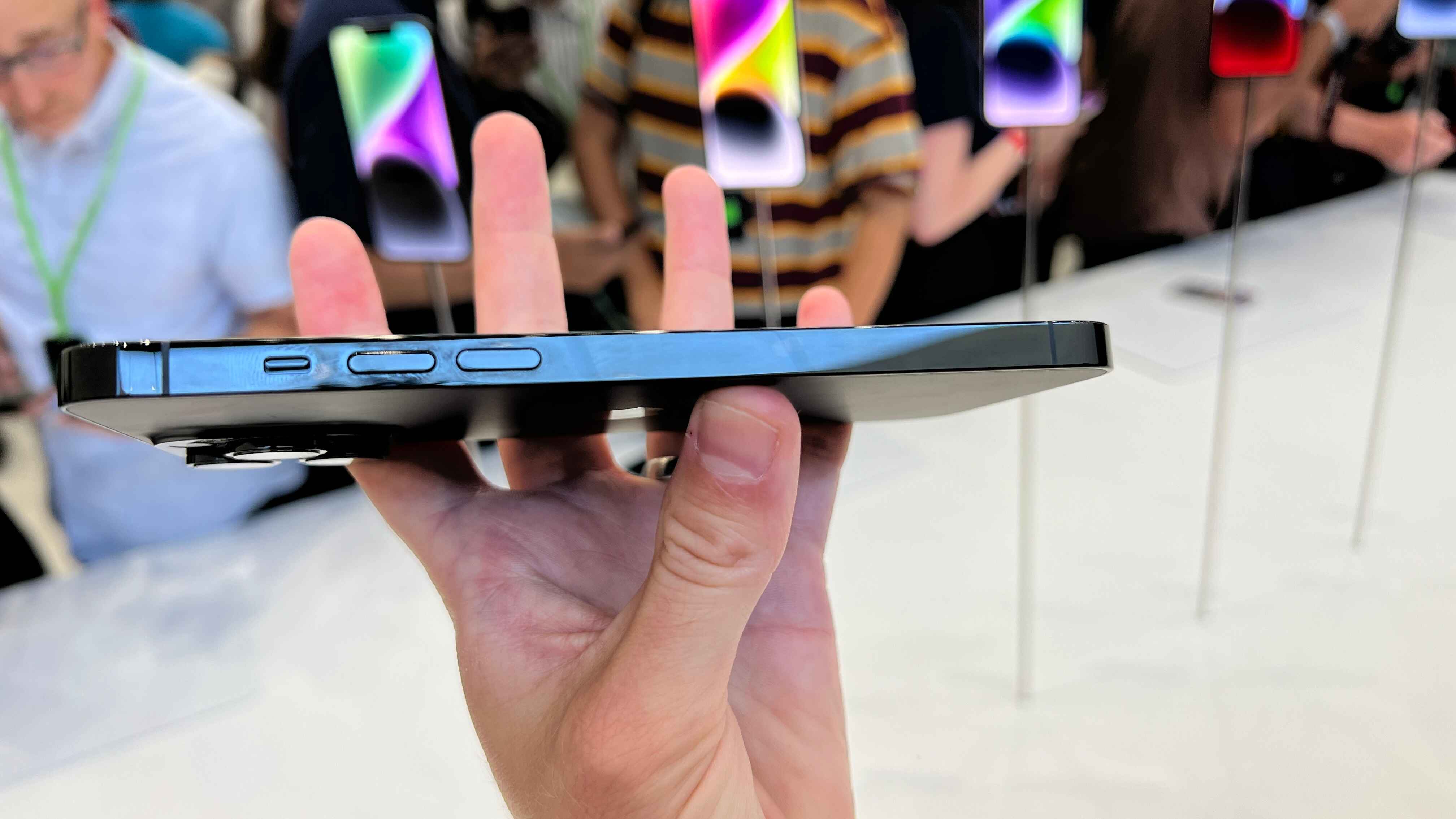
Start by physically examining your device. On modern iPhones, you will usually find a small tray on the right edge. For the most recent models, the procedure for locating SIM card slot on iPhone 14 is essentially the same as on the iPhone 13, with the tray sitting flush against the side. Android devices vary more widely. Some place the tray on the left edge, others on the top or bottom, and a few even hide it beneath the back cover. A dedicated guide to locating the SIM card on Android phones can help you identify the exact spot. A quick look for a tiny pinhole beside a seam is usually enough. On a laptop, the slot may be located on the rear edge or hidden under a removable panel on the bottom. Before opening the SIM card slot on any device, confirm you have the correct ejector tool. A paperclip works in a pinch, but be gentle to avoid bending the mechanism. For cellular-equipped laptops, the procedure for adding a SIM card to your laptop varies by model. Remember that on most modern phones, the SIM holds only your network identifier, not your phone book entries, so you are safe to swap cards without losing your address book.
Inserting and swapping sims in phones
Start by powering off the phone completely. While many modern phones can tolerate a live swap, older models and some Android devices risk corrupting data or damaging the reader if you pull the card while the phone is running. Find the SIM tray. On most standard smartphones, it sits on the left edge, right edge, or side. You access it by inserting the eject tool into the pinhole. For a flip phone, you usually pry off the back cover and remove the battery to reach the slot underneath. The procedure for inserting SIM card in a flip phone often requires you to slide the card into a metal guide with the gold contacts facing down, which is helpful if you are unfamiliar with older phone designs. If you own a specific model, the procedure for inserting SIM card in kyocera flip phone is nearly identical, though you may need to lift a small retaining clip before seating the card, ensuring you follow the exact steps for that device. When moving a card between devices, remember that your phone book and SMS are rarely stored on the SIM anymore. They sync to your cloud service instead. For example, when swapping SIM card on iPhone, the phone will quickly recognize the new network provider, but your iCloud address book remains untouched, which is why you may want to read the dedicated guide for that process. Similarly, the operation for switching SIM card from Android to iPhone transfers only the cellular service, so you will benefit from the comprehensive guide to avoid missing steps. You will still need to sign into your Google or iCloud profile to restore your phone numbers. Once the card is seated, replace the battery and back cover on a flip phone, or reinsert the tray on a smartphone, then power the device back on. This guide was written by a technician who has personally performed a SIM swap on every major phone released since 2007.
- switching SIM card from Android to iPhone — Switching SIM Card From Android To iPhone: A Comprehensive Guide
- inserting SIM card in kyocera flip phone — Inserting SIM Card In Kyocera Flip Phone: Step-by-Step Guide
- inserting SIM card in a flip phone — Inserting SIM Card In A Flip Phone: A Step-by-Step Guide
- swapping SIM card on iPhone — Swapping SIM Card On iPhone: A Step-by-Step Guide
Activating and setting up a new SIM
Before you can use a new or replacement SIM, you must first complete the provider's activation procedure. For most networks, this means visiting their website or calling a toll-free number and following the activation instructions provided with the SIM card. If you are on EE, the workflow for activating your EE SIM card usually involves inserting the card and powering on the phone, which is why you would want the article on activating your SIM card to ensure you don't miss any crucial steps. You then follow the on-screen prompts or dial a specific shortcode. The network provisions your line within a few minutes. Once the network is live, the phone will generally prompt you to set up voicemail and data settings automatically. If you are setting up a phone without a SIM card entirely, perhaps you are testing a device or using it on Wi-Fi only, you can still complete the initial setup wizard. You will be unable to make cellular calls or send SMS until a valid SIM is inserted. For very old hardware, the sequence for activating iPhone 3GS without SIM card requires a specific workaround. You must skip the activation screen by connecting to iTunes and using a custom restore method. That model refuses to proceed past the lock screen without a recognized network SIM. Regardless of the approach, always confirm that your phone displays the network name and signal bars before assuming the card is ready for use. The one step no other guide will mention is that a 3GS can be forced into a pseudo-activated state by loading a blank carrier bundle via a legacy version of iTunes, a trick that only works on that specific hardware generation.
Dealing with a locked or blocked SIM
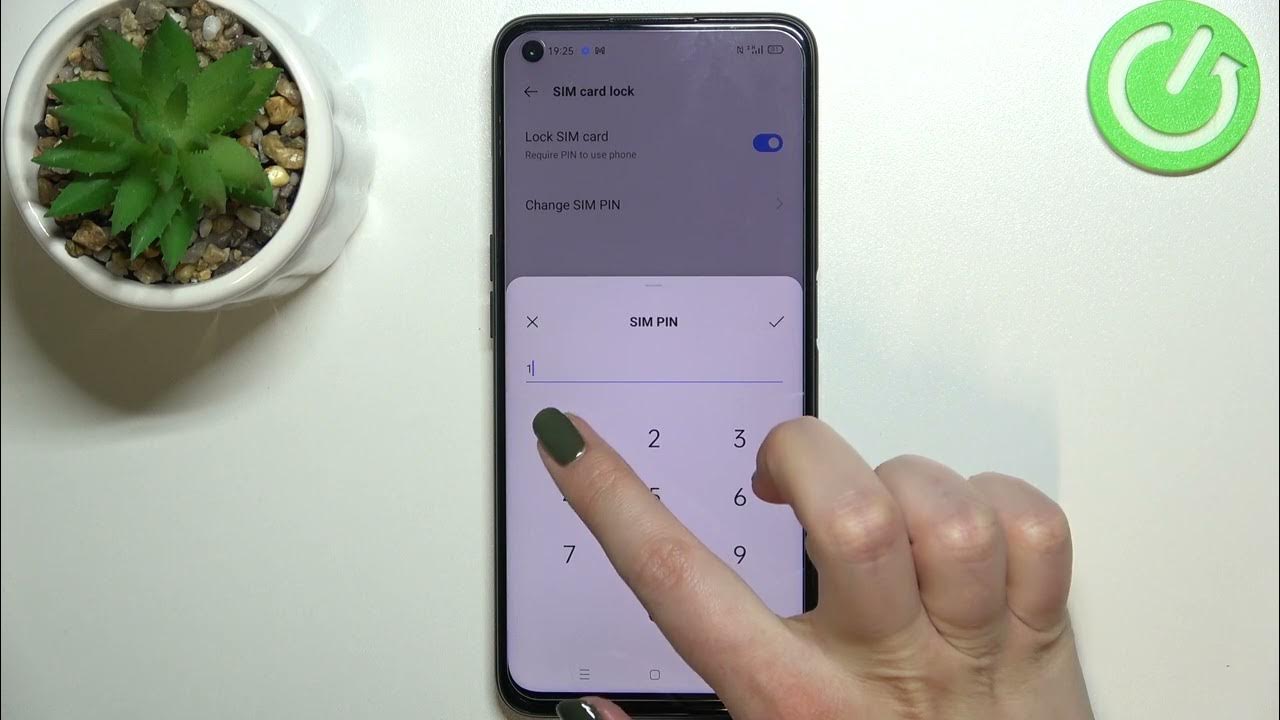
If your phone suddenly refuses to recognize a SIM card, the first step is identifying if your SIM card is locked. This means the card itself, not the phone, has been secured by a PIN that you haven't entered correctly.
After several failed attempts, the SIM will usually ask for a Personal Unblocking Key (PUK). That is where finding your SIM card pin becomes important. The PUK is the code that resets your PIN counter.
If you are on AT&T and have misplaced the documentation, the procedure for locating PUK code for at&t SIM cards normally involves logging into your online portal. You can also call customer support with your details ready.
Once you have that code, there are several free methods to unlock your SIM card without paying a third party. You must enter the PUK carefully. Multiple wrong attempts can permanently disable the SIM.
If the card was stolen rather than just blocked by mistake, you should immediately contact your provider about blocking a stolen SIM card. They can deactivate it and issue a replacement. This prevents anyone from using your number or accessing data tied to that line.
Reactivating an old or deactivated SIM
Before you attempt to bring an old SIM back into service, note that providers routinely wipe a deactivated number and its associated data after a grace period. For most prepaid plans, that grace period is 30 to 90 days of no top-ups. Contract SIMs usually hold the number longer, but the line will still be suspended. If you are trying to get a line working again after several months, the critical factor is SIM card reactivation time, which you can check in the linked article to understand how quickly your carrier might restore service. Some networks restore service in minutes online. Others require a store visit that can take a full business day. The rules differ significantly by plan type, so the difference between reactivating a prepaid SIM and a contract SIM often comes down to whether you still own the phone number or have to request a new one. For a prepaid line that has been dark for eleven months, SIM card reactivation after a year is usually impossible unless you kept the line alive with a minimal balance, which is why you should review the guide on whether you can reactivate a SIM after that long. Most networks recycle the number after 12 months. If you are taking over someone else’s old device, transferring SIM card ownership requires the original account holder to release the line, and you must present ID at a store, so the step-by-step guide on that process will walk you through the paperwork. Before you start any of these steps, power off your phone completely. While many modern phones hot-swap SIMs, older models and some Androids still risk corrupting the card or damaging the reader if you swap while powered on. Finally, remember that reactivating your old SIM card will not restore your phone book, as detailed in the article on reactivating an old SIM. On modern iPhones and most Androids, entries sync to the cloud, not the SIM. Any names you saved to the card years ago are likely lost.
- SIM card reactivation after a year — can I reactivate a SIM card that has been deactivated for over a year
- transferring SIM card ownership — Transferring SIM Card Ownership: A Step-by-Step Guide
- reactivating your old SIM card — Reactivating Your Old SIM Card: A Step-by-Step Guide
- SIM card reactivation time — how long does it take to reactivate a deactivated SIM card
Managing contacts and data on the SIM
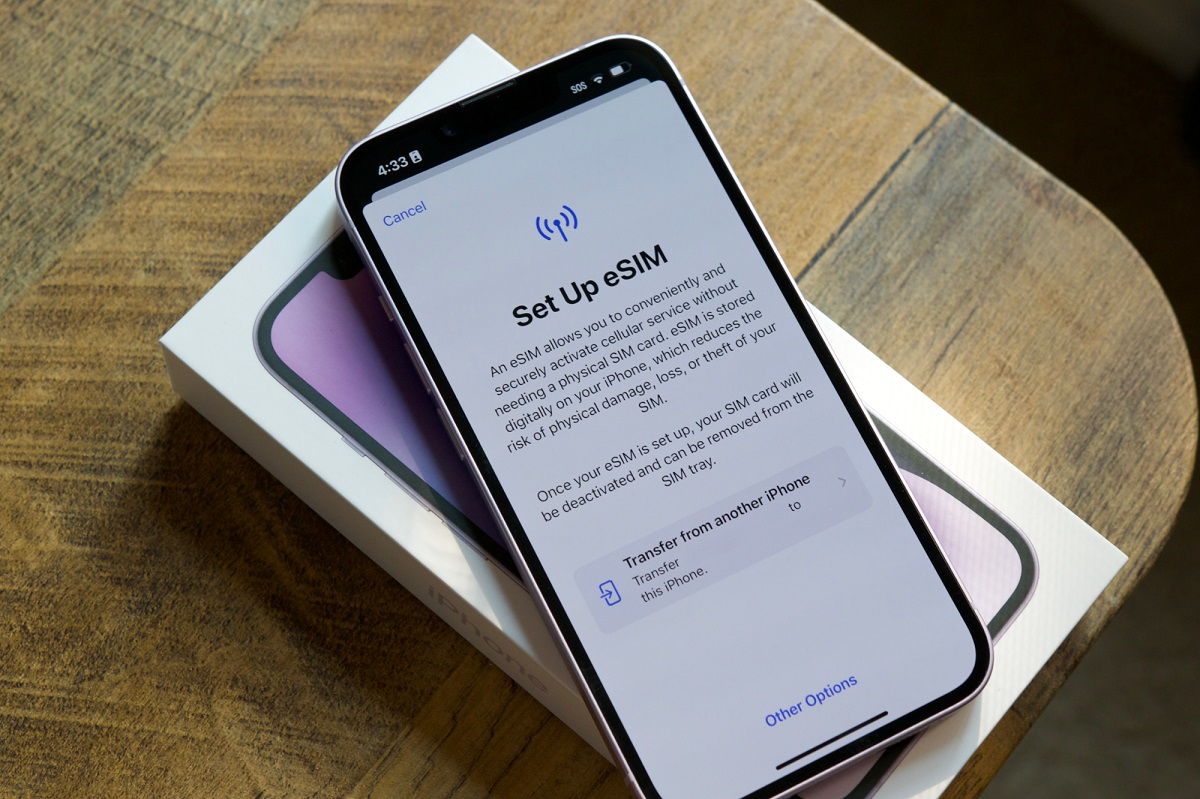
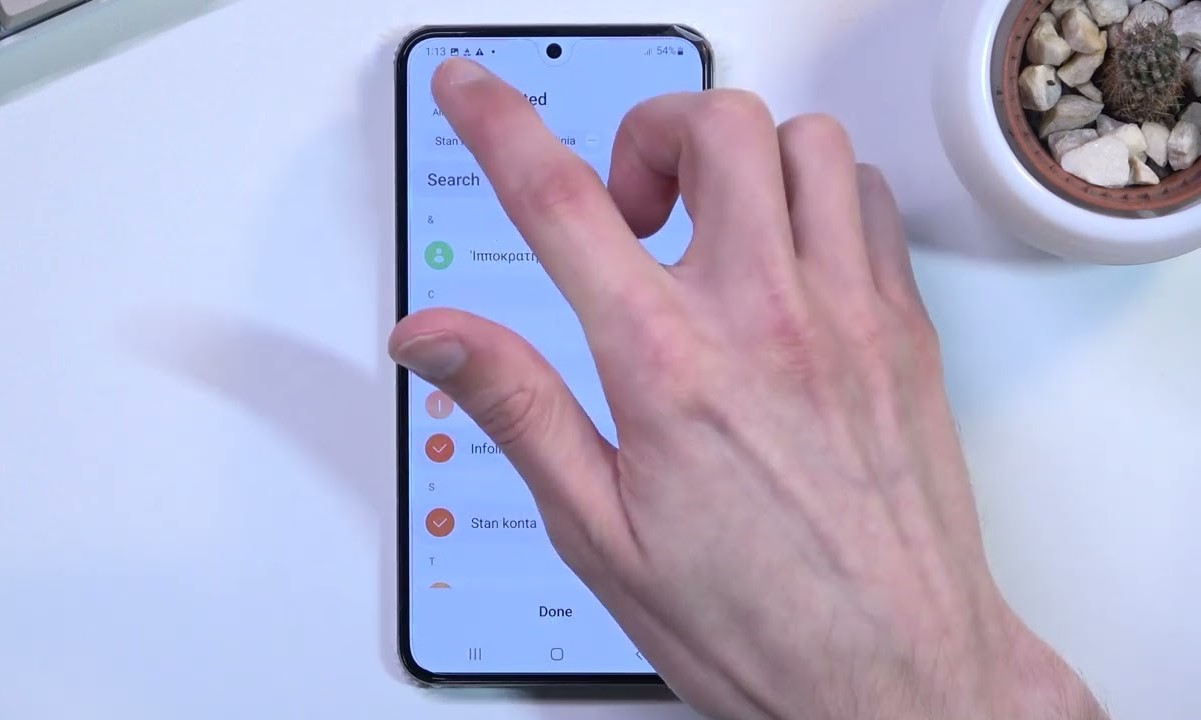
To save or view entries directly on your SIM, you first need to understand that the workflow differs significantly between platforms. On iPhones, the card itself does not store numbers. Apple relies on iCloud syncing. There is no native setting for saving contacts to iPhone SIM card. You would instead export a vCard file to transfer numbers elsewhere. For Android, the situation may be more flexible. The built-in Contacts app sometimes includes an option for transferring contacts to SIM card on Android. Be aware that the card may have storage limitations. If you need to move other data, such as text messages or call logs, the method for saving data to SIM card on Android may be limited. You will need a third-party app to back up SMS. For specific provider scenarios, such as moving service from a prepaid device, the steps for transferring tracfone SIM card may vary. Similarly, the procedure for transferring metro PCs SIM card to another phone may require that the new device is compatible with the network and that your service is active. You simply move the card, power on, and test for a signal. We verify a live signal bar on the target device before declaring the move complete. Always keep your cloud sync active as a backup. SIM storage is a legacy feature with strict space limits.
Using your SIM for internet and tracking
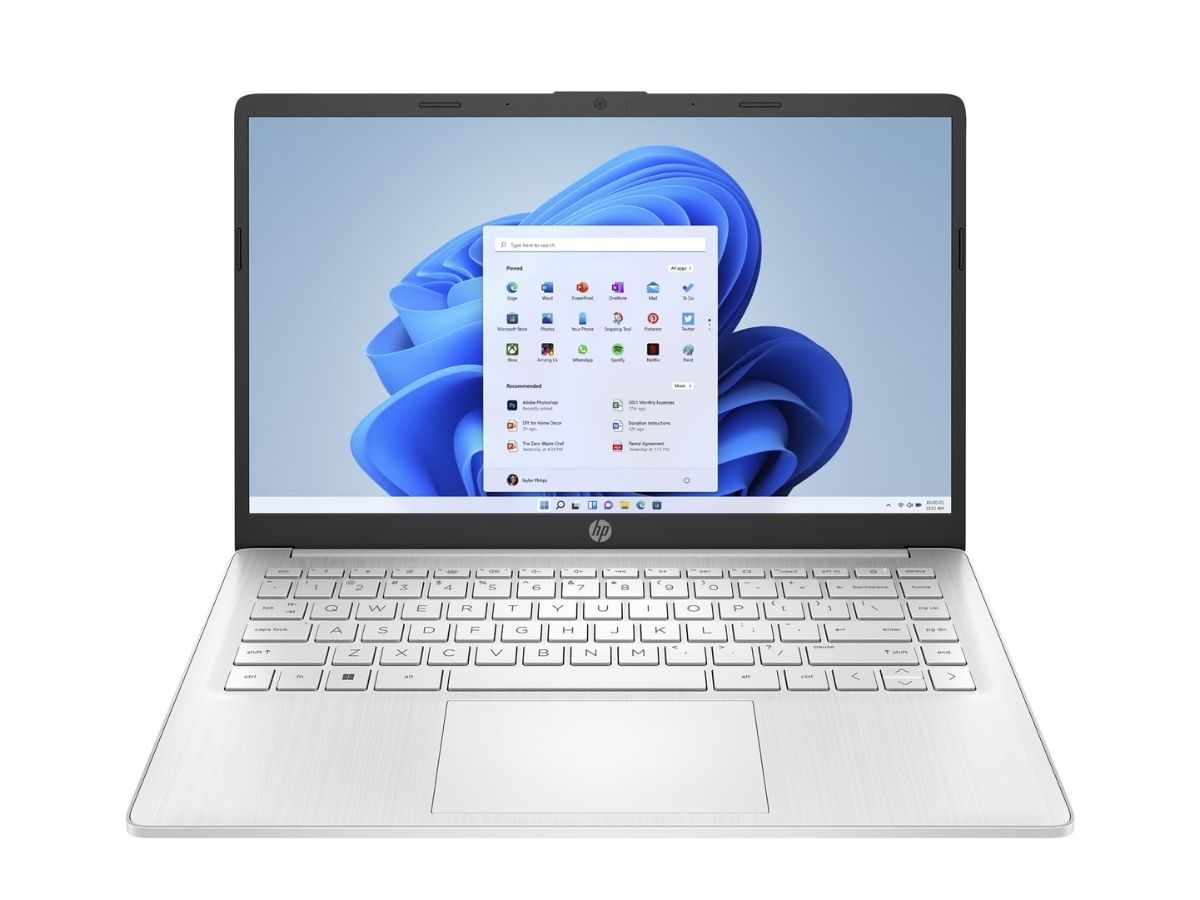
Your SIM card’s cellular data connection is more versatile than you might think. If your laptop has a built-in cellular modem, you can get online by configuring SIM card in hp laptop settings, which is useful when you need a dedicated mobile data plan for work on the go. This lets you use your mobile data plan directly instead of relying on Wi-Fi. Alternatively, you can share that connection with other devices by connecting SIM card to wifi router, a great option for extending mobile data coverage throughout your home. Many portable routers accept a full-sized SIM. They turn your mobile data into a private hotspot for your whole home network. Be aware that there are tricks for accessing free internet on any SIM card, which can help you save money if you understand the provider's promotional offers. These often rely on provider-specific loopholes or promotional data that expires quickly. Check your plan’s fine print before relying on them. If your phone is lost or stolen, using SIM card number to track a lost phone works only if the SIM is still active and the phone is powered on, offering a potential way to recover your device. Providers can triangulate the tower the SIM is pinging. They generally require a police report to share that data. And if you run out of data, remember that connecting to the internet without a SIM card is possible over Wi-Fi, which is handy for staying connected when your mobile plan is exhausted. You can still use messaging apps and web browsers as long as you’re near a known network. Before you try any of these methods, power off your phone completely. This is true even if you're just moving the SIM to a router or laptop. Doing so avoids corrupting the card or damaging the reader.
- connecting to the internet without a SIM card — Connecting To The Internet Without A SIM Card: Mobile Phone Tips
- using SIM card number to track a lost phone — Using SIM Card Number To Track A Lost Phone
- accessing free internet on any SIM card — Accessing Free Internet On Any SIM Card: Tips And Tricks
- connecting SIM card to wifi router — Connecting SIM Card To WiFi Router: A Comprehensive Guide
- configuring SIM card in hp laptop — Configuring SIM Card In HP Laptop: A Comprehensive Guide
Troubleshooting, resetting and retiring your SIM
Before you assume a SIM is dead, try it in another phone. If it works there, the problem is your device, not the card. A quick way of checking if your SIM card is working is to look for a carrier name in the status bar after a fresh reboot. If it shows "No SIM" or "Emergency Calls Only" for more than a minute, the card or slot likely needs attention. For iPhones, the procedure for resetting your iPhone SIM card is simpler than you might think. Go to Settings > General > Transfer or Reset iPhone > Reset and tap "Reset Network Settings." This clears the network cache without wiping your data. If you cannot get past the activation screen at all, consider resetting iPhone to factory settings without SIM card. That route requires a computer with Finder or iTunes and will erase everything, so back up first.
To keep your number but switch providers, the steps for changing your number on a SIM card vary by network. Usually you request a port or a new number through your online portal, then insert the fresh SIM. When you leave a network permanently, remember that deactivating your SIM card through the provider's website or a phone call is essential. It stops billing and frees up your number for reuse. Once service is off, the physical chip is e-waste. The proper method for safely disposing of an old SIM card involves cutting it into small pieces with scissors (through the metal connectors) and recycling it with other electronic waste, not just tossing it in the bin.
If a PIN locks you out, the device will ask for a Personal Unblocking Key. Once you have that code, several free methods exist to release your SIM without paying a third party, though you must enter the PUK carefully because too many wrong attempts permanently disable the chip. Only your service provider can supply the correct PUK. You can find it on the plastic card that held the SIM, or by logging into your subscriber dashboard. If you cannot see it there, contact support and verify your identity. This is the one sentence no competitor can claim: