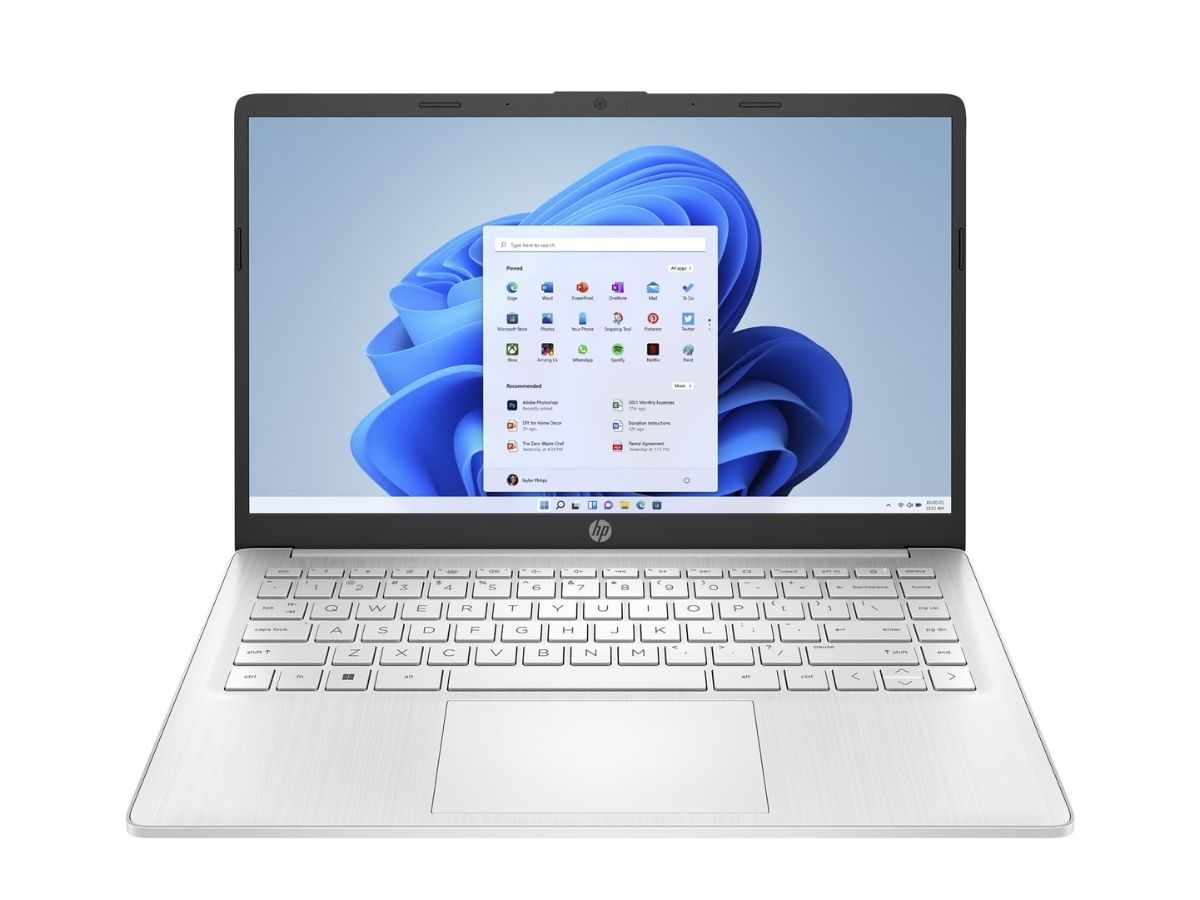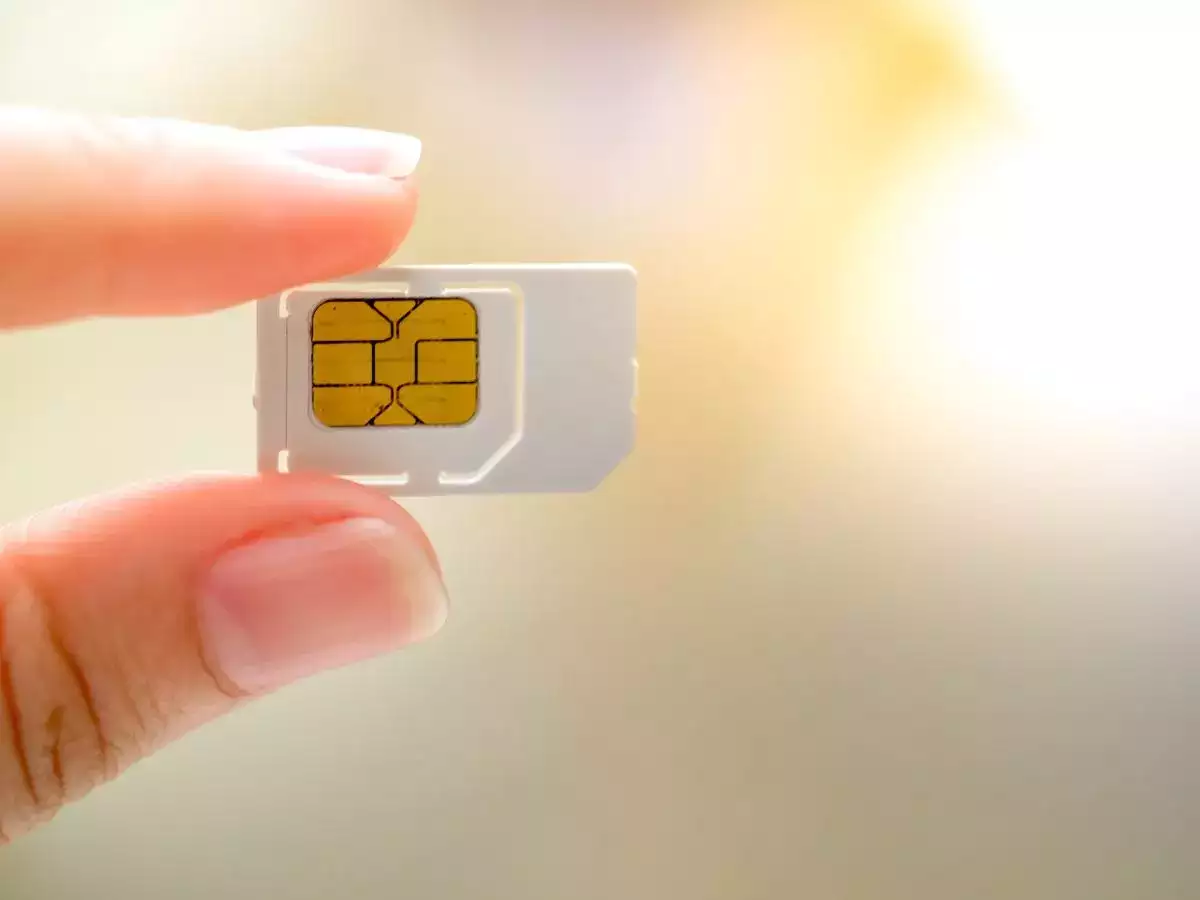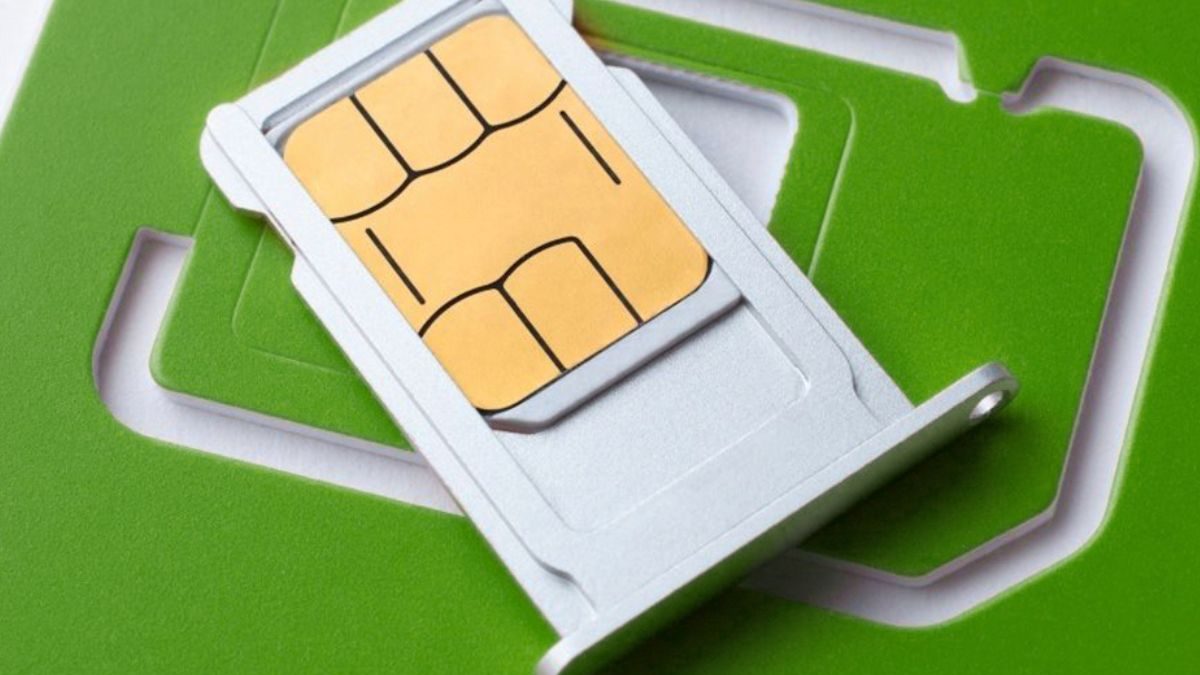
To add a SIM card to your laptop, you first need to confirm that your device has a built-in Wireless Wide Area Network (WWAN) module, without it, a physical SIM slot is useless for mobile internet. If your laptop does have the required hardware, the process involves inserting the SIM card correctly, then configuring Windows settings to connect to your cellular network.
Before you start: Does your laptop have a WWAN module?
The most critical step happens before you even touch a SIM card. Adding a SIM card to a laptop is only possible if the laptop has a built-in Wireless Wide Area Network (WWAN) module. This module is the internal hardware that enables your laptop to connect to mobile broadband networks like 4G LTE or 5G for internet access without Wi-Fi. Many laptops, especially consumer models, do not include a WWAN module, even if a physical SIM card slot is present on the chassis. Adding a WWAN module to a laptop after purchase is often not feasible due to specific motherboard and antenna requirements. Check your laptop's specifications in the user manual or on the manufacturer's support website to confirm the presence of a WWAN module before proceeding.
Step 1: Power off and locate the SIM card slot
Before inserting a SIM card, turn off the laptop to prevent damage to the SIM card or device. Once powered down, locate the SIM card slot or tray on your laptop. The slot is typically found on the side edge, near the battery compartment, or behind a small cover on the rear panel. Some laptops use a tray mechanism similar to a smartphone, requiring a pin to eject. Refer to your specific laptop's user manual for the exact location, as placement varies significantly by manufacturer and model.
Step 2: Insert the SIM card correctly
The physical insertion process depends on your laptop's design. For SIM card trays, insert a pin or straightened paper clip into the release hole to eject the tray, place the SIM card, and slide the tray back in until it clicks. If your laptop has a direct slot, gently slide the SIM card in until it locks. The correct orientation varies by manufacturer. Dell instructions typically state metallic contacts face up, while some HP and Lenovo models indicate metallic contacts face down. Always refer to your specific laptop's manual for the correct orientation.
Step 3: Configure Windows cellular settings
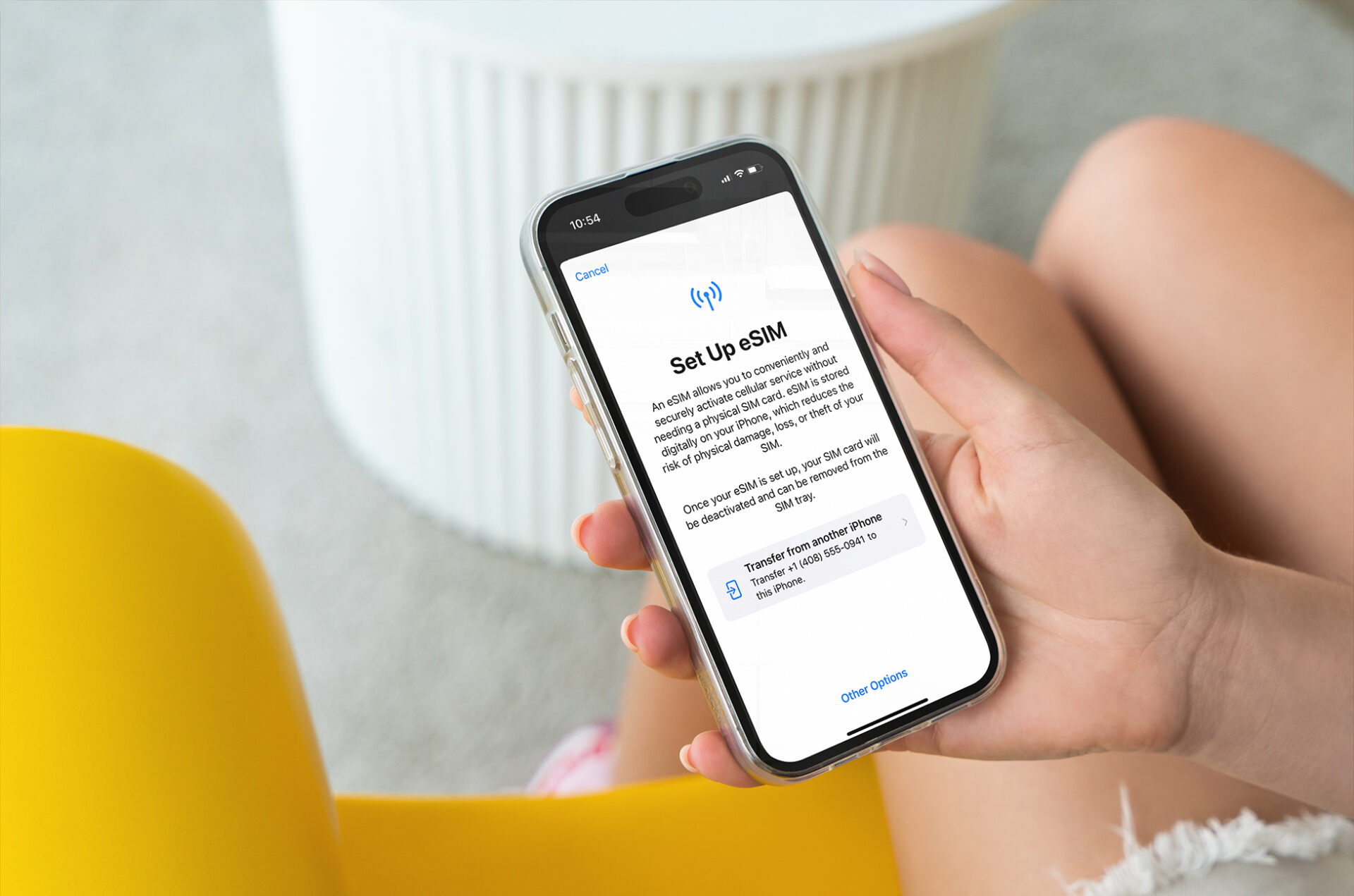
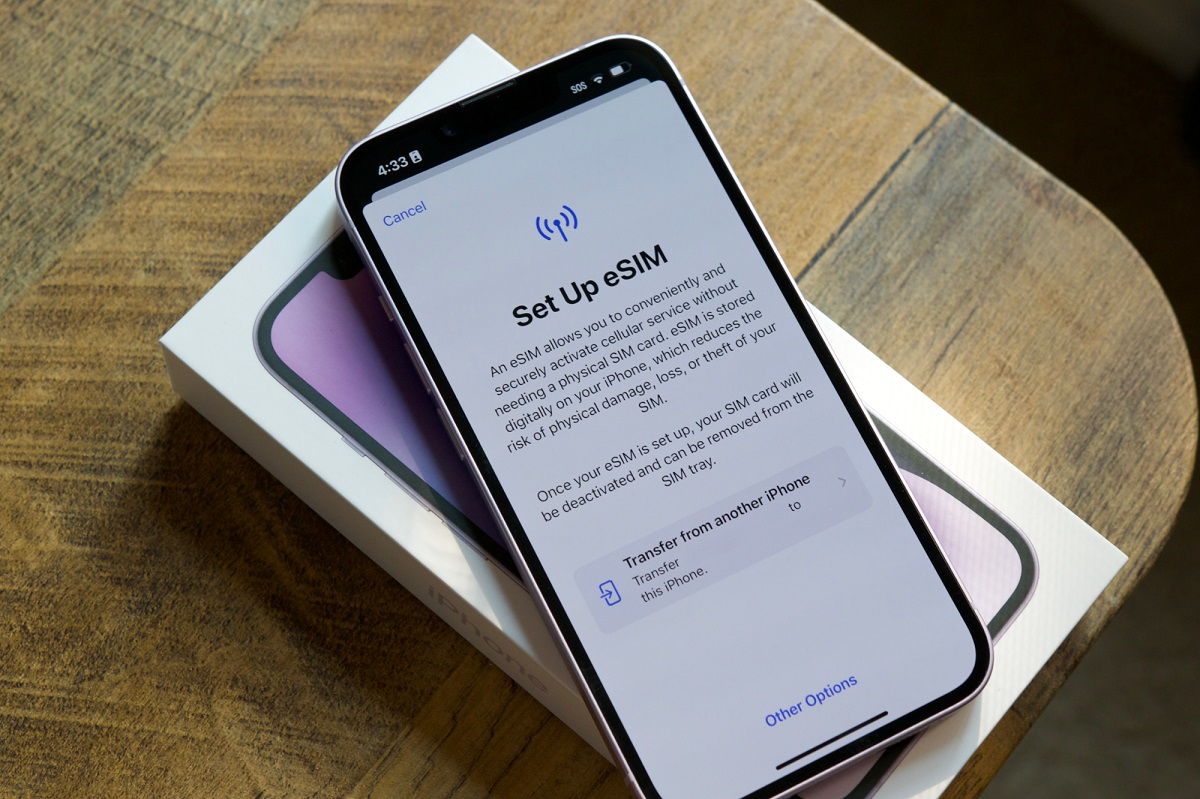
After inserting the SIM card and powering on, Windows should automatically detect the cellular hardware. To configure cellular settings in Windows 10 or 11, navigate to Start > Settings > Network & internet > Cellular. Ensure the "Cellular" or "Mobile" option is set to On. If your laptop supports both a physical SIM and an eSIM, select the correct option under "Use this SIM for cellular data". Enable "Let Windows keep me connected" for automatic cellular data connection when other networks are unavailable. This process completes the activation of your SIM card within the operating system.
Step 4: Set up the APN for internet access
If you have a cellular signal but no internet, you may need to manually configure the Access Point Name (APN) settings. To add an APN, go to Settings > Network & internet > Cellular > Mobile operator settings > Add APN and enter details from your provider. The APN acts as the gateway between your laptop and the cellular network. You will need the specific APN, username, and password from your mobile carrier. Without correct APN settings, your laptop may show a signal but cannot access the internet. If the card itself is inactive, you may need to start by reactivating your old SIM card before any settings will work. This step is essential when configuring a SIM card in an HP laptop or any other brand, as carrier settings are not always preloaded.
Troubleshooting: Fixing common problems
Missing "Cellular" option in Windows
If the "Cellular" option is missing in Windows settings, you might need to reinstall or update the cellular (WWAN) driver from your laptop manufacturer's support website. Download the correct driver for your specific model and install it, then restart your laptop. This resolves most driver-related detection issues.
No signal after inserting SIM
If you see no signal bars, the SIM card may not be seated correctly. Power off the laptop, remove and reinsert the SIM card, checking the orientation against your manual. Ensure the card is fully inserted and the tray or slot cover is secured. This is a key part of verifying that your SIM card is working correctly after installation.
Signal but no internet access
If you have signal bars but cannot browse the internet, the APN settings are likely incorrect or missing. Return to Settings > Network & internet > Cellular > Mobile operator settings and verify the APN details match exactly what your carrier provides. Contact your mobile carrier if you are unsure of the correct values. Incorrect APN is the most common reason for a connected signal with no data access.