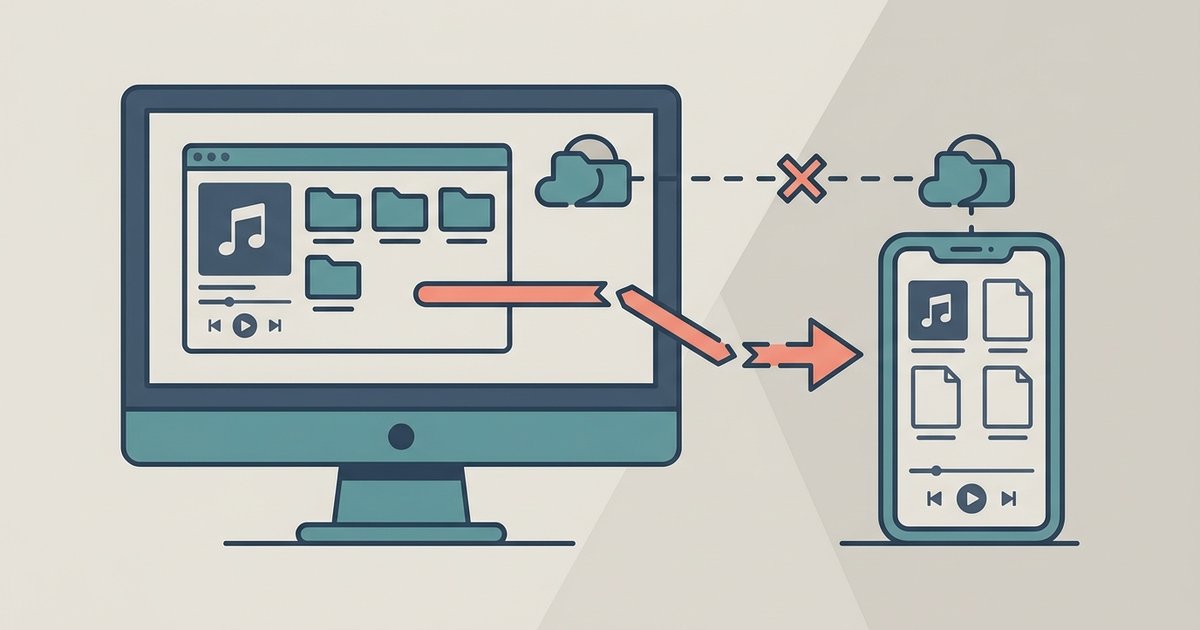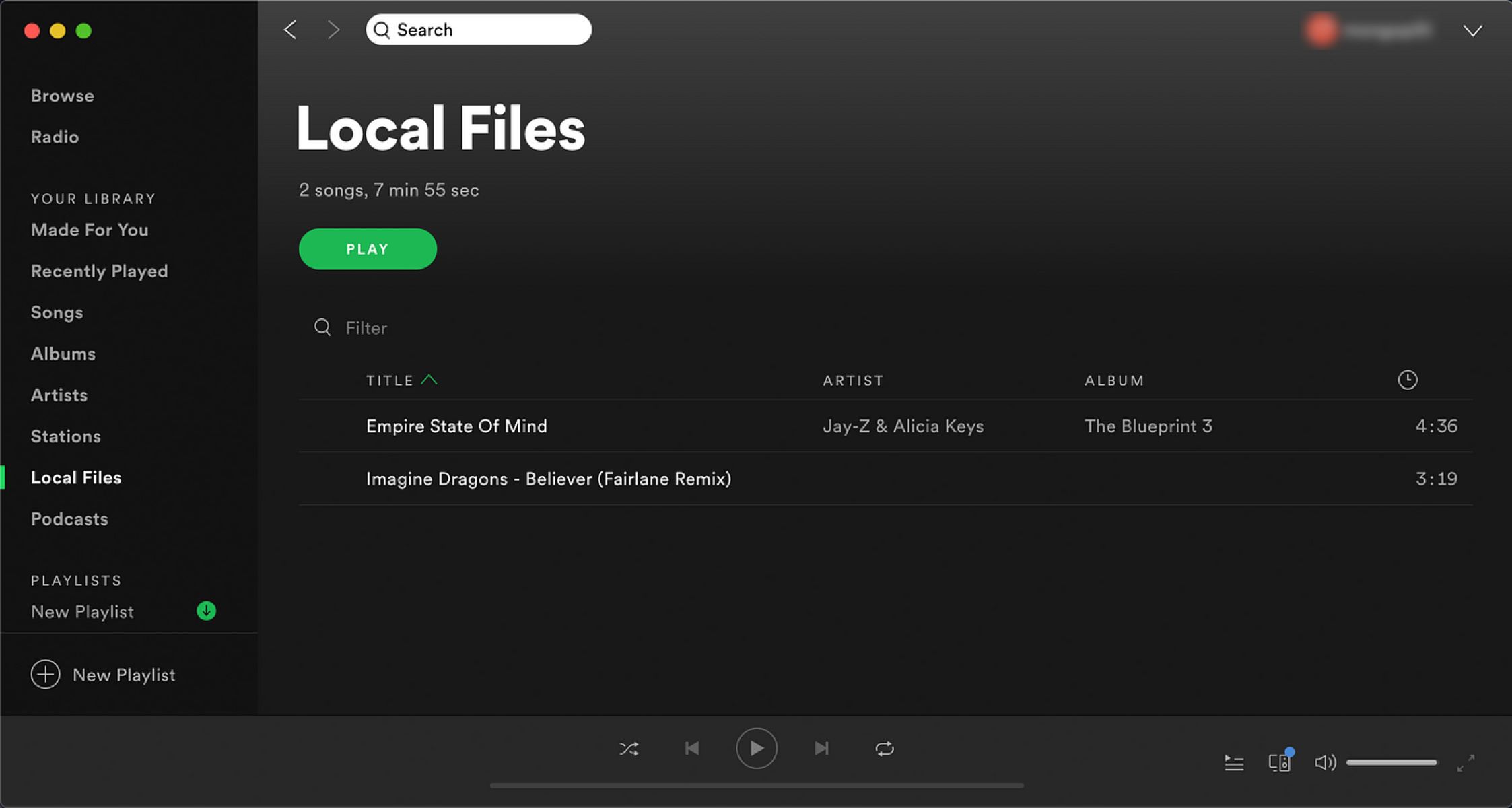
The sync fails because your devices are not on the exact same WiFi network, or your phone's firewall is blocking Spotify's local discovery. If the files came from YouTube or similar sources, they may also be in an unsupported format that Spotify cannot transcode during the sync process.
The same Wi-Fi rule for local files sync
Spotify requires both your desktop and phone to be connected to the identical Wi-Fi connection, not just the same building or ISP. Guest setups, 5 GHz vs. 2.4 GHz bands on the same router, or mobile data fallback all break the peer-to-peer transfer. If you use a mesh system, your phone may be connected to a different node than your desktop, creating a virtual subnet that Spotify cannot see. Similarly, any active VPN on either device masks the local IP address, making the discovery handshake fail. To verify, check that both devices show the same connection name in their Wi-Fi settings and that neither has a VPN running.
Firewall and discovery settings
Windows Defender Firewall often blocks Spotify's local discovery by default, especially after a major update. Go to Windows Security > Firewall & network protection > Allow an app through firewall and ensure "Spotify.exe" is checked for both Private and Public profiles. On macOS, the built-in firewall can silently block the handshake; add Spotify to the allowed apps list. On your phone, iOS's Local Network permission (in Settings > Privacy > Local Network > Spotify) must be enabled, and Android's "Nearby devices" permission must be granted. Without these, the desktop app cannot find your phone to transfer files.
Unsupported file formats from YouTube rips
Files downloaded from YouTube are often in MP4, WebM, or OGG containers, which Spotify cannot reliably transcode during the sync process. The desktop app only natively transcodes MP3 and M4A files for mobile transfer. If your local files are in an unsupported format, they will not appear in Spotify on your desktop at all. To fix this, convert the files to MP3 (320 kbps) or MP4 (audio-only) using a free tool like VLC or Audacity before adding them to Spotify. This is especially relevant if you want to use DJ on Spotify with those tracks, since DJ mode relies on clean, synced metadata.
When the sync icon lies
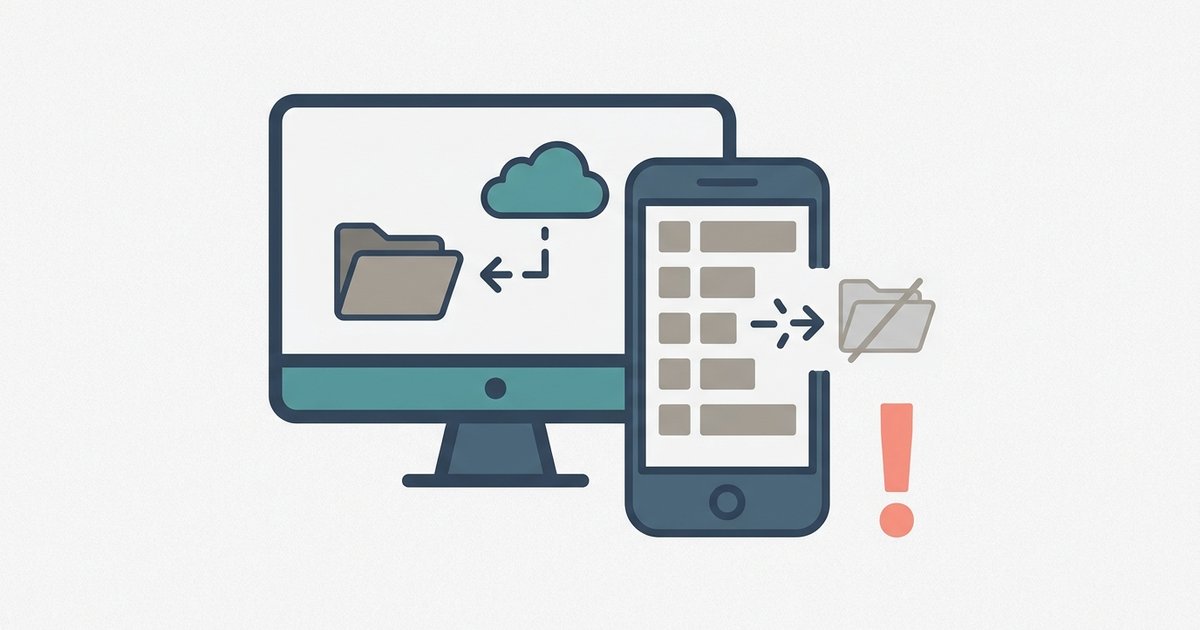
A common failure case is when the playlist shows a green "downloaded" icon on your phone, yet individual tracks are still greyed out. This happens because the desktop app failed to transfer the actual files during the sync, usually due to a timeout or an interrupted handshake. The playlist metadata (title, cover art) syncs, but the audio data never arrives. To force a manual re-sync, turn off "Download" on that playlist, delete the playlist from your phone entirely, then re-add the same playlist from your desktop and toggle "Download" again. If you need to add songs to Spotify from YouTube, ensure you convert them first, as raw YouTube rips often trigger this false "downloaded" state. For those wondering how to put your music on Spotify permanently, local file syncing is a temporary workaround, consider uploading to Spotify's official distribution service for permanent availability. And if you want to share these local playlists, you must first add a friend on Spotify via the app, then share the playlist, but friends cannot play your local files unless they also have them stored locally.
Unlike generic troubleshooting guides, this article identifies that a mesh Wi-Fi system with multiple nodes creates a virtual subnet that specifically breaks Spotify's peer-to-peer discovery handshake, even when both devices appear to be on the same home connection.