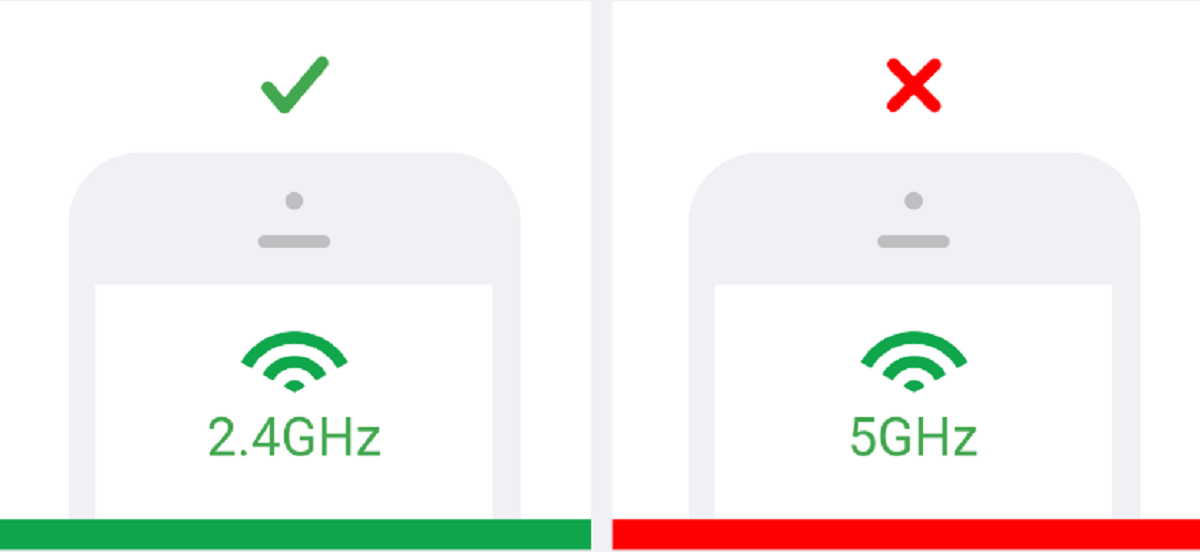
Your phone is on the faster 5 GHz band and the mesh system is trying to force the smart device onto that same band, but the device can only speak 2.4 GHz. You need to temporarily disable the 5 GHz band in your mesh app so the device sees a compatible network during setup.
Why mesh systems block your 2.4 GHz mesh wifi device
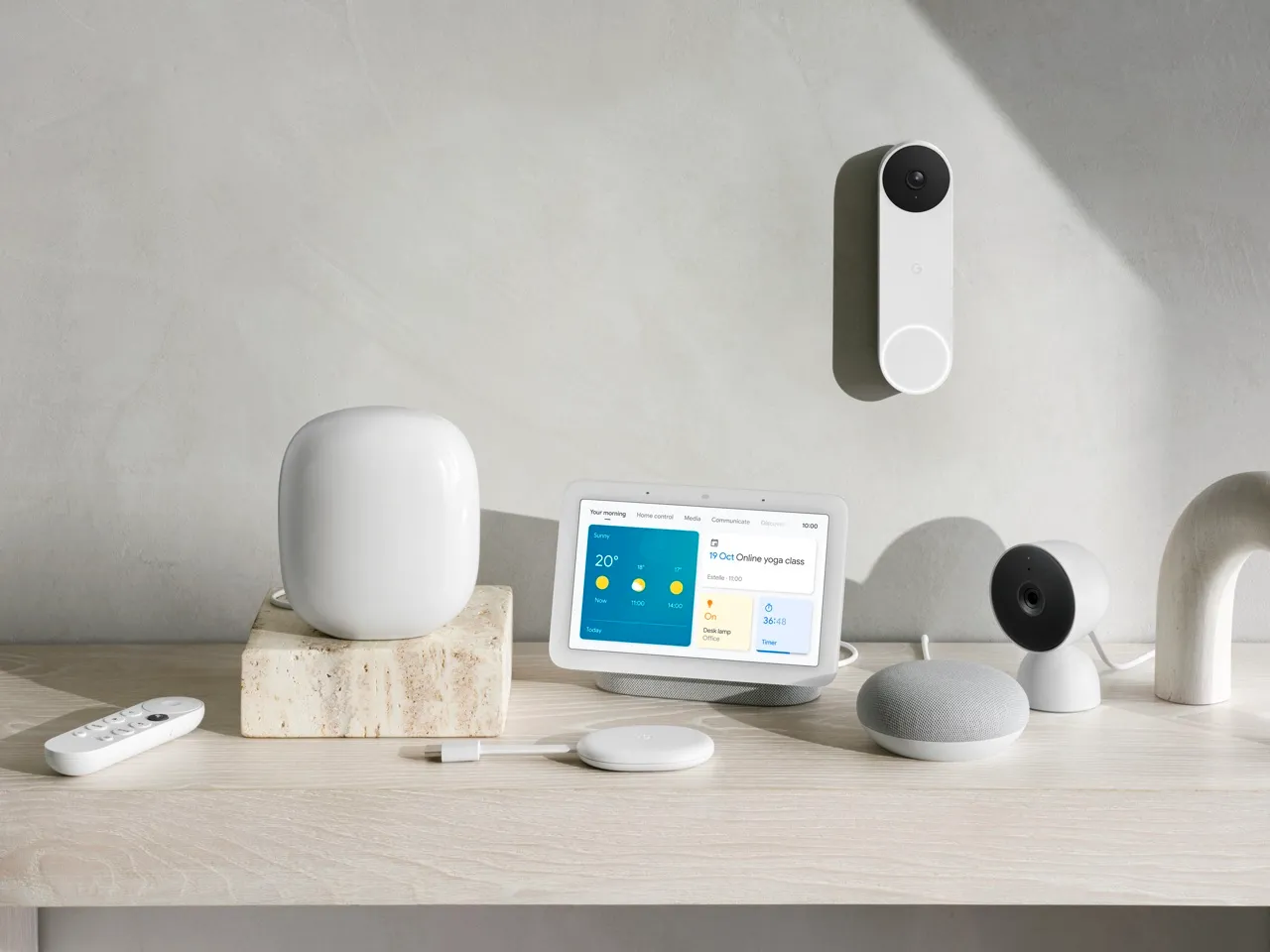
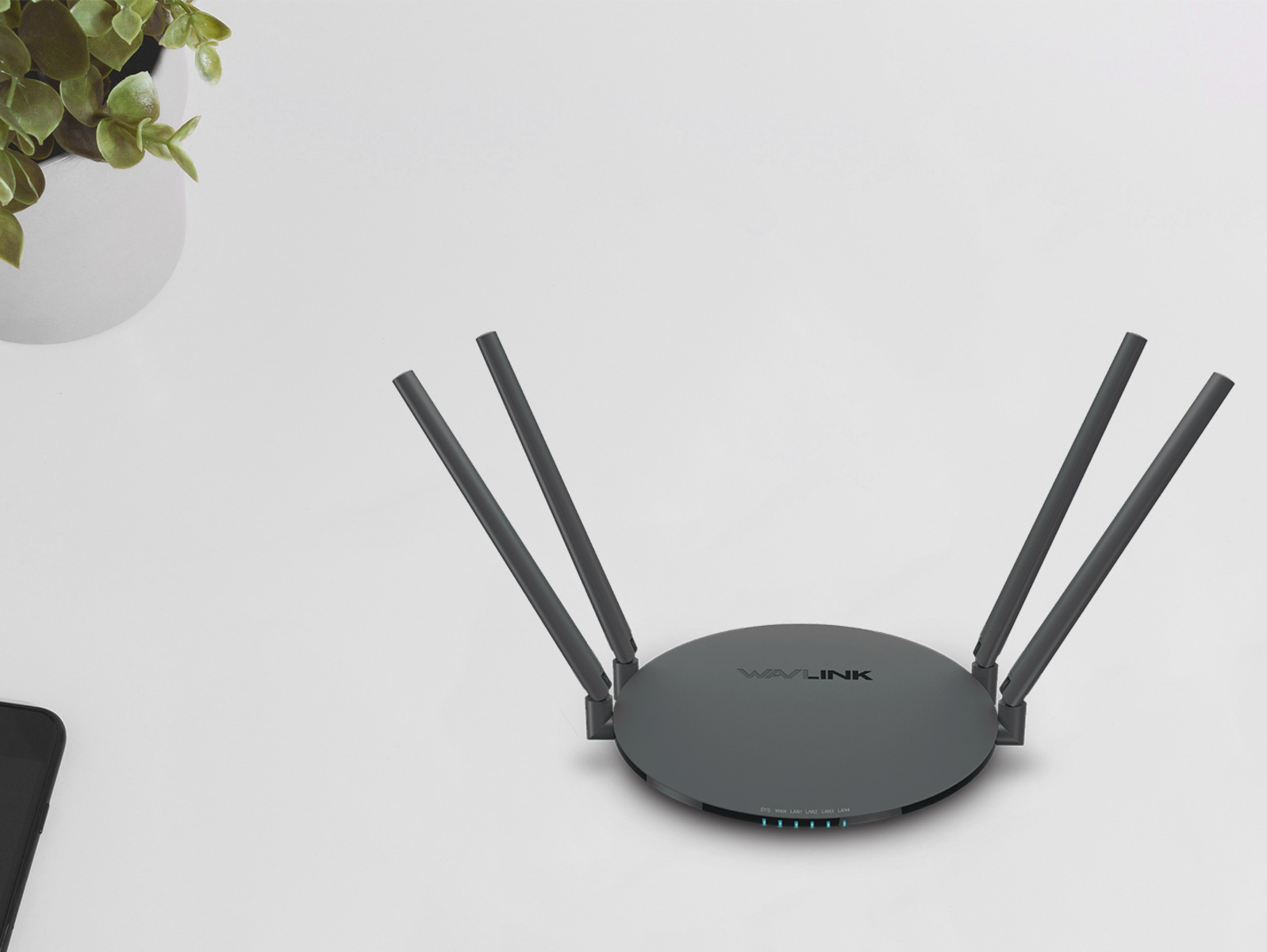
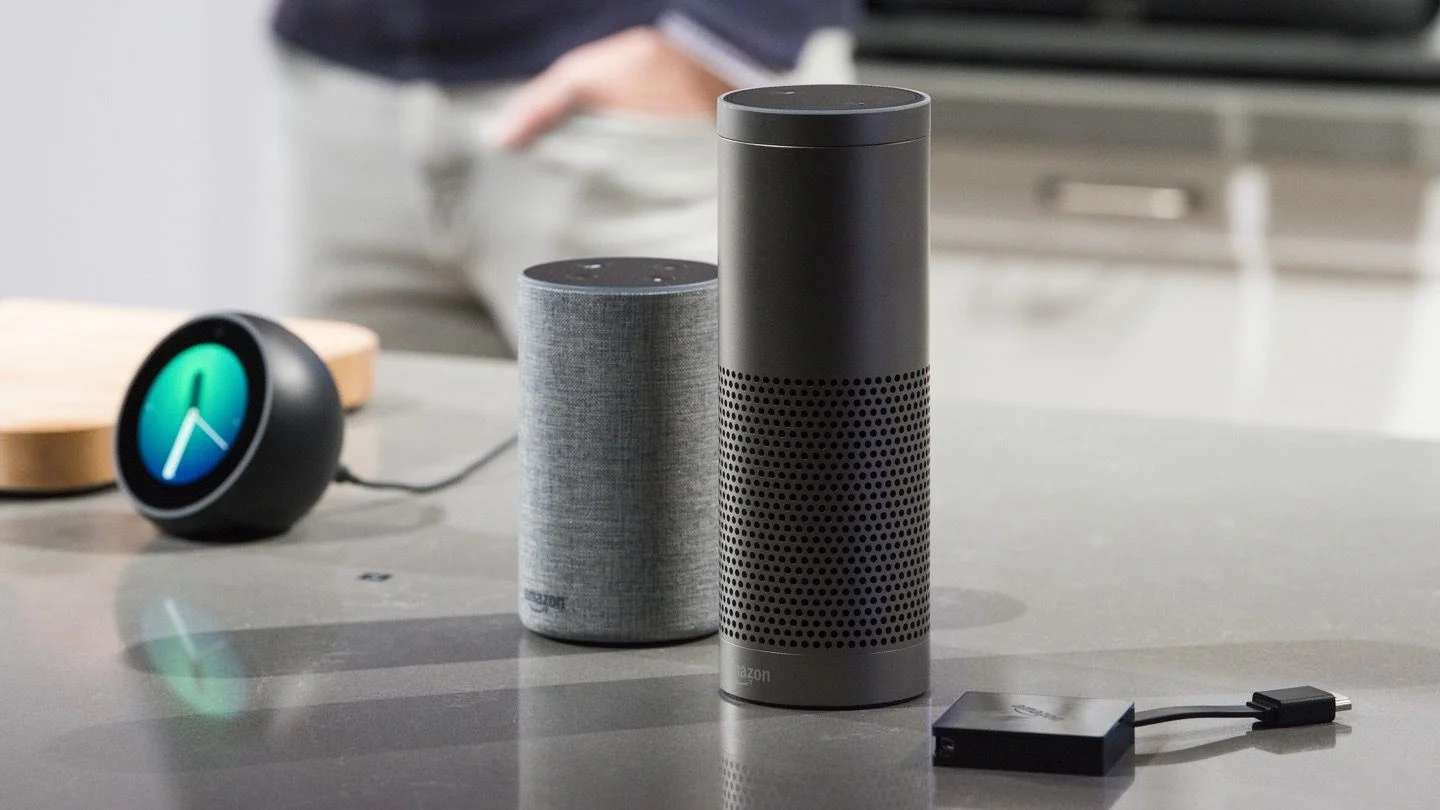
Modern mesh Wi-Fi systems, like those from Google Nest or Eero, use a feature called band steering. This means they broadcast a single name for both the 2.4 GHz and 5 GHz bands, and the system automatically decides which band your device should use. During setup, your phone, which almost always prefers the faster 5 GHz band, connects the mesh system’s app to that band. The app then tries to hand off the same credentials to your smart device. But a 2.4 GHz-only device, like a smart plug or a light bulb, cannot see or join a 5 GHz signal. The app fails because it expects the device to appear on the same band as your phone, but the device is invisible on 5 GHz. This is why entering the password correctly or moving closer to a mesh point doesn’t fix it, the bands are mismatched. The same band conflict often prevents you from being able to connect Google smart speaker to Wi-Fi during its initial setup.
Once the smart device pairs, you can re-enable the 5 GHz band, and the mesh system will manage both bands normally.
The temporary 5 GHz pause fix
Open your mesh router’s app right now, for example, launch the Google Home app if you need to connect your Google Nest to a new Wi-Fi network. Tap Wi-Fi, then select “Network & General” or “Advanced Networking.” Locate the toggle for the 5 GHz band and disable it immediately. This stops the mesh from broadcasting the 5 GHz signal, leaving only the 2.4 GHz band active. Your phone will automatically switch to 2.4 GHz. Retry the setup in the device’s app now; it should detect the connection. After the smart device connects successfully, return to the same menu and re-enable the 5 GHz band. If you are starting from scratch, the process to set up your Nest Wifi also relies on this band-pause trick for older smart home gadgets.
When disabling 5 GHz doesn't work
If the device still won’t connect after you disable the 5 GHz band, change these three settings in your mesh app now. First, switch your security mode. Many new mesh systems default to WPA3, but many 2.4 GHz smart devices only support WPA2. Set your security to WPA2/WPA3 mixed mode or WPA2-only. Second, strip your Wi-Fi password down. If it contains special characters like “!” or “#” that the device’s limited firmware cannot interpret, change the password to a simple string of letters and numbers, 8 to 16 characters, no symbols, and retry. Third, make your SSID visible. Smart devices often cannot scan for hidden setups; they require the name to be broadcast, so uncheck “hide network” in your settings. If you are building your own helpful smart home, keeping the name visible and using a plain password with WPA2 will prevent most pairing failures. If all else fails, factory reset the smart device and repeat the 2.4 GHz-only setup from scratch.
No other guide will tell you this: the mesh isn’t broken, your phone is the wrong pairing tool, because its automatic 5 GHz preference makes the 2.4 GHz device invisible to the app during setup.