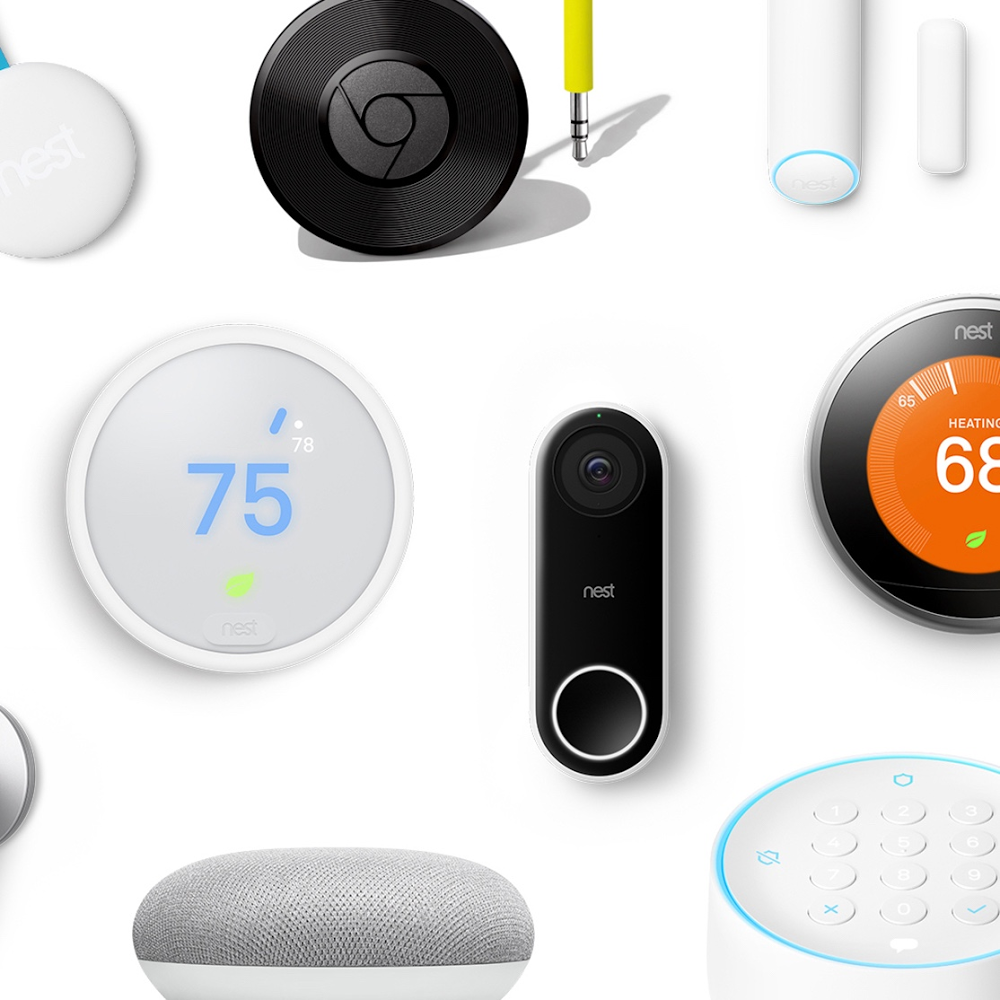
To begin your Google nest setup, you need just three things: a Google Account, the Google Home app on a compatible phone, and a working home Wi-Fi network, if your speaker isn't online yet, connect Google smart speaker to Wi-Fi first. This guide walks you through every device and step required to build a helpful smart home with Google Nest.
What you need for Google Nest setup
The foundation of any Google Nest smart home is the Google Home app, which requires a Google Account and a home Wi-Fi network. The app is compatible with Android phones or tablets running Android 9.0 or later, and iPhones or iPads running iOS 17.0 or later. All Google Nest devices require a Wi-Fi network for setup and to access smart features.
Google Nest devices and what they do
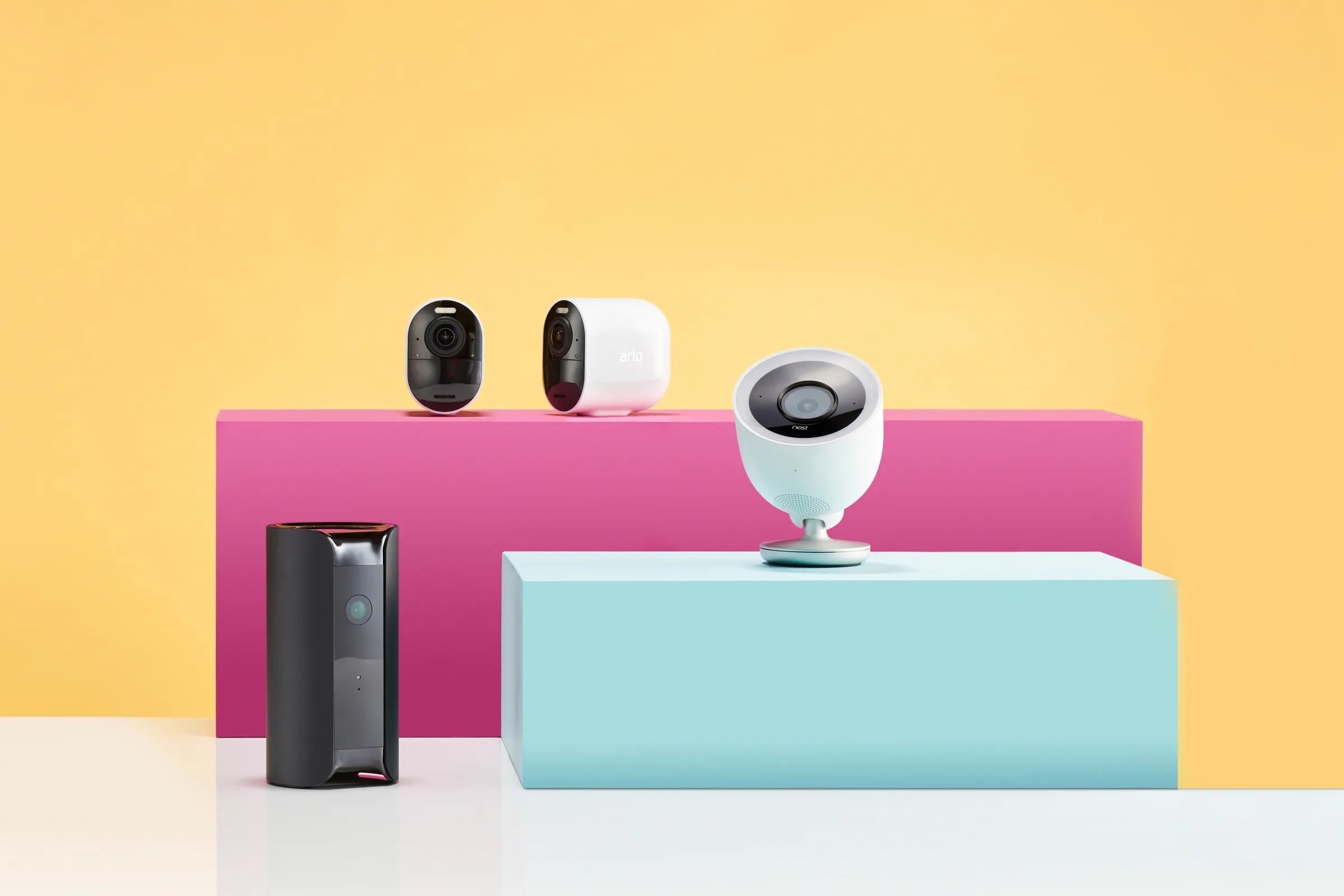
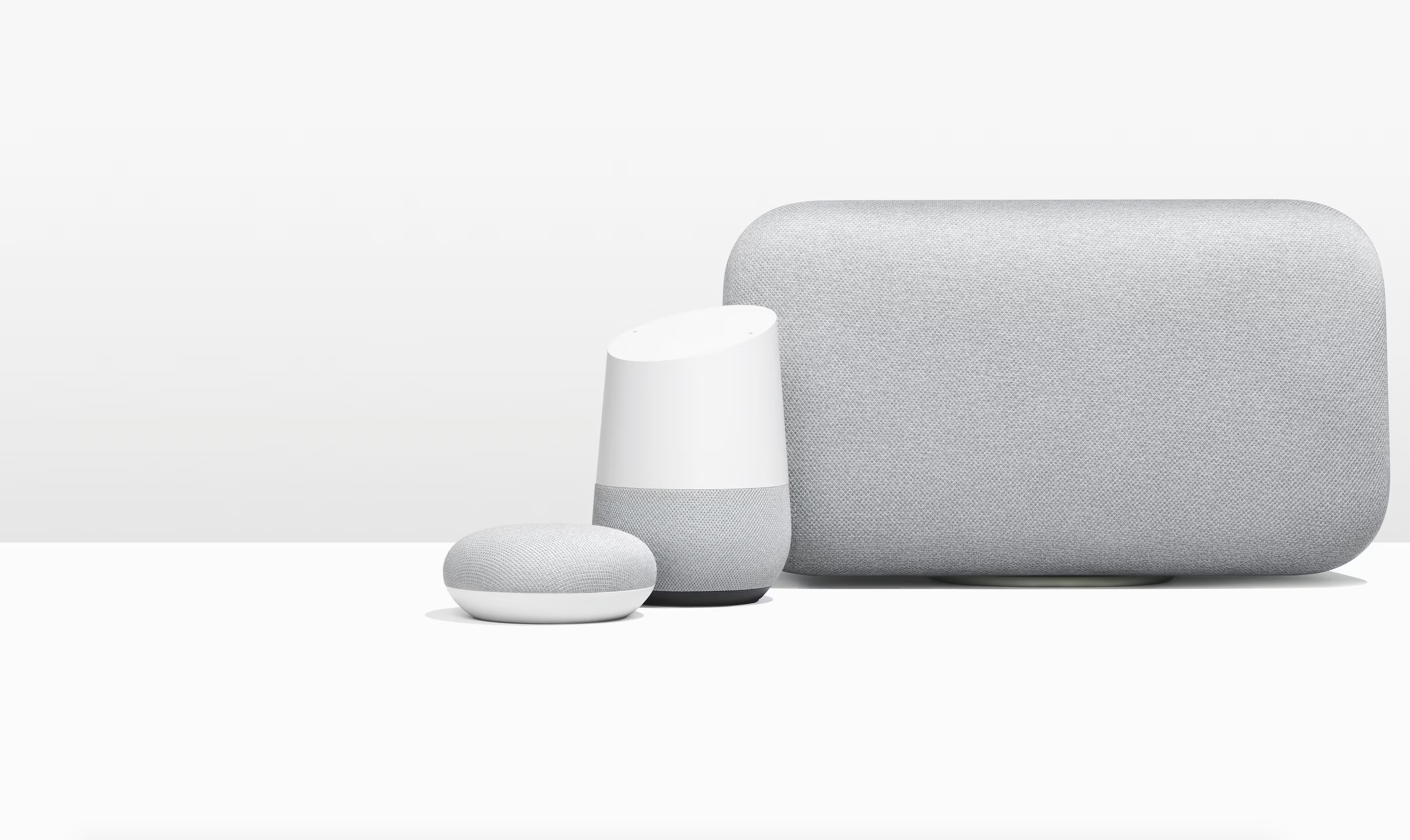
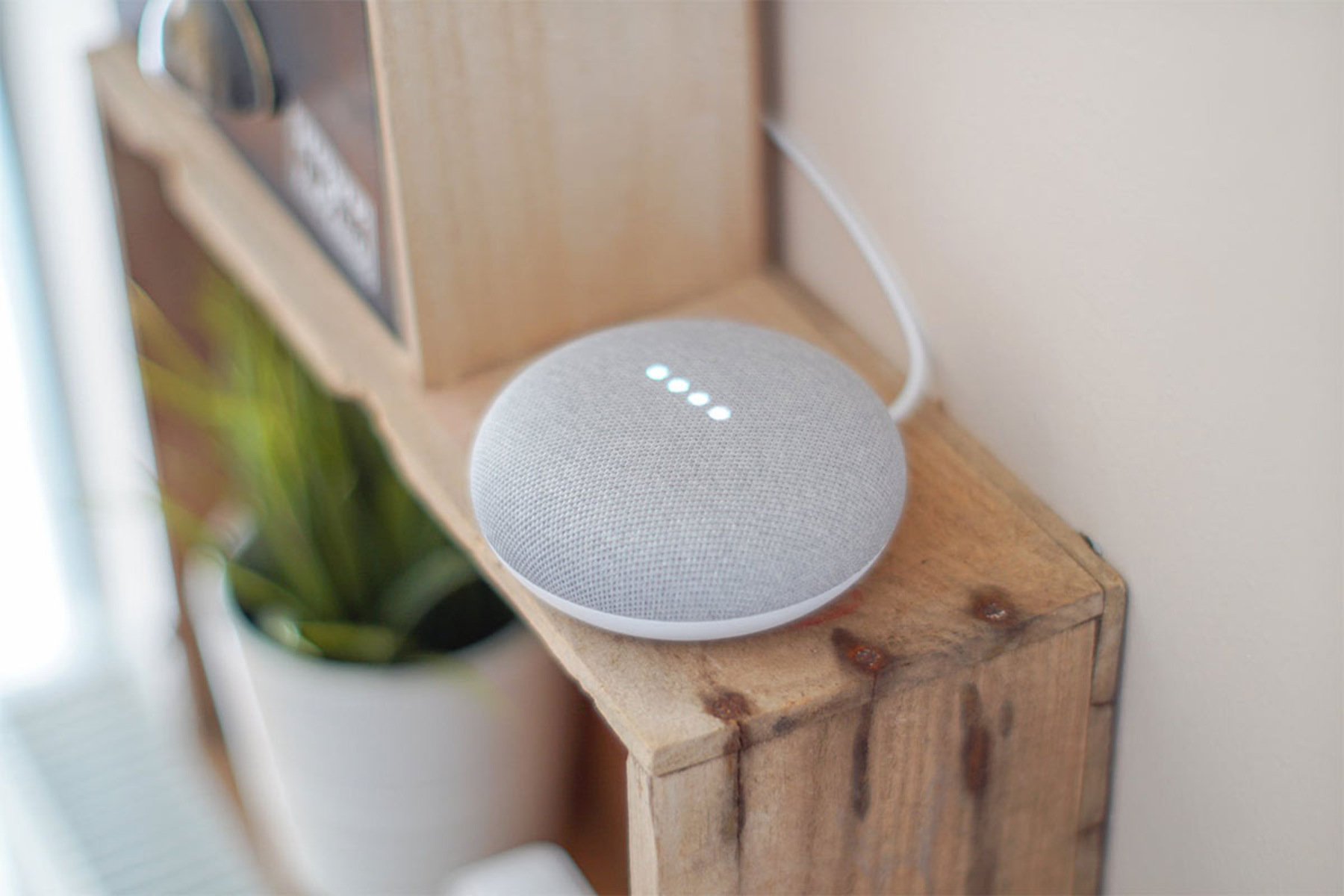
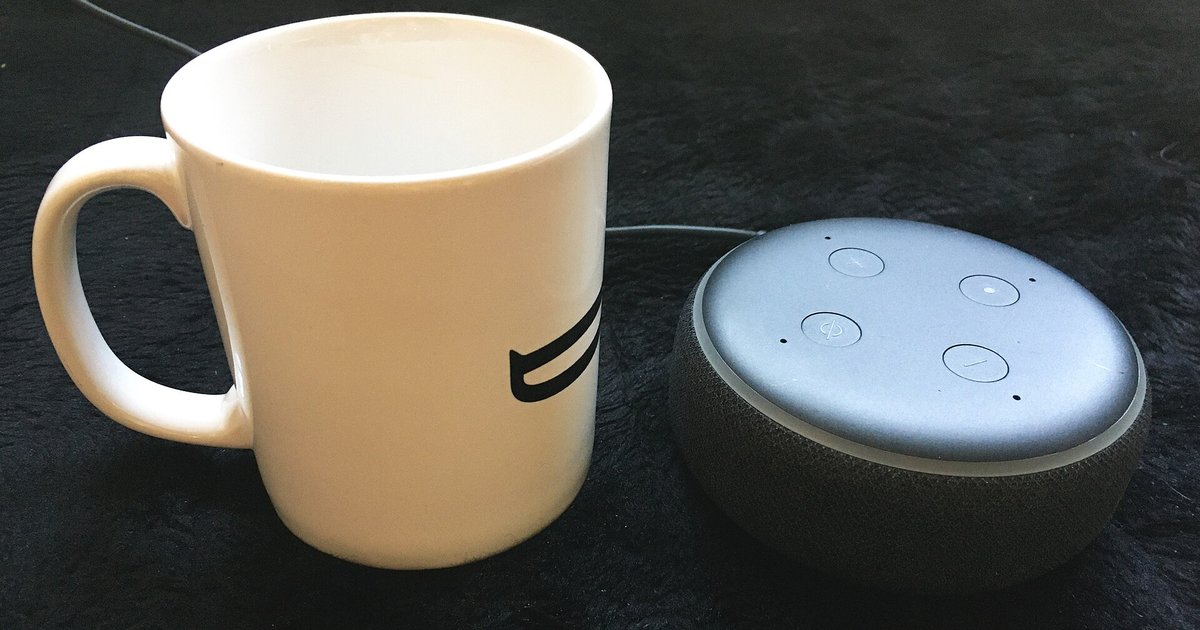
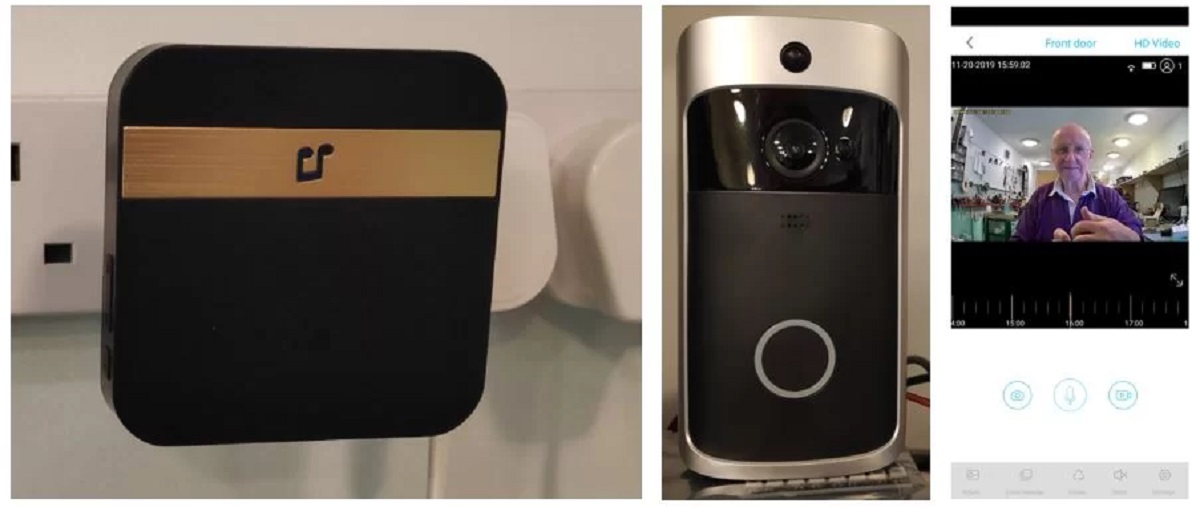
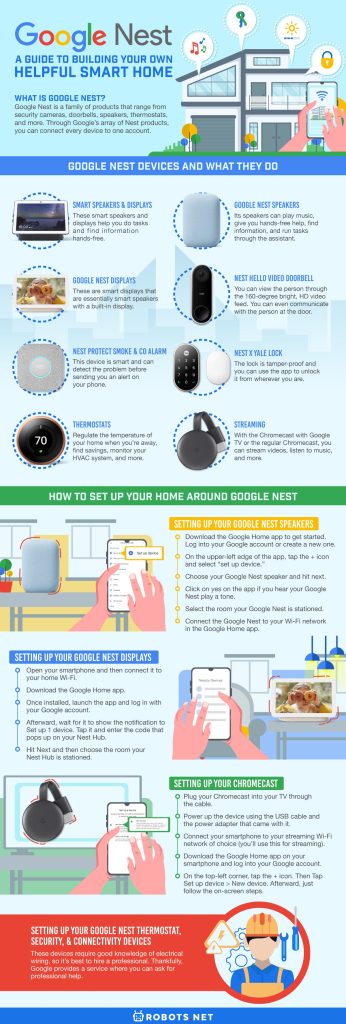
Google Nest includes a range of product categories designed to make your home more helpful. Smart speakers and displays, like the Nest Audio and Nest Hub, let you use Google Assistant hands-free for music, information, and controlling other devices. Doorbells and cameras provide live video feeds and two-way communication. Smoke and CO alarms detect hazards and send alerts to your phone. Locks, such as the Nest x Yale Lock, offer keyless entry. Thermostats regulate your home’s temperature to save energy. Streaming devices, including Chromecast and Google TV Streamer, let you watch content on your TV.
Before you install: prerequisites for thermostats, cameras, and doorbells
Before mounting or wiring anything, perform critical checks to avoid problems. Google Nest thermostats are compatible with most 24V heating and cooling systems, but not high voltage (120V or 240V) systems. Use the compatibility check in the Google Home or Nest app to verify your system. For Nest Cams and Doorbells, test the Wi-Fi signal strength at the intended installation location before mounting the device to ensure reliable video streaming. For wired Nest Doorbells, check your existing doorbell system’s voltage and compatibility, as power issues can occur.
How to set up Google Nest speakers and displays
Setting up a Google Nest speaker or display is straightforward. Follow these steps:
- Plug in the device and wait for it to power on.
- Open the Google Home app on your phone.
- Tap the + icon, then select Set up device, and choose New device.
- Scan the QR code on the device or follow the in-app prompt.
- Confirm the sound when the app plays a tone to verify the correct device.
- Choose the room where the device is located.
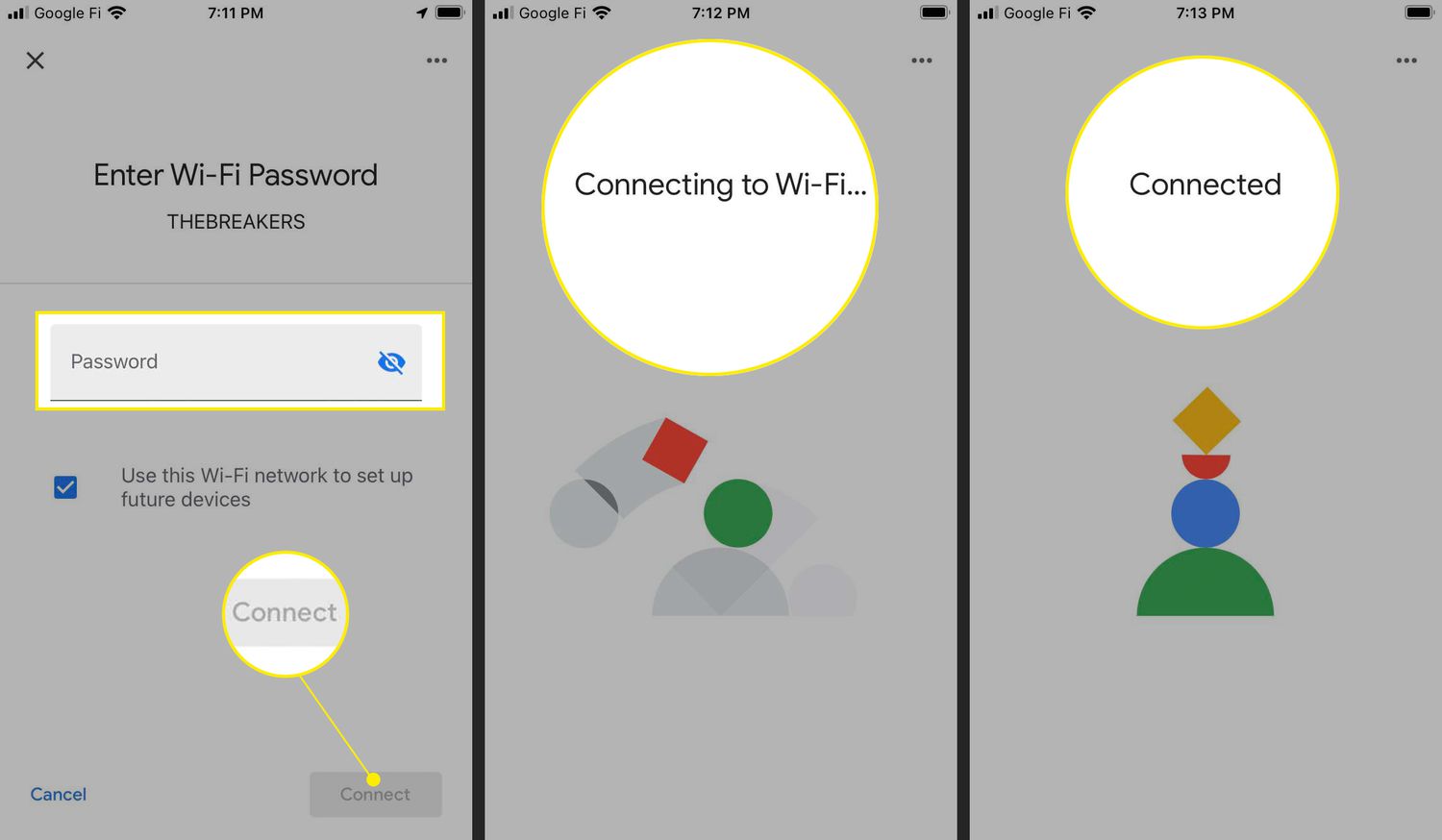
- Connect the device to your Wi-Fi network.
- Set up Voice Match so Google Assistant can recognize your voice.
How to set up Google Nest thermostats, security, and connectivity devices
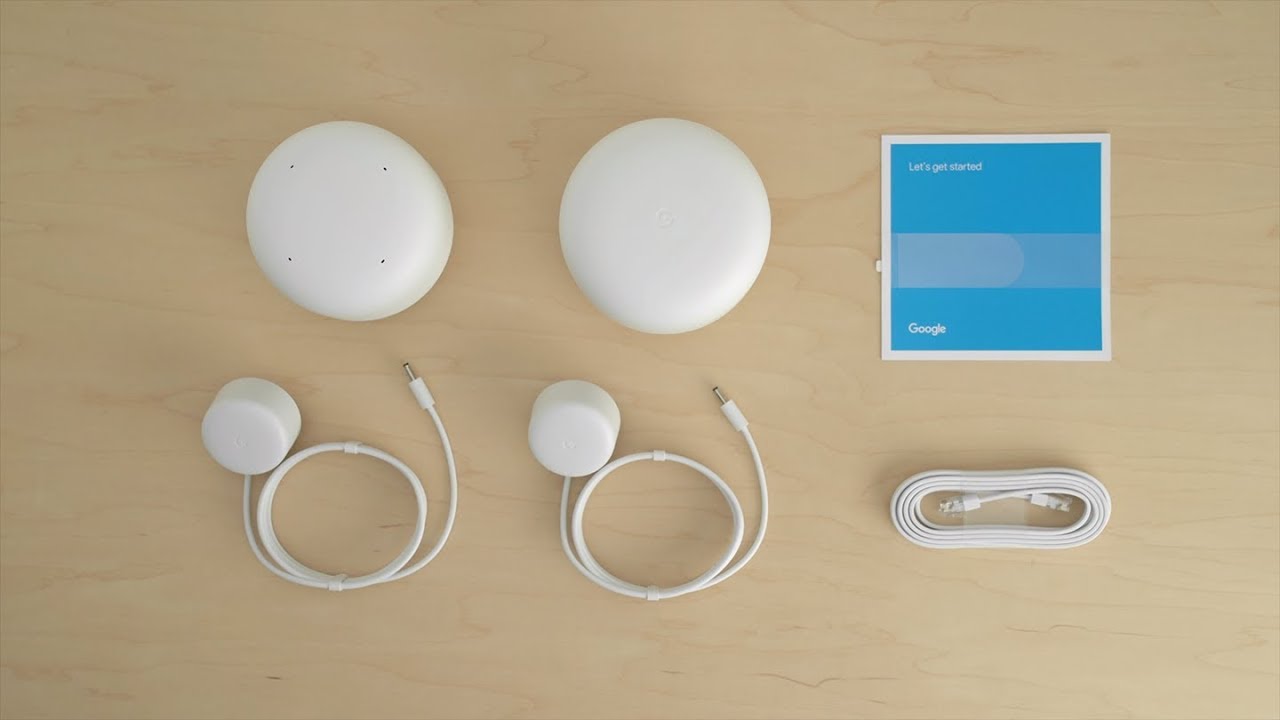
For thermostats, security devices, and connectivity products like Nest Wifi, consider hiring a professional via Google’s installation service if you are not comfortable with wiring. For those who self-install, the app-based steps vary by device. Most new devices are set up by opening the Google Home app, tapping the + icon, selecting Set up device, and scanning the QR code. Note that some older devices, such as Nest Protect, older Nest Cams, and Nest Learning Thermostat 3rd gen, still require initial setup through the Nest app before they can be managed in the Google Home app. If you need to connect your Google Nest to a new Wi-Fi network, you can update the network settings in the Google Home app by selecting the device and choosing Wi-Fi settings. To set up your Nest Wifi, plug the Nest Wifi router into your modem’s WAN port using an Ethernet cable, then plug it into a power outlet, and follow the setup prompts in the Google Home app.
How to set up a Chromecast or Google TV Streamer
Setting up a streaming device is quick:
- Plug the Chromecast or Google TV Streamer into your TV’s HDMI port.
- Connect the power cable to the device and plug it into an outlet.
- Switch your TV to the correct HDMI input.
- Tap the + icon, select Set up device, and choose New device.
- Follow the on-screen prompts to connect to your Wi-Fi network.
Connecting your devices to Google Assistant and Matter
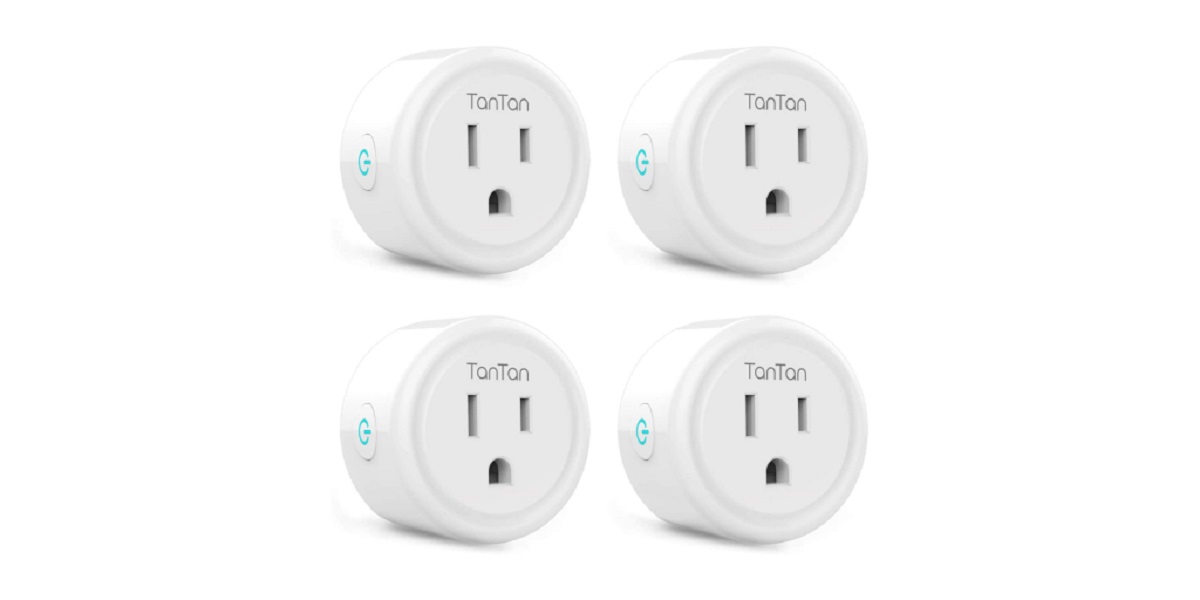
To control third-party smart home devices, link them through the Google Home app by tapping the + icon, selecting Set up device, then Works with Google. Choose your device from the list and follow the steps. For cross-platform control, Google Nest devices that function as Matter hubs and Thread border routers include Nest Hub (2nd gen), Nest Hub Max, Nest Wifi Pro, and Google TV Streamer (4K). Matter is a smart home standard that enables compatible devices to communicate across different platforms over Wi-Fi or Thread.
Optional features and subscriptions
Some advanced features require a Google Home Premium subscription. For example, Familiar Face Alerts on Nest Cams use this subscription to send notifications when a recognized person is detected. You can find these settings in the Google Home app under device settings and subscription options.