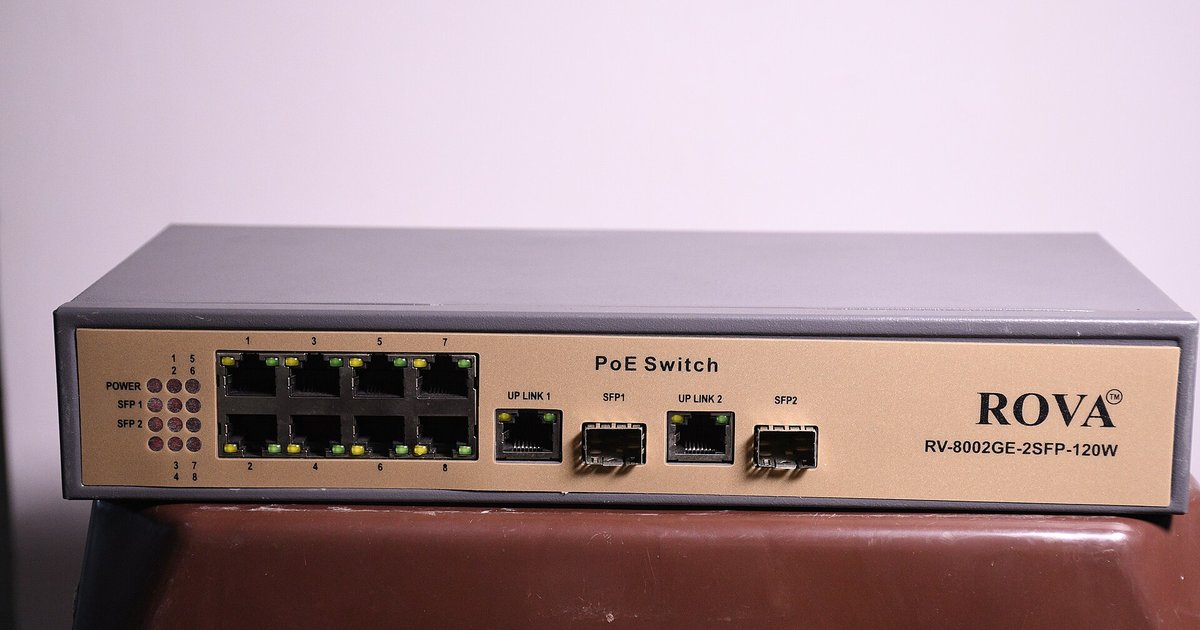
An unmanaged switch is a transparent Layer 2 device with no IP address of its own, so it is invisible to IP-based network scans by design. You can confirm it's working by checking the link lights or pinging a device connected through it.
The switch is an unmanaged transparent bridge, not a host
An unmanaged switch operates exclusively at Layer 2 of the OSI model, meaning it deals only with MAC addresses and Ethernet frames. It does not process or generate IP traffic. When you connect a device to the switch, the switch learns the device's MAC address and forwards frames to the correct port based on that location, but it never assigns itself an IP. Tools like Angry IP Scanner or your router's device list send ICMP pings or SNMP queries to every IP in a subnet; because the switch has no IP stack, it has nothing to respond to. The switch is essentially invisible glass, traffic passes through it, but the switch itself never appears as a host. If you were to run Wireshark on a port mirror (which requires a managed switch), you would see frames with the switch's MAC as the source for broadcast traffic, but you would never see an IP packet with the switch as the source or destination. To find the IP address of a managed switch, you would log into its management interface, but for an unmanaged switch, that concept does not apply.
The common mistake: confusing managed and unmanaged switches
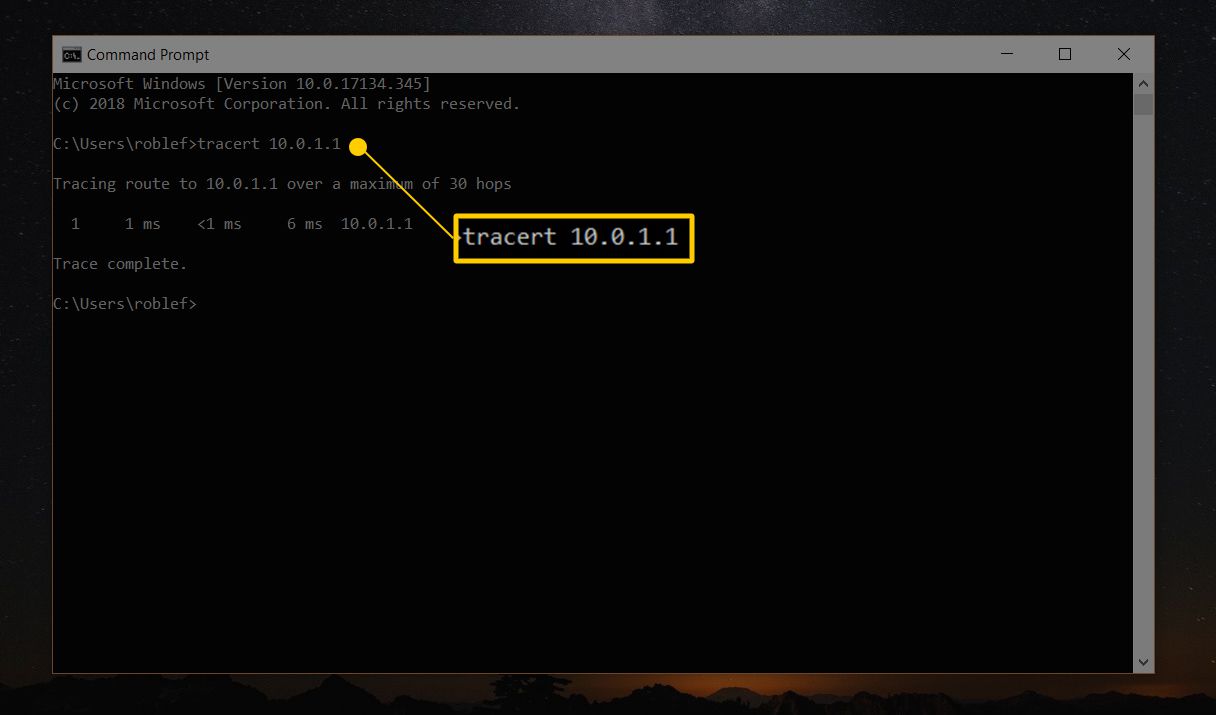
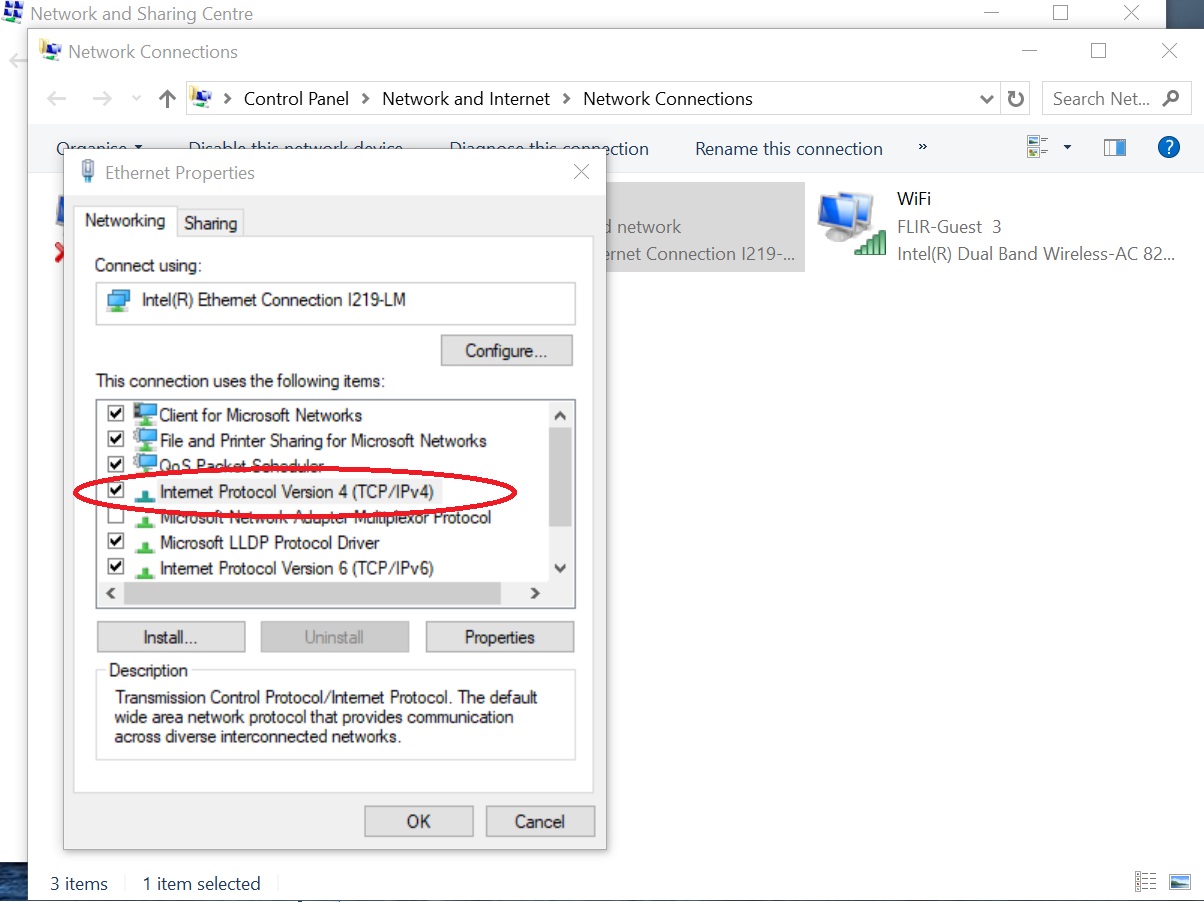
Many home labbers and small business users expect every network device to have a web interface or a configurable IP because they have experience with routers, access points, or managed switches. This leads to the failure case where you plug in the new switch, check the router's DHCP lease table, run an Nmap scan of your subnet, and see nothing. The switch is silent because it is unmanaged. Managed and smart switches run a minimal operating system that can accept an IP via DHCP or static assignment, which allows them to respond to pings and appear in scans. Unmanaged switches never do this. If you are trying to find the IP address of an Ethernet-connected device, you would check that device's network settings, not the switch itself. Similarly, to find your default gateway IP address, you look at a host's routing table, not the switch. The switch simply does not participate in IP networking at all.
How to verify it’s actually working
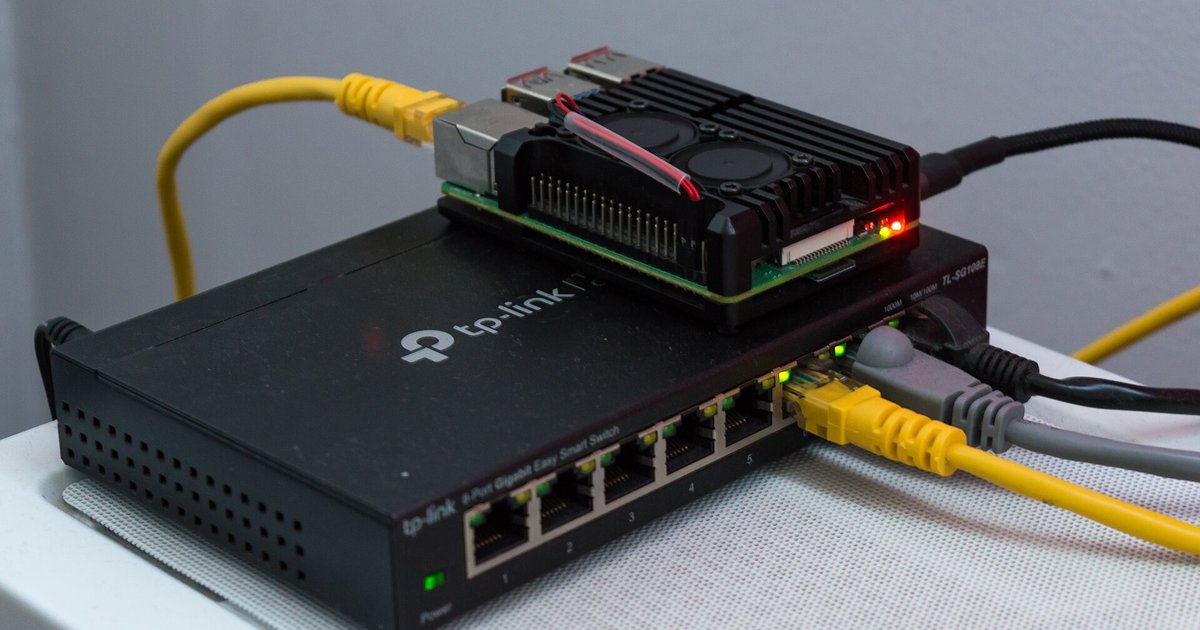
Since the switch will never appear in a scan, you must use physical and indirect methods to confirm it is operational. First, check the link and activity LEDs on the switch ports. When you plug in a cable, the port LED should light solid green (or amber if there is a speed mismatch) and blink with traffic. Second, take two known working devices, for example, your desktop and a Raspberry Pi, connect both to the switch, then ping from one to the other. If the ping succeeds, the switch is forwarding frames correctly. Third, look at your router's ARP table: it will show the IP and MAC addresses of all devices on your network. If you see the MAC of a device that is plugged into the switch, but not the switch's own MAC, that confirms the switch is transparent.