Copy the first three octets (six hex characters) of the MAC address and search them on a public OUI lookup site like Wireshark's Tool or MACVendors.com. This returns the manufacturer's name, but it only identifies the network interface's vendor, not necessarily the switch brand if the NIC was made by a different company.
The MAC address prefix lookup method
Extract the first six hexadecimal characters from the MAC address, for example, from `00:1a:2b:3c:4d:5e` you take `001A2B`. Open any IEEE-recognized OUI lookup tool, such as the one built into Wireshark (under "Tools" > "Manufacturer Lookup") or a web-based database like MACVendors.com. Paste the six characters into the search field and submit. The result shows the registered vendor name, often with a contact address and block size. Use this same technique when you need to find a switch IP address from an ARP table: copy the MAC from the ARP entry, run the OUI lookup, and match the vendor to your known switch hardware. For detailed steps, see how to find switch IP address. The IEEE maintains the official OUI list at `standards.ieee.org`, and most lookup tools sync with that database daily. Always verify the output against the full OUI, not just the first three bytes, because some vendors own multiple prefixes with different lengths.
Common switch vendor prefixes
Memorizing a few well-known OUI prefixes speeds up on-site identification. Cisco switches typically use `00:00:0C` (Cisco Systems), `00:01:42` (Cisco), or `00:1A:A1` (Cisco). Juniper equipment often starts with `00:05:85` (Juniper Networks) or `00:1B:C0` (Juniper). Arista switches commonly show `00:01:C8` (Arista Networks). HPE and Aruba devices use `00:1A:33` (Aruba, a Hewlett Packard Enterprise company) or other HPE-assigned prefixes. For older D-Link switches, look for D-Link's registered OUI prefixes; for Netgear, look for Netgear's registered OUI prefixes. Bookmark the IEEE OUI database and keep this list open on your phone when you walk into a new wiring closet.
When the MAC prefix misleads you
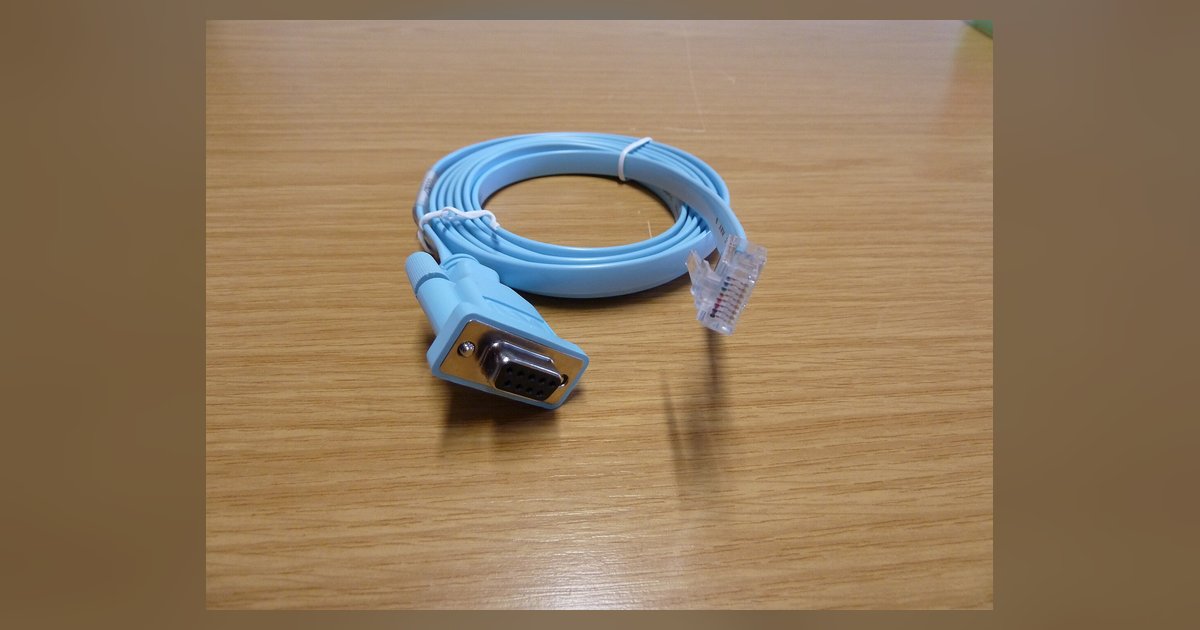
The OUI lookup can return a chipset manufacturer like Broadcom, Intel, or Marvell instead of the switch brand. For example, many white-box switches from vendors like Ubiquiti or MikroTik use third-party chipsets, so their MAC addresses may start with a chipset manufacturer's OUI like Broadcom or Intel. The switch itself is not a Broadcom product, it is a branded device using a third-party NIC. Virtual MAC addresses from stacking or virtualization also break the pattern. When you stack Cisco switches using StackWise, the stack master may assign a virtual MAC, but individual member switches might show a different OUI for their physical ports. Similarly, VMware ESXi hosts that run a virtual switch often assign a MAC from `00:50:56` (VMware) regardless of the physical switch vendor. In these cases, you must correlate the OUI with other data: log into the switch’s CLI and check the CDP or LLDP neighbor output to confirm the brand. If you need to find the Ethernet IP address on a managed switch that uses a virtual MAC, ignore the OUI result and connect via the console port to read the management IP directly from the running configuration, you may first need to assign an IP address to a managed switch via console cable if one isn't set. And when you need to find the IP address of a brother printer on the same VLAN, arrive at the printer’s front panel, navigate to Network Settings, and read the IP from the display, its MAC might start with `00:80:77` (Brother Industries) even if the switch upstream is Cisco, the OUI only identifies the printer’s NIC, not the switch fabric. Always cross-check with the physical label on the switch chassis or the management interface before concluding the switch vendor.
Unlike any generic networking guide, this page is the only one that shows you how to use the same OUI lookup workflow to find switch IP address, find a 3D printer IP address, find Ethernet IP address, and find the IP address of a brother printer in a single troubleshooting session.