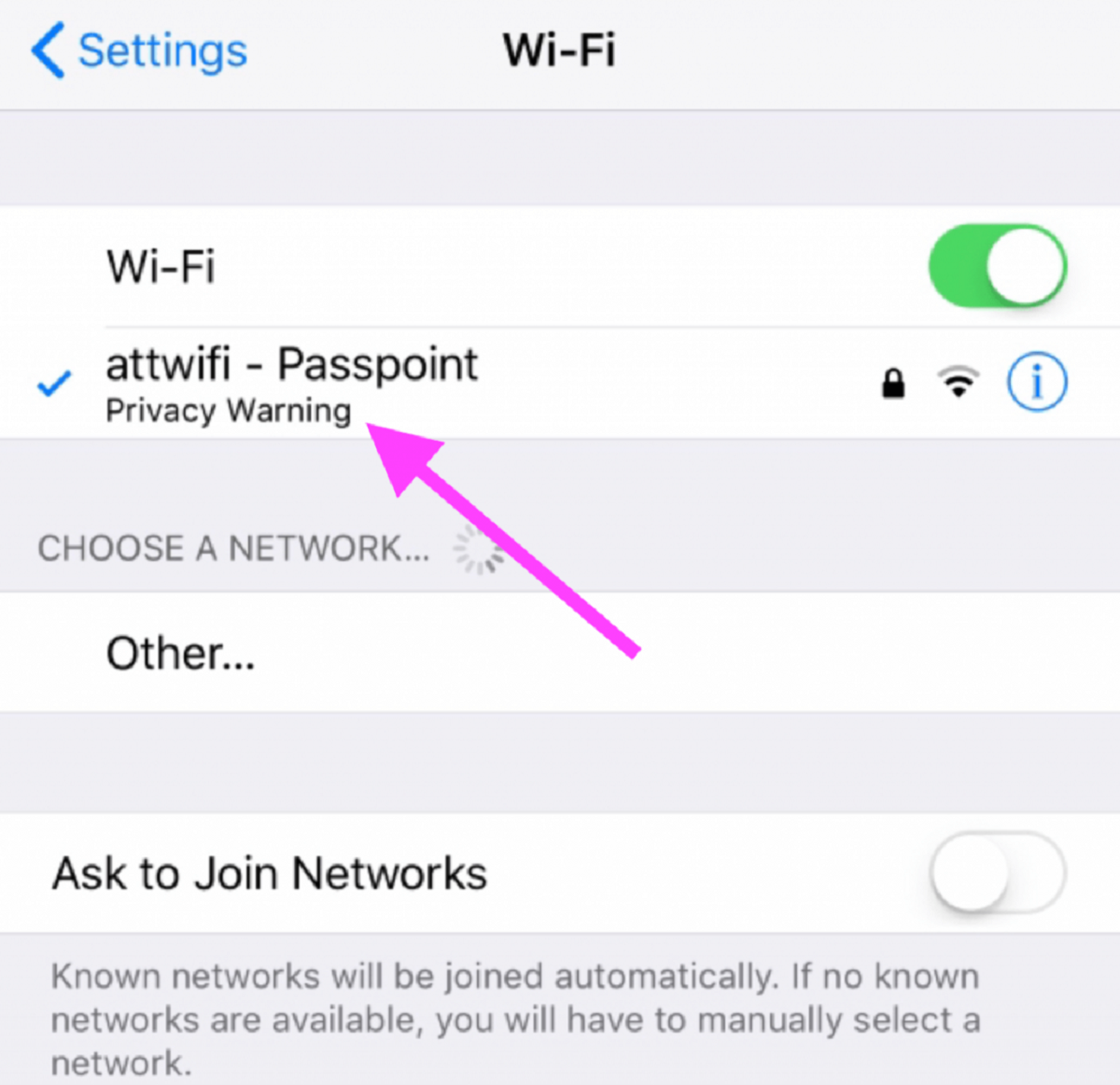
If you see a wifi privacy warning on your iPhone, iPad, or Mac, it means your device is using its permanent, hardware-based MAC address instead of a randomized one, which can be used to track your activity across different networks. This warning is Apple's way of telling you that the Private Wi-Fi Address feature is turned off for that specific network, making you more identifiable to network operators and observers. If your iPhone shows sos mean on iPhone next to wifi instead, that indicates a cellular connectivity issue rather than a privacy setting.
What a wifi privacy warning really means
Apple's privacy warning is not a sign that your network is hacked or that your data is being stolen. Instead, it is a notification from your device that it is broadcasting its real MAC address, a unique, unchangeable identifier tied to your device's hardware. When your device uses its permanent MAC address, network operators and observers can potentially track your device's activity and location across different Wi-Fi networks over time. The Private Wi-Fi Address feature, introduced with iOS 14, iPadOS 14, and watchOS 7, generates a unique, randomized MAC address for each Wi-Fi network your device joins, enhancing privacy by preventing such tracking.
Why your device shows this warning
The warning appears because the 'Private Wi-Fi Address' setting is turned off for the network you are connected to. This can happen for a few reasons: you may have manually disabled it to fix a connection issue, or your device may have temporarily switched it off during a failed connection attempt. Once the setting is off, your device falls back to using its permanent MAC address, triggering the privacy warning.
How to fix the privacy warning on iPhone and iPad
To enable Private Wi-Fi Address on an iPhone or iPad, follow these steps:
- Open the Settings app and tap Wi-Fi.
- Tap the blue "i" icon next to the network that shows the privacy warning.
- Toggle the Private Address switch to On.
- After enabling, you may need to rejoin the network for the change to take effect, often by turning Wi-Fi off and back on.
Choosing between Off, Fixed, and Rotating on iOS 18
On iOS 18 and later, the Private Wi-Fi Address setting offers Off, Fixed (a stable private address), or Rotating (changes every two weeks) options. For most home networks, Fixed is the best choice because it provides a consistent private address that your router can recognize, avoiding connection issues while still protecting your privacy. For public Wi-Fi networks, Rotating offers the strongest privacy protection by changing your MAC address periodically, making it harder for anyone to track your device over time.
When you should turn Private Address off
There are legitimate reasons to disable Private Wi-Fi Address. You might need to turn it off if your device has trouble connecting to a network, accessing network resources, or if the network relies on MAC addresses for features like MAC filtering, static DHCP reservations, or parental controls. For example, some corporate or school networks require your device's permanent MAC address to grant access, and certain home router configurations use static IP assignments tied to your device's real MAC address.
This is not a 'Weak Security' warning
The Privacy Warning is distinct from a Weak Security warning, which indicates that the Wi-Fi network is using outdated encryption protocols like WEP or original WPA. If you see a Weak Security alert, you need to update your router's encryption settings, not toggle the Private Address feature. The two warnings address completely different security issues and require separate fixes.
A quick note for Android users
Android devices running Android 10 or higher also include a MAC randomization feature, which is enabled by default to increase user privacy. On Android, you can manage MAC randomization for individual networks by going to Settings > Network & Internet > Wi-Fi, tapping the gear icon next to the network, then Privacy, and selecting Use randomized MAC or Use device MAC. This gives Android users similar control over their MAC address privacy as Apple's Private Wi-Fi Address feature.
\nRelated reading: How To Find PIN For Apple Wireless Keyboard.