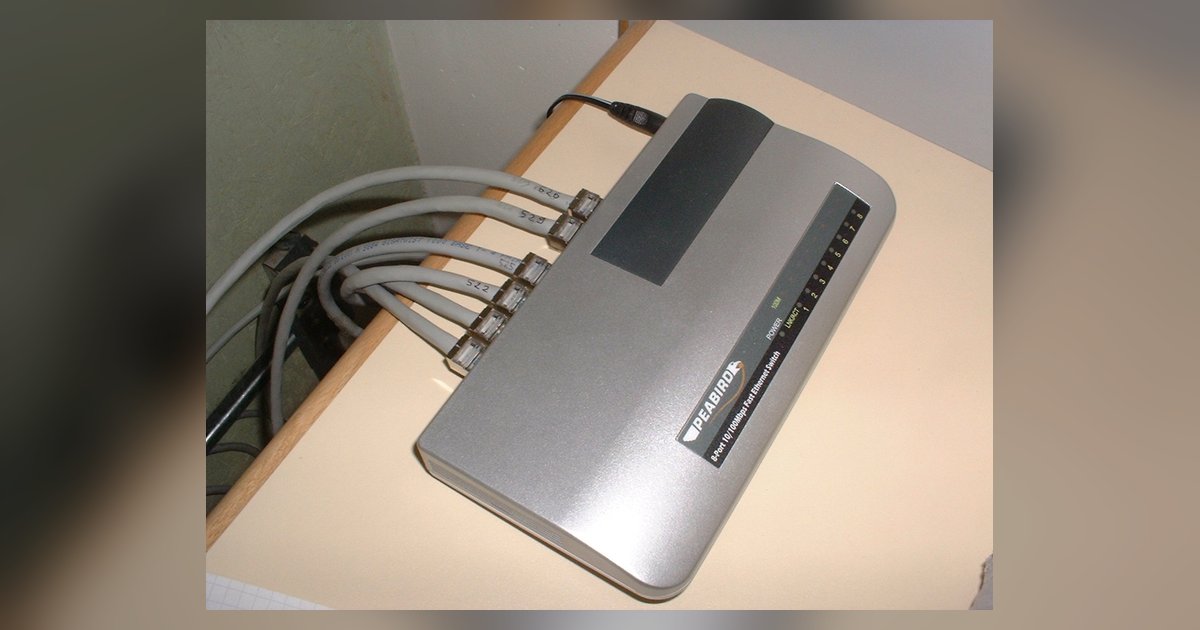
Enter global configuration mode, assign an IP to the management VLAN interface (usually VLAN 1), and enable it with 'no shutdown'. The switch will then be reachable on your network for web or SSH management.
Establishing the console session to assign an IP address
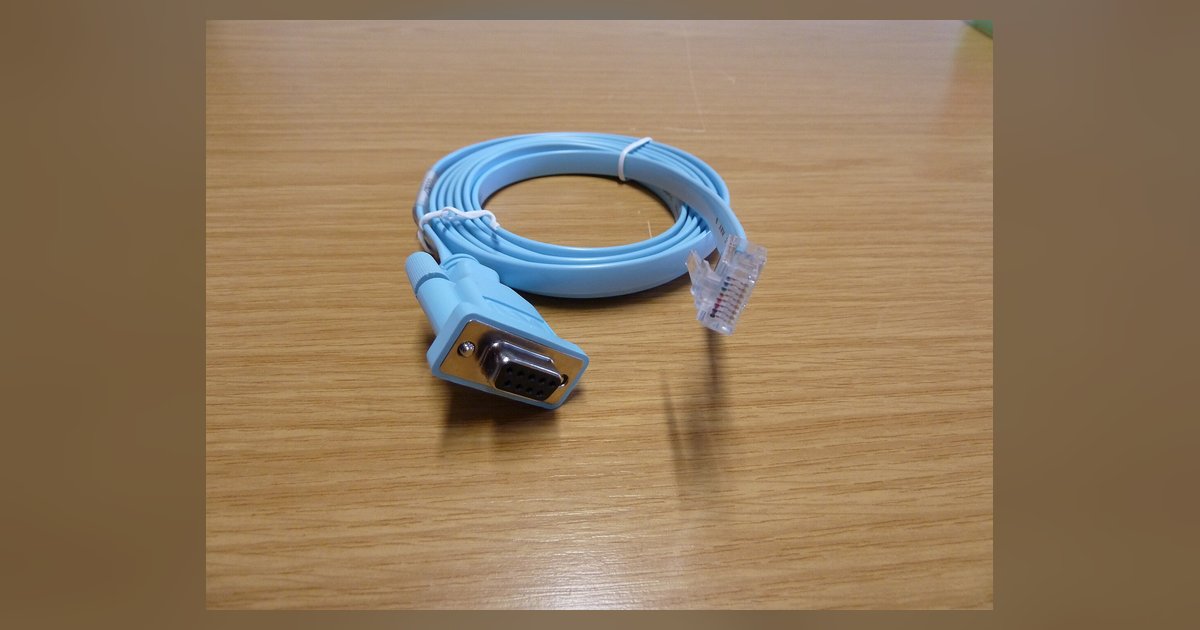
To see the switch's command prompt, you must configure your terminal emulator (e.g., PuTTY, Tera Term, SecureCRT) with exact serial settings: 9600 baud rate, 8 data bits, 1 stop bit, no parity, and no flow control. Connect the console cable (typically an RJ‑45‑to‑DB9 or USB‑to‑serial adapter) to the switch’s console port and your PC. If you only see a blank screen after powering the switch, press the Enter key repeatedly. If that fails, check that the COM port number in your emulator matches the one assigned by your operating system; in Windows, you can verify this in Device Manager under “Ports (COM & LPT)”. A common oversight is having the wrong baud rate; the switch defaults to 9600, but some models use 115200. If you still get garbage characters, power‑cycle the switch and immediately press Ctrl+Break within the first few seconds to enter the bootloader menu, where you can reset the console baud rate.
Entering the IP configuration commands
Once you see the switch prompt (e.g., Switch>), type enable to enter privileged EXEC mode (the prompt changes to Switch#). Then type configure terminal to enter global configuration mode (Switch(config)#). Now specify the management VLAN: interface vlan 1 (most managed switches use VLAN 1 by default for management; if your switch uses a different VLAN, substitute that number). At the VLAN configuration prompt (Switch(config-if)#), assign the IP address and subnet mask: ip address 192.168.1.10 255.255.255.0. Finally, bring the logical unit online with no shutdown. To verify the address took effect, exit back to privileged EXEC mode (end) and run show ip interface brief. You should see VLAN 1 listed with the IP address you assigned and a status of “up” and protocol “up”. If you need to later find the switch IP address from a remote location, you can use the same show IP interface brief command over the console, and you can identify a switch by its MAC address prefix to confirm the hardware vendor during inventory.
Why the switch still isn't reachable
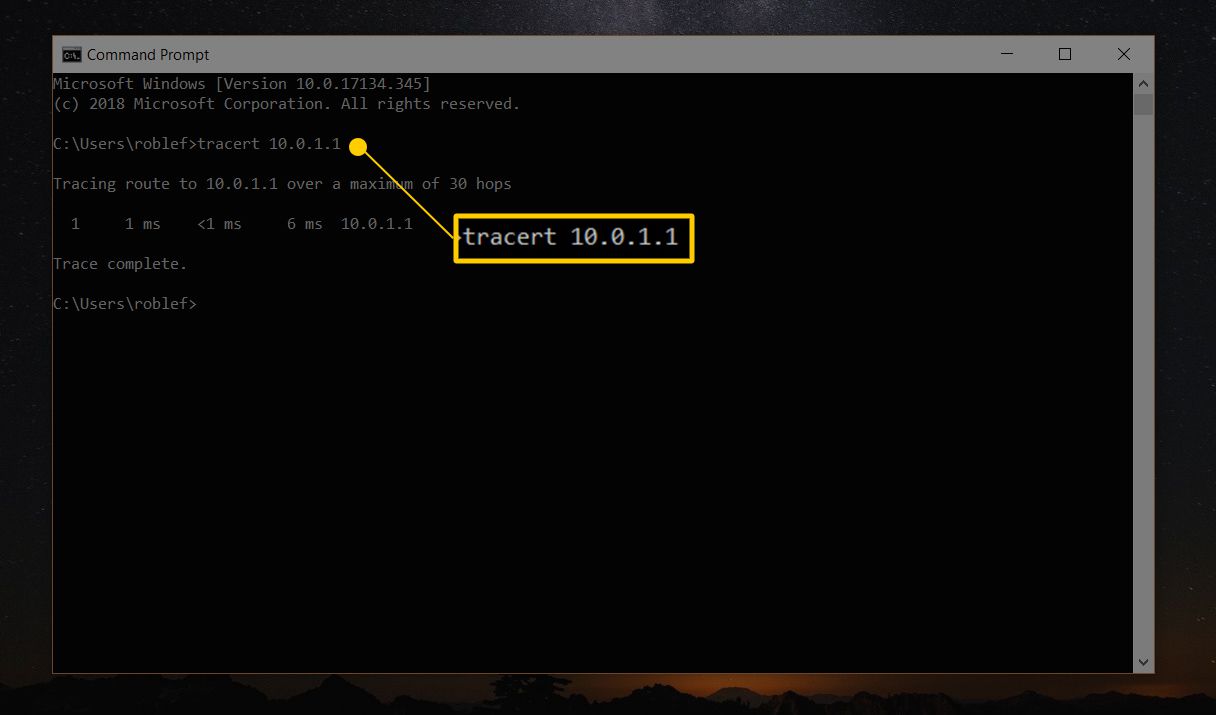
If you cannot ping the switch after configuration, the most common failure point is forgetting no shutdown on the VLAN. Without it, the logical connection remains administratively down, and the switch will not respond to any network traffic. Another frequent issue is the absence of a default gateway. If your management PC is on a different subnet, the switch has no route to send replies. Set the gateway with ip default-gateway 192.168.1.1 in global configuration mode. Also check that the physical port you are connected to (e.g., GigabitEthernet1/0/1) is not administratively down, run show interfaces status to see if the port is “disabled” or “notconnect”. If it’s disabled, enter the configuration panel for that port and issue no shutdown. For troubleshooting, you might need to find the Ethernet IP address of your own PC to confirm you are on the same subnet. Finally, ensure no VLAN access‑list or port‑security rule is blocking ICMP traffic; a factory‑default switch should have none, but double‑check with show running-config | include access-list.
This process is the core requirement for any network technician who needs to move past the blinking cursor and integrate a new managed switch into a production environment.