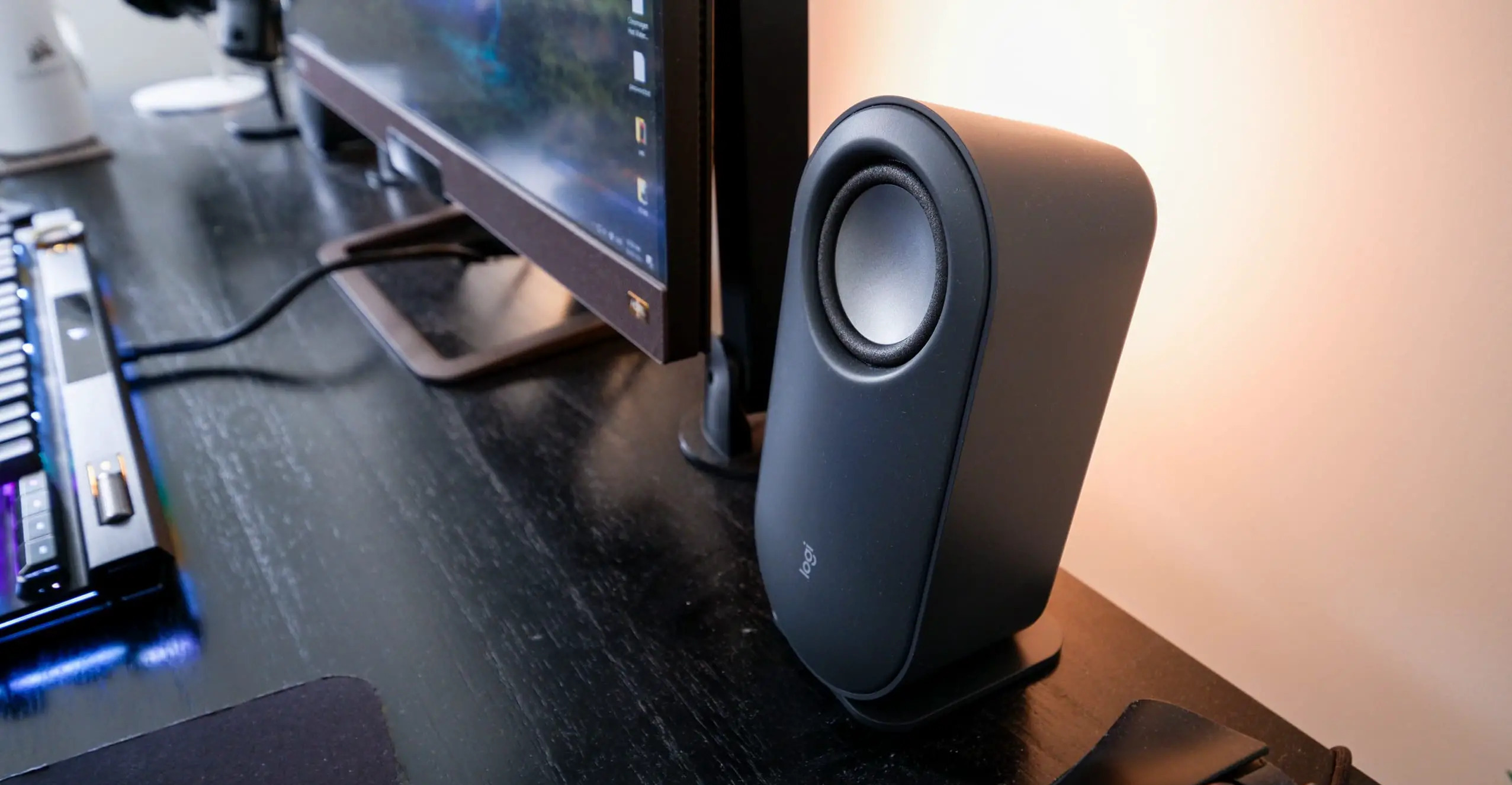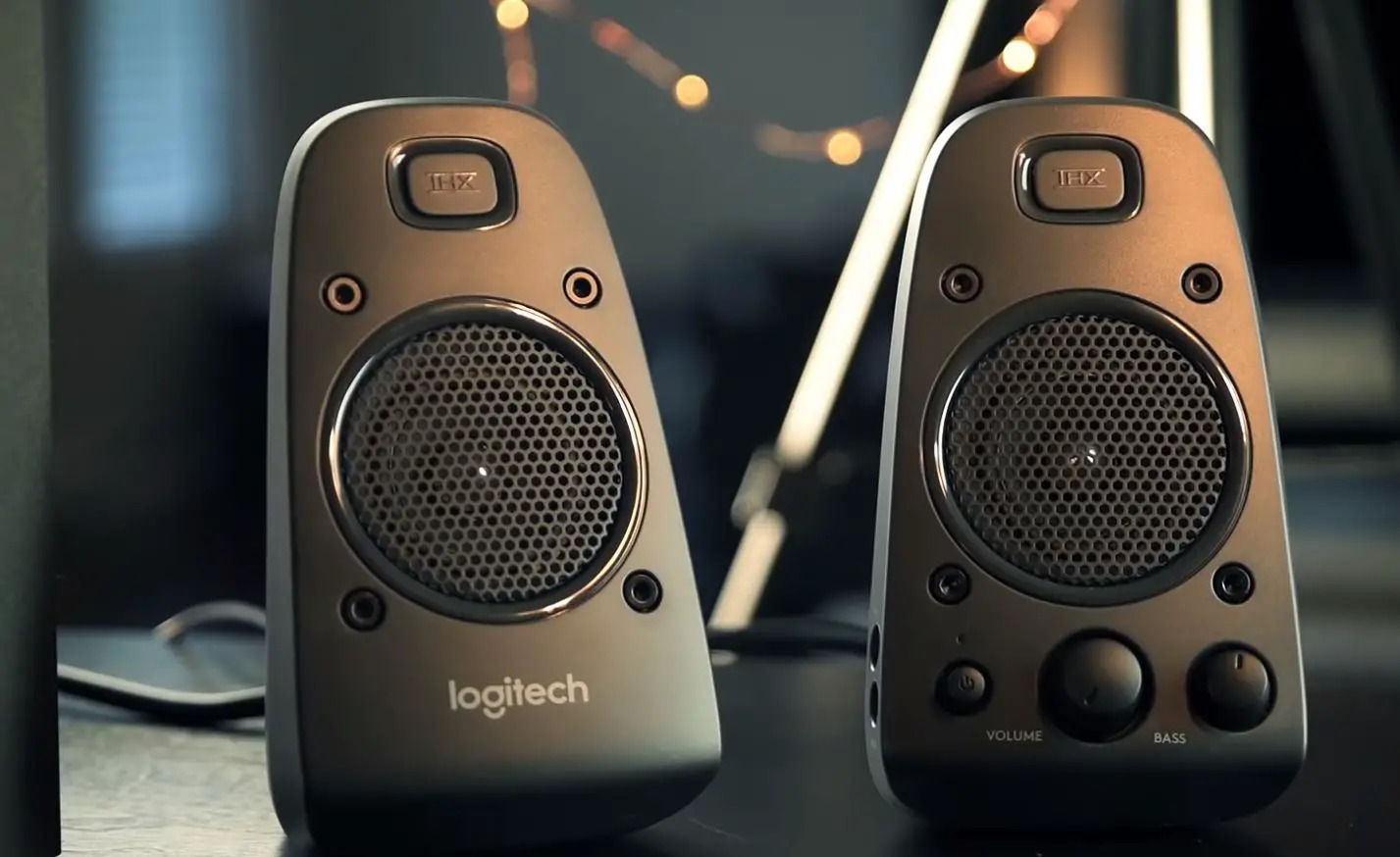
Your Logitech speakers are so quiet most often because your computer is sending audio to a different output device, or because a hidden setting like audio enhancements or exclusive mode is capping the volume. Before you blame the hardware, check the software paths below, they resolve the vast majority of low-volume complaints in under a minute.
Why your Logitech speakers are so quiet: Immediate diagnosis
The most common root cause is that your computer’s sound system has selected the wrong playback device, like your monitor’s built-in speakers or a Bluetooth headset, instead of your Logitech speakers. The second most common cause is a software setting that quietly reduces output, such as audio enhancements or an app taking exclusive control of the sound card. Physical issues like a loose cable or an old driver are less frequent but still worth checking after you rule out the settings, and similar output-device conflicts often get the sound back on my tablet when its audio is missing.
First, select the correct output device
This is the verified, primary fix. If your computer is routing audio elsewhere, no amount of turning up the speaker knob will help.
- On Windows, open Settings → Sound → Output and click the dropdown menu. Select your Logitech speakers from the list.
- On a Mac, go to System Settings → Sound → Output and choose your Logitech speakers as the playback device.
After switching, play a test tone or a song. If the volume jumps to normal, you’re done. If it’s still low, move to the next step.
Disable audio enhancements and exclusive mode
Windows often applies “enhancements” that can mute or lower the perceived volume, and some apps can grab exclusive control of your speakers, forcing everything else to play at a reduced level. Turning both off is a verified fix.
- Right-click the Speaker icon in the taskbar and select Sound Settings.
- Scroll to Advanced Sound Options and click More sound settings (or open the old Control Panel sound dialog).
- In the Playback tab, right-click your Logitech speakers and choose Properties.
- Go to the Enhancements tab and check the box for Disable all enhancements (or set it to “Off”).
- Switch to the Advanced tab and uncheck Allow applications to take exclusive control of this device.
- Click Apply and OK.
This removes two stealthy volume caps that often make your Logitech speakers so quiet even when the system volume is at 100%.
Check all physical volume controls
Low volume is often just a stack of small reductions. You need to check every single volume control in the chain, not just the big knob.
- Turn the volume knob on your Logitech speakers to maximum, then back down to your preferred level, this confirms the knob isn’t stuck or partially engaged.
- If your speakers have a mute button (often a separate button or a press on the knob), press it once to ensure it’s not activated.
- On your computer, click the volume icon in the taskbar and drag the master slider to at least 80%.
- Open the Volume Mixer (right-click the volume icon → Open Volume Mixer) and check each app’s individual slider. A single app like your browser or media player can be set to 10% while the system is at 100%.
If any slider is low, raise it. This one consolidated check catches the most common user error that leaves Logitech speakers so quiet.
Update your audio drivers properly
Outdated or corrupted audio drivers are a verified cause of low volume. The correct path is through Windows Device Manager, not the Logitech firmware page, which rarely fixes sound issues.
- Right-click the Start Menu and select Device Manager.
- Expand Sound, Video & Game Controllers.
- Right-click your sound device (often labeled “Realtek High Definition Audio” or the Logitech device name) and select Update Driver.
- Choose Search automatically for drivers and let Windows find and install any updates.
If Windows says you’re already up to date, right-click the device again and select Uninstall device, then restart your computer. Windows will reinstall the driver fresh, which often clears the low-volume issue.
Inspect your cables and connections
A loose or damaged cable can reduce volume without cutting sound entirely. This is more common than you’d think, especially with 3.5mm jacks that get bumped.
- Check the 3.5mm jack, USB, or RCA cables at both ends, on the speaker and on the computer.
- Push each connector in firmly until it clicks or seats fully. A half-inserted jack is a classic cause of low volume.
- Look for bent pins, frayed wires, or kinks in the cable. If you see damage, replace the cable with a spare if you have one.
- Test with a different cable of the same type. If the volume jumps, the original cable was faulty.
This step also covers the related issue of no sound on your TV or speakers, a loose cable can cut audio entirely, not just lower it.
Test for a hardware fault
If you’ve gone through every setting and cable check and your Logitech speakers are still quiet, the problem may be the speakers themselves. This final test isolates the hardware.
- Unplug the speakers from your computer and connect them to a different device, a smartphone, tablet, or another computer works fine.
- Play audio at a normal volume on that device. If the speakers sound loud and clear, the problem is your original computer’s settings or drivers, so go back and re-check the earlier steps.
- If the speakers are still quiet on the other device, you likely have a hardware fault. Before contacting Logitech support, also check if your phone or tablet has its own volume limit, some devices cap external speaker output. If the tablet speaker icon is missing from the quick settings panel, that’s a sign the device itself is not routing audio correctly, not your Logitech speakers.
If the hardware test confirms the speakers are defective, contact Logitech support with your model number and purchase date. They can advise on repair or replacement under warranty. If the speakers work fine on another device, the fix is in your computer’s settings, revisit the output device selection and driver update steps, as those are the most common culprits for persistently low volume.
For the wider topic, see no sound on your TV or speakers.
\nRelated reading: Where To Plug In Logitech Speakers On Pc.