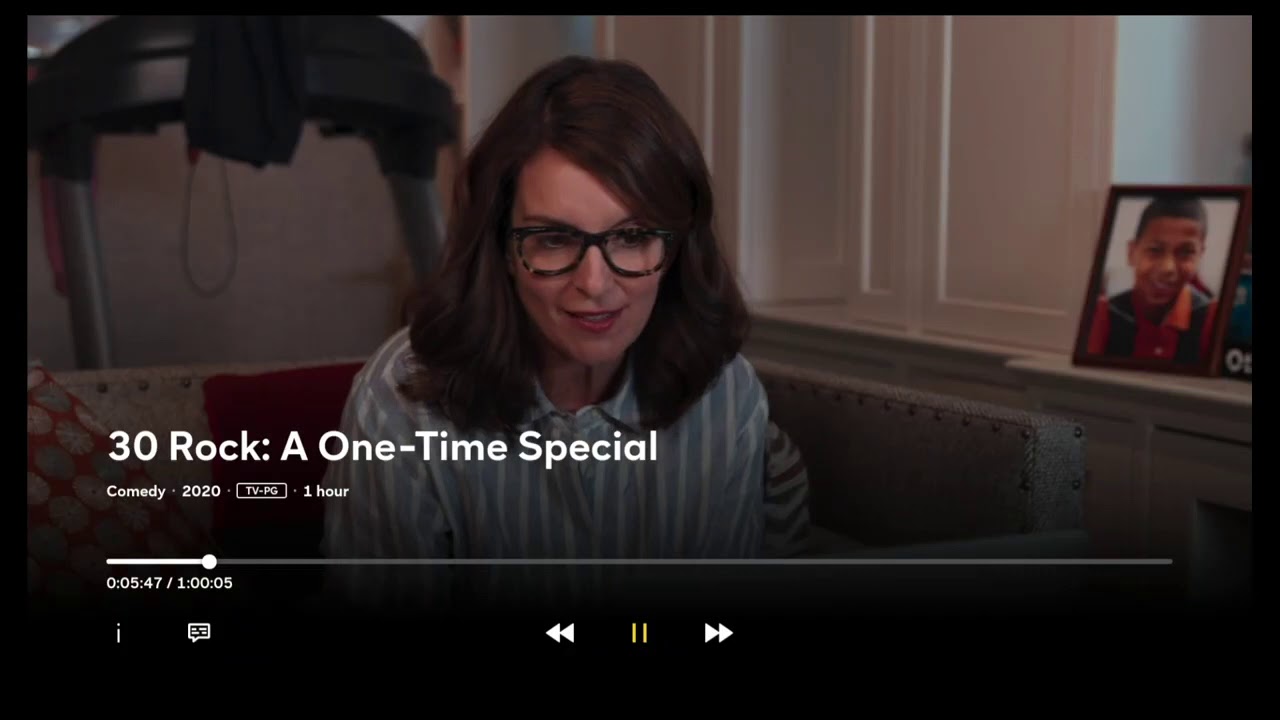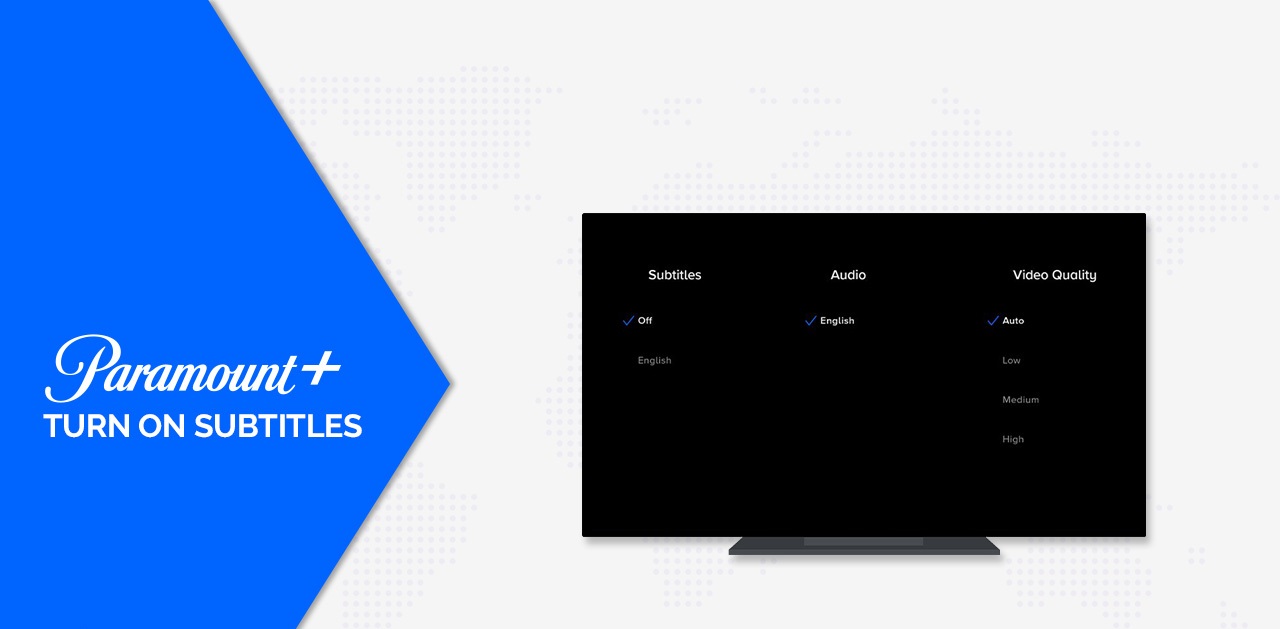
To turn on subtitles on Paramount Plus, click the speech bubble icon in the video player during playback. This is the quickest way to enable closed captions or subtitles on both the website and mobile app for any show or movie you are watching.
How to turn on subtitles on Paramount Plus: A quick, direct answer for the most common scenario
When you are watching a show or movie on Paramount Plus, the most common way to turn on subtitles is to click the speech bubble icon that appears in the video player. This icon is available during playback on both the website and the mobile app. Selecting it will immediately show the available subtitle options for your content.
Turning on subtitles on the website and mobile app
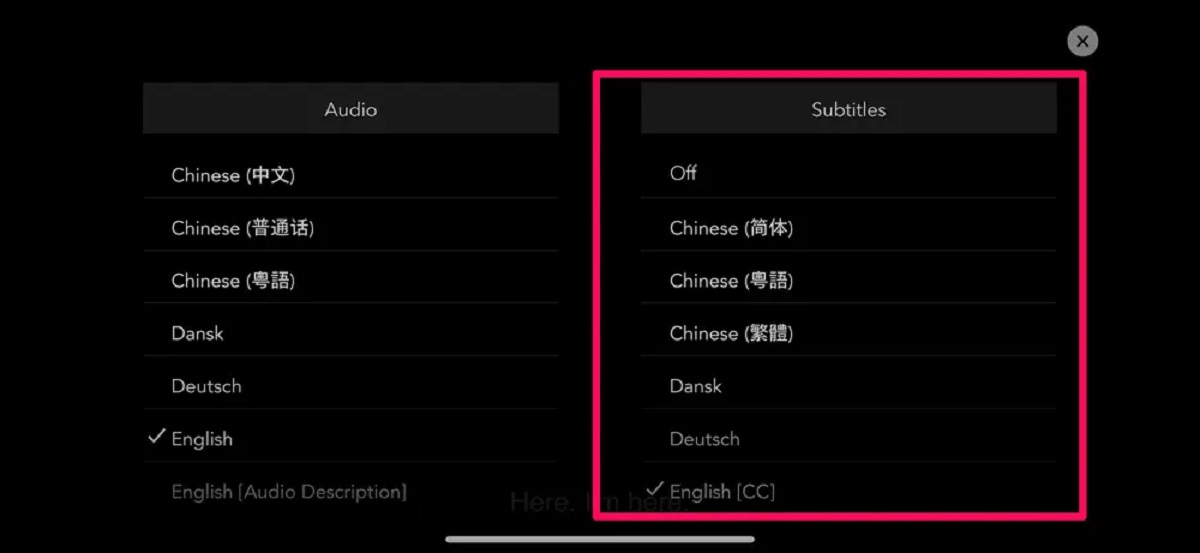
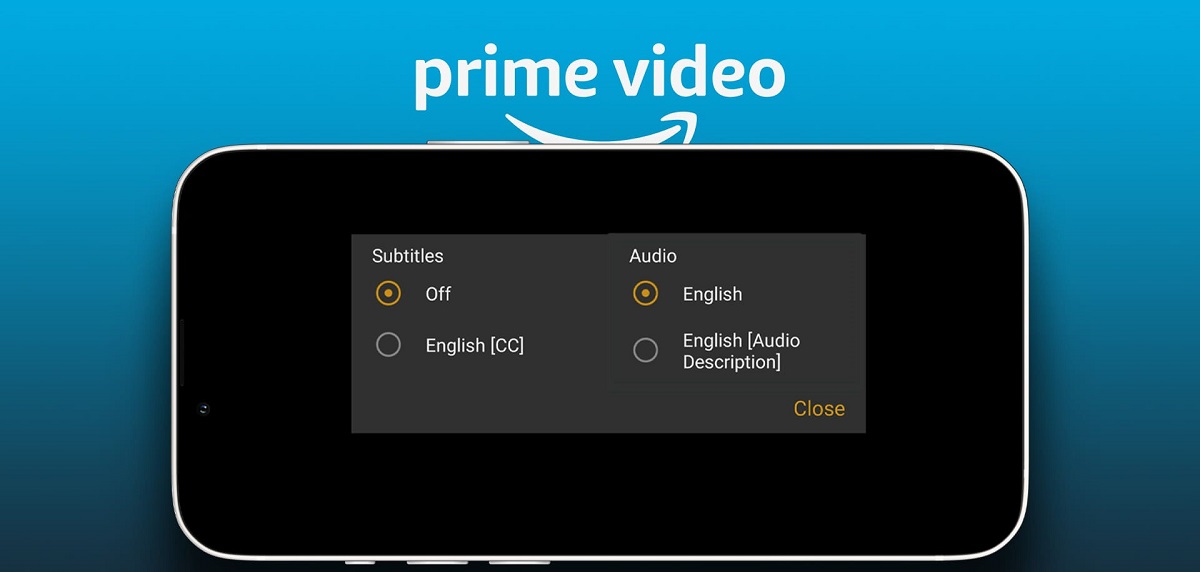
On a computer or mobile web browser, start playing your chosen movie or show. Look for the speech bubble icon in the video player controls. Click or tap it to open the 'Subtitles + Audio' menu. From there, select your preferred subtitle language. This is the standard method across most platforms.
On the Paramount Plus mobile app, the process is identical. Tap the screen during playback to reveal the controls, then tap the speech bubble icon. You can then choose the subtitle track you want. When you want to turn subtitles off on paramount plus, simply return to this same menu and select "Off" or the option that disables captions. If you're switching between streaming apps, the steps to turn off the subtitles on Disney plus are just as straightforward.
Turning on subtitles on Roku devices
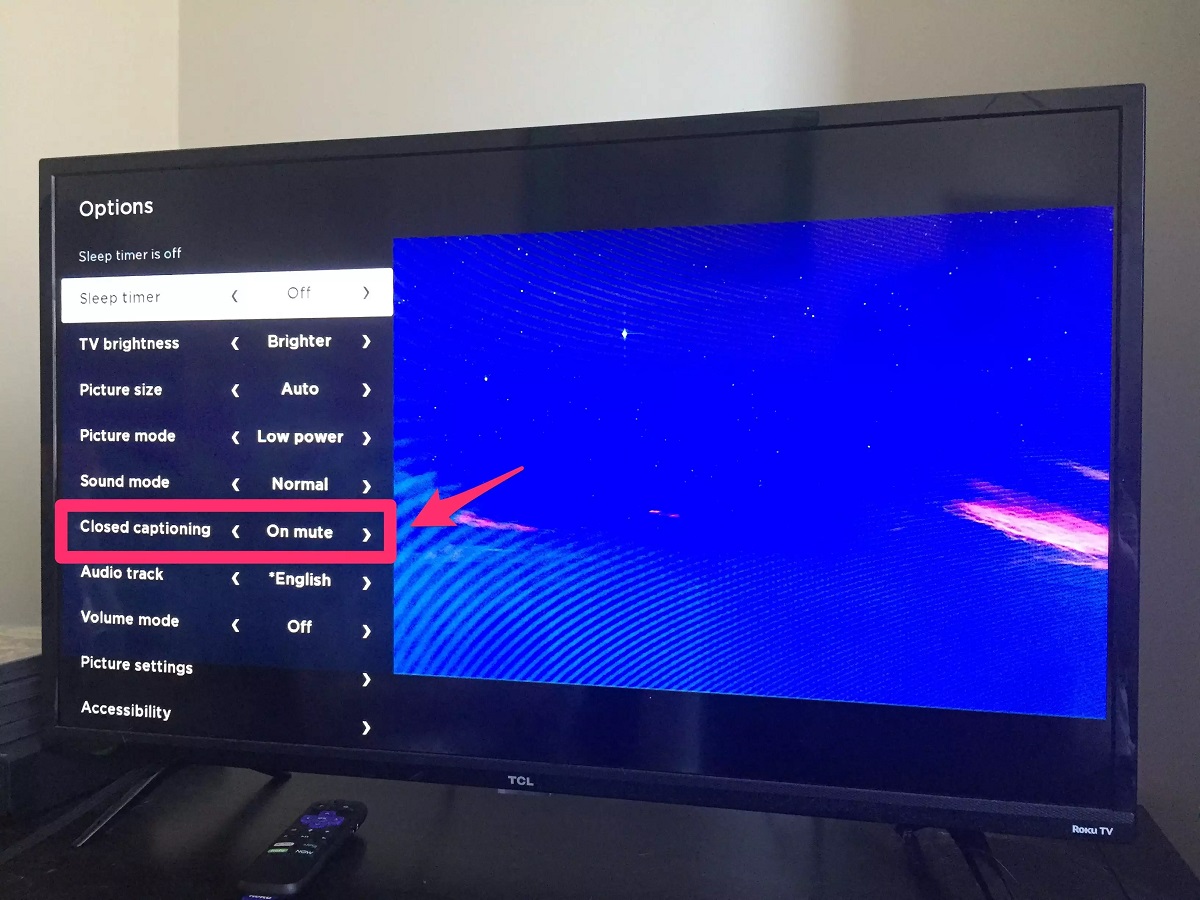
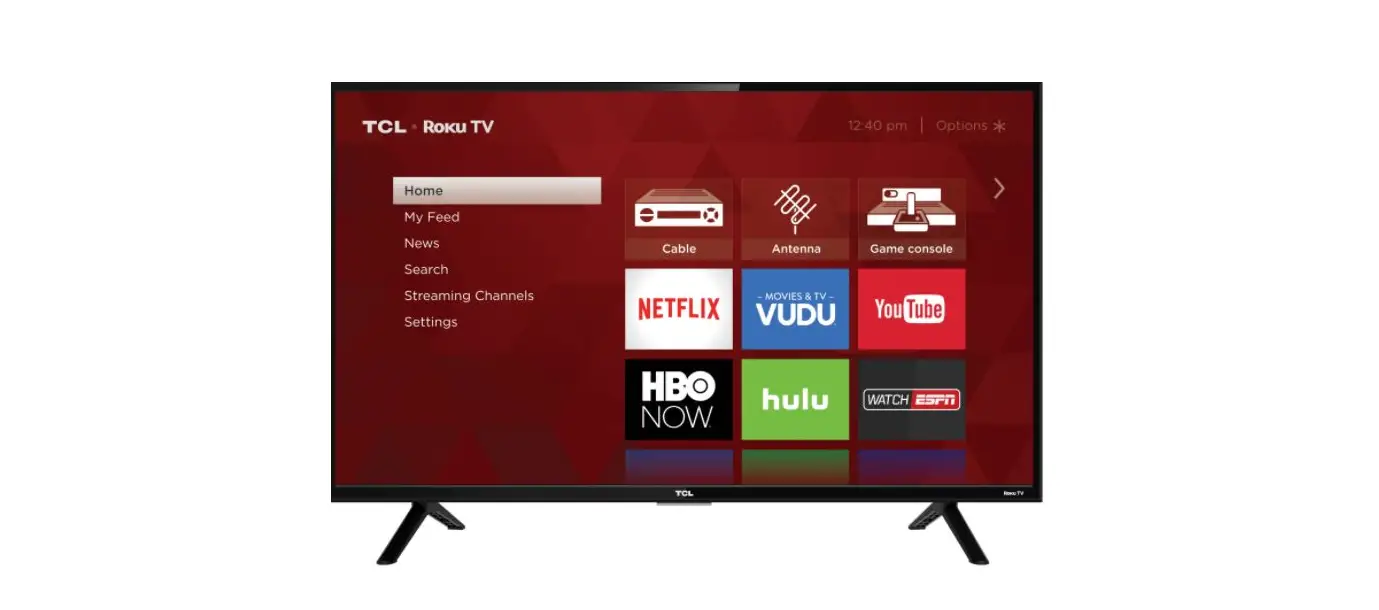
While streaming on a Roku device, press the Star (*) button on your remote during video playback. This opens a quick menu. Navigate to the "Captions" option and press the "OK" button to cycle through the available caption modes. Continue pressing "OK" until you find the setting that displays subtitles. This method works for all Paramount Plus content that supports captions.
Turning on subtitles on Fire TV
On a Fire TV, start playing your show or movie. Use the middle round button on your Fire TV controller to bring up the video controls. Look for the blue "CC" button and select it to turn on subtitles. If you prefer an alternative method, open the Paramount+ app from the home screen, select "Settings," scroll right to "CC Closed Captions," select "Display," and turn it On. This ensures subtitles appear for all future playback.
Turning on subtitles on Smart TVs (Samsung, LG, and others)
Customizing your subtitle appearance
Why are subtitles not available?
Subtitle and audio description availability varies by title, language, and country/region. If you do not see the speech bubble icon or the 'Subtitles + Audio' option for a specific movie or show, it means that subtitles are not provided for that content in your location. This is a limitation of the content license and not a setting you can change.