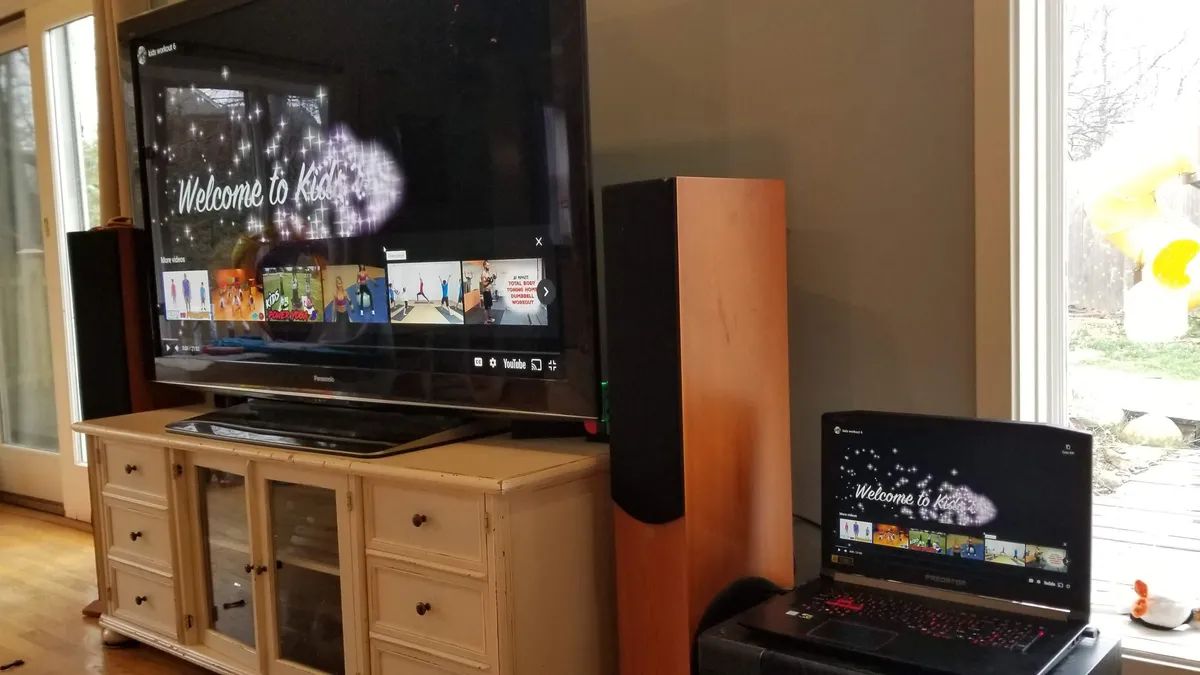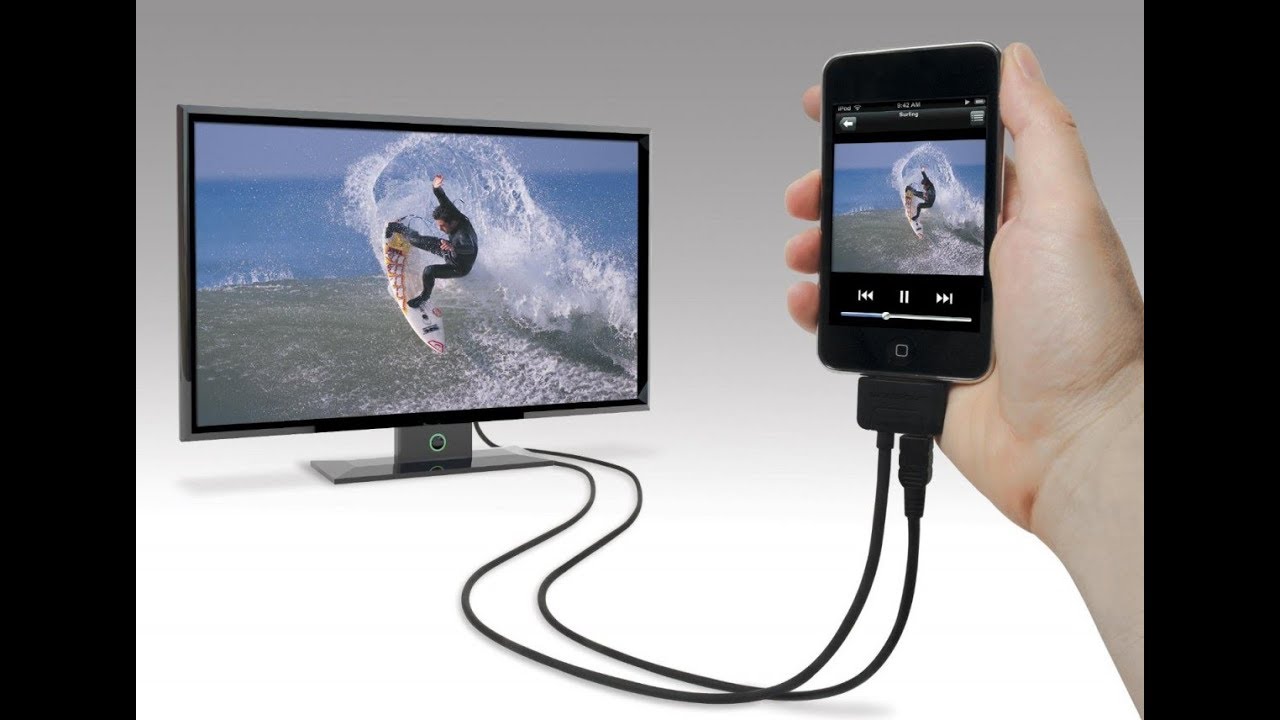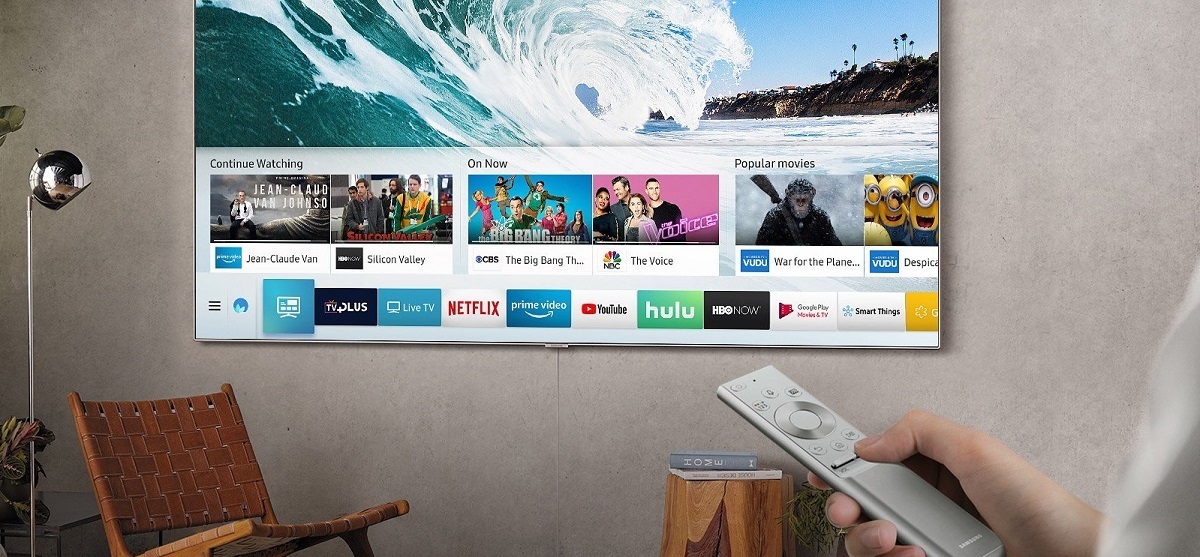
To stream video from PC to Samsung smart TV, you don't need extra hardware or a discontinued app, modern Samsung TVs have wireless mirroring (Miracast for Windows, AirPlay 2 for Mac) and DLNA built right in.
Network and account requirements to stream video from PC to Samsung Smart TV
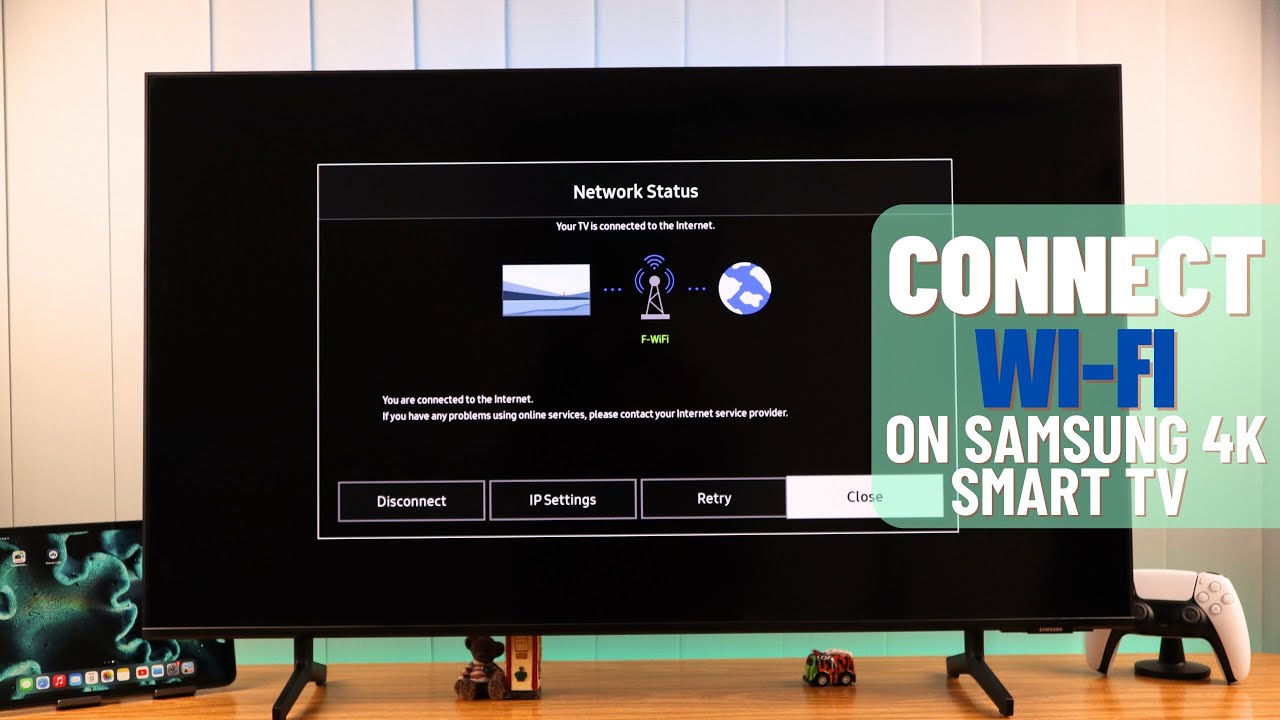
Before you start, make sure your PC and Samsung TV are on the same Wi-Fi network, this is the single most important prerequisite for all three methods below. If your TV isn't online yet, you'll need to connect to internet Samsung smart TV before any streaming can work. Your TV must also be logged into a Samsung Account to access network-based smart features like Daily+ and Media Play, and you can confirm your connection is working if you can browse the internet on my Samsung smart TV. For Windows, you'll need Windows 10 or 11; for Mac, your Samsung TV must be a 2018 model or newer that supports AirPlay 2. If you're unsure about your TV's capabilities, check the model year in the Settings menu under "Support" > "About This TV."
Method 1: Wireless screen mirroring on Windows (Miracast)
Windows 10 and 11 include a built-in Miracast receiver, so you can mirror your entire PC screen to your Samsung TV without installing anything. First, verify your PC supports it: press Windows Key + P and look for the "Connect to a wireless display" link at the bottom of the Project action bar. If you see it, you're good to go.
Step-by-step for Windows mirroring
On your Samsung TV, press the Home button on the remote, navigate to Daily+, then select Easy Connection (or "Remote PC" on some models) and choose the Screen Sharing tab. On your PC, go to Start > type "Bluetooth and other device settings" > select it > click Add device > choose Wireless display or dock. Your TV should appear in the list, select it, and your PC screen will appear on the TV within seconds.
Method 2: Wireless screen mirroring with AirPlay (Mac)
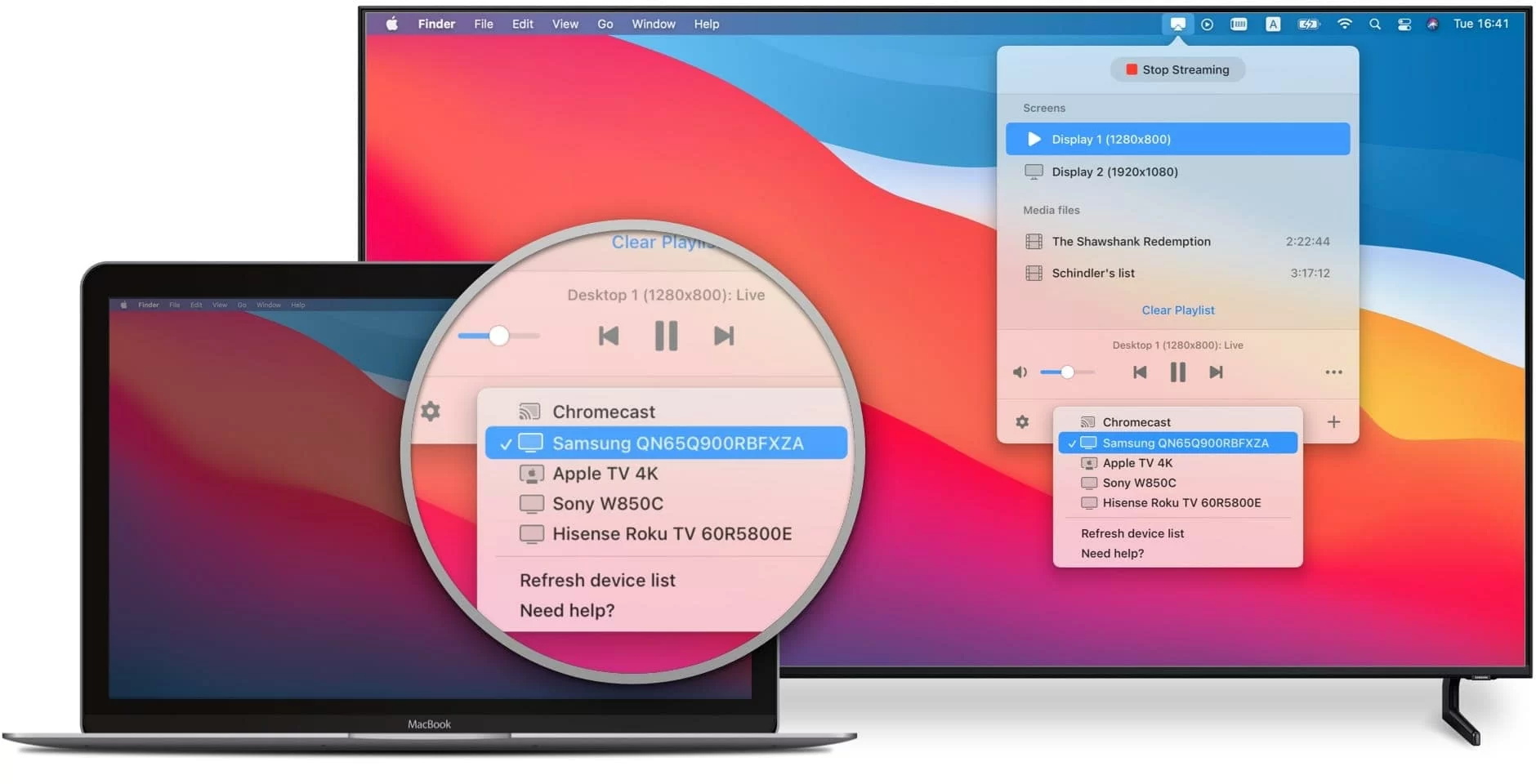
If you're using a Mac, Apple's AirPlay 2 is the cleanest way to mirror your screen to a Samsung Smart TV (2018 models and newer). This method streams both video and audio wirelessly, and it works with any app that supports AirPlay, including Safari, QuickTime, and VLC. To start, click the Control Center icon in your Mac's menu bar, select Screen Mirroring, and pick your Samsung TV from the list. If you don't see it, ensure both devices are on the same Wi-Fi network and that your TV's AirPlay setting is enabled (Settings > General > Apple AirPlay Settings > AirPlay > On).
Method 3: Streaming media files via DLNA
DLNA (Digital Living Network Alliance) lets you stream specific video files from your PC to your Samsung TV without mirroring your entire desktop, ideal for when you just want to play a movie while still using your computer for other tasks. Windows Media Player is a built-in DLNA server on Windows 10/11, and it supports popular formats like AVI, MKV, ASF, MP4, 3GPP, PS, and TS.
Set up Windows Media Player as a DLNA server
Open Windows Media Player on your PC, go to the Library tab, and click Add to Library to include your video folders. Then click Stream > Turn on media streaming. On your TV remote, press the MEDIA P. button (or go to Source > Media Play) and select your PC's name from the list. Browse to the video file and press play, the TV will stream it directly from your PC.
Method 4: Using Plex for a full media library
If you have a large collection of movies and TV shows, Plex Media Server turns your PC into a personal Netflix. It organizes your files into a beautiful library with posters and metadata, and, crucially, it transcodes video on the fly, so even files in formats your TV doesn't natively support will play smoothly. To get started, download and install Plex Media Server on your PC, then add your video folders to your library. On your Samsung TV, install the Plex app from the Smart Hub app store, sign in with the same Plex account, and you'll see your entire library ready to stream. Plex also supports remote access, so you can watch your content even when you're away from home.
Troubleshooting lag and format issues
If you experience lag or stuttering, first check your network bandwidth, 4K streams need at least 25 Mbps, and 1080p needs about 10 Mbps. Run a speed test on your PC and make sure no other devices are hogging the Wi-Fi. For format issues, remember that DLNA only supports the containers listed above (AVI, MKV, MP4, etc.). You can also reduce the streaming quality in Plex's settings to lower bandwidth usage if your network is slow.
Wrap-up
For most people, the built-in Screen Sharing feature (Miracast on Windows, AirPlay on Mac) is the fastest and most reliable way to stream video from PC to Samsung Smart TV, it requires zero setup beyond connecting a smart TV to Wi-Fi and works instantly. If you have a large, mixed-format media library, Plex is the power user's choice, offering transcoding, remote access, and a polished interface. Try the built-in methods first, and only install Plex if you need advanced features or encounter persistent format problems. Either way, you'll be watching your favorite content on the big screen in minutes.
For the wider topic, see connecting a smart TV to Wi-Fi.