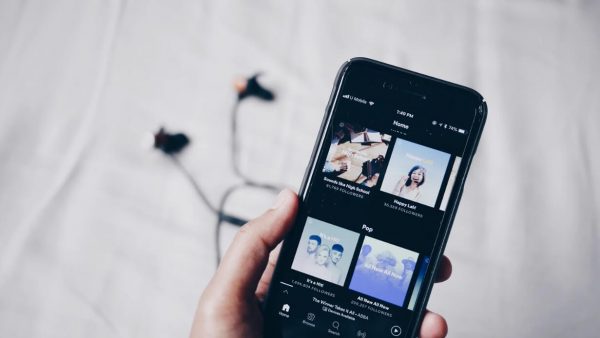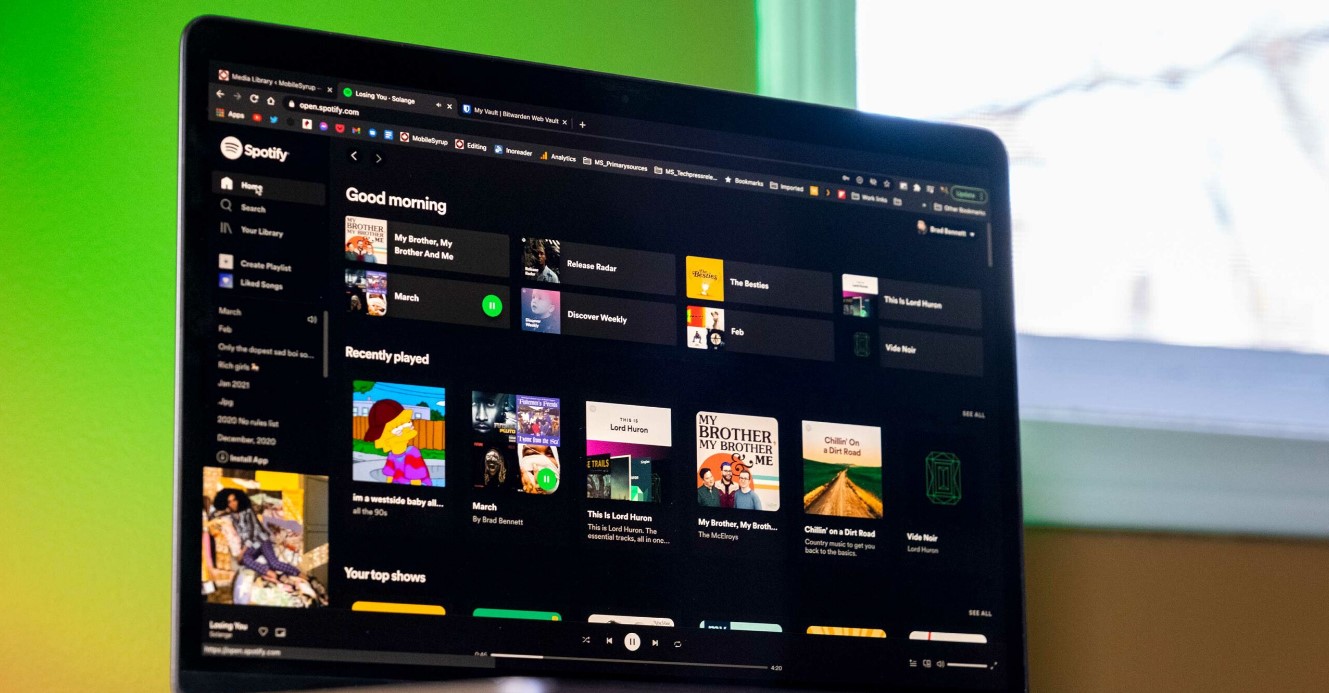
To Spotify pair with external devices, use Spotify Connect over Wi-Fi or Bluetooth. Open the Spotify app, play a song, tap the Devices Available icon (a speaker in front of a monitor), and select your speaker, TV, or other device.
How to pair Spotify with external devices using Spotify connect
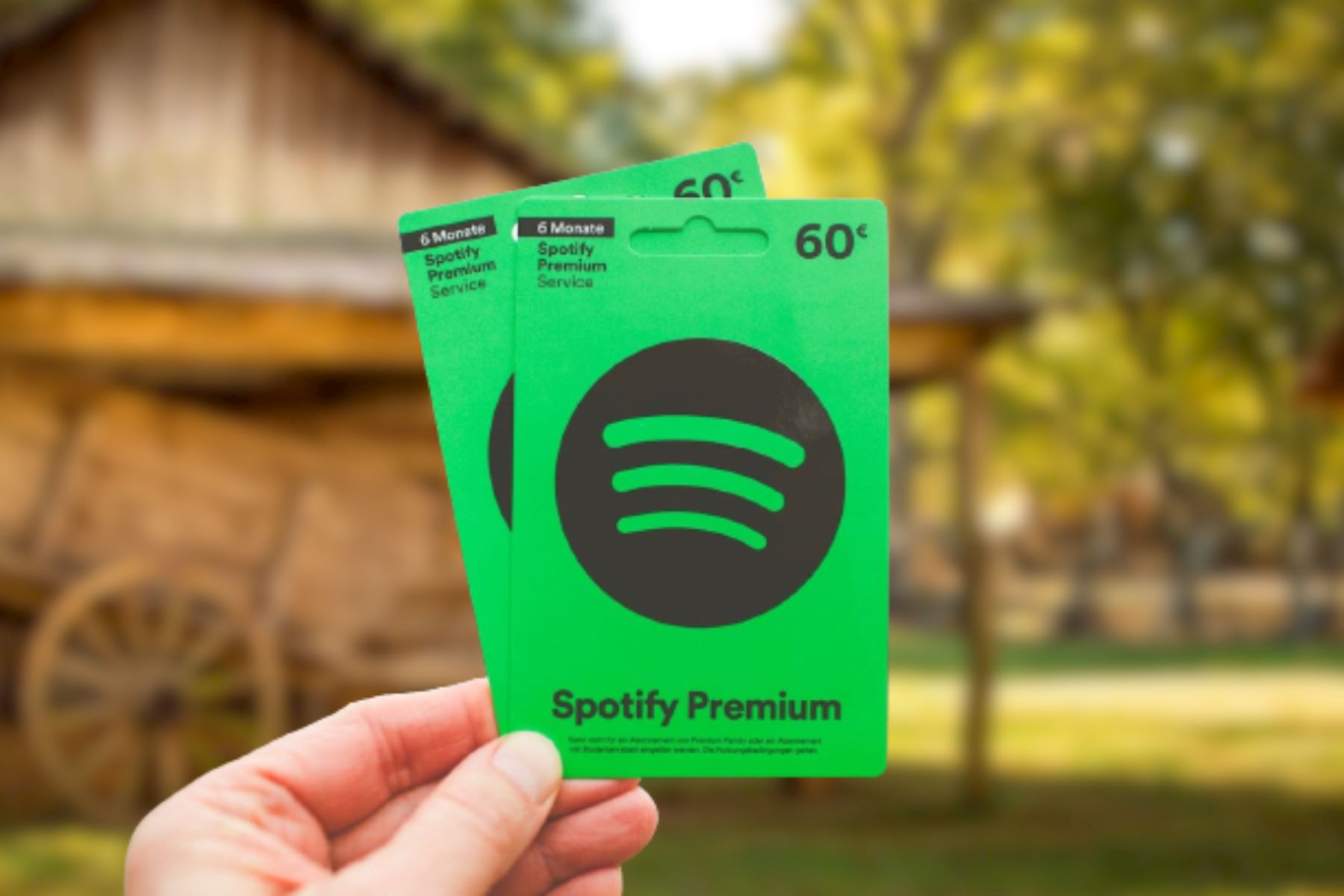
Spotify Connect is the primary Wi-Fi method for streaming music to external speakers, TVs, and other compatible devices. It often works without a Premium subscription, though some specific devices may require it. For Spotify Connect to work, both your controlling device (phone, tablet, or computer) and the external device must be connected to the same Wi-Fi network. To use it, open the Spotify app and start playing a song. On mobile, tap the Devices Available icon at the bottom left of the Now Playing screen; on desktop, find it next to the volume slider. Select your desired device from the list, and playback will transfer automatically. You can then control playback from your original device while the music streams directly from the external device. If you need Premium for a specific speaker, you can use a Spotify gift card to upgrade without a credit card.
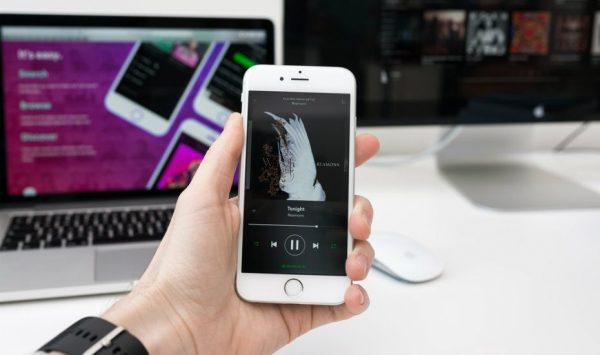
Pair Spotify via Bluetooth
Bluetooth pairing is a reliable alternative to Wi-Fi for connecting Spotify to external speakers, car stereos, or headphones. To pair via Bluetooth, enable Bluetooth on both your mobile device and the external audio device, then pair them in their respective Bluetooth settings. Once paired, open Spotify and play music. The audio will route through the Bluetooth device. This method does not require a Wi-Fi network and works well for portable speakers and car systems. If you want to use dj on Spotify, you can control playback from your phone while the music plays through the paired Bluetooth speaker.
Pair Spotify with smart TVs and gaming consoles
Many smart TVs (Samsung, LG, Android TV, Roku, Fire TV) and gaming consoles (PlayStation 4, PlayStation 5, Xbox) have dedicated Spotify apps. To use them, install the Spotify app from your TV or console's app store, log in, and start playing music directly. For a more convenient experience, use your phone as a remote via Spotify Connect. With both devices on the same Wi-Fi network, open Spotify on your phone, play a song, tap the Devices Available icon, and select your TV or console. This allows you to browse and control music from your phone while the audio plays through your TV or gaming system. Background music playback is supported on PlayStation and Xbox, so you can listen while gaming.
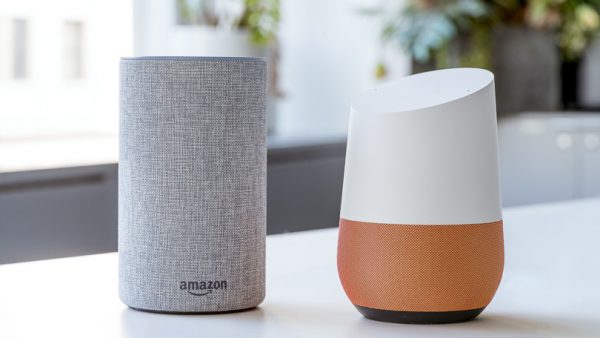
Pair Spotify with smart speakers (Alexa and Google home)
Voice-controlled playback on Amazon Alexa and Google Home devices requires linking your Spotify account. For Amazon Alexa, open the Alexa app, tap the menu icon, select Music & Podcasts, then Link New Service. Choose Spotify, log in, and agree to the permissions. Once linked, ask Alexa to play music from Spotify. For Google Home, open the Google Home app, tap the menu icon, go to Account Preferences, then Manage Connected Accounts. Find Spotify and tap Link. After linking, ask Google Assistant to play your favorite songs. This setup lets you control Spotify hands-free with voice commands.
Pair Spotify with Apple watch
To control Spotify from your Apple Watch, first install the Spotify app on the watch. Open the Watch app on your iPhone, scroll to Available Apps, and install Spotify. Once installed, open Spotify on your Apple Watch. You can use it to control playback on your paired iPhone or, if your watch has cellular or Wi-Fi, stream directly via Spotify Connect. Tap the Devices Available icon on the watch to select a speaker or other device. The watch interface allows you to play, pause, and skip tracks without pulling out your phone. For questions about account sharing, Spotify family address verification uses location data and payment address verification to confirm household eligibility.
Pair Spotify with car speakers
There are three main methods for listening to Spotify in your car. The simplest is Bluetooth pairing: enable Bluetooth on your phone and car stereo, pair them, then open Spotify and play music. You can also connect via an AUX or USB cable. Plug the cable into your phone and car's AUX or USB port, select the correct input on your stereo, and play music from Spotify. For a more integrated experience, use Android Auto or Apple CarPlay. With Android Auto, plug your phone into the car's USB port and open Spotify. For CarPlay, ensure Siri is on, plug in your phone or connect wirelessly, then select Spotify from the CarPlay interface. Some cars have built-in Spotify apps that work directly with your account.
Troubleshooting Spotify pairing issues
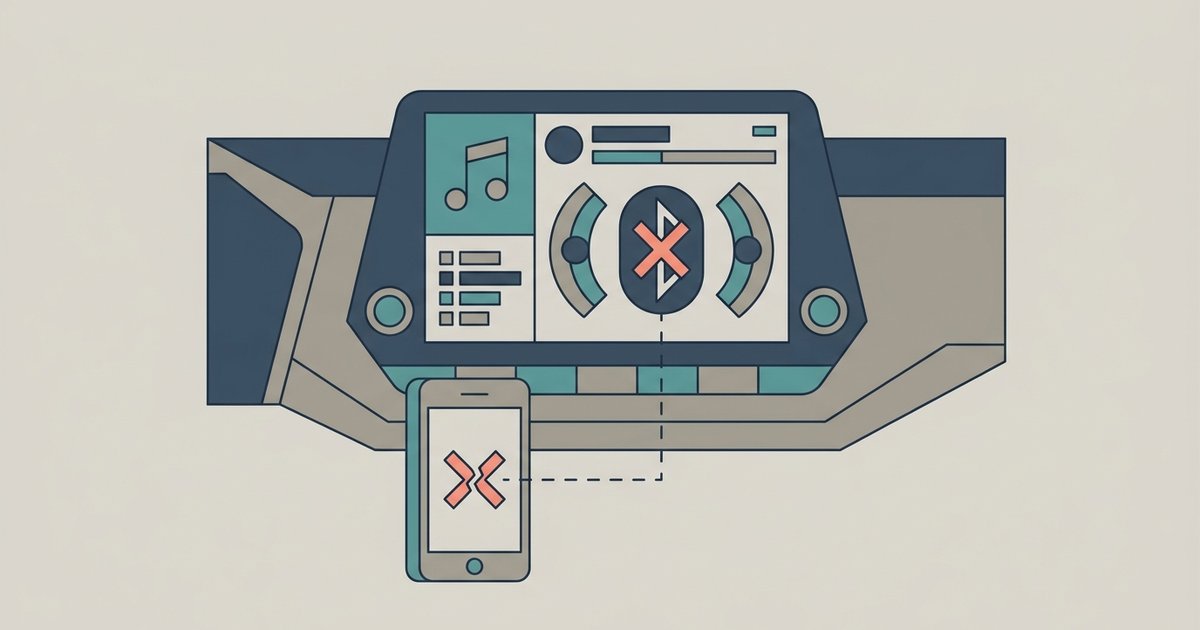
If a device doesn't appear in your Devices Available list, start by checking that both your controlling device and the external device are on the same Wi-Fi network. Ensure the Spotify app and the external device's software are up to date. Restart both devices and your Wi-Fi router. If the device still doesn't show, try toggling the Show Local Devices Only setting in Spotify's settings. Go to Settings, select Devices, and turn off Show Local Devices Only. This allows Spotify to find devices not on your local network. If problems persist, confirm that the external device supports Spotify Connect or Bluetooth pairing. For Bluetooth issues, unpair and re-pair the devices in your phone's Bluetooth settings.