If you want to remove Spotify history, the honest answer is that you can’t delete the full listening history that Spotify stores on its servers. However, you can stop new activity from being recorded and clear the visible traces on your account, such as recently played items, search history, and the current play queue. The most effective way to remove Spotify history from public view is to use a Private Session, which keeps your listening activity hidden from friends and your profile.
Can you actually remove Spotify history?
Spotify does not offer a direct “delete all history” button, and the company removed the ability to manually clear individual items from the “Recently Played” list on most platforms, including mobile apps and the web player. This means you cannot scrub your past listening record after the fact. What you can do is prevent future listening from being saved, clear the temporary play queue, delete your search history, and disconnect your account from Facebook. For most people, the goal of removing Spotify history is really about privacy, making sure others can’t see what you’re playing now or what you played recently. That’s where Private Session comes in.
Use a private session to listen without history
Private Session is Spotify’s built-in tool for listening without leaving a trace. When you turn it on, your listening activity is not shared with your followers, does not appear in Friends Activity, and your recently played artists do not update on your profile. Your listening during a Private Session is also not used to personalize recommendations, so you can explore guilty pleasures without affecting your algorithm. This is the closest thing to removing Spotify history because it stops new history from being created in the first place.
To enable a Private Session on mobile, follow these steps:
- Tap your profile picture at the top of the app.
- Tap “Settings and privacy.”
- Tap “Privacy and social.”
- Under “Listening activity,” switch “Private Session” on.
On desktop, the process is even simpler:
- Click your profile picture at the top of the app.
- Click “Private session.”
Private Session is an account-level setting, meaning turning it on from one device applies it across all your devices. It also turns off automatically after 6 hours, or when you restart the app, so you’ll need to re-enable it if you want continuous privacy. To end a Private Session manually, repeat these steps and switch it off.
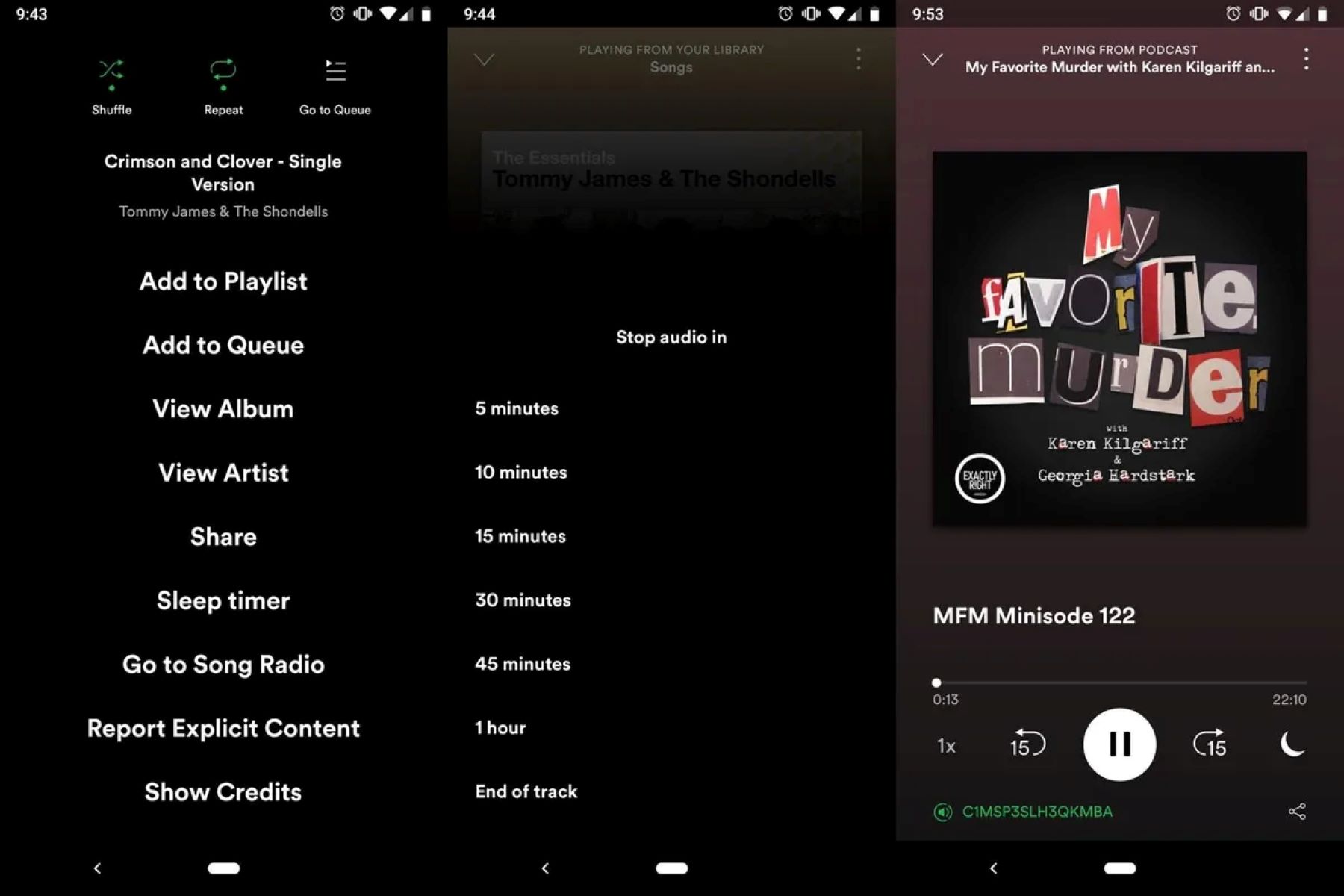
Clear your Spotify play queue
The play queue is a temporary list of songs you’ve added to play next. It’s not part of your permanent listening history, but it can be visible on your Now Playing screen, and clearing it gives you a clean slate before you start a new listening session. This is useful if you’ve queued up a bunch of songs and want to remove Spotify history from the current view.
- Open the Now Playing screen in the Spotify app.
- Tap the queue icon, which looks like three horizontal lines with numbers next to them.
- To remove individual songs, swipe left on each track and tap the remove button.
- To clear everything at once, tap the “Clear” button at the top of the queue.
Clearing the play queue does not delete songs from your library or playlists, it only removes them from the upcoming list. The queue is temporary and resets whenever you start playing something new, so this is more about tidiness than true history removal.
Delete your Spotify search history
Your search history is a separate record of every artist, album, song, and playlist you’ve looked up. If you share your device or simply don’t want your past queries visible, clearing it is straightforward. This action removes the suggestions that appear when you tap the search bar, giving you a fresh start.
On mobile, follow these steps:
- Tap “Settings and privacy.”
- Tap “Privacy and social.”
- Look for the option to clear search history and confirm the action.
On desktop, the path is similar: click your profile picture at the top, go to Settings, find the Privacy section, and select the clear search history option. Clearing your search history does not affect your recommendations or personalized playlists, Spotify’s algorithm continues to learn from your listening habits, not your searches.
Disconnect Spotify from Facebook
If you’ve linked your Spotify account to Facebook, your listening activity may be shared on your Facebook profile, and your friends can see what you’re playing. Disconnecting the two platforms stops this sharing immediately, which is a key step if you want to remove Spotify history from public view on social media. This is especially important for people who want to keep their music taste private from their social network.
To disconnect Spotify from Facebook:
- Open the Spotify app and go to your profile.
- Tap “Settings and privacy.”
- Navigate to the Social section.
- Select the option to disconnect from Facebook and confirm.
Once disconnected, Spotify will no longer share your music activity on Facebook, and your Facebook friends will not be able to see your listening history or recommendations. This does not delete your Spotify account or any saved music, you can still use Spotify normally, and you can reconnect Facebook later if you change your mind.
Remember that while you cannot erase Spotify’s internal record of everything you’ve ever played, combining Private Session, clearing your queue, deleting your search history, and unlinking Facebook gives you practical control over what others can see. For ongoing privacy, make Private Session a habit whenever you listen to something you don’t want recorded.
\nRelated reading: How To Organize Spotify Playlists, How To Add A Friend On Spotify, and How Do I Turn Off Spotify.