Copy your friend's entire `addons` folder from their Garry's Mod directory, then paste it into your own `garrysmod` folder, choosing to merge folders and skip duplicate files—never overwrite the entire folder.
Locating the copy gmod addons folder on their computer
On Windows, the addons folder lives at `C:\Program Files (x86)\Steam\steamapps\common\GarrysMod\garrysmod\addons`. You can reach it quickly by opening File Explorer, pasting that path into the address bar, and pressing Enter. On Mac, the path is `~/Library/Application Support/Steam/steamapps/common/GarrysMod/garrysmod/addons`, use Finder's "Go to Folder" command (Cmd+Shift+G) to enter it. On Linux, it's typically `~/.steam/steam/steamapps/common/GarrysMod/garrysmod/addons`, accessible via your file manager's location bar. If your friend has never installed addons, the folder might be empty; if they use Steam Workshop, their addons are stored separately, but for a manual transfer, you want the `addons` folder itself.
Transferring the folder to your machine
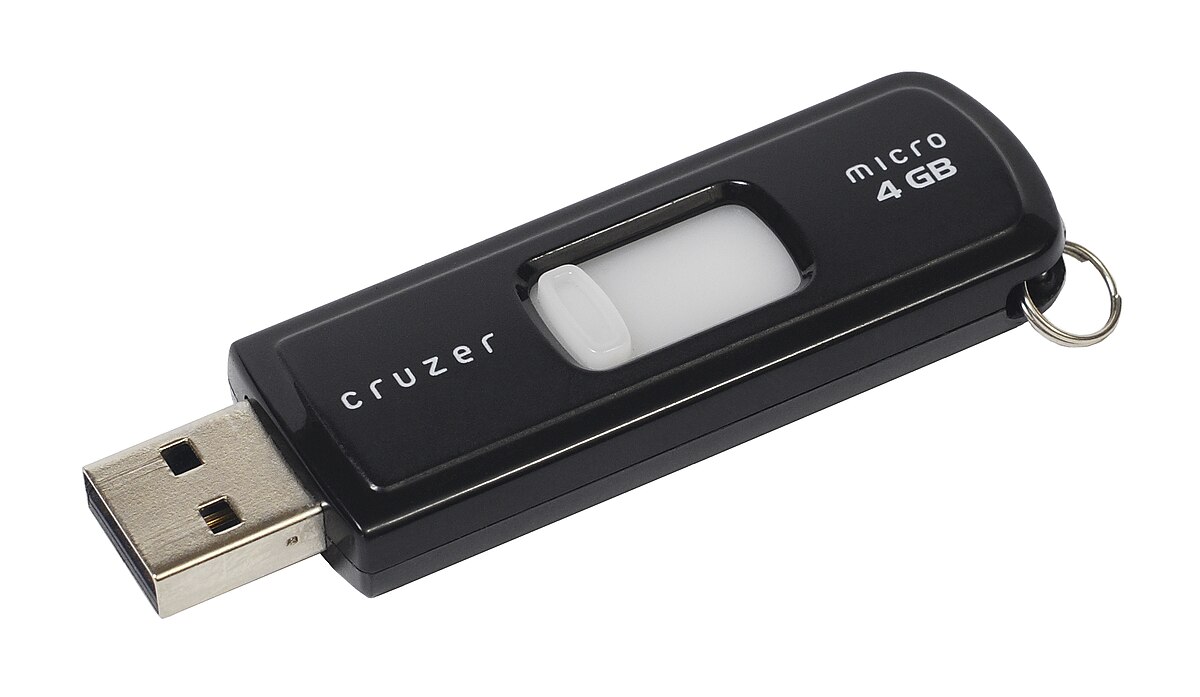
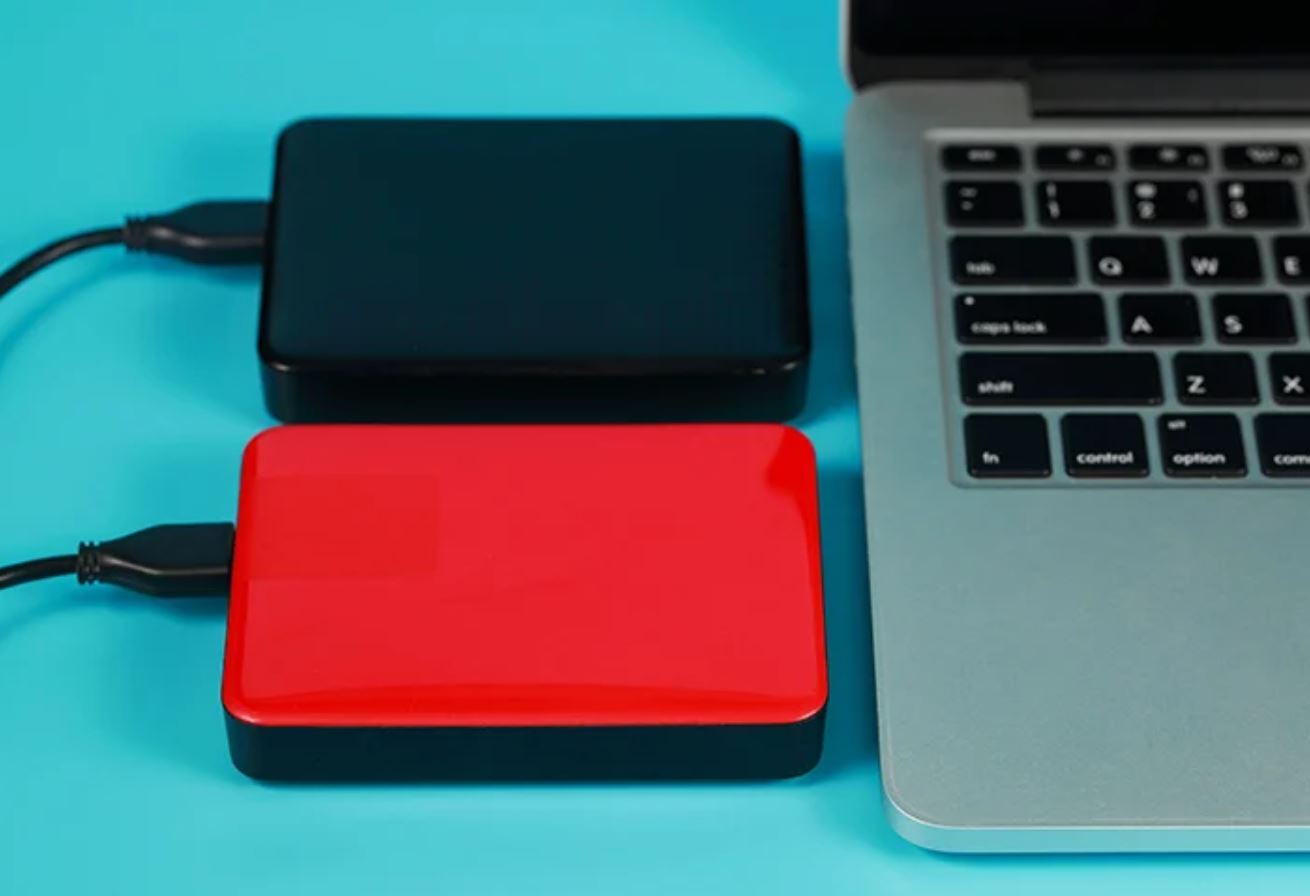
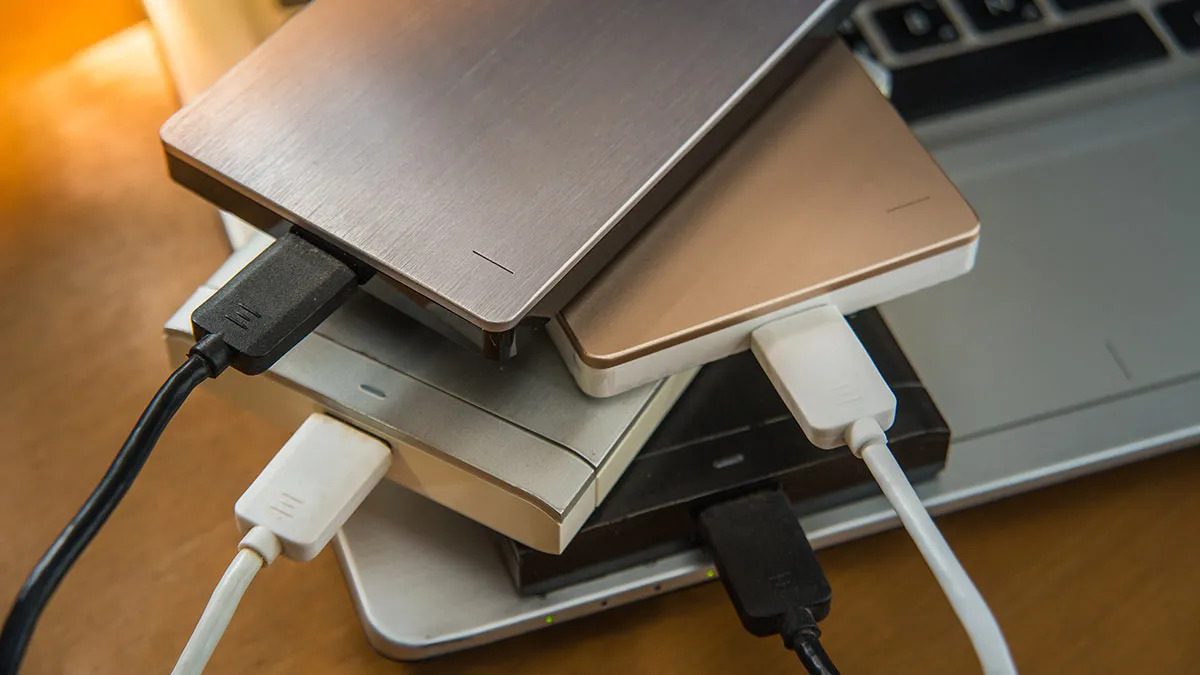
First, have your friend right-click the entire `addons` folder and compress it into a ZIP file. This prevents file corruption from long file names or special characters, which can cause errors during transfer. Use a USB drive for a direct copy if you're in the same room, drag the ZIP onto the drive, then plug it into your PC. Alternatively, upload the ZIP to a cloud service like Google Drive or Dropbox, then download it on your machine. For local networks, share the folder over a homegroup or use a tool like `scp` on Linux. Never copy the folder raw over a slow connection without zipping it, as partial transfers can break addon files. Once the ZIP is on your computer, extract it to your desktop to get a clean `addons` folder.
Merging without wiping your own addons
This is where most people mess up. Open your own `garrysmod` folder, the same path as above but on your computer, and find the existing `addons` folder inside it. Do not delete or replace it. Instead, drag the extracted `addons` folder from your desktop into the `garrysmod` folder. Your operating system will ask what to do: choose "Merge folders" (Windows) or "Combine" (Mac), and when prompted about duplicate files, select "Skip" or "Don't replace." This adds only the addons your friend has that you don't, leaving your own addons untouched. If you accidentally select "Replace all," you'll lose every addon you installed yourself, including any you downloaded via "download gmod" hubs or from the Workshop. For addons your friend got from sources that require you to "download Steam workshop mods without Steam" or "manually download from Steam workshop," the same merge rule applies, just ensure the folder names don't conflict. If your friend has maps in their addons folder, those will appear in your map list after merging, but if you want only maps, you can "download gmod maps" separately instead of copying the whole folder. After merging, launch Garry's Mod and check your addon list in the main menu to confirm everything loaded without errors.
This preserves your existing addons while adding your friend's, avoiding the common mistake of wiping your own content.