To download gmod maps, the most straightforward method is to use the Steam Workshop directly within Garry's Mod. Subscribing to a map there automatically downloads and installs it, letting you play without any manual file handling.
How to download gmod maps from the Steam Workshop
The Steam Workshop is the primary and easiest method for installing custom maps because it handles everything automatically. You browse, subscribe, and the map is ready to play.
- Launch Garry's Mod from your Steam library and ensure the game is fully updated.
- From the main menu, click the "Workshop" tab at the top of the screen to open the Steam Workshop interface for Gmod.
- Browse the collection of maps using the search bar or by exploring categories. You can sort by popularity, rating, or release date to find quality content.
- When you find a map you want, click on it to open its page, then click the green "Subscribe" button on the right side of the page.
- Return to Garry's Mod. The map will automatically download and install in the background. Once complete, it will appear in the game's map selection screen.
How to manually download and install gmod maps
Manually downloading maps gives you access to content not available on the Workshop, such as older or niche creations. This method requires you to place the map file yourself.
Finding and downloading the map files
- Search for a reputable Gmod map website outside of Steam. Look for sites with positive community feedback and a wide selection of maps.
- Use the site's search function or browse categories to find a map. Pay attention to user ratings and reviews to gauge quality.
- On the map's page, locate the download link or button and click it to save the file to your computer. Map files are typically compressed in .zip or .rar format.
Extracting and installing the map
- If the downloaded file is compressed, right-click it and select "Extract" or "Extract Here" to unpack the contents.
- Inside the extracted folder, locate the map file, which usually has a
.bspextension. - Open File Explorer and navigate to your Garry's Mod directory. On 64-bit Windows, the common path is
C:\Program Files (x86)\Steam\steamapps\USERNAME\garrysmod\garrysmod\maps\. Replace "USERNAME" with your Steam username. - Copy the
.bspfile and paste it directly into themapsfolder. - Launch Garry's Mod. The map will now appear in the map selection screen and be available to play.
Using a map manager for gmod maps
A map manager tool offers an alternative for users who want automatic updates and organization without manual file handling. These tools integrate with Garry's Mod to streamline the entire process.
- Find a reliable map manager addon through the Steam Workshop or a trusted Gmod community website. Ensure it is compatible with your version of the game.
- Install the map manager by subscribing to it on the Workshop or running its installer, then launch Garry's Mod.
- Access the map manager through its dedicated section in the game's interface. Use its search and filter options to find maps.
- Select a map and click the download or install button within the manager. The tool will handle downloading and placing all necessary files automatically.
- Once installed, the map will be available in your map selection screen. The manager can also update maps automatically when new versions are released.
Troubleshooting common gmod map issues
Even with proper installation, you may encounter problems. Here are solutions for the most frequent issues.
Missing textures or models
If a map shows missing textures or models, it likely depends on additional content you do not have. Check the map's description or forum page for a list of required addons or content packs. Install those first, then restart the game.
Map not appearing in the selection screen
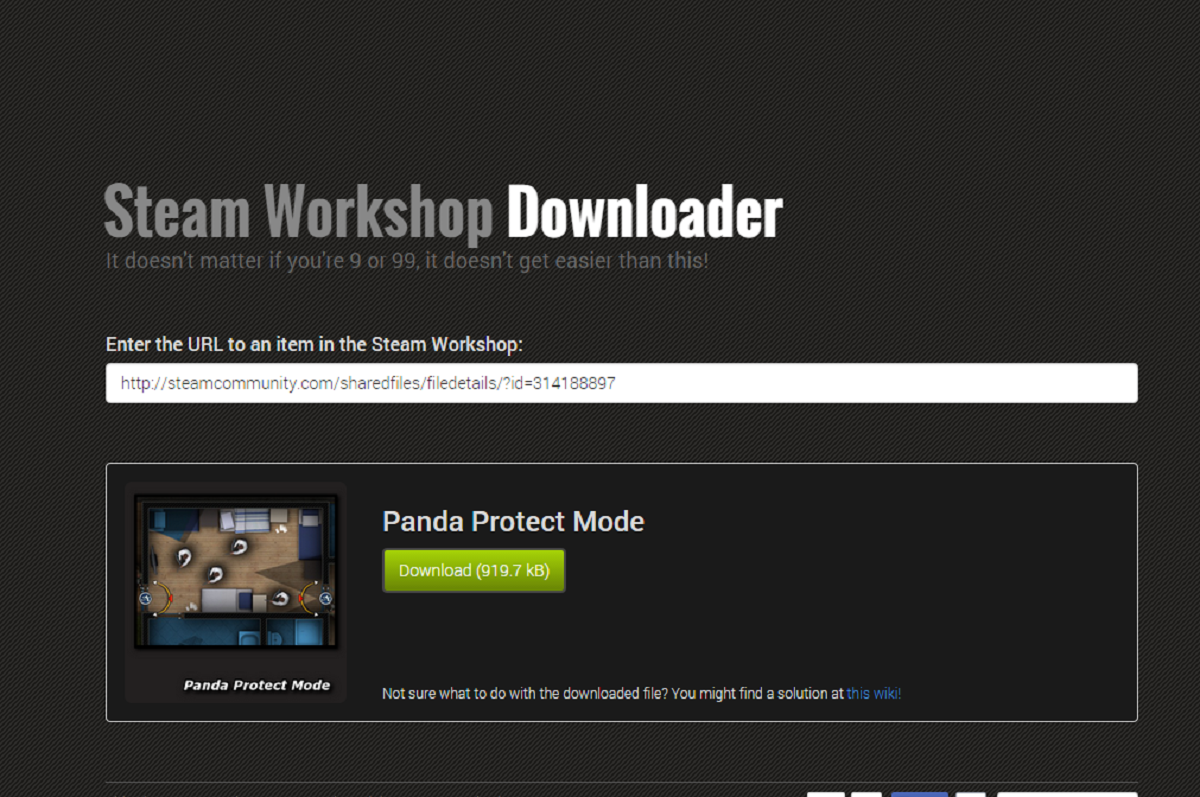
If an installed map does not show up, verify the file is in the correct location. For manual installations, ensure the .bsp file is inside the garrysmod/maps folder, not a subfolder. For Workshop subscriptions, confirm the download completed by checking your Steam Downloads page; if it is stuck, you may need to manually download from Steam workshop to get the raw files. Restart Garry's Mod after any changes.
Compatibility problems
Some maps may not work with the current version of Garry's Mod. Check the map's page or community forums for known compatibility issues or updates. If the map is outdated, look for an updated version or a similar map that works with your game version.
Corrupted downloads
A corrupted download can cause the map to fail to load or crash the game. Delete the map file and re-download it from a reliable source. For manual downloads, ensure the file is fully extracted and not incomplete. For Workshop maps, unsubscribe and resubscribe to force a fresh download.
\nRelated reading: How To Download Gmod.