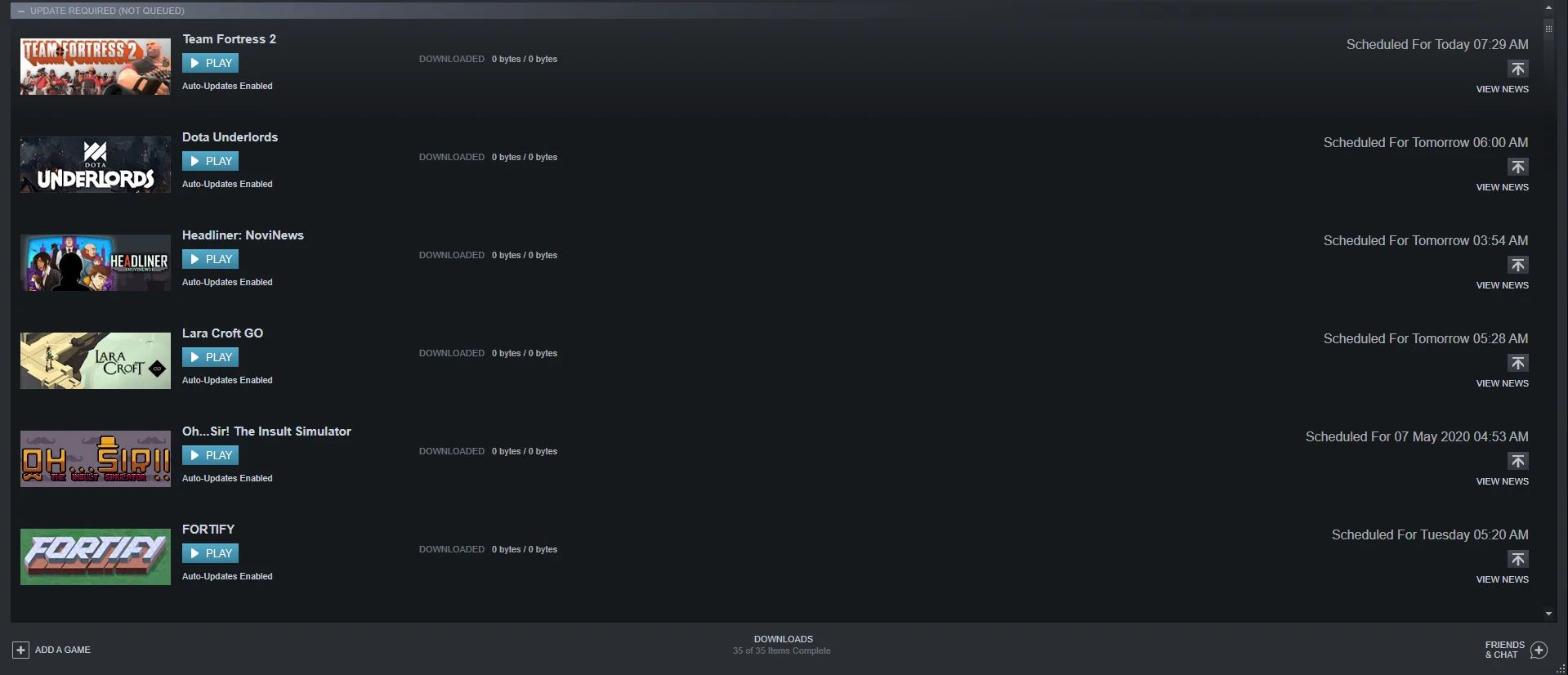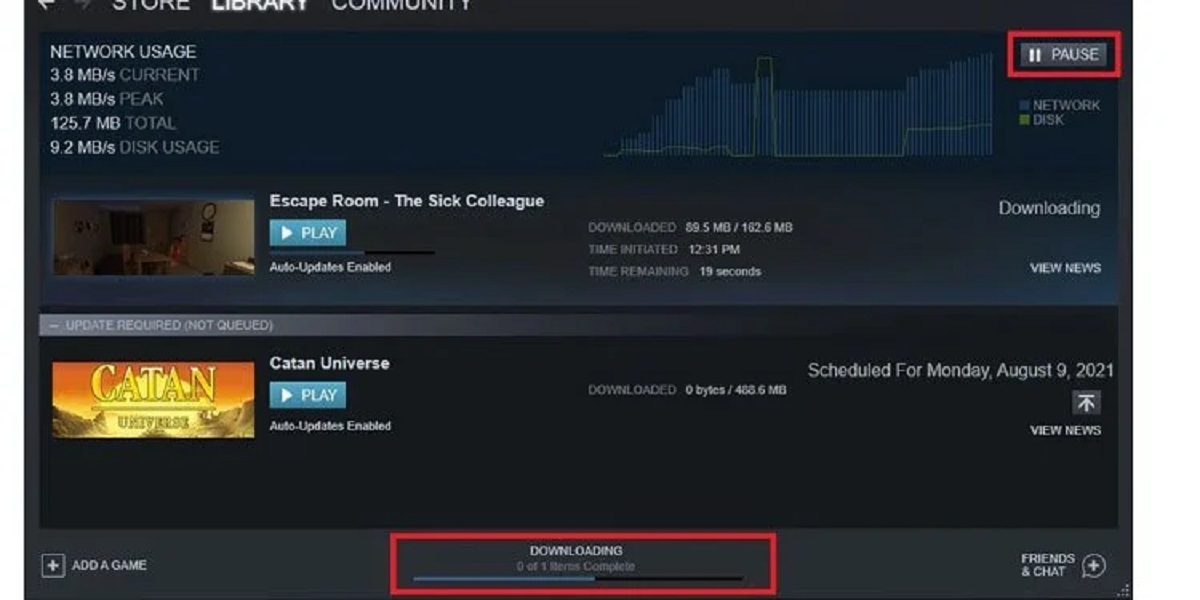
To cancel a download on Steam, open the Steam client and click the "Downloads" link at the bottom of the window. In the Download Manager, click the "X" button next to the game or update you want to stop, then confirm the cancellation.
How to cancel a download on Steam from the download manager
The fastest way to stop an active download is through the Download Manager. This is the best option when you want to immediately free up bandwidth or stop a download you started by mistake. Click the "Downloads" bar at the bottom of the Steam client to open the manager. You can also access it by selecting "Downloads" from the "View" dropdown menu at the top of the client, or by choosing "Downloads" from the "Library" tab. Once the list of active downloads appears, click the "X" button next to the game name. The download will stop, and any progress made will be lost. If you are managing downloads outside of Steam, you can use free download manager for steamunlocked to pause and resume large files with more control.
How to pause or stop a download from your library
If you prefer to manage downloads from your game library, you can halt a download by right-clicking the game in your Library list and selecting "Pause Download" or "Stop Download". Pausing a download temporarily halts progress while keeping the download entry intact, allowing you to resume later from where you left off. Stopping a download cancels it entirely and removes the entry from the Download Manager. This method gives you more control when you have multiple downloads in progress and want to prioritize bandwidth for a specific game.
How to completely remove a canceled download and its data
For a more complete cancellation that removes downloaded data and the game from the download list, go to your Steam Library, right-click the game, and select "Manage" > "Uninstall" or "Delete local content". This deletes the partially downloaded files from your hard drive, freeing up storage space. After uninstalling, the game will no longer appear in your download queue. If you want to download it again later, you can queue games for download on Steam from your library at any time.
How to prevent downloads from starting automatically
To stop downloads from starting without your permission, you can adjust per-game update settings. Go to the game's Library page, select "Manage" > "Properties", and then the "Updates" tab. From there, choose "Only update this game when I launch it" to temporarily disable updates until you start the game. This setting prevents Steam from automatically downloading updates in the background. For broader control, configure global bandwidth limits in your Steam settings under "Steam" > "Settings" > "Downloads". You can also uncheck "Allow Downloads During Gameplay" to ensure downloads pause automatically when you launch a game. Steam automatically pauses downloads when a game is launched to prioritize network activity for the game, but you can allow downloads during gameplay by checking the appropriate box in the same settings area.
\nRelated reading: How To Download Amanda The Adventurer.