This is usually a version mismatch between your game client and the Realm's server version, or a temporary authentication hiccup. Force-quit the game, update your Minecraft client to the latest release, and if that fails, ask the Realm owner to close and reopen the Realm to force a server-side update.
Why your Realms connection timed out even with good internet
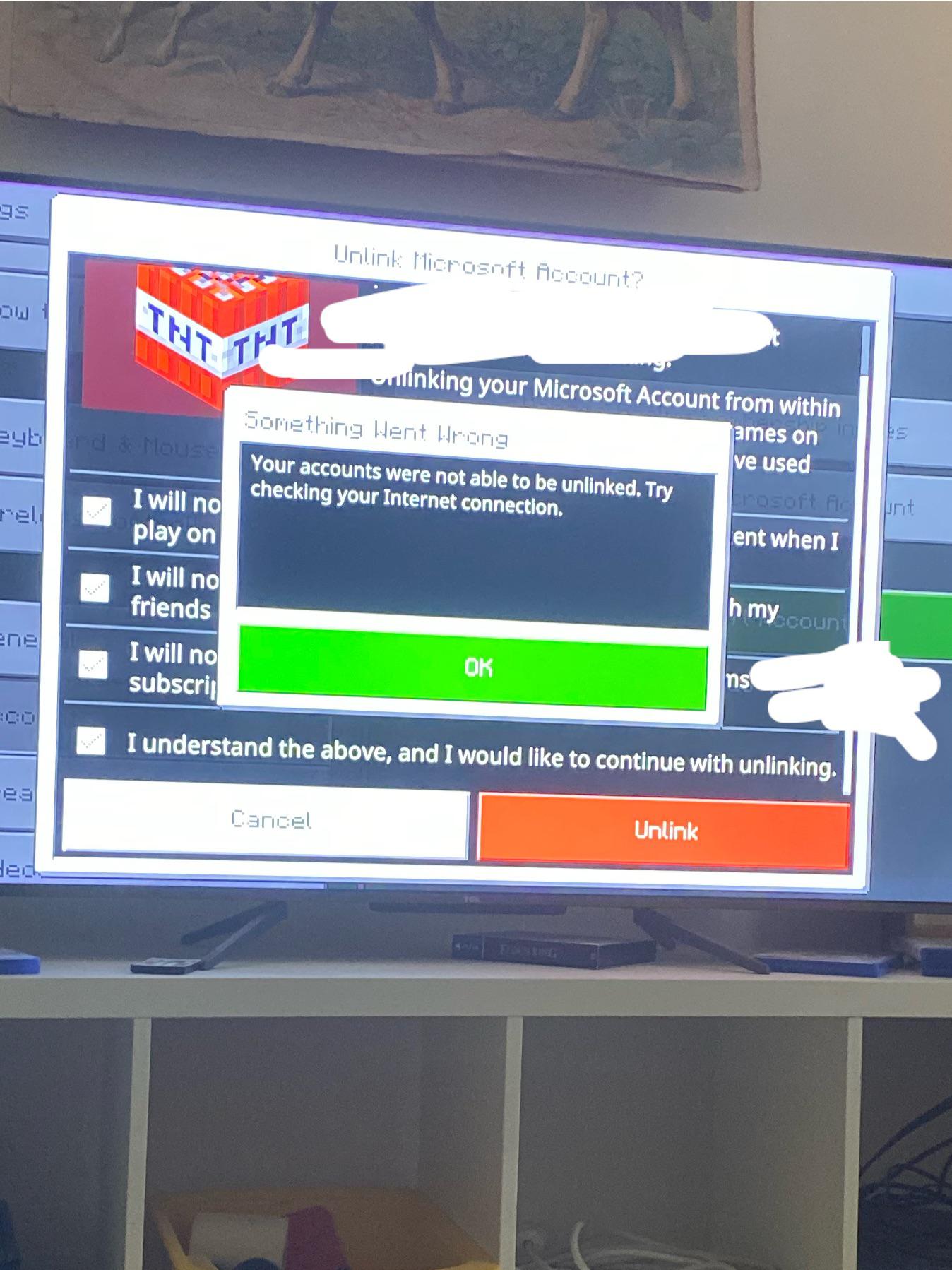
The 'connection timed out' error is rarely your actual internet connection, but rather the game client failing to complete the handshake with the server due to a version mismatch or a stuck authentication token. When you try to join a realm in Minecraft, your client sends a handshake packet that includes your game version and login token. If your client is on an older patch than the server, or if the server itself hasn't updated to the latest build, the handshake fails and the game shows a generic timeout. A corrupted authentication token, which can occur after a password change or a platform store update, produces the "Realms error" message instead. Your internet bandwidth is irrelevant here; the failure happens at the application layer before any meaningful data transfer begins.
Force a client-side update and reset
Start by completely quitting the game on your device. Do not just minimize it, force-close the process from your task manager, app switcher, or console home screen. Next, open your platform's store (the Microsoft Store if you download bedrock edition on PC, the App Store on iOS, or the Google Play Store on Android) and manually check for pending Minecraft updates. Many timeout errors are caused by the game running an outdated client that cannot negotiate with the latest server version. After installing any available update, restart the Minecraft launcher entirely. This clears the cached login token that often causes the 'Realms error' message. On consoles, also reboot the entire console to flush the network stack. Do not attempt to join the server again until the launcher has fully reloaded and you see the "Signing in" message complete.
What the realm owner must do if you still can't join
If the client-side steps fail, the server itself likely needs a server-side refresh. The owner must open the Realms menu, select the server in question, and choose the option to close the Realm. Wait a full 30 seconds for the server instance to terminate completely, do not reopen it immediately. After the timer, reopen the Realm to start a fresh server instance. This forces the server to update to the latest Minecraft version and generates a new invite code. If the owner manages their server from a console, they should also check the settings to ensure the server is not set to a specific version lock. For example, players who want to download Minecraft realm world for offline play sometimes accidentally lock the server to an older version in the world settings, which then causes timeout errors for everyone else. The owner must also verify that no pending payment issues exist, as an expired subscription can silently block connections.
When the fix fails and it's actually Mojang's servers
If you have performed both the client reset and the owner's server refresh and still see the timeout, check Mojang's official service status page. A widespread "Realms" or "Authentication" outage will show red indicators there. Distinguish between a local configuration error and a platform-wide outage by testing a second Mojang service: try to sign into your Mojang account on the website or launch a single-player world. If those work but the server still times out, the problem is likely a localized token issue that requires a full account logout on all devices. However, if the status page shows "Degraded Performance" or "Major Outage" for Realms, no troubleshooting steps will work until the servers recover. In that case, wait 30-60 minutes and try again. Note that the error rarely affects a single player alone; check with your server's other members to confirm they are also unable to join. For players using Minecraft on Xbox, a console-specific network test can reveal if your console's connection to Microsoft's authentication servers is blocked, which mimics a server timeout but may require adjusting your router settings.
Following these two steps resolves the vast majority of "connection timed out" and "Realms error" messages, because the underlying problem is almost never your internet speed.