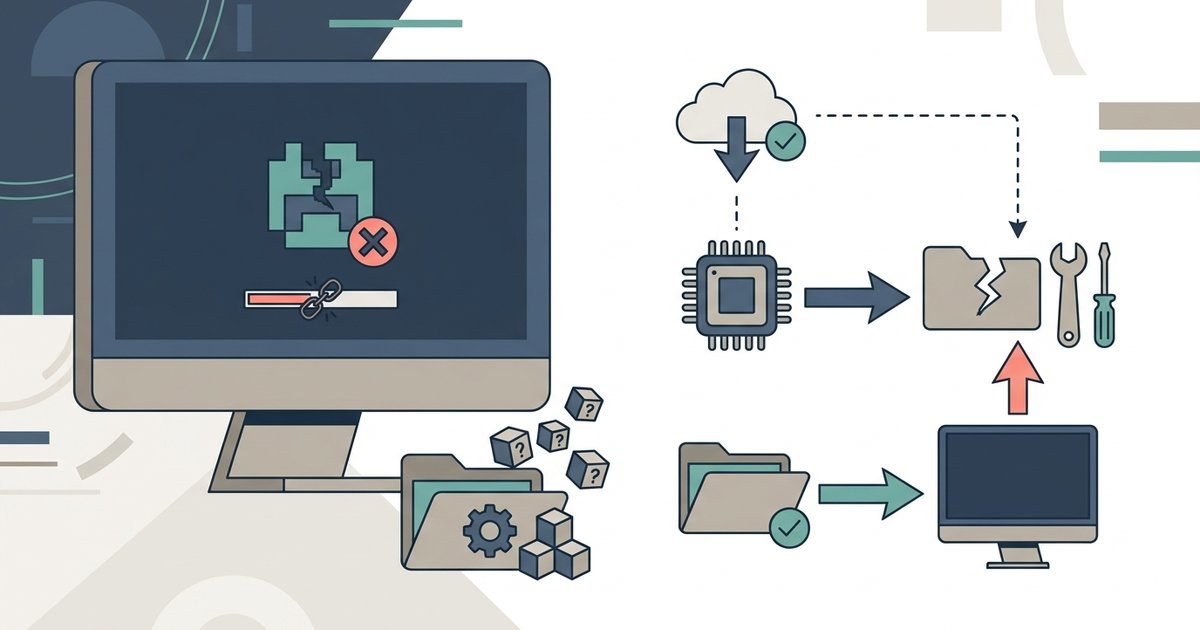
Minecraft mods not working is the immediate result of a game update because mods are version-specific and break instantly. You must switch your launcher profile back to the older game release the mods were built for. The alternative is waiting until the mod developers release an update for the new release. Opening your modded world in a newer release without the corresponding mod updates will cause crashes, missing blocks, or complete save corruption.
Switch your launcher profile to fix Minecraft mods not working
Open the official Minecraft launcher and click the "Installations" tab at the top. Look for an entry named after your mod loader, for example, "Forge 1.20.1" or "Fabric 1.19.2." If it exists, select it and press "Play." If it does not exist, click "New Installation" and set the "Version" dropdown to the exact Minecraft build your mods require. Check your mod loader's website or the mods' download pages for this number. Name the installation something clear like "My Modded 1.20.1," then save and launch it. This effectively undoes the update by running the older game code. If you accidentally deleted your old profile, you can also find the older build in the launcher's "Version list" when creating a new installation. Every official release since 1.0 is available. For console players, the process differs entirely. You would need to get Minecraft on a platform that supports custom mods, as consoles like PlayStation and Xbox have locked file systems. Those limits are the reason you cannot simply get mods on PS4 Minecraft or download Minecraft mods on Xbox without workarounds. Those workarounds do not apply to the Java Edition mods on PC you are likely using.
When you can't just switch back
If you already launched the new release and your modded world loaded even for a few seconds, the save file may be corrupted. Minecraft automatically creates backups in the "saves" folder inside your game directory. Navigate to .minecraft/saves. On Windows, press Win+R and type %appdata%\.minecraft. Find the folder named after your world. Minecraft does not automatically create backups here, so if you did not manually back up your world, no backup will exist in this location. Rename the broken world folder to old_world_corrupted, then copy the most recent backup folder back into the saves directory. If no backup exists, you can try opening the corrupted world in an older build using the profile you created earlier. The game may repair minor damage on load. If that fails, you have lost that save. Prevent this in the future by always duplicating your world folder before updating the launcher.
Check if your mods have updated yet
Visit the mod’s page on CurseForge or Modrinth and look for a "Versions" tab or a dropdown labeled "Game Version." If the mod now lists the new Minecraft build number, for example, 1.21 instead of 1.20.1, download the updated file. Never update every mod at once. Download one new file, place it in your .minecraft/mods folder, and launch the game. If it loads without crashing, proceed to the next mod. Updating one mod at a time prevents new crashes. Mods often depend on each other’s APIs, and a single incompatible update can break the entire pack. If you are on a console, remember that the methods for getting Minecraft and downloading mods on Xbox are entirely separate from the Java Edition mods on PC approach described here. Console mods are managed through curated marketplaces and rarely receive build-specific updates from the same developers.
The only way to recover a modded world after an unwanted update is to force the game to run the exact older code the mods were written for, because every mod is locked to a single Minecraft build number and cannot function on any other.