To install Minecraft mods on PC, you need a mod loader like Forge or Fabric, which acts as a bridge between the game and community-made modifications. This process is version-specific, so matching your Minecraft version, mod loader, and mods is critical for a stable experience.
What you need before you install Minecraft mods
Before you begin, you must own a legitimate copy of Minecraft: Java Edition. Mods are PC-only and will not work on consoles, mobile devices, or the Bedrock Edition, though you can still explore Java Edition mods on Bedrock Edition through third-party conversion tools. You also need the correct Java version installed. For Minecraft versions 1.18 through 1.20.4, Java 17 is required; Minecraft 1.17.1 needs Java 16; and versions 1.16.5 or older require Java 8. Using the wrong Java version will prevent mods from loading. If you don't already own the game, you can get Minecraft from the official Minecraft website.
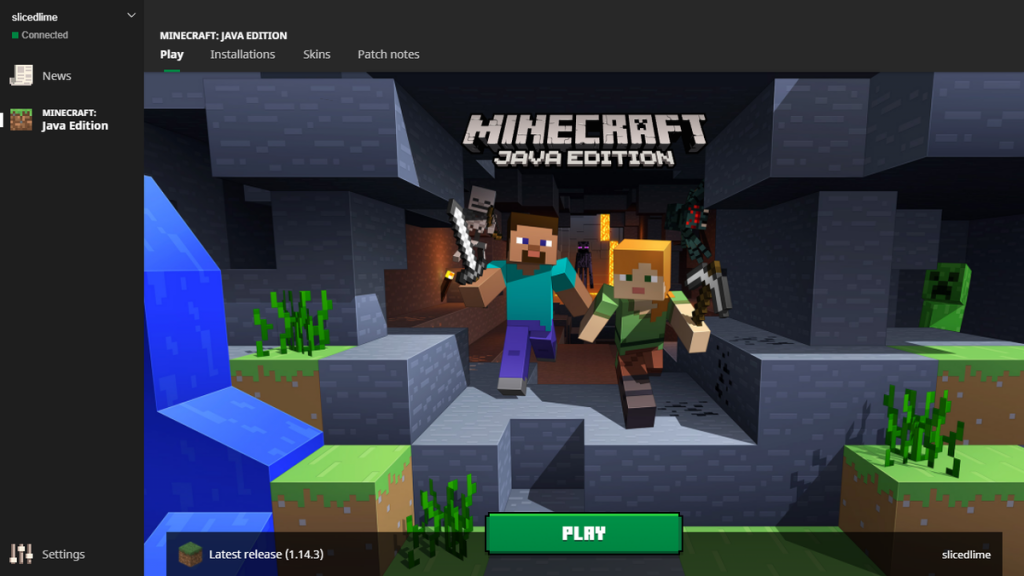
How to install Java for Minecraft modding
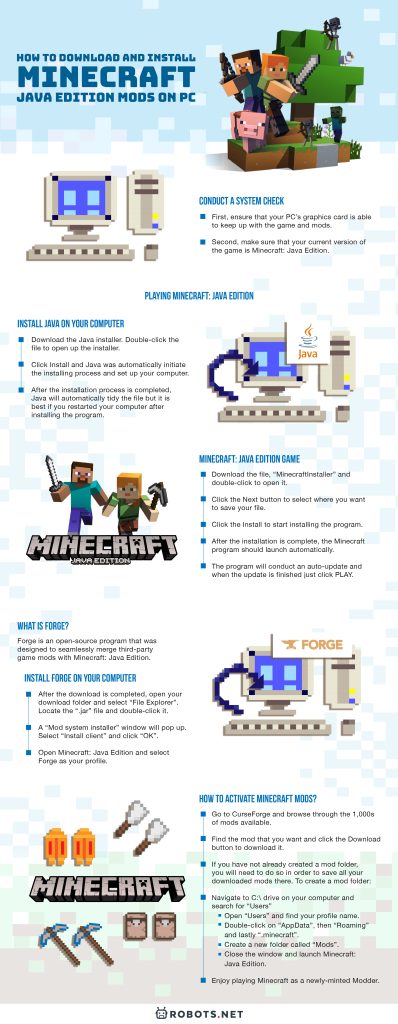
Java is the programming language that Minecraft: Java Edition and its mods run on. Installing the correct version ensures compatibility. Use the table below to match your Minecraft version to the required Java version.
| Minecraft version | Required Java version |
|---|---|
| 1.18 to 1.20.4 | Java 17 |
| 1.17.1 | Java 16 |
| 1.16.5 and older | Java 8 |
- Download the Java installer for your required version from the official Java website.
- Open the downloaded file and run the installer.
- Follow the on-screen instructions to complete the installation.
- Restart your computer to ensure Java is properly configured.
Choosing and installing a mod loader: Forge or Fabric
A mod loader is necessary to make mods work with Minecraft. Forge is the older, more established loader and supports many large modpacks. Fabric is a lighter, faster loader that is popular for performance and smaller mods. Both are free and widely used. Choose Forge if you want access to classic mods like OptiFine or Tinkers' Construct; choose Fabric if you prefer lightweight mods or newer performance enhancements. Many Fabric mods also require the Fabric API, which you will install later.
Installing Forge
- Go to the Forge website and download the installer for your exact Minecraft version.
- Open the downloaded .jar file. If it does not run, ensure Java is installed correctly.
- In the installer window, select "Install client" and click "OK".
- Open the Minecraft Launcher and go to the "Installations" tab. A new Forge profile will appear.
Installing Fabric
- Go to the Fabric website and download the Fabric installer for your Minecraft version.
- Run the .jar installer and select "Install client".
- Click "Install" and wait for the process to finish.
- In the Minecraft Launcher, the Fabric profile will now be available under "Installations".
How to download mods safely from CurseForge and Modrinth
Always download mods from reputable sources like CurseForge (curseforge.com) or Modrinth (modrinth.com). These sites verify mods and ensure they are free from malware. Before downloading, check that the mod is compatible with your Minecraft version and your chosen mod loader (Forge or Fabric). Mods are .jar files. If you are using Fabric, also download the Fabric API from the same trusted source; it is required by many Fabric mods and must be placed in your mods folder just like any other mod. If you play on console, you can also download Minecraft mods on Xbox through the in-game marketplace. For a curated list of popular mods, check out the 30 all-time best Minecraft mods.
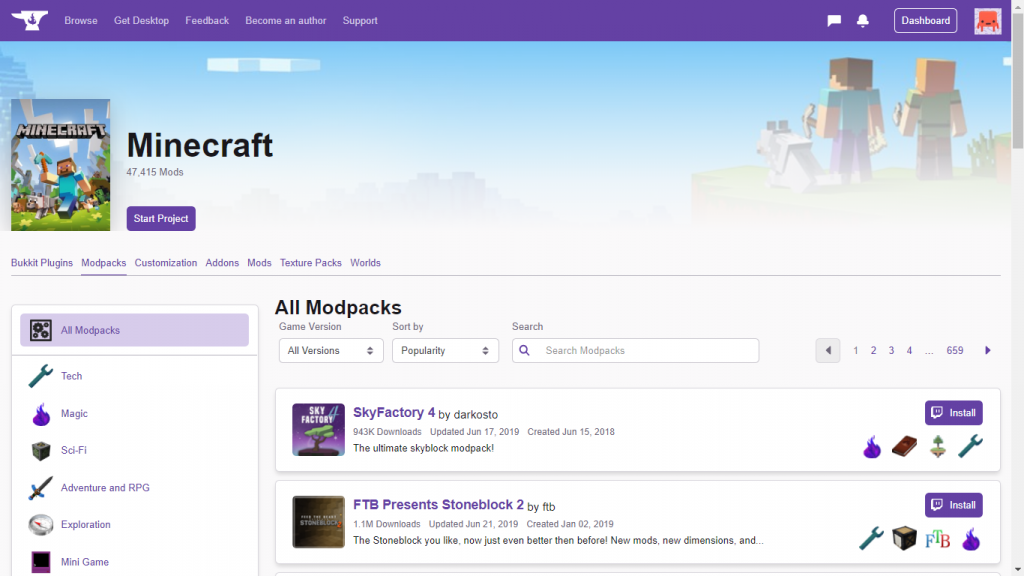
Installing mods: placing files in the mods folder
After installing your mod loader, launch Minecraft once with the Forge or Fabric profile. This automatically creates the "mods" folder inside your Minecraft directory. To install mods manually, place the downloaded .jar files into this folder.
On Windows, the mods folder is located at: %appdata%\.minecraft\mods
On macOS, the mods folder is located at: ~/Library/Application Support/minecraft/mods
If the folder does not exist, create a new folder named "mods" in the .minecraft directory. Then, move or copy your downloaded .jar files into it.
Launching Minecraft with your mods for the first time
- Open the Minecraft Launcher.
- Click the "Installations" tab.
- Select the Forge or Fabric profile you installed.
- Click "Play".
- Once the game loads, go to the main menu and click "Mods". You should see a list of all installed mods, confirming they are active.
An easier way: using the CurseForge app
If you prefer to avoid manual file management, use the CurseForge App. This application lets you create custom profiles, select your Minecraft version and mod loader (Forge or Fabric), and browse and install mods with one click.
- Download and install the CurseForge App from the CurseForge website.
- Open the app and click "Create Custom Profile".
- Choose your Minecraft version and mod loader.
- In the profile, click the "Mods" tab, then "Add Content".
- Search for mods and click "Install" on each one. The app automatically handles version and dependency checks.
Fixing common mod installation problems
Most issues arise from version mismatches. Ensure your Minecraft version, mod loader version, and each mod version all match exactly. For example, a Forge mod will not work with Fabric, and vice versa. If the game crashes, check for missing dependencies like the Fabric API. If you need to fix Minecraft mods not working after an update, reinstall the mod loader and all mods for the new Minecraft version. Always download mods for the correct loader and version from trusted sources.
For the wider topic, see get Minecraft.