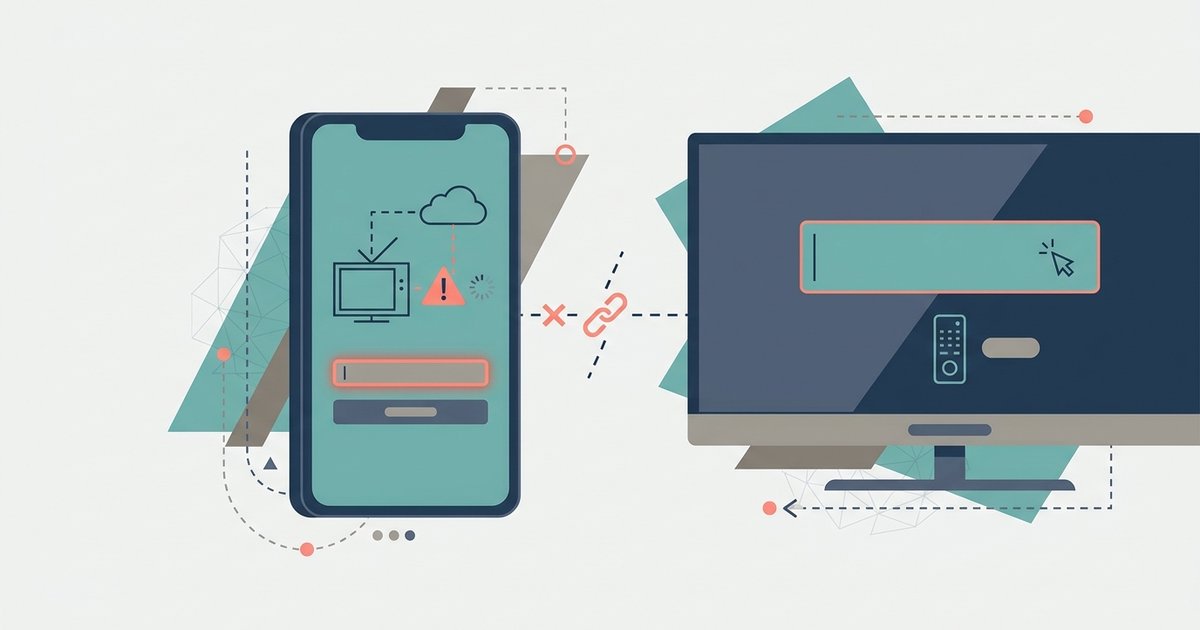
The activation code is case-sensitive and expires quickly, so you must enter it exactly as shown and immediately; if it still fails, you likely need to clear your browser's cache or disable ad blockers that are interfering with the TV provider sign-in pop-up.
A&E App Activation Code Is Case-Sensitive and Expires Quickly
You must enter it exactly as shown and immediately. This single issue, a mismatch between what you type and what the code generator expects, causes nearly all activation failures. The fix is almost always in your browser or network settings rather than in the app itself.
Enter the Code Exactly as It Appears on Your TV
Most activation codes include both uppercase and lowercase letters, and the system treats "A" and "a" as entirely different characters. When you see a code like "XyZ7q" on your TV screen, type it exactly with the same capitalization, including any hyphens or spaces. The code expires quickly after it appears. If you take too long to type it or switch tabs, it expires and you must generate a fresh one from the app. Keep the browser or phone on the activation screen and type the code immediately, without editing or pausing. If the code vanishes from your TV before you finish, generate a fresh code from the app and start over.
Clear Your Browser Cache or Switch Devices
Stored cookies and cached files from previous visits often cause the activation flow to silently fail. The screen may appear to accept your code but then hang or show a generic error. Open your browser's settings and clear all cookies and cached images for the last hour or for all time. A faster test is to open a private or incognito window and try the activation again from scratch. A private or incognito window can work for this purpose, but for Chrome, ensure you are using a standard browser window, not an Incognito window. If the private window works, the problem was your cache. You can also try a completely different device, such as a friend's phone or a tablet, to rule out browser extensions or corrupted profiles on your main computer.
Disable Ad Blockers and VPNs Temporarily
Ad blockers, privacy extensions, and VPNs frequently block the pop-up window that your TV provider uses to verify your subscription. When that pop-up fails to load, the system interprets it as a rejected code and shows an error. Temporarily disable all ad-blocking extensions for the activation domain. This includes uBlock Origin, AdBlock Plus, or built-in Brave shields. Turn off your VPN or proxy service as well. After disabling them, refresh the activation page and re-enter your code. You can re-enable these tools once the activation completes and you can watch A&E on the app, and the same approach works if you want to watch tlc through its own app. If you prefer to keep privacy tools active, add the activation site and your TV provider's domain to the whitelist or allowlist of your blocker.
When the Code Still Won't Work
If you have typed the code correctly, cleared your cache, and disabled all blockers but the activation still fails, the problem is not the code itself. Your TV subscription may have lapsed, your provider may not support app access, or you may have reached the device limit. Call your cable or satellite company and ask them to confirm that your package includes the channel, that your account is active, and that no device limit has been hit. Some smaller providers do not participate in TV Everywhere authentication, so you may need to switch to a supported provider. All use identical activation flows on their respective portals, and the same cache, blocker, and provider-check fixes apply.
Switching tabs during entry is a common cause of expiration, not a system error.
\nRelated reading: What Does Code Nw-2-5 Mean On Netflix.