On most TVs, no—Bluetooth and built-in speakers cannot output simultaneously because the TV automatically mutes one when the other is active. You can achieve dual output by using an external Bluetooth transmitter connected to a headphone jack or optical port that supports concurrent passthrough, or by using a streaming device with its own Bluetooth and audio routing settings.
Why your TV cuts the speakers when Bluetooth and TV speakers are both active
Most TVs enforce exclusive audio routing. When a Bluetooth device pairs, the TV’s internal amplifier is physically disconnected from the speaker drivers. This prevents electrical interference and feedback. It is a hardware-level switch, not a software glitch. If you use the optical (TOSLINK) or HDMI-ARC port for audio, many TVs automatically disable the internal speakers to avoid double-processing the signal. On some Samsung or LG models, enabling Bluetooth audio in the sound menu may gray out the “TV Speaker” option, though many newer models support simultaneous output. Even if you try to toggle both on, the TV’s firmware prioritizes one output path. This is why you cannot simply “connect a Bluetooth speaker” and keep the TV speakers alive. The TV assumes you want only the external device.
The headphone jack workaround that actually works
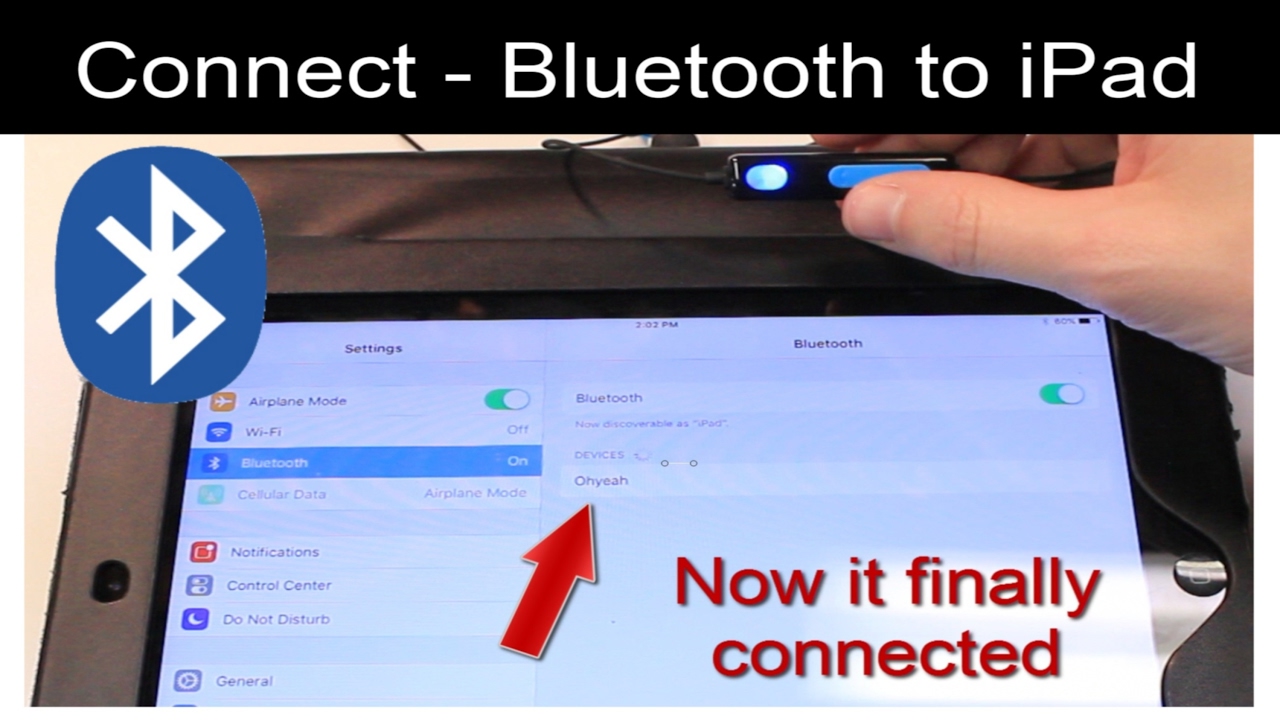
If your TV has a 3.5mm headphone jack or stereo RCA outputs, you can plug in an external Bluetooth transmitter that supports simultaneous passthrough. The TV must keep its internal speakers active when the analog jack is in use. Many budget and mid-range TVs do this. High-end models often mute the internal speakers once you plug into the headphone jack. Check your TV’s audio settings for a “Speaker + Headphone” or “Audio Out” mode. On a Sony Bravia, you may need to navigate to Home > Settings > Display & Sound > Audio output and enable “Audio to both TV speakers & other device.” Once the transmitter is connected, pair your Bluetooth headphones. This method also works if you want to “connect Roku TV to Bluetooth speaker” while the TV speakers remain on. The Roku TV’s audio output must be set to “PCM” and the headphone jack must be active. Do not use the optical port for this workaround unless your transmitter explicitly supports optical passthrough without muting the TV speakers. Most optical ports disable internal audio.
When the answer is no and what to try instead
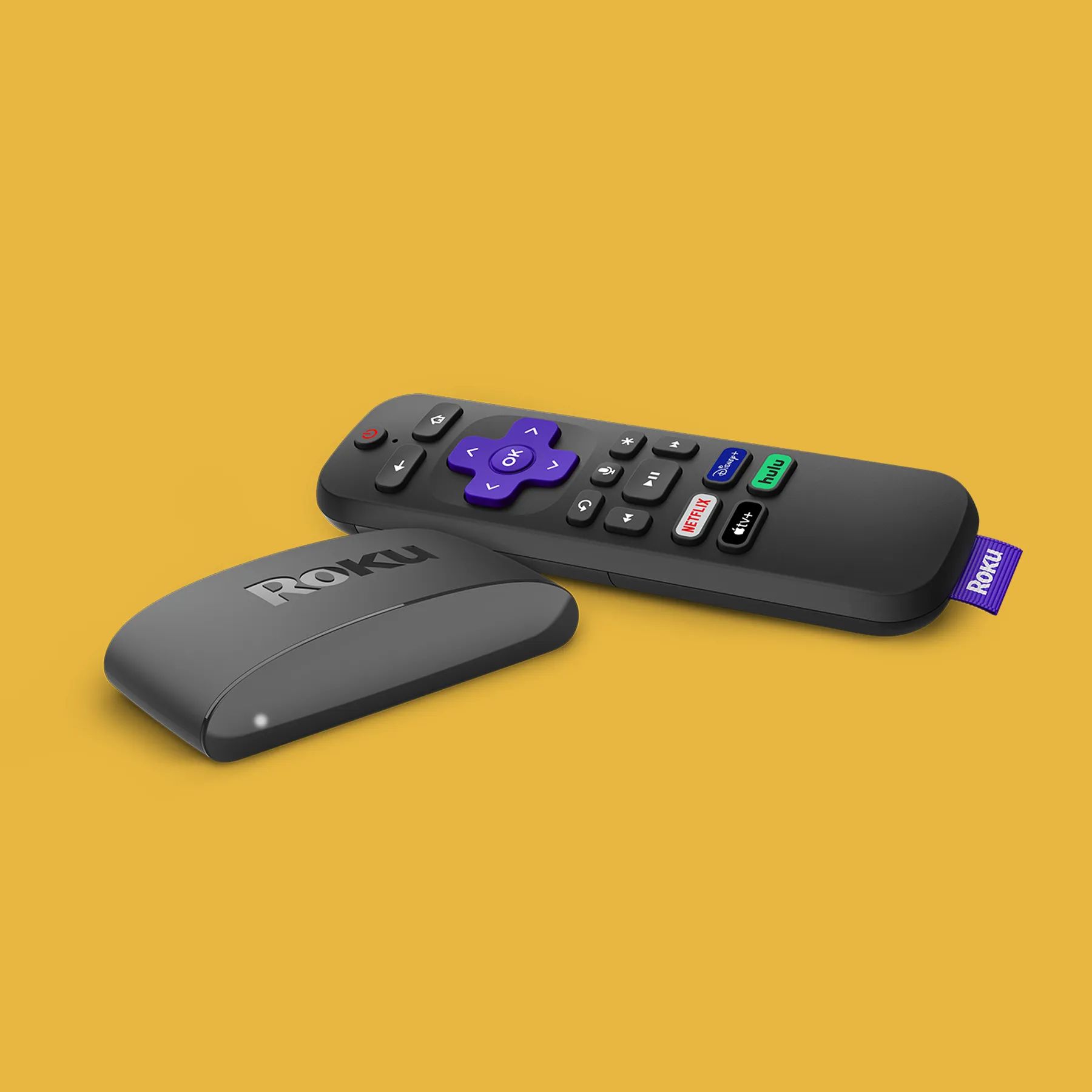
Some TVs cannot output sound from any port and the internal speakers at the same time. This is common in older models or those with limited audio chip designs. A Vizio or TCL model may disable all analog outputs the moment the internal speakers are turned on. In that case, you have two alternatives. First, use a dedicated audio sharing device. A Bluetooth transmitter with a built-in audio splitter takes the TV’s optical or HDMI-ARC signal and sends it to both your headphones and an external amplifier. Second, use a streaming device like an Apple TV or Fire TV Stick that has its own Bluetooth stack. You can connect your hearing aids to an LG smart TV via the streaming box’s Bluetooth settings while the TV itself plays audio through its speakers. The TV never mutes because it is not the Bluetooth source. Similarly, if you need to connect your hearing aid to your smart TV and keep the TV speakers on, a streaming box is the most reliable solution. It decouples the Bluetooth audio from the TV’s internal audio routing. Always check your TV’s manual under “Audio Output” or “Sound Settings” for a “Simultaneous” or “Multi-Output” option. If it is missing, the hardware cannot support dual output without an external device.
Unlike a soundbar or a simple Bluetooth pairing, a streaming box decouples the Bluetooth audio from the TV’s internal audio routing, which is the only way to force simultaneous output on a television that lacks a native multi-output mode. For a deeper look into the various methods and limitations of connecting Bluetooth audio to a TV, explore the broader topic of How to Connect Bluetooth Audio to a TV.