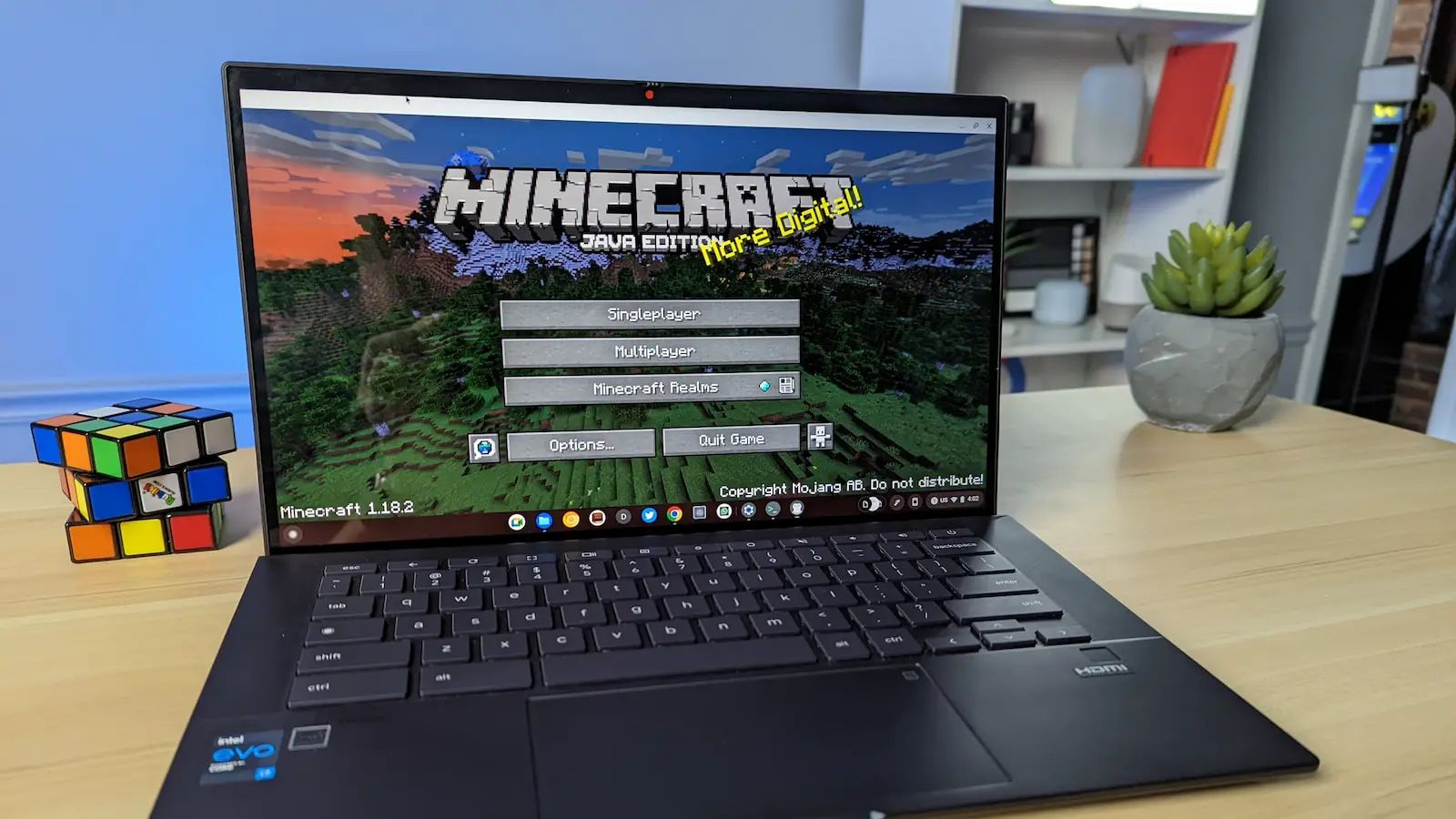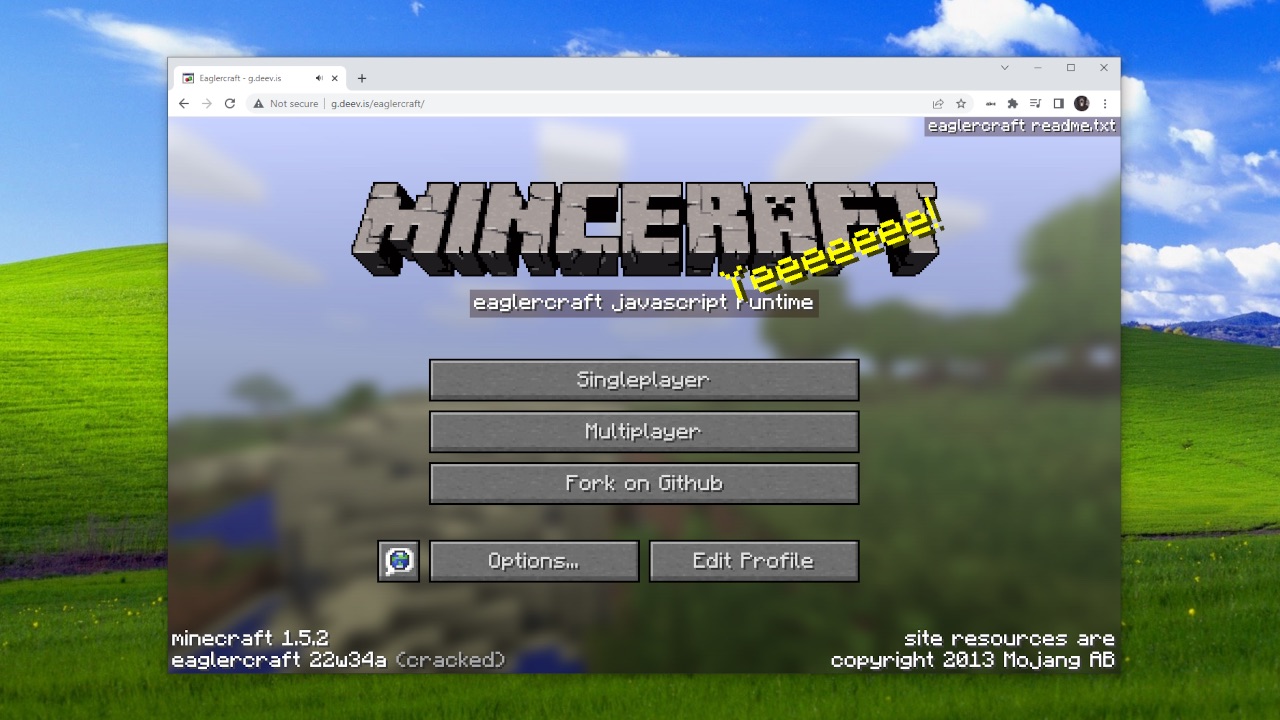
Most people who search for Eaglercraft want to play it instantly in their browser, and you can do that right now at eaglercraft.com/play with no download needed. However, if you specifically need to download eaglercraft offline to play without an internet connection, the official offline clients are simple HTML files that run directly in your browser, no installation required. This guide covers when you actually need the offline version, which devices support it, and the exact steps to download and run it.
Do you need to download eaglercraft offline?
Eaglercraft is primarily a browser-based version of Minecraft that runs directly in your web browser using HTML5, JavaScript, and WebGL. For the vast majority of players, there is zero need to download anything, you simply visit eaglercraft.com/play, and the game loads instantly in your browser, letting you join multiplayer servers or play single-player worlds right away. The only reason to download an offline client is if you know you will be without internet access and still want to play. Offline clients are HTML packages that you save to your device and open later in a browser, allowing you to play Eaglercraft even when you're completely disconnected from the web.
What devices and browsers support Eaglercraft
Eaglercraft is designed to work on almost any device with a modern web browser, including Chromebooks, Windows PCs, Macs, Android tablets and phones, and iOS devices. As long as you have a current version of Chrome, Firefox, Edge, or Safari, you should be able to run the game. The key technical requirement is WebGL support, your browser must support WebGL 1.0 or 2.0 for the game's graphics to render properly. If your browser supports WebGL 2.0, you'll get access to enhanced visual features like dynamic lighting and PBR shaders, which make the game look noticeably better. To check if your browser supports WebGL, you can visit a site like get.webgl.org, and if you see a spinning cube, you're good to go.
Available offline client versions
When you decide to download an offline client, you have three official versions to choose from. The most stable and widely deployed version is EaglercraftX 1.8.8, which is the version most players use and the one recommended for the best experience. There is also Eaglercraft 1.12.2, which is still under development and may have more bugs or missing features compared to 1.8.8. Finally, the original 1.5.2 version exists as a nostalgic throwback, though it lacks many of the features and improvements of the newer versions. Be aware that any claims of Eaglercraft versions beyond 1.12.2 (such as 1.20 or 1.21) are unofficial and not supported by the Eaglercraft team, these are typically modified or fake versions that you should avoid downloading.
How to download the Eaglercraft offline client
Downloading the offline client is a straightforward process that takes just a few minutes. Follow these steps:
Step 1: Navigate to the official downloads page
Open your web browser and go to the official Eaglercraft website at eaglercraft.com. From there, look for the "Downloads" section in the navigation menu, or go directly to eaglercraft.com/p/downloads. Make sure you are on the official site, be cautious of third-party websites that claim to offer Eaglercraft downloads, as they may contain malware or unauthorized versions of the game.
Step 2: Select the desired version
On the downloads page, you'll see the three official offline client versions listed: EaglercraftX 1.8.8, Eaglercraft 1.12.2, and the original 1.5.2. Choose the version you want, for most players, EaglercraftX 1.8.8 is the best choice because it's the most stable and widely used. Click on the download link for your chosen version.
Step 3: Download the HTML package file
Your browser will begin downloading a single HTML file (usually named something like eaglercraftx_1.8.8_offline.html or similar). This file contains the entire game in a single HTML package, there are no multiple files, no folders to extract, and no installers. The download should complete quickly since the file is relatively small compared to traditional game installers.
Step 4: Save it to your device
Once the download is complete, the HTML file will be in your browser's default download folder (usually "Downloads" on Windows, Mac, or mobile devices). You can leave it there or move it to a folder where you can easily find it later, such as your desktop or a dedicated "Games" folder. That's it, the download is complete.
How to open and play the offline client
Opening and playing the offline client is incredibly simple because the downloaded file is an HTML package that opens directly in a web browser, no installation, extraction, or installer required. To play, simply double-click the HTML file you downloaded, and it will open in your default web browser. The game will load just like it does when you play online, but now it works completely offline. You can play single-player worlds, use creative mode, or even set up your own local server if you want to play with friends on the same network. There's no setup process, no account creation, and no configuration needed, just double-click and play. If you want to keep the file handy, you can create a shortcut to it on your desktop for quick access.
Troubleshooting common issues
While Eaglercraft's offline client is designed to work smoothly, you might occasionally run into issues. Here are the most common problems and how to fix them:
WebGL errors
If you see an error message about WebGL not being supported or enabled, it means your browser can't render the game's graphics. First, make sure you're using a modern browser like Chrome, Firefox, or Edge. Then, check if WebGL is enabled in your browser settings, in Chrome, type chrome://flags in the address bar and search for "WebGL" to make sure it's enabled. You can also try updating your graphics drivers, especially on Windows PCs. If you're on an older device, WebGL 1.0 might be the only option, which is still sufficient to play the game, just without the enhanced lighting effects.
Browser compatibility problems
If the game doesn't load or behaves strangely, try a different browser. Some browsers have stricter security settings that might block the HTML file from running properly. Chrome and Firefox are the most reliable for Eaglercraft, but Edge and Safari should also work. If you're using Safari on a Mac, make sure you've enabled "Allow WebGL" in your Safari preferences under the "Security" tab. On mobile devices, using Chrome or Firefox is usually the safest bet.
What to do if the offline client does not load properly
If you double-click the HTML file and nothing happens, or you get a blank screen, try these steps in order: First, right-click the file and select "Open with" and choose your preferred browser. If that doesn't work, try downloading the file again, it's possible the file was corrupted during the initial download. You can also try opening the file in incognito/private mode to rule out browser extensions interfering. If you're still having issues, check that your browser is up to date, and if all else fails, try a different version of the offline client (like 1.8.8 instead of 1.12.2), the 1.8.8 version is the most stable and likely to work without issues.
\nRelated reading: How To Play Minecraft On School Chromebook Without Download.