The software is called 'AULA F99 Driver' or 'AULA Mechanical Keyboard Driver', and you can download it from official AULA support websites such as aulagear.com, aulakeyboard.com, or aulagaming.com.
Official AULA keyboard software download sources
The software is called 'AULA F99 Driver' or 'AULA Mechanical Keyboard Driver'. You can download it from official AULA support websites such as aulagear.com, aulakeyboard.com, or aulagaming.com. If your manual's QR code is missing, you can also visit the official AULA support websites directly. This driver is the only safe way to remap keys, adjust actuation points, and control the RGB lighting on your keyboard, but if your lighting becomes unresponsive you may need to reset AULA keyboard lighting to factory default first. Avoid downloading it from any third-party file-sharing site.
The primary download portals are the official AULA websites at aulagear.com, aulakeyboard.com, or aulagaming.com. Navigate to the 'Downloads' or 'Software & Drivers' section, then select your model (F99, F99 Pro, F87, or F75). A secondary, equally safe source is another official AULA support website such as aulagear.com or aulagaming.com. Its URL is often printed on a QR sticker inside the box. When you scan that QR code with your phone, it takes you directly to the correct driver file. You should avoid third-party sites such as Softonic, DriverFix, or any other download aggregator. They often bundle outdated versions, adware, or even malware into the installer. The official downloads are a single, clean .zip file.
Which models this software supports
This driver works for the AULA F99, F99 Pro, F87, and F75. Ensure you download the correct driver for your specific model. However, the software may not support older or S-series keyboards. Check the official download page for your specific model. Those older models may require a different driver. Check the official AULA support site or contact support for assistance. If you own an older model, you may need to contact AULA support directly to request the appropriate software. For the supported models, the driver gives you access to a full macro editor, per-key RGB customization, and a battery level indicator (for wireless versions).
What to do when the software won't detect your keyboard
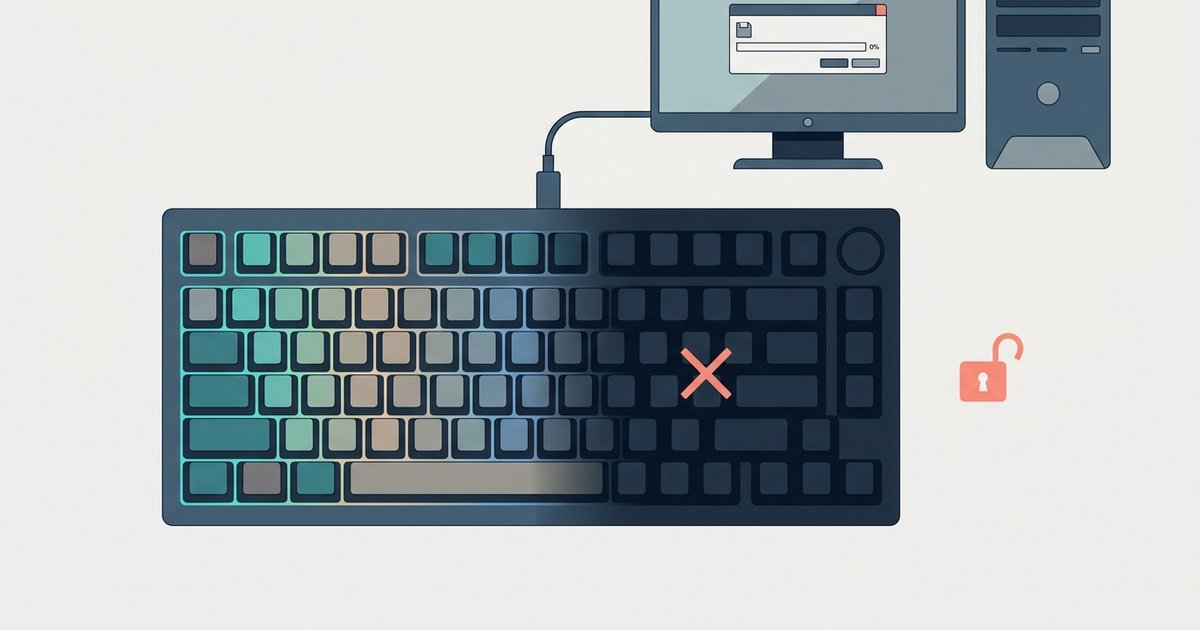
The most common failure case is that Windows sees the keyboard as a standard HID device. But the AULA driver software reports “No device connected.” This nearly always happens when the keyboard is in Bluetooth or 2.4 GHz wireless mode. The driver only communicates with the keyboard over a wired USB connection. First, switch your keyboard to wired mode. Plug in the USB-C cable and toggle the physical switch on the back of the keyboard to “USB” (or “Wired”). If the software still doesn’t detect it, right-click the “AULA_F99_Driver.exe” file. Select “Run as administrator.” This grants the driver the necessary permissions to access low-level USB HID commands.
After these two steps, the driver’s main window should show a virtual keyboard image. From there, you can use the “Lighting” tab to change color of aula gaming keyboard per key or per zone. Those are external laptop utilities, not part of this driver. If the detection issue persists after wired mode and admin rights, try a different USB port. A USB 2.0 port on the back of your PC is preferable. Also ensure the keyboard firmware is up to date by checking the “Firmware Update” section inside the driver itself. If the lighting still fails to respond, the AULA gaming keyboard lights not turning on at all article can help you rule out hardware-level causes.
This driver is the only official tool that gives you direct, low-level access to the keyboard's MCU for per-key RGB customization and macro programming.