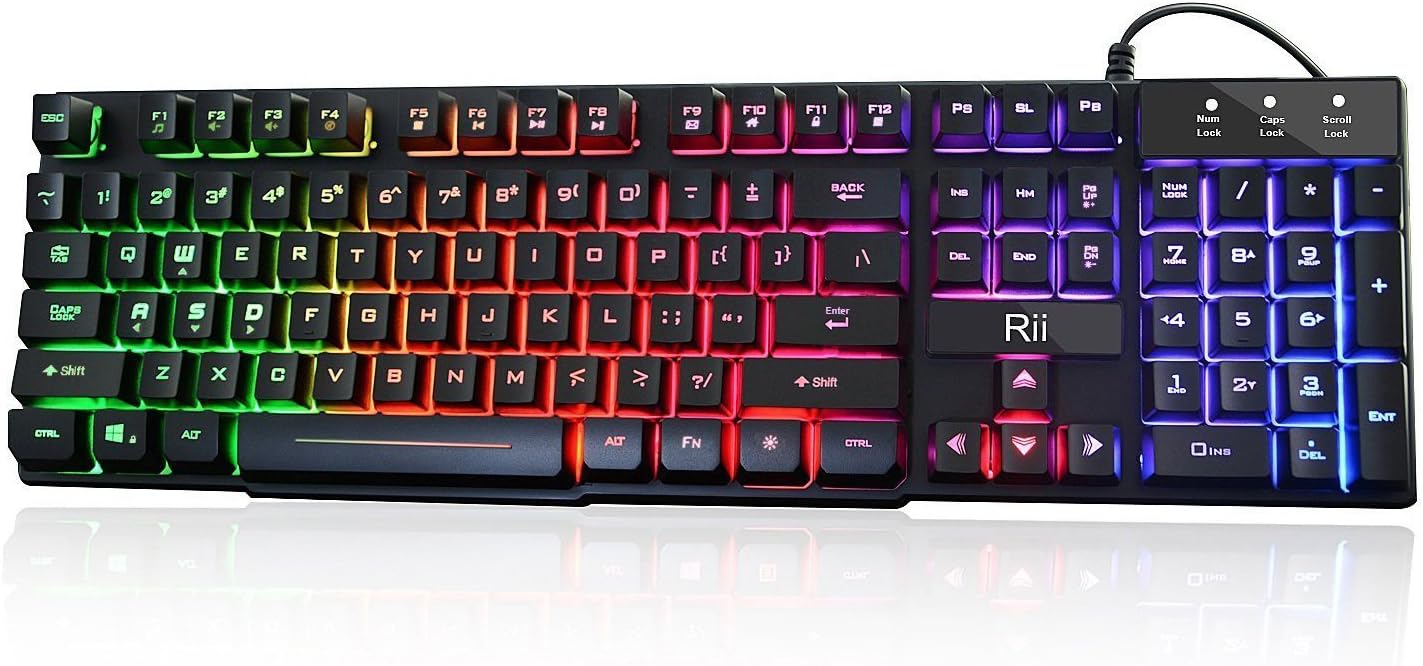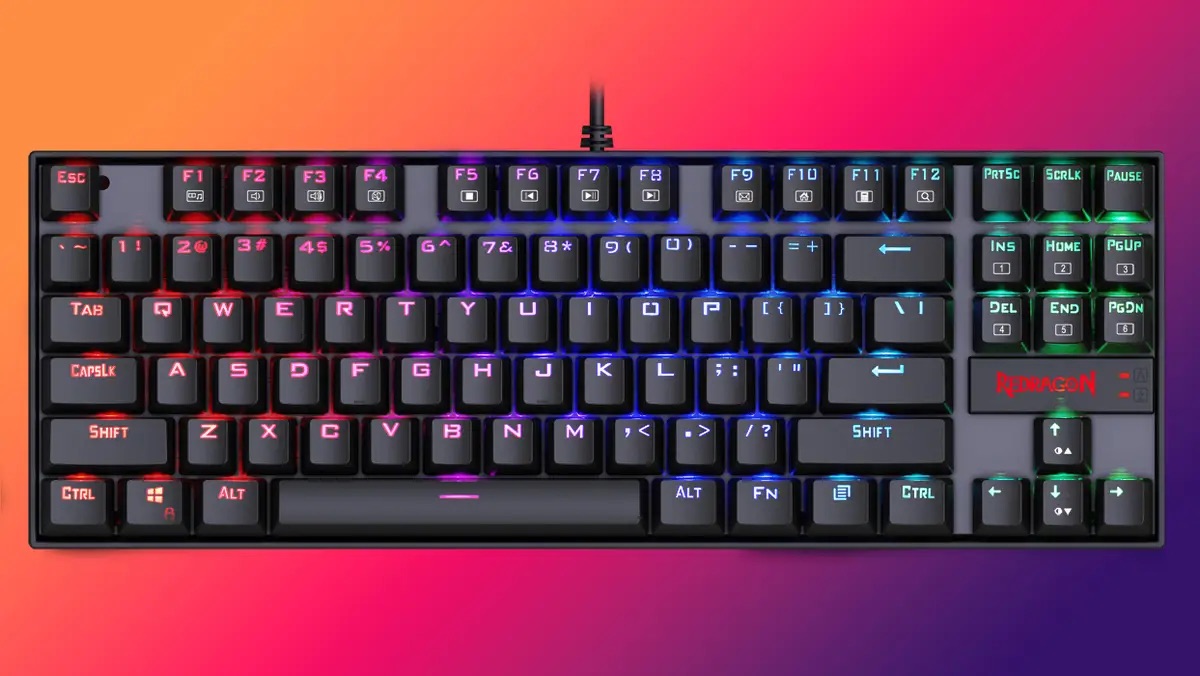
A completely dark AULA keyboard usually means it isn't receiving enough power, not a software setting. Try a different USB port directly on the motherboard, check for a physical on/off switch, and test with a different cable if it's detachable.
What to Do When Your AULA Keyboard Lights Won't Turn On
If none of those steps restore the LEDs, the issue is almost certainly a hardware power or controller failure, not a configuration problem you can fix with a shortcut key.
Check the USB Port and Power
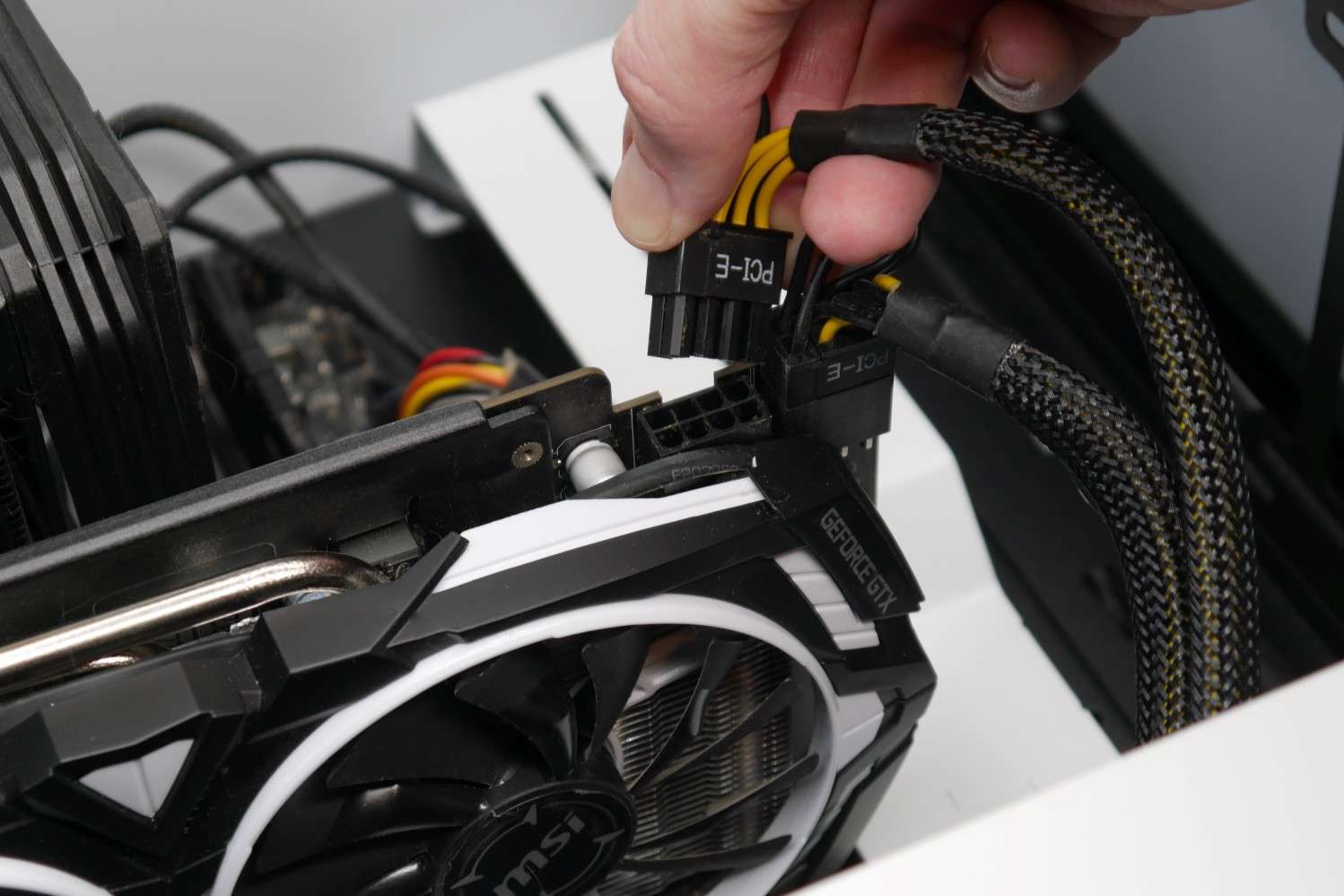
Many AULA gaming keyboards require a stable 5V supply from the USB port. Front-panel ports on your PC case or unpowered USB hubs often drop voltage under load, especially when multiple devices are connected. A keyboard that types fine but has zero lights is a classic symptom of undervoltage, the logic board gets enough juice to register keystrokes, but the LED controller starves. Plug the keyboard directly into a USB port on the back of your PC, which connects straight to the motherboard's power rail. If you use a USB hub, ensure it is a powered hub with its own AC adapter. Avoid USB 3.0 extension cables longer than six feet; they introduce resistance that can drop the voltage below the 4.75V minimum most LED controllers need. After moving to a motherboard port, press the FN + LED brightness key (often F9 or F10) to confirm the lights respond.
Locate the Physical On/Off Switch
Some AULA models include a small physical toggle on the bottom edge or underside of the keyboard that cuts all lighting power. This switch is typically labeled with a lightbulb icon or the word "LED" and sits near the USB-C port or the right edge of the chassis. When this switch is in the "Off" position, no combination of FN keys will turn the lights on, the keyboard will still type because the switch only interrupts the LED power rail. Slide it to the "On" position, then press a lighting shortcut to cycle modes. If you cannot find the switch, check the product manual's diagram; on some AULA keyboards, it is recessed and requires a fingernail or a paperclip to toggle. After switching it on, the LEDs should illuminate immediately without needing a driver.
Inspect the Cable Connection
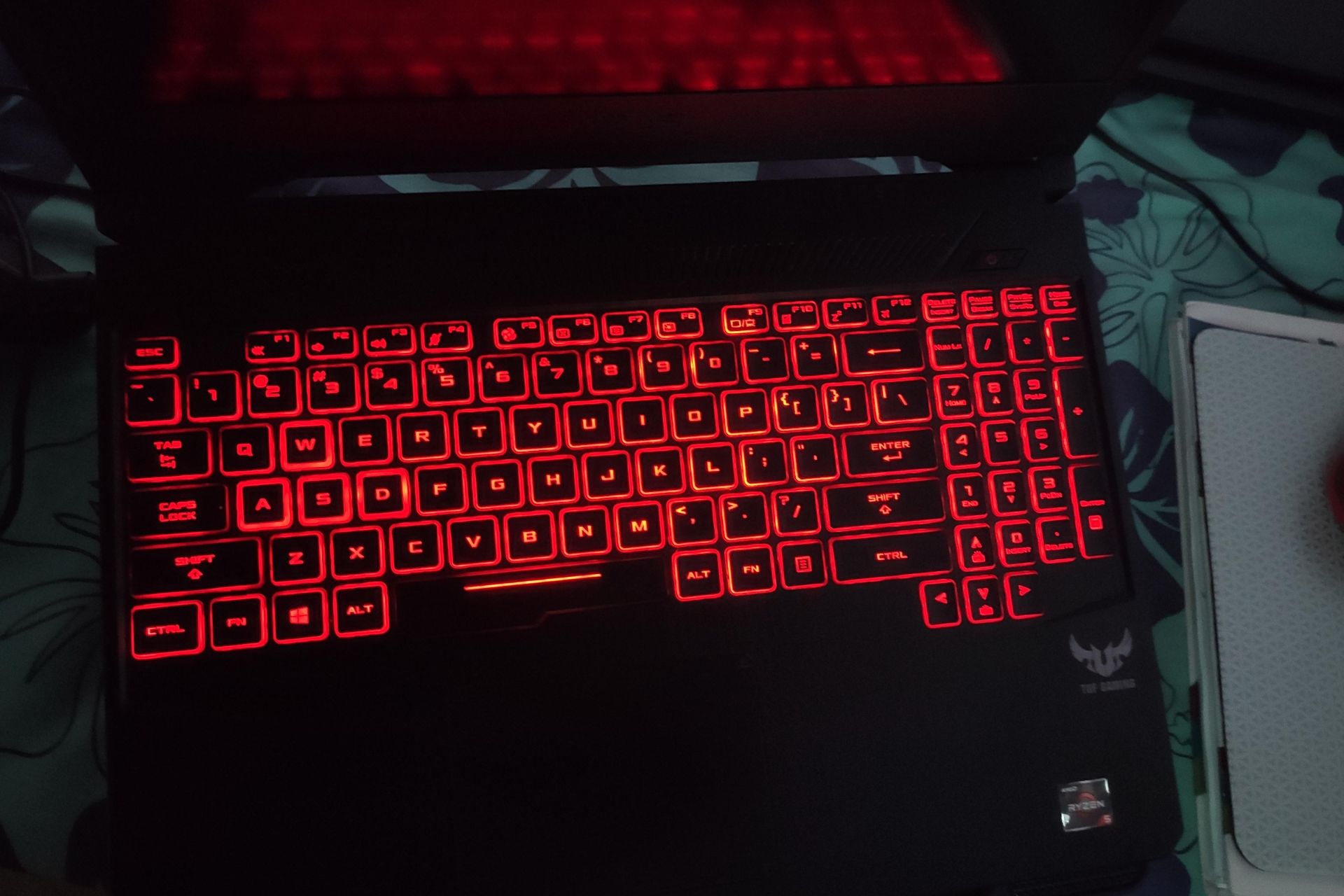
A loose or partially inserted detachable USB-C cable is a common cause of total light failure. Even if the keyboard registers keystrokes, a poor connection on the data pins can still deliver power, but the LED controller often requires a full four-pin USB connection. Unplug the cable from both the keyboard and the PC, then reinsert it firmly until you feel a click. Check the cable end for bent pins or debris inside the USB-C port. If the cable is non-detachable, wiggle it gently near the keyboard's strain relief, if the lights flicker or turn on momentarily, you have an internal wire break. Try a known-good USB-C cable from another device (like a phone charger) that supports data, not just charging. Some AULA keyboards use a proprietary cable, so verify compatibility before swapping. If a different cable restores the lights, the original cable is faulty. If your laptop keyboard is the one with the lighting issue, the steps to turn on keyboard light on asus tuf gaming laptop involve a dedicated function key rather than a cable check.
When the Keyboard Is Actually Faulty
If you have tried a motherboard USB port, confirmed the physical switch is on, and tested a different cable but the LEDs still remain dark, the keyboard's LED controller or onboard voltage regulator has failed. This hardware failure is not fixable by software or driver reinstallation. You can verify this by plugging the keyboard into a powered USB hub, if the lights still do not respond, the controller is dead. At this point, you need to contact AULA support or initiate a warranty replacement. While troubleshooting, you might also want to read how to change color of aula gaming keyboard for future reference once the hardware is working, or if you need a working setup immediately, you can change keyboard color on asus tuf gaming laptop to keep your workflow illuminated. But for your AULA keyboard, no software or key combination will resurrect a dead LED controller, only a replacement unit will bring the lights back.