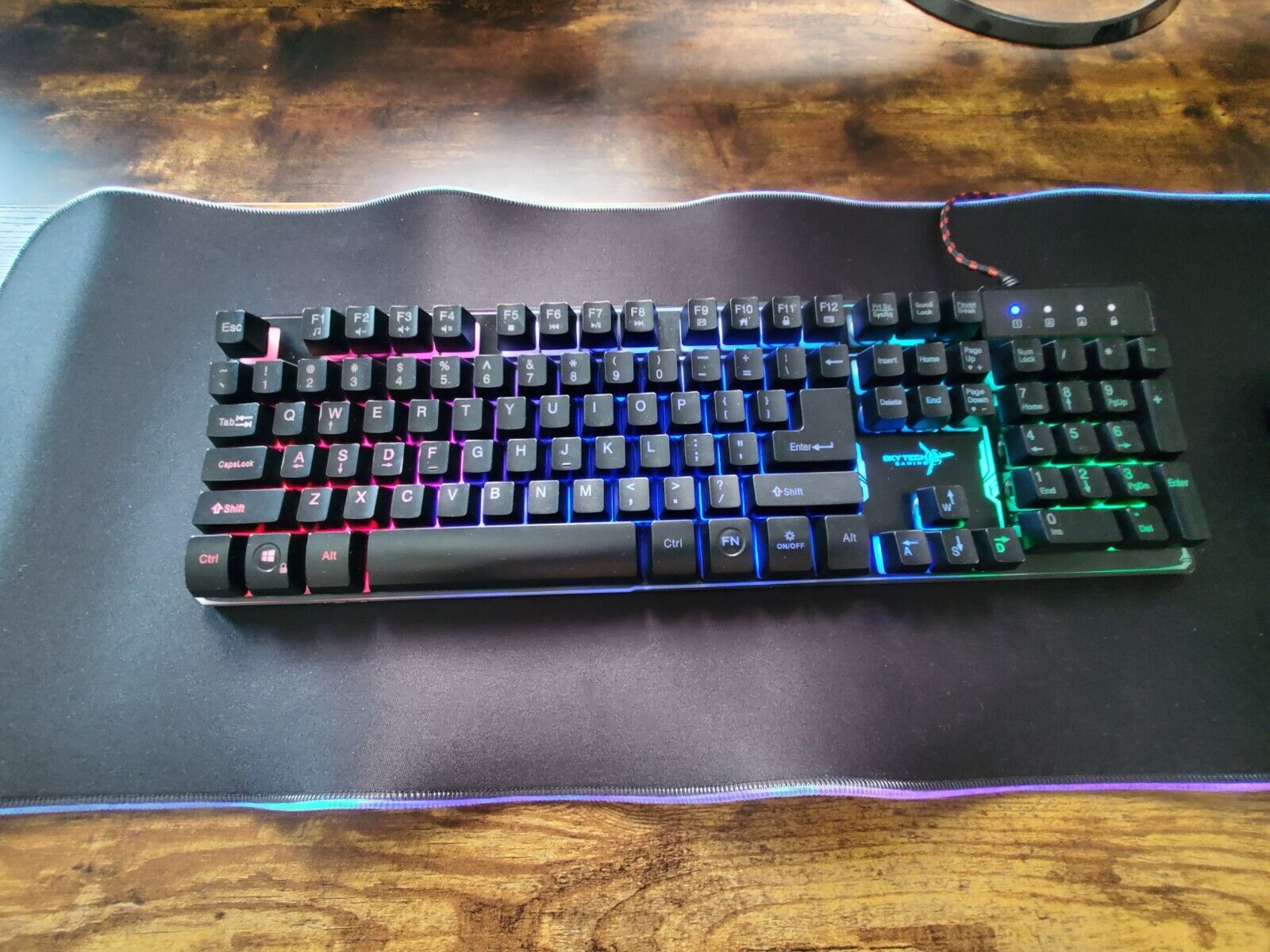
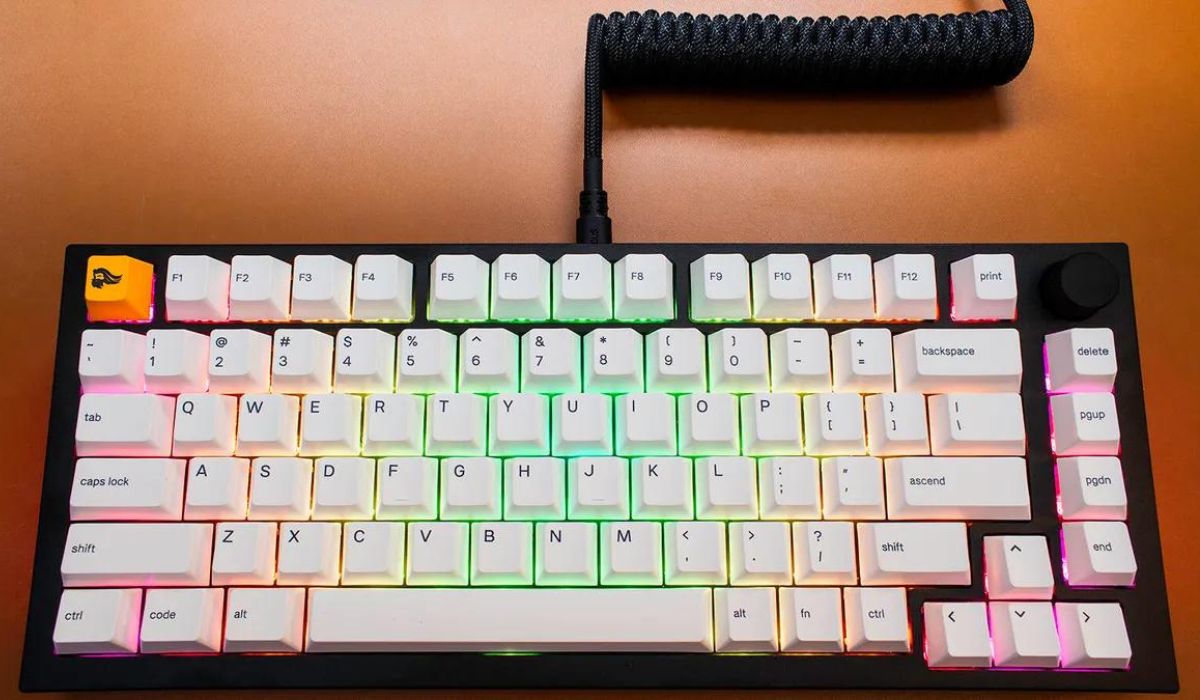
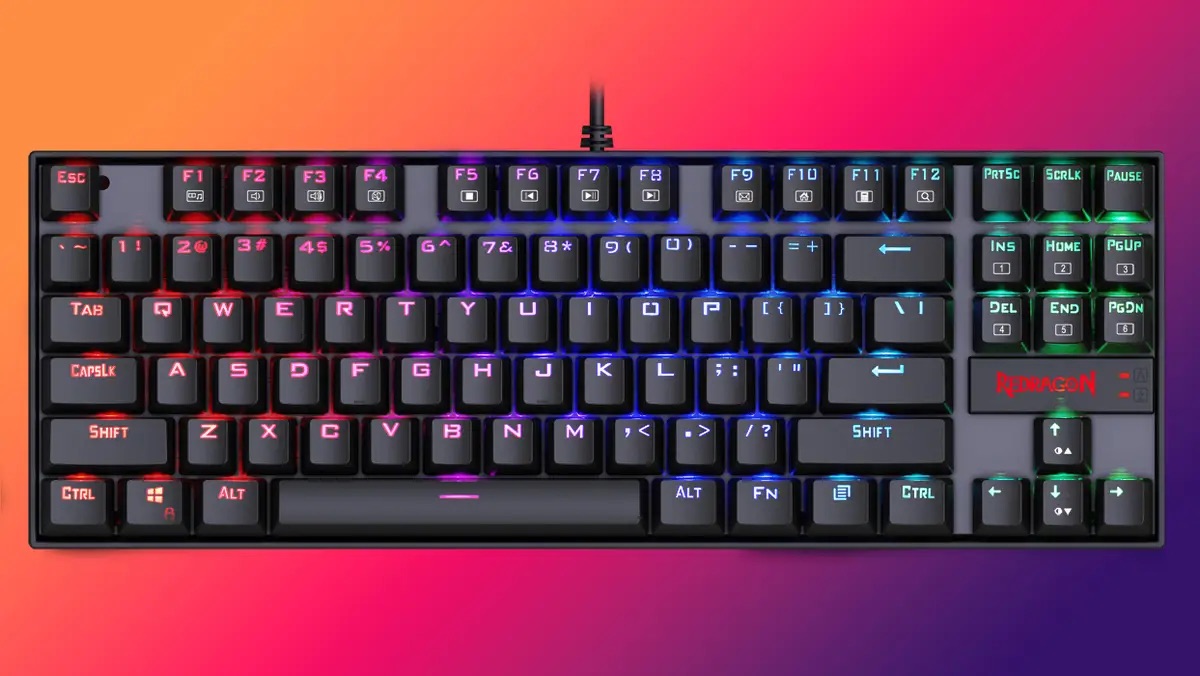
To change light color on blue finger gaming keyboard, use the Fn and Scroll Lock keys together, no software is needed. This guide covers cycling through colors, toggling the backlight, activating breathing mode, and adjusting brightness.
How to change the light color on a Blue Finger gaming keyboard
Blue Finger gaming keyboards use built-in keyboard shortcuts for all backlight customization. There is no dedicated software to install. The following shortcuts control the color, brightness, and effects.
Cycling through backlight colors and modes
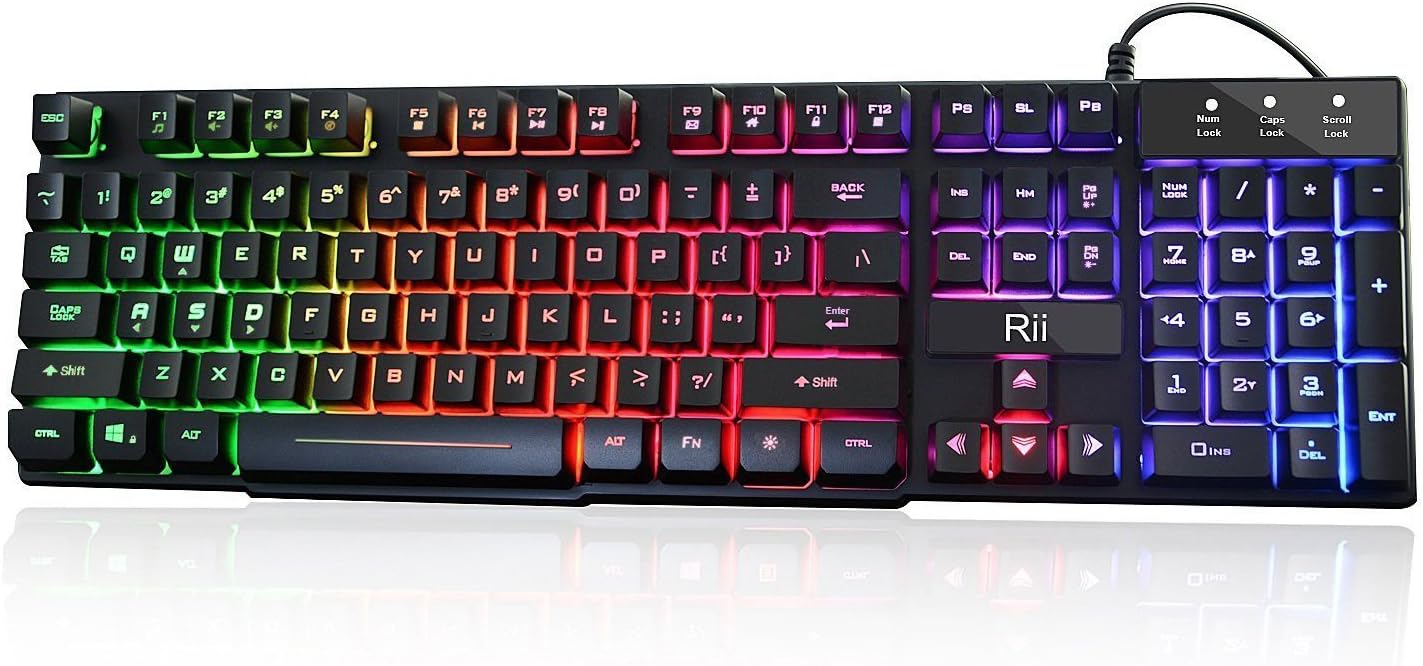
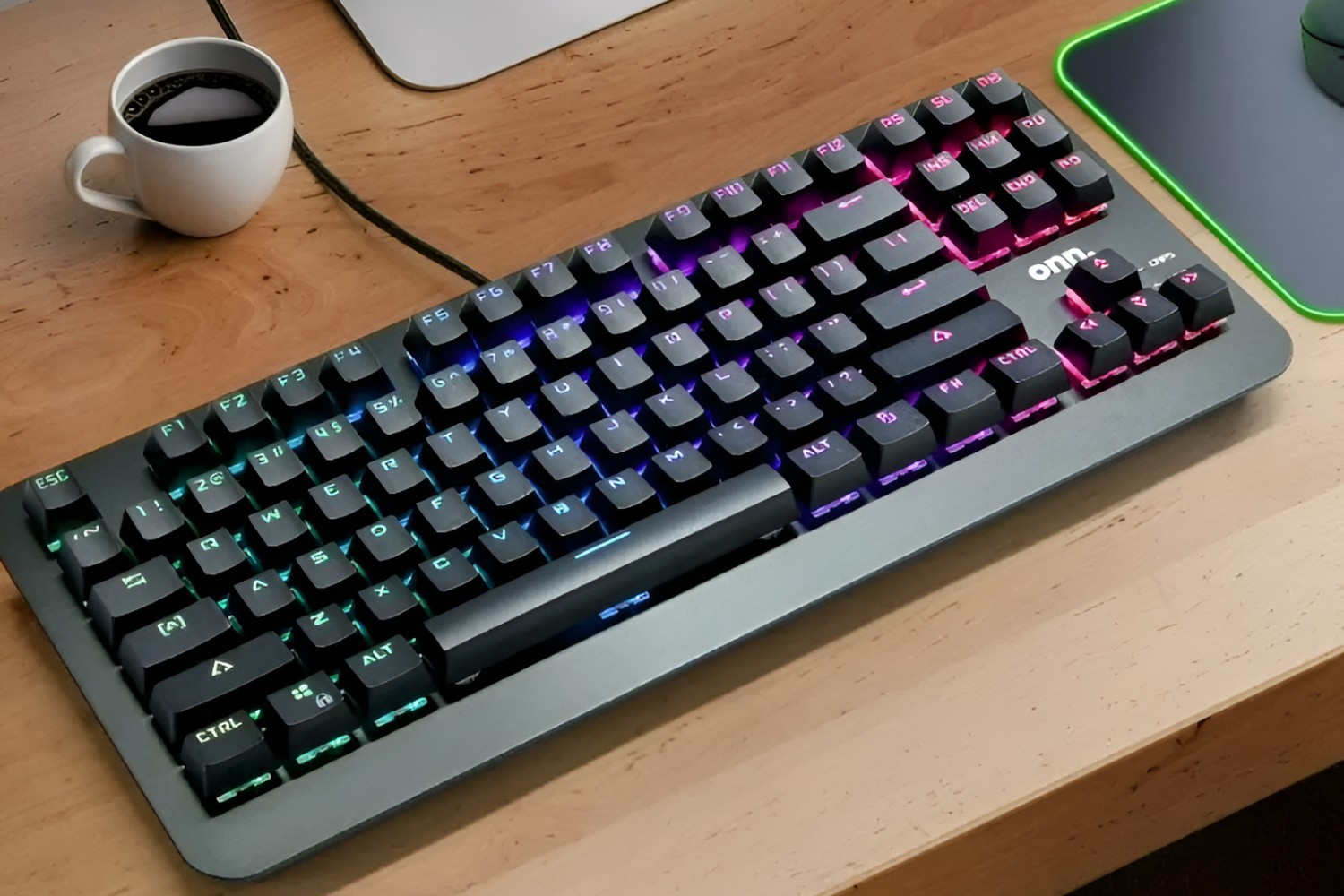
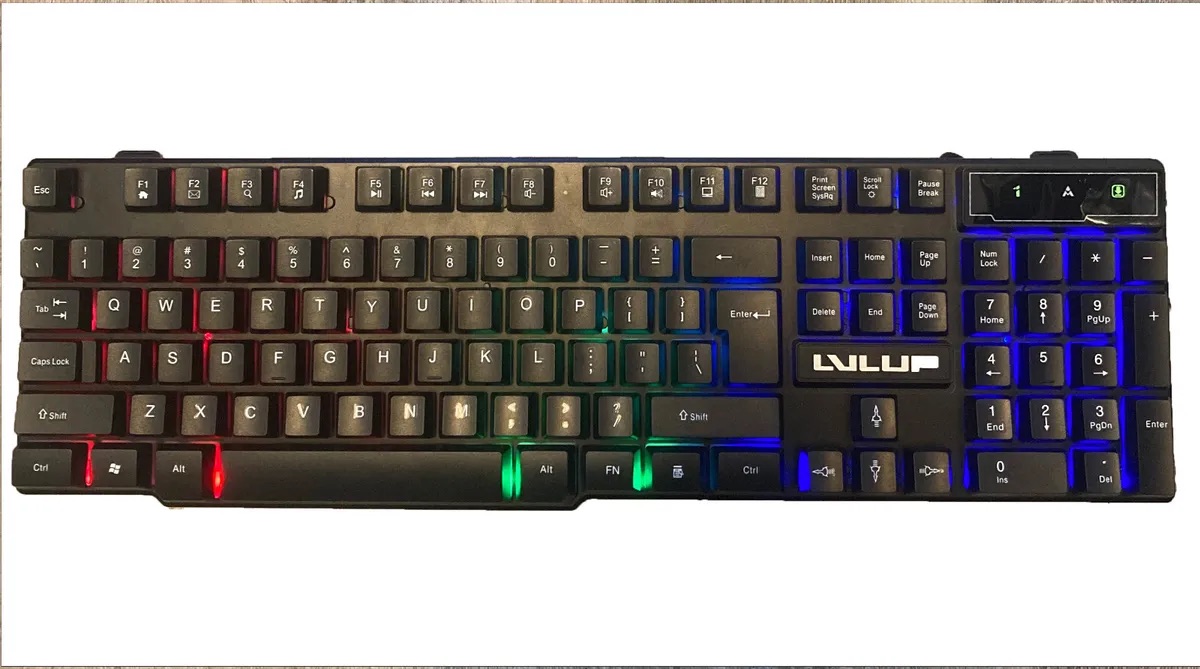
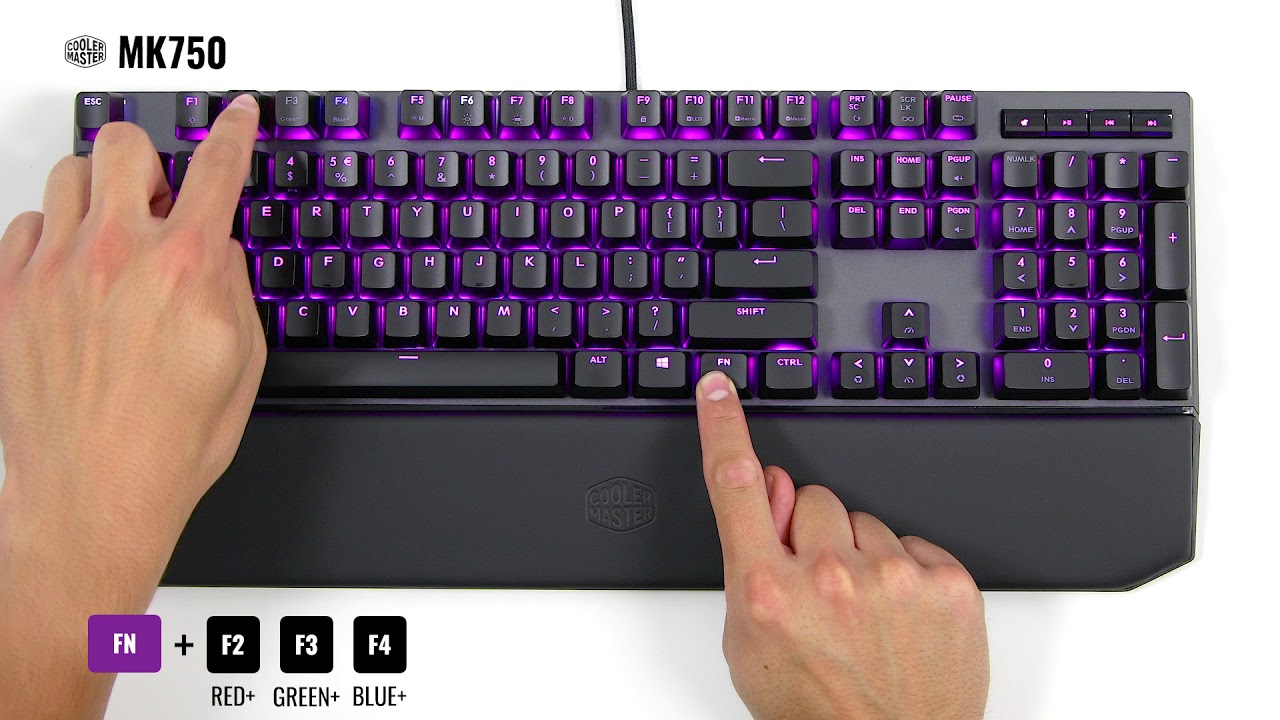
The primary method to change colors is to press and hold the Fn key, then press the Scroll Lock key. Each press cycles through the 7 single colors and the RGB rainbow mode. Continue pressing until you land on your preferred color or effect. The keyboard features 7 colors + RGB Rainbow lighting, so you will cycle through all options in order.
Turning the backlight on and off
To turn the keyboard backlight on or off, press the Scroll Lock key by itself. This toggles the entire backlight without changing the selected color or mode.
Activating breathing mode
To enter breathing mode, press the Fn key simultaneously with the Home key. The light will gently pulse on and off. This is a separate effect from the static colors and rainbow mode.
Adjusting the backlight brightness
Brightness can be adjusted using the Fn key with PgUp (increase brightness) or PgDn (decrease brightness). The backlight brightness and breathing speed can be adjusted through 4 levels, so press the combination repeatedly to cycle through the available settings.
Troubleshooting and additional notes
If you cannot directly select a single static color, remember you must cycle through all modes using Fn + Scroll Lock until the desired color appears. The official documentation does not provide specific steps to manually pick a single color from the 7 options; cycling is the standard method. For certain wired Blue Finger models, alternative shortcuts may apply: FN+SL switches backlight color, Fn+PS activates a 3-color auto-breathing mode, and Fn+PB enables a solid color auto-breathing mode. These shortcuts replace the standard Fn + Scroll Lock on those specific models. If you are looking to change color of aula gaming keyboard, note that AULA keyboards use a similar Fn-based shortcut system, often with the same Scroll Lock key combination. If you own multiple gaming devices, you may also want to change keyboard color on asus tuf gaming laptop for a matching setup.
\nRelated reading: Rii Gaming Keyboard: How To Change Color.