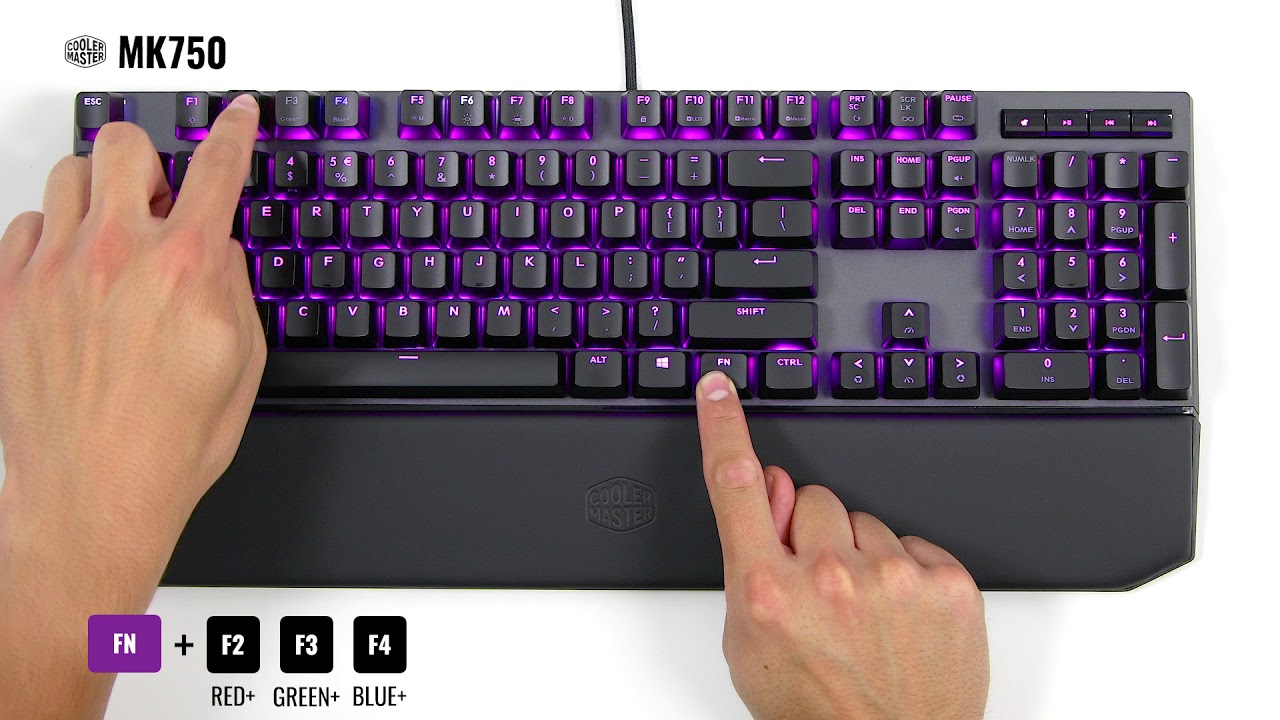
To reset Aula keyboard lighting to factory default, hold Fn + Esc for 5 seconds. After releasing both keys, the keyboard will restart, and the lights should revert to their original factory default settings. This clears all custom profiles and restores the factory default lighting immediately. If you have been trying to figure out how to change color of aula gaming keyboard through the software and ended up with a messy mix of effects, this single hardware shortcut wipes everything and returns you to the classic rainbow wave that shipped with the board.
Reset Aula keyboard lighting with the universal shortcut
On every current AULA keyboard model, including the F75, F87, and F99, trigger the factory reset by pressing and holding the Fn key together with the Esc key. Hold both down for five full seconds. Do not release early; the keyboard will not react until the timer completes. This works regardless of which lighting mode you are currently in, and it overrides any saved profiles stored in the onboard memory. If you have previously used the AULA software to create custom lighting schemes, those are deleted from the keyboard’s internal storage when the reset completes. No further confirmation is needed, the keyboard is back to its out-of-box state.
Fix a failed reset by closing the software first
If holding Fn+Esc for five seconds produces no change and the lighting stays the same, close the AULA driver application completely: right-click its icon in the system tray and select “Exit” or use Task Manager to end the process. Once the software is closed, try the Fn+Esc shortcut again. Check that you have not accidentally toggled Fn Lock, often Fn+Win or Fn+Ctrl on some AULA models, which disables the Fn key. If the keyboard still refuses to reset, unplug the USB cable, wait ten seconds, plug it back in, and immediately press Fn+Esc while the board reinitializes. If none of these steps work, visit the AULA support page for your exact model and download a firmware update tool that can force a full factory reset.
Know exactly what gets erased and what stays
The Fn+Esc shortcut resets the lighting profiles and any custom color assignments you made. It is recommended to save any custom lighting profiles before performing a factory reset, as this process may erase them. If you have spent time programming complex macros or pairing the keyboard with multiple devices via Bluetooth, those settings remain intact after the reset. The same applies to any DPI settings on AULA gaming mice that share the same software suite, lighting is isolated. This means you can safely restore the default rainbow wave without losing your carefully configured gaming shortcuts. However, any custom lighting configurations you previously made through the software may be erased and revert to factory defaults. The keyboard’s physical switch configuration is hardware-based and cannot be changed by any reset. For reference, articles that explain how to turn on your keyboard lights usually describe simple power-on sequences, but the AULA reset is a deliberate wipe, not a power toggle. Similarly, guides on how to turn on the keyboard light on an ASUS TUF gaming laptop cover per-key backlight control, but the AULA reset is a global wipe that discards all per-key customizations in one step. After the reset, start fresh with the default wave or rebuild your lighting from scratch using the software.