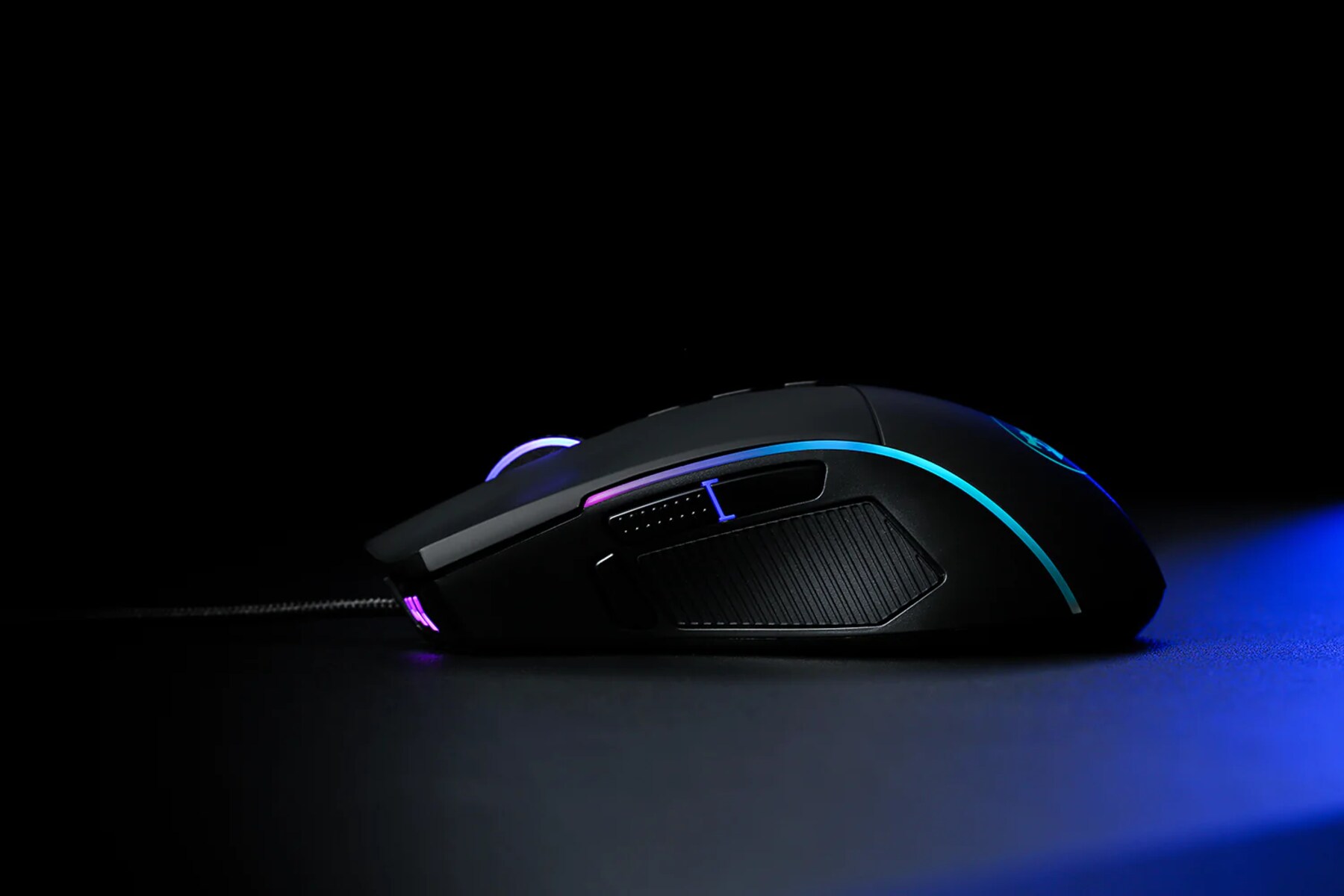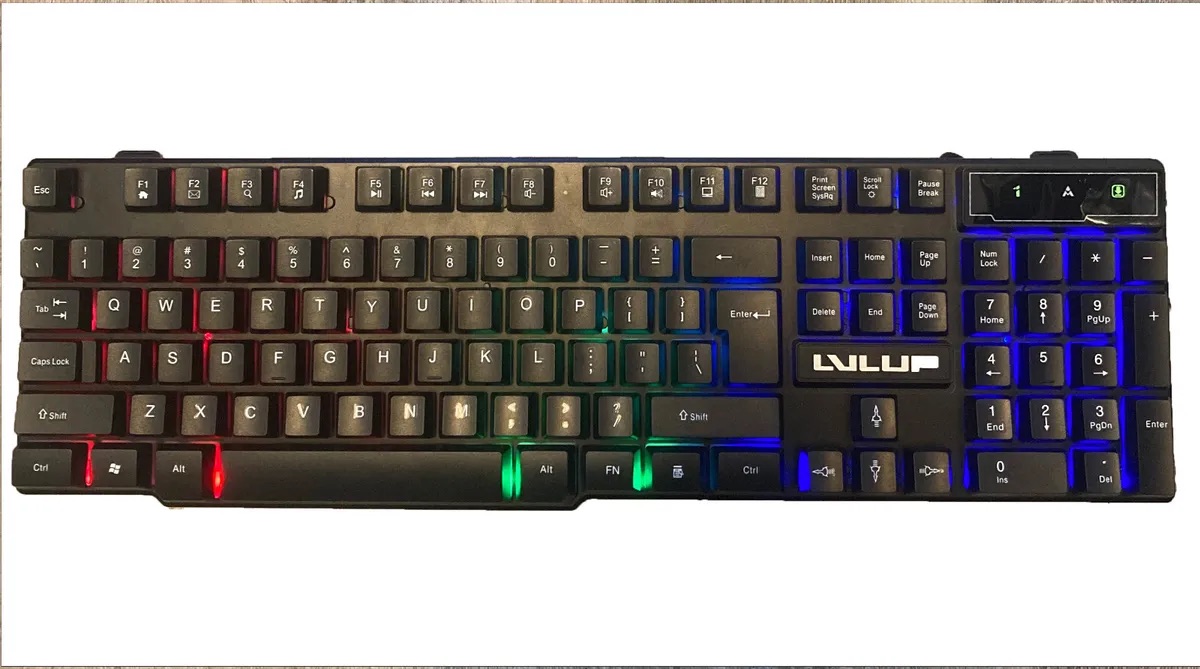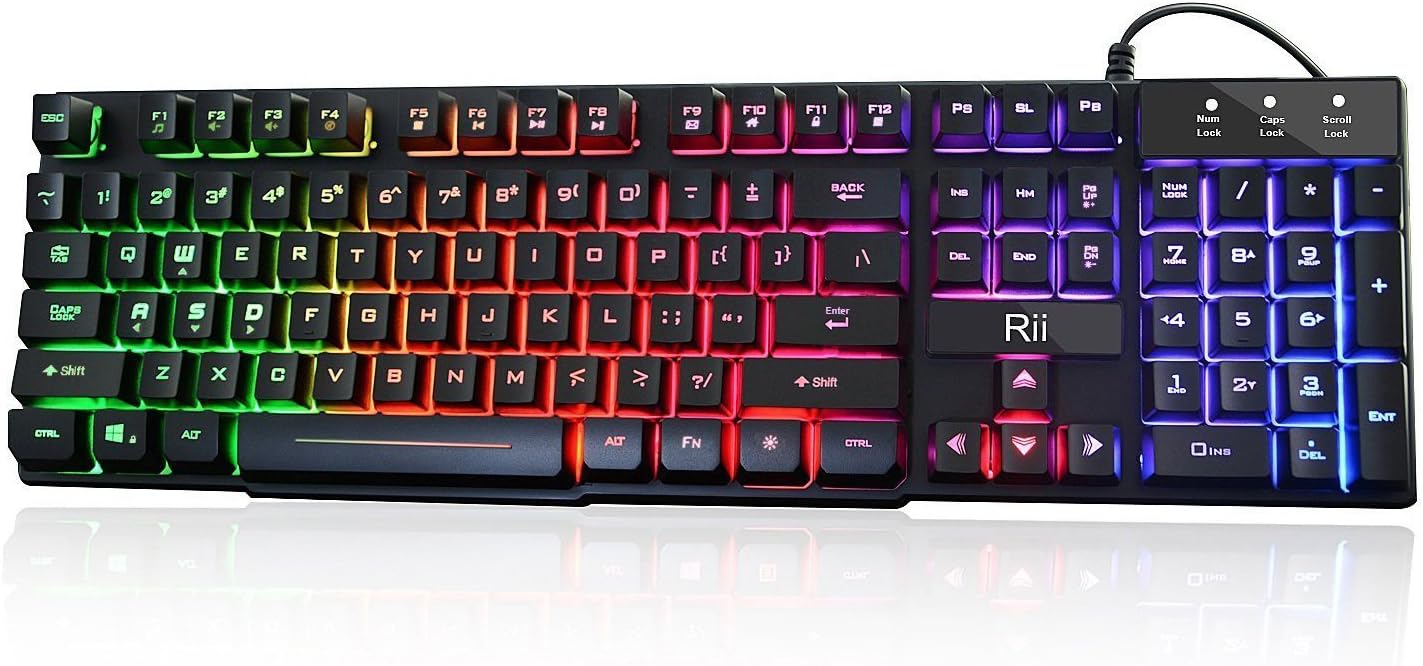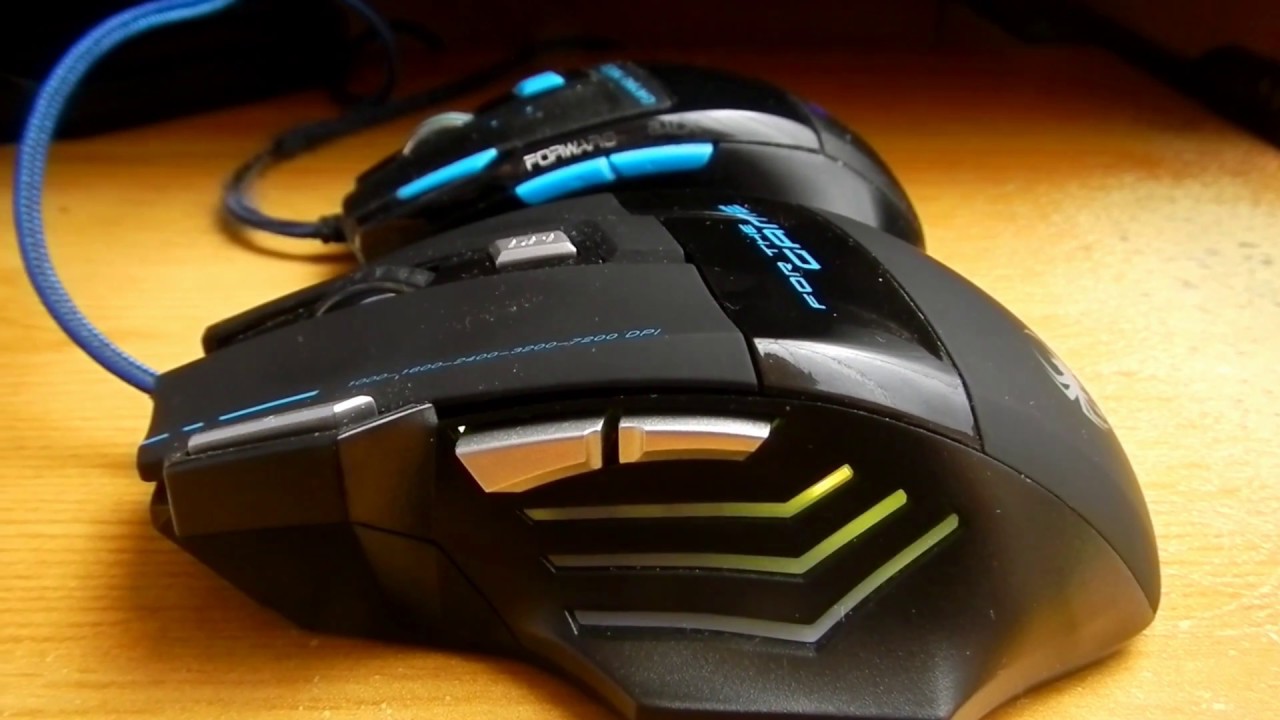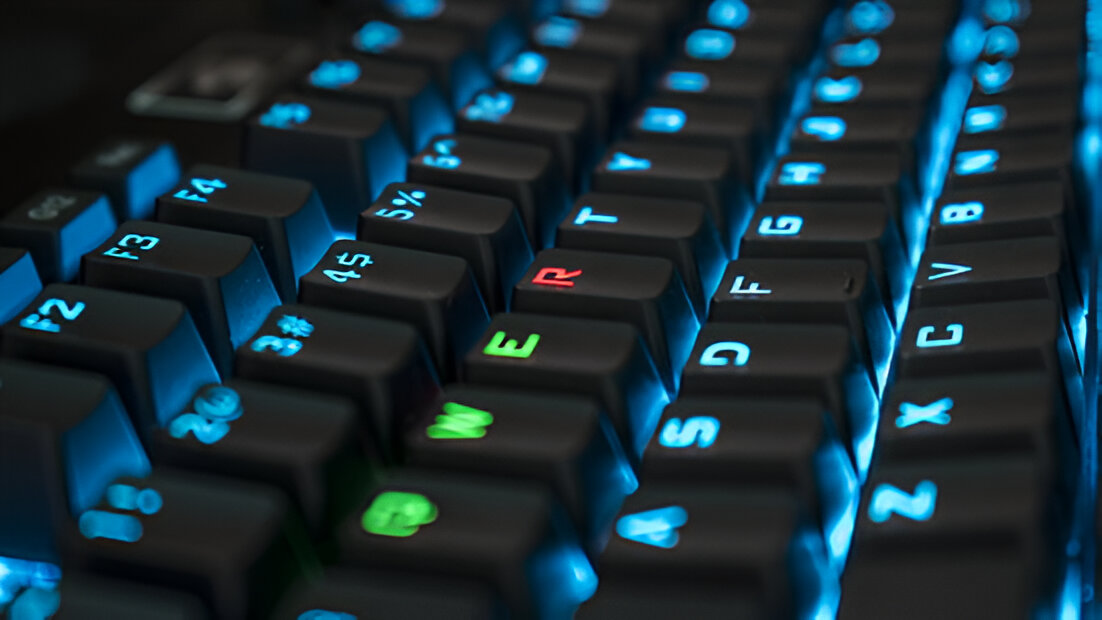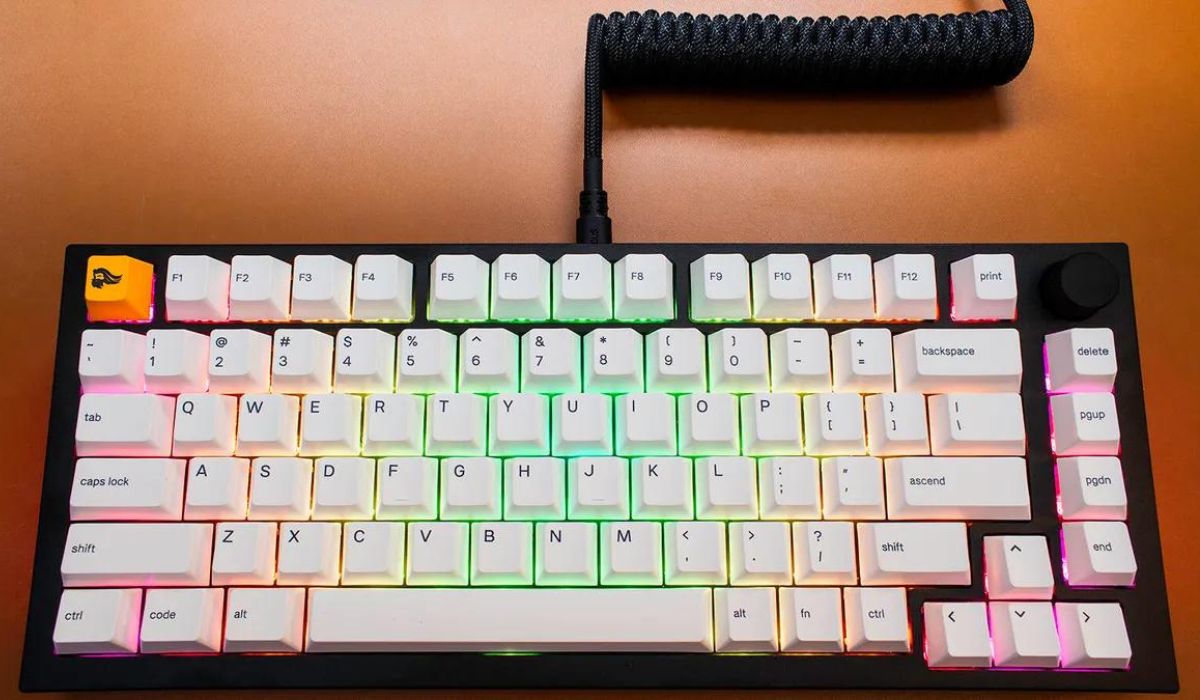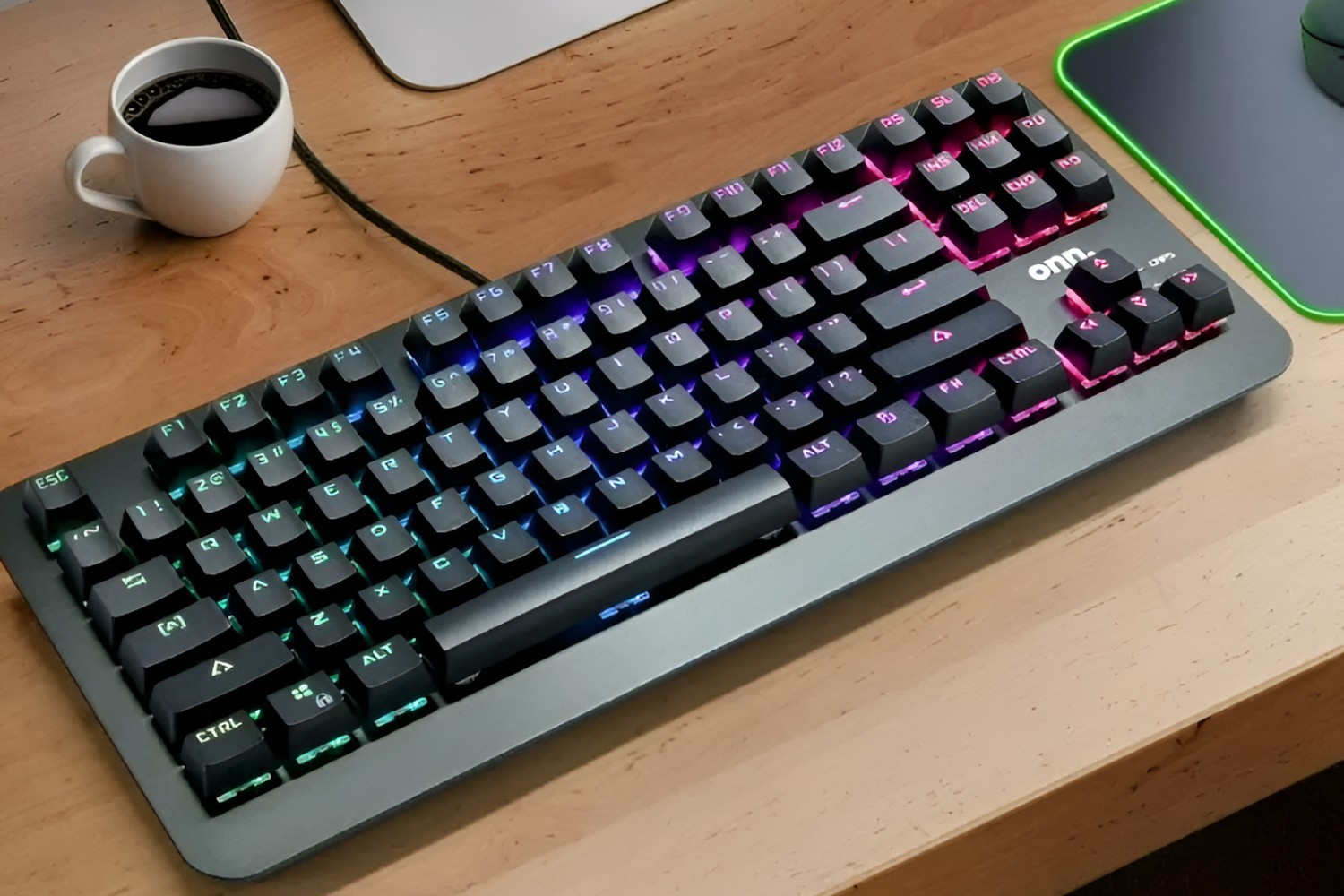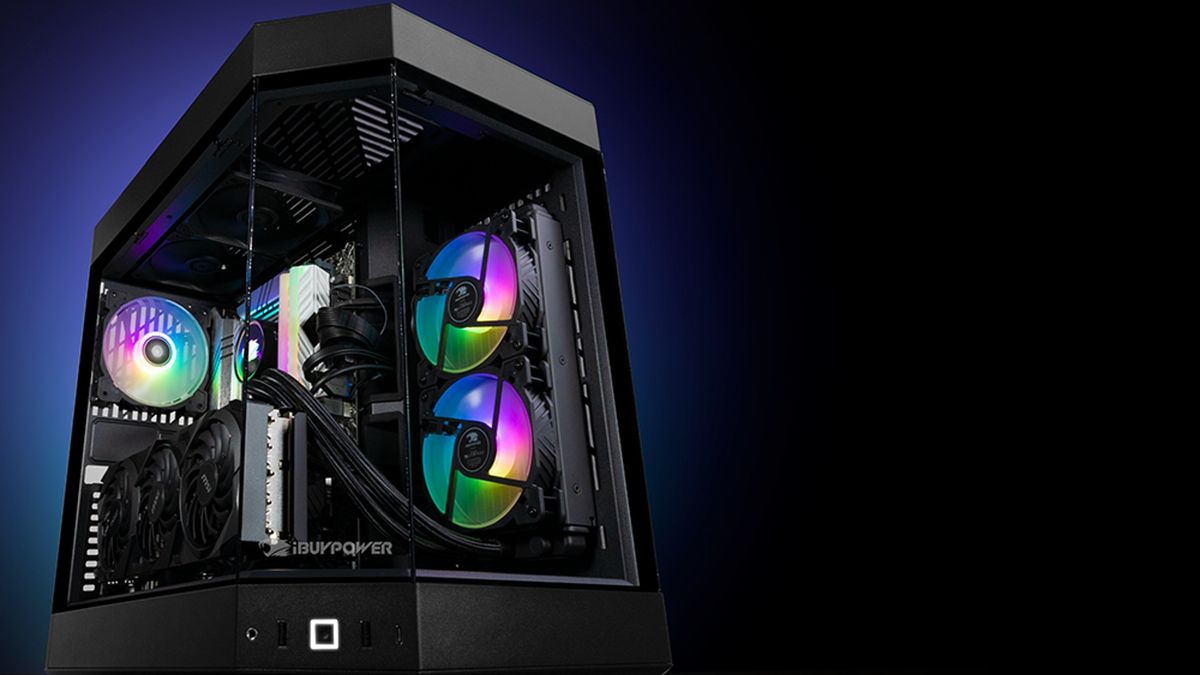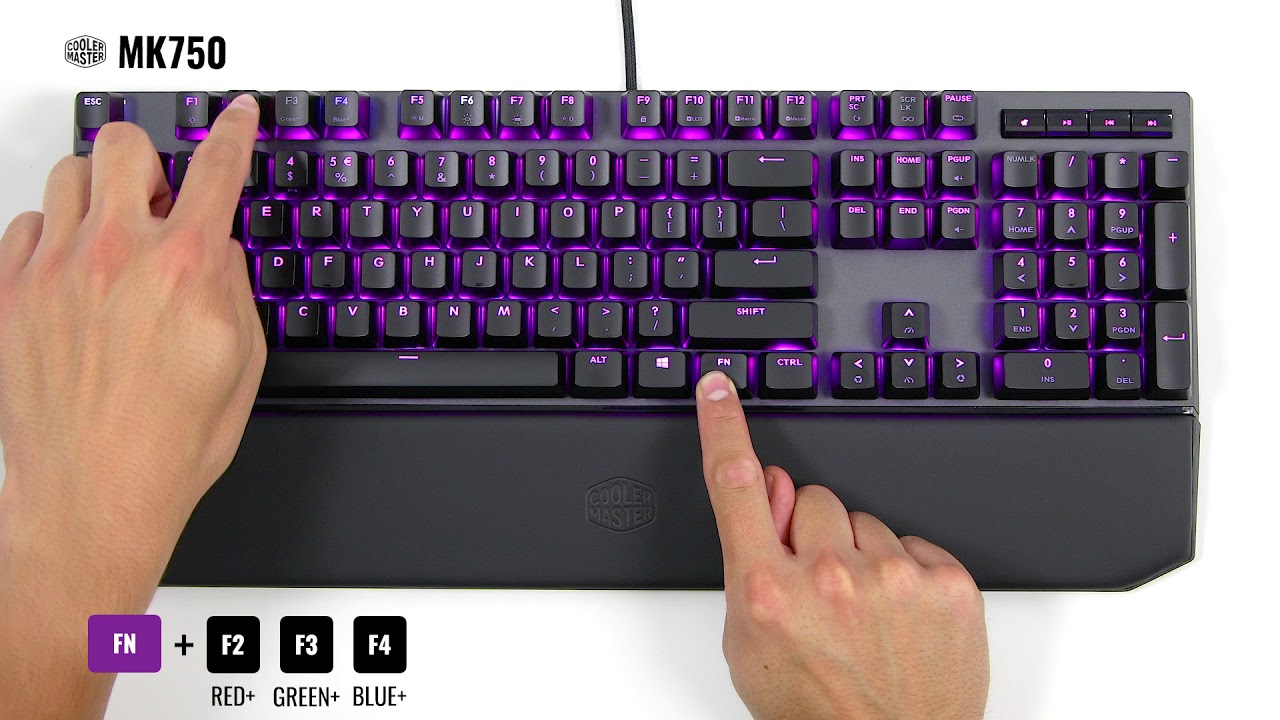
This tag collects practical guides for changing and managing the RGB lighting on PC peripherals, keyboards, mice, and in some cases, the lighting inside a desktop case. It is written for everyday consumers who have bought a gaming or mechanical keyboard, a gaming mouse, or a pre-built PC and want to adjust the default glow, set a custom color, or simply turn the lights off. The articles assume no prior software experience and focus on step-by-step adjustments using the manufacturer’s own apps or built-in key shortcuts.
The problems these articles solve fall into two main themes. The first is basic color and effect customization: for example, changing colors on Corsair or Logitech keyboards, setting the light on an ONN or Rii mechanical keyboard, or configuring a Zelotes gaming mouse. The second theme is troubleshooting and software setup, such as the AULA F75 custom color recording not saving, or downloading the AULA keyboard software for F99 and newer models. A few articles also address turning off or dimming lights entirely, like the guide for iBuyPower PC case lights, which helps users who find the glow distracting or want to reduce power draw.
Specific topics include changing colors on Corsair, Logitech G213, and Glorious Modular keyboards, as well as enabling LEDs on the Lvlup Pro keyboard and adjusting the Cyberpower PC’s mechanical keyboard lighting. For mice, there are guides for the Zelotes and general gaming mouse color changes. The articles are written as safe, manufacturer-supported adjustments, never as workarounds or bypasses, so readers can confidently personalize their gear without risking warranty or security issues.