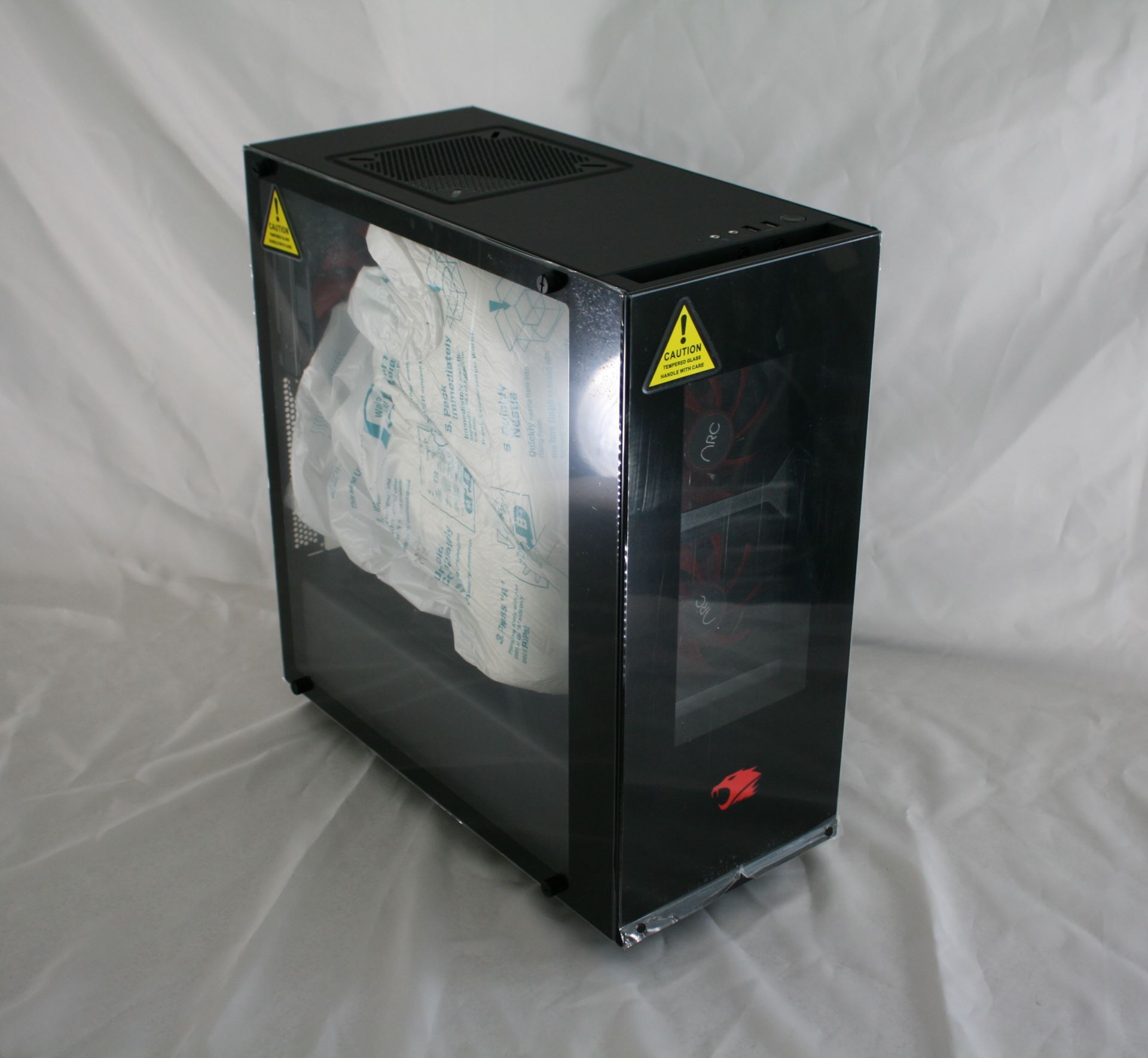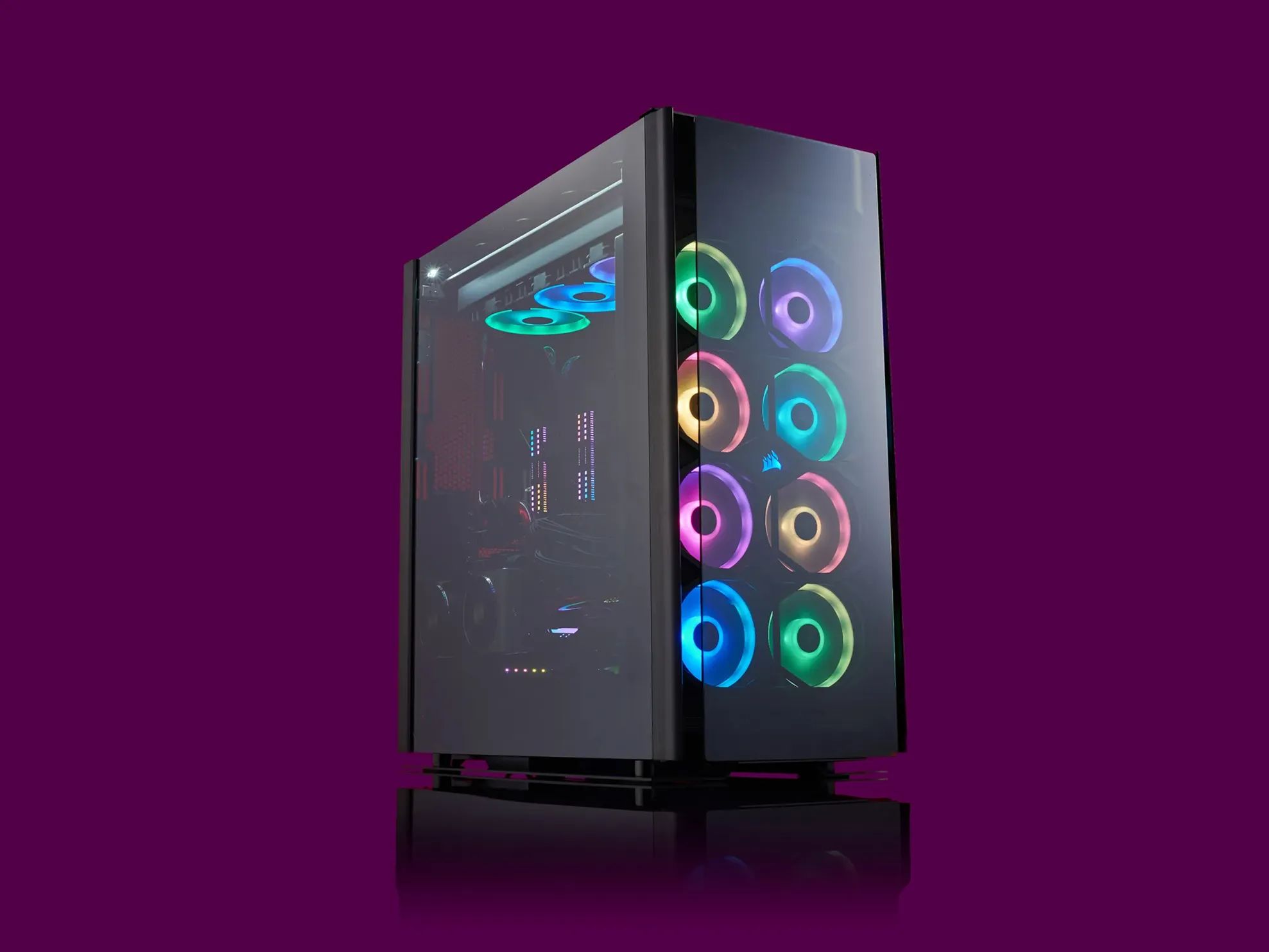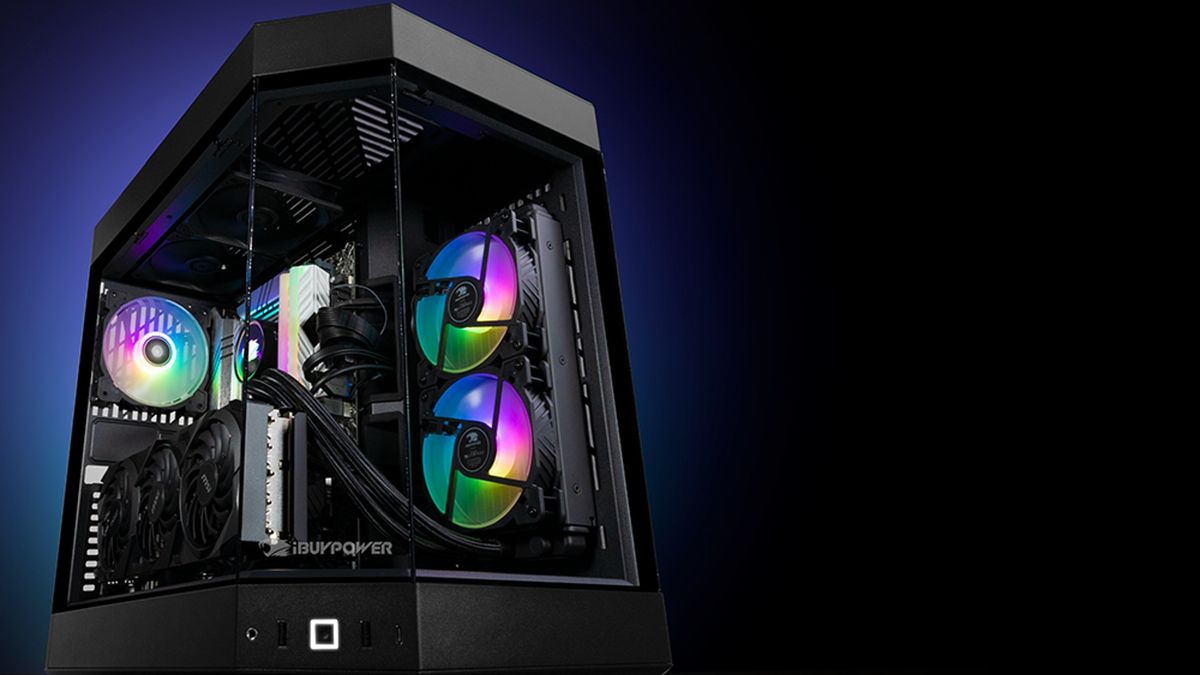
To turn off iBuyPower case lights, the quickest method is to press the dedicated LED button on the front or top panel of your case. If that button is missing or doesn't work, you can use an included remote control, motherboard software, or the BIOS settings to disable the lighting.
Use the dedicated LED button on the case
Many iBuyPower PCs include a physical button specifically for controlling the case lights. This button is usually located on the front or top panel of the case, separate from the power button. Pressing it once may cycle through lighting effects or colors, while pressing and holding it often turns the lights off entirely. If your case has this button, it is the fastest way to turn off the case lights without needing any software.
Use the included RGB remote control
Some iBuyPower systems, particularly older or budget models, include a small infrared remote control to manage RGB lighting. If your PC came with this remote, you can use it to turn off the lights instantly. Point the remote at the infrared receiver on the case (often near the front panel) and press the power or off button for the lighting. This is a convenient option if you want to turn off the case lights without touching the computer itself, but if the remote is missing, you can still turn off LED lights on PC case using manual controls.
Disable lights with motherboard RGB software
If your case lacks a physical button or remote, you can control the lighting through software. First, identify your motherboard's manufacturer by typing "msinfo" into Windows search and checking the "BaseBoard Manufacturer" field in System Information. Common manufacturers include ASUS, MSI, Gigabyte, and ASRock. Then, download and install the corresponding RGB control software from the manufacturer's official website:
- For ASUS boards, use Armoury Crate or Aura Sync.
- For MSI boards, use MSI Center with Mystic Light.
- For Gigabyte boards, use RGB Fusion 2.0.
- For ASRock boards, use Polychrome RGB.
If the pre-installed software is missing or not working, you may need to download a specific, sometimes older, version from the motherboard manufacturer's support page or iBuyPower's driver page. After installing the software, look for an option to disable RGB lighting entirely. This method lets you turn off the case lights and control all RGB devices connected to the motherboard.
Turn off RGB lighting in the BIOS
For a more permanent solution or if software control fails, RGB lighting can often be managed directly within the BIOS/UEFI settings. To access BIOS, restart your PC and repeatedly press the designated key (commonly F2 or Delete) during startup. Once inside, navigate to sections related to "LED Lights," "RGB," or "MISC; RGB setup" to find options for disabling lighting. Select the option to disable or turn off the onboard LED or RGB controls. Save your changes and exit. Caution: Only change settings related to lighting; modifying other BIOS settings can make your system unstable or cause other issues. This last-resort method ensures you can turn off the case lights permanently, even if other methods fail.
\nRelated reading: How To Find PC Case Model IBuyPower and How To Open A PC Case Dell.