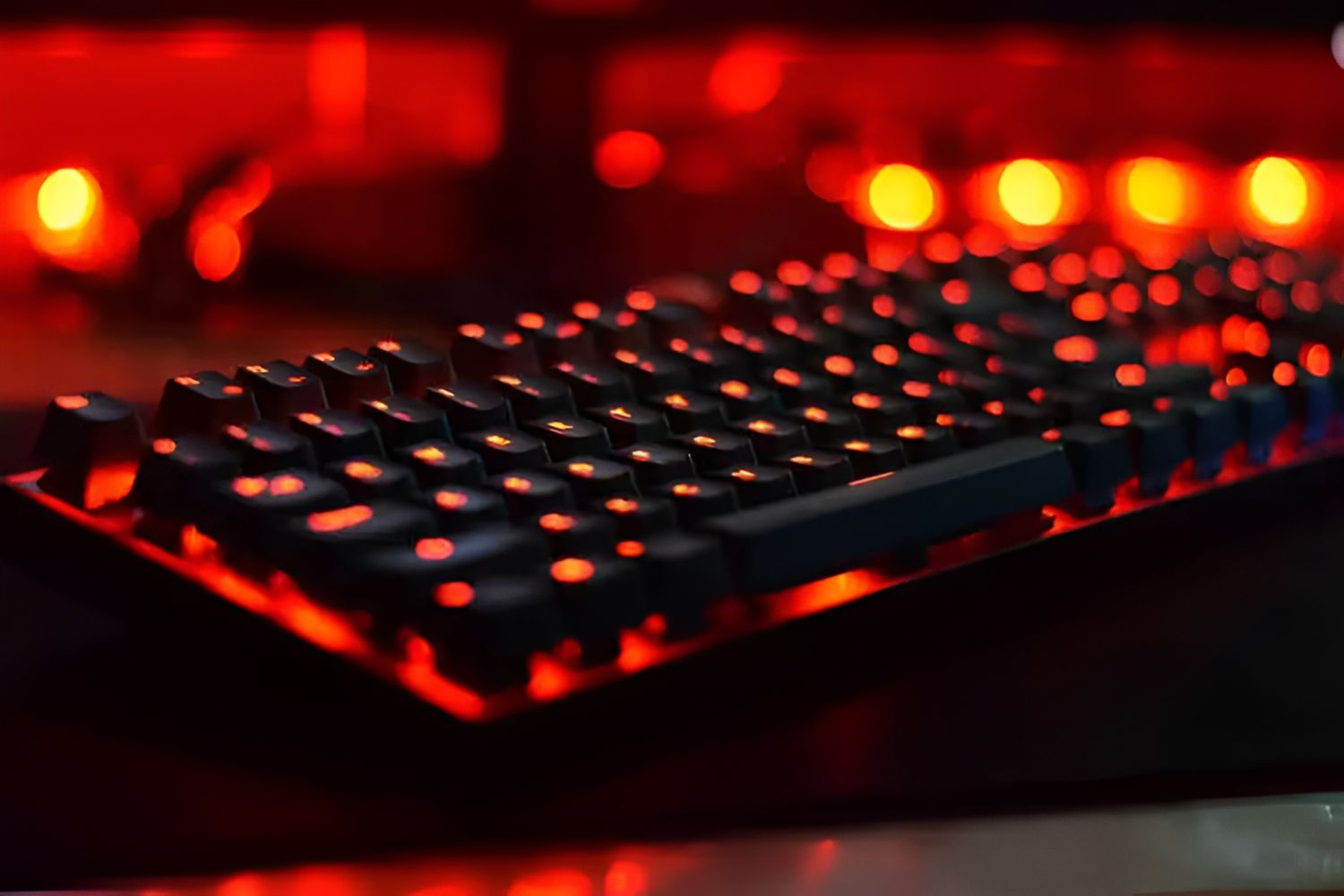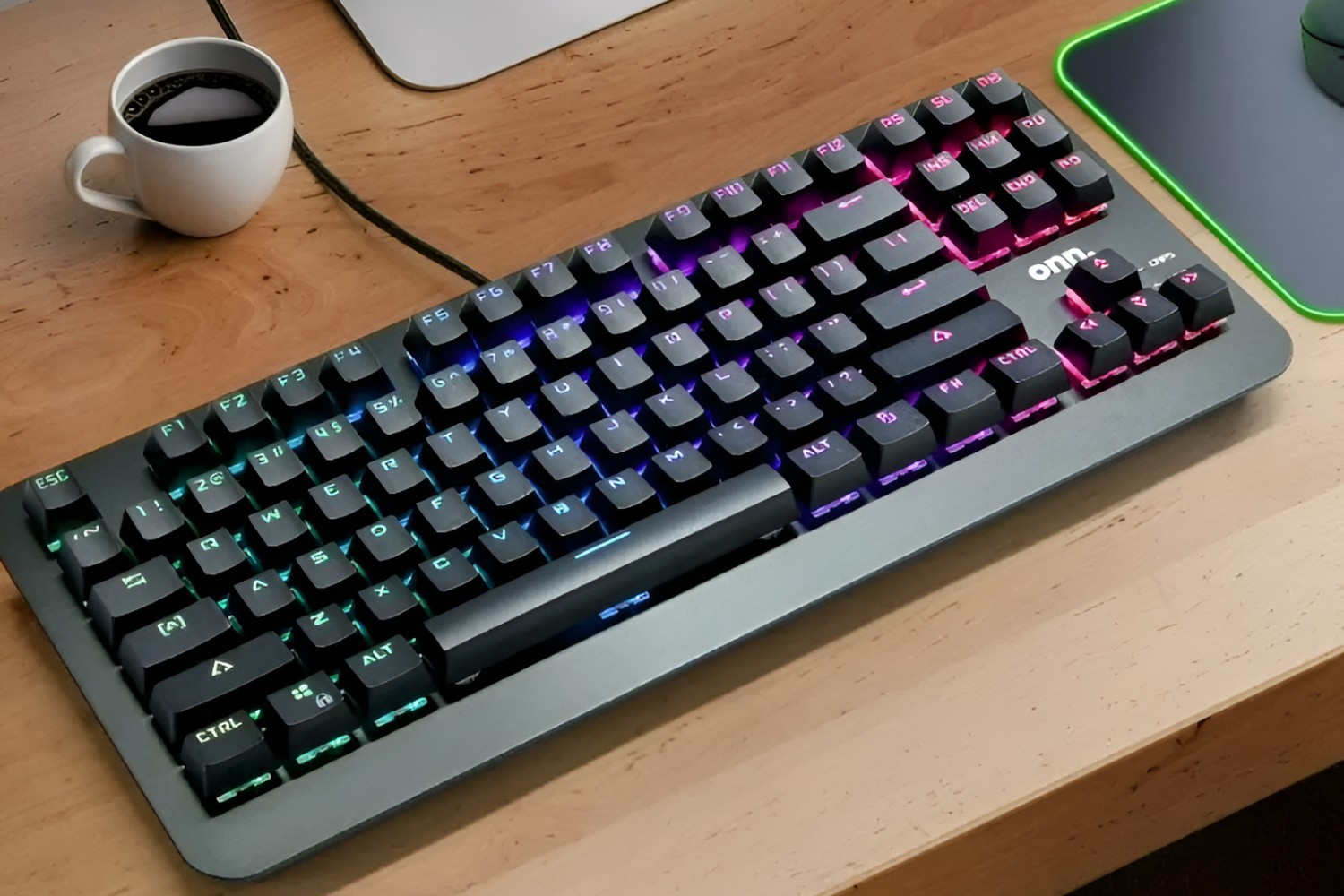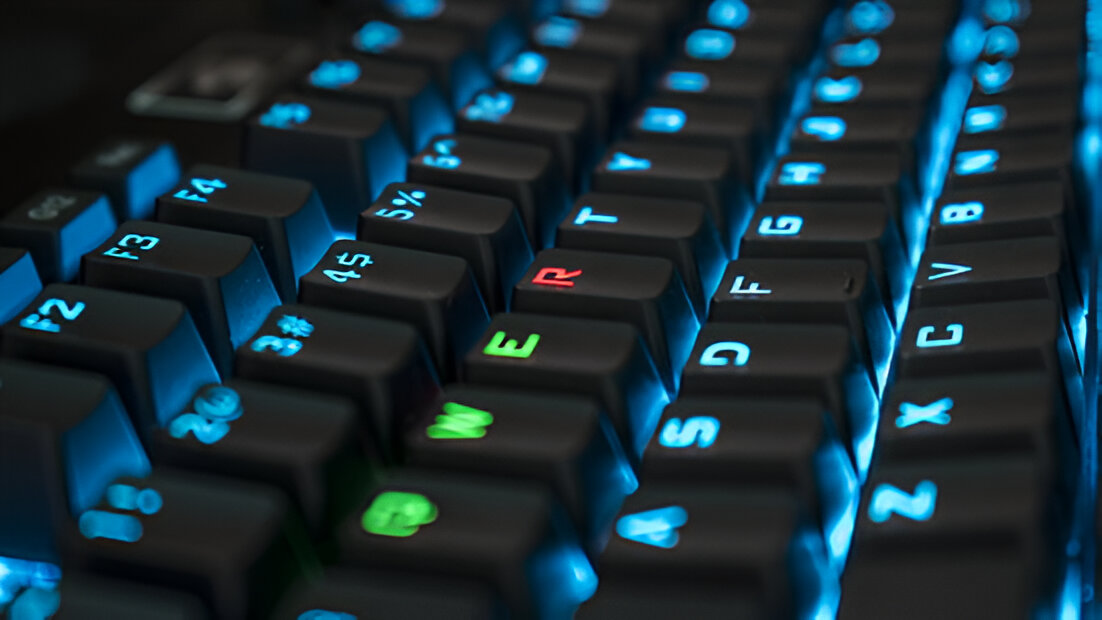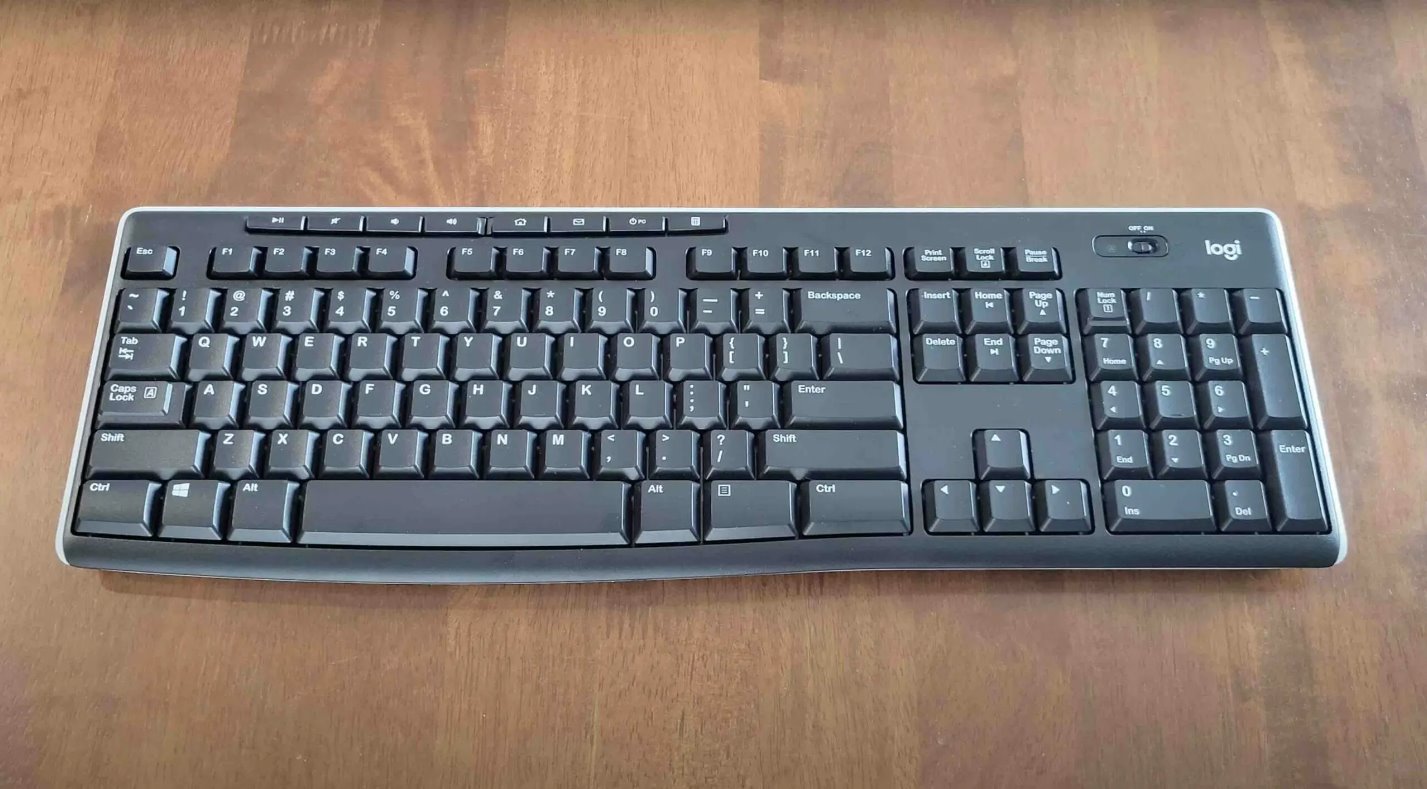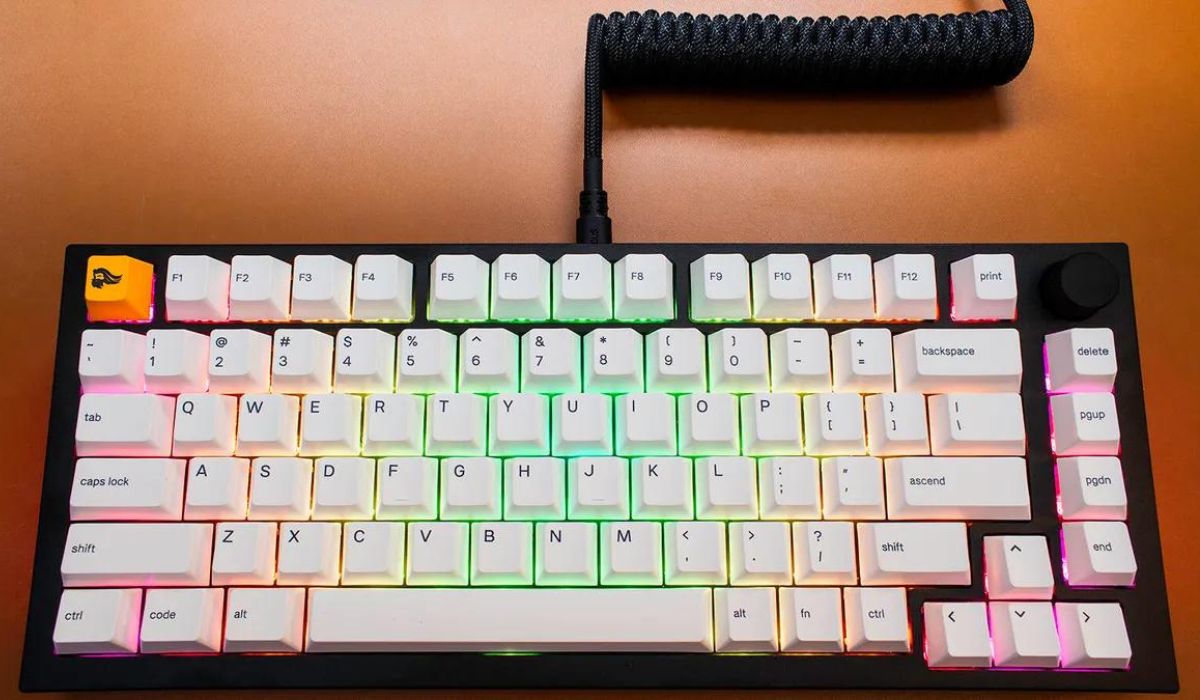
When your mechanical keyboard LED stopped working, the most common cause is simply that the backlight was accidentally turned off or dimmed via a shortcut key. Before anything else, press the dedicated backlight key on your keyboard's function row (often paired with the Fn key) a few times to cycle through brightness levels and see if the lights come back on.
Check your mechanical keyboard LED stopped working fixes
Most mechanical keyboards have dedicated backlight keys located on the function (F) row, typically marked with a sun or light icon. Press these keys alone or in combination with the Fn key to cycle through brightness levels, turn the lights on or off, or switch between lighting modes. Brand-specific shortcuts are common: Razer keyboards often use Fn + F12 to increase brightness, HyperX keyboards use Fn + the Up arrow key, and SteelSeries keyboards use the SteelSeries key plus C or V.
Verify the physical connection and power
If the shortcut keys don't fix the issue, move on to the physical connection. Unplug the USB cable from your computer and plug it back in firmly, ensuring it's fully seated. Try a different USB port, preferably one directly on your motherboard rather than a hub or front-panel port, to rule out a faulty port. If your keyboard has a detachable cable, disconnect it from the keyboard itself and reconnect it. For wireless mechanical keyboards, check the battery level and confirm the keyboard is properly paired with your computer, as low battery or a lost connection can prevent the LEDs from lighting up.
Restart your computer
A simple system restart can clear temporary software glitches that may be preventing the LED driver from loading correctly. Save your work, close all applications, and restart your computer completely. Once the system boots back up, test the keyboard backlight. This quick step often resolves transient issues that have nothing to do with the keyboard hardware itself.
Check the manufacturer's software profile
Misconfigured lighting profiles or corrupted software settings are common causes for LED malfunctions. Open your keyboard's manufacturer software, Razer Synapse, Corsair iCUE, HyperX NGENUITY, SteelSeries GG, or Logitech G HUB, and check the current lighting profile. Look for any profile that has the backlight set to off, dimmed, or set to a color that matches your keycaps so it's not visible. Create a new, simple lighting profile with a bright, solid color to test if the LEDs respond. For Corsair users specifically, disabling the "Enable SDK" setting in iCUE settings can sometimes resolve lighting issues, as third-party software integration can interfere with the lighting control.
Update your keyboard's firmware and drivers
Outdated or corrupted keyboard drivers are a common cause for backlight malfunction. Visit the manufacturer's official website or use their software utility to check for and install the latest firmware and driver updates for your specific keyboard model. Manufacturers regularly release updates that fix known bugs, improve compatibility, and address lighting issues. After updating, restart your computer and test the backlight again.
Perform a factory reset on the keyboard
Performing a factory reset can often resolve LED issues by restoring default settings, wiping out any corrupted configuration that might be causing the problem. The reset method varies by brand: for Razer keyboards, exit Synapse completely or hold the Escape, Caps Lock, and Space Bar keys while plugging the keyboard in; for Corsair, hold ESC while plugging in for most wired keyboards, or press Fn + F4 for the K55 Pro and PRO XT models; for HyperX, press and hold Fn + ESC for 5 seconds; for SteelSeries, hold the Multimedia key and the SteelSeries macro key while plugging the keyboard in. After the reset, you'll need to reconfigure any custom settings, but the backlight should return to its default state.
Test the keyboard on another computer
If none of the previous steps have restored the backlight, the final diagnostic step is to test the keyboard on another computer. Plug it into a different PC or laptop and see if the LEDs light up. If the keyboard works on the other computer, the problem lies with your original computer's software, drivers, or USB ports, not the keyboard hardware itself. If the LEDs still don't work on another computer, the issue is almost certainly a hardware failure within the keyboard, and you may need to contact the manufacturer for warranty support or consider a replacement.
\nRelated reading: AULA F75 Custom Color Recording Not Saving, How To Put The Spacebar Back On A Mechanical Keyboard, and How To Fix A Squeaky Key On A Mechanical Keyboard.