There is no direct “transfer money from Venmo to PayPal” option that moves funds between your own two accounts, but you can still get your money where you need it using two verified methods: sending a payment directly to another PayPal user, or moving your Venmo balance through your bank to your own PayPal. If a friend accidentally sends you money during this process, you can reject money on Venmo to return it instantly without fees. The first works instantly for domestic payments with no platform fees, while the second takes a few business days and is the only way to consolidate your own funds, so be mindful of the Venmo money holding period if you plan to let a balance sit before moving it.
There's no direct 'transfer money from Venmo to PayPal' option, here's what you can do instead
Many people assume that because Venmo and PayPal are both owned by the same parent company, you can simply click a button to move your balance between them. That assumption is wrong. Venmo and PayPal operate as separate financial platforms, and neither offers a native “transfer my balance to my other account” feature. What Venmo does support is sending money to another person’s PayPal account, and what PayPal supports is receiving money from a bank. So your two real paths are: send a person-to-person payment to a PayPal user (which can be yourself if you have a second PayPal account), or withdraw your Venmo balance to your bank, then add it to PayPal from that same bank.
How to send money directly from Venmo to a PayPal user
Venmo users can now directly send money to eligible PayPal users in the U.S. and many other global markets. This is the closest thing to a direct transfer, and it works when the recipient has a PayPal account with a phone number linked to it. Here is the verified step-by-step flow:
Step 1: Open the Venmo app and tap “Pay or Request”
Launch the Venmo app on your phone. At the bottom of the screen, tap the “Pay or Request” button (the one with the pencil icon). This opens a new payment screen where you’ll enter the recipient’s details.
Step 2: Enter the recipient’s PayPal-linked phone number
In the “To” field, type the full phone number associated with the recipient’s PayPal account. Venmo will match that number to the PayPal user. If the number is not linked to PayPal, the payment will not go through as a cross-platform transfer, so double-check with the recipient that their phone number is active on PayPal.
Step 3: Input the amount, add a note, and tap “Send”
Enter the exact amount you want to send. Add a note (like “rent” or “dinner”) if you want, though it’s optional. Then tap the “Send” button. Domestic personal payments sent directly from Venmo to a PayPal user are typically instant and incur no platform fees. International payments are supported in over 90 countries, allow selection from 25 currencies, and may have international transaction fees waived for a limited time. So if you’re sending to a friend or family member abroad, this method works, just confirm the recipient’s PayPal phone number first.
The bank workaround: moving your own Venmo balance to your own PayPal account
If your goal is to move your own money from your Venmo balance into your own PayPal balance, the direct send method won’t help because you can’t send a payment to yourself across platforms. The only supported way is the two-hop bank workaround: Venmo → Bank → PayPal. This requires that the name on your Venmo profile precisely matches the name on your bank account, and that the same name appears on your PayPal account. If any of those names differ, the transfer will fail.
Step 1: Transfer from Venmo to your bank
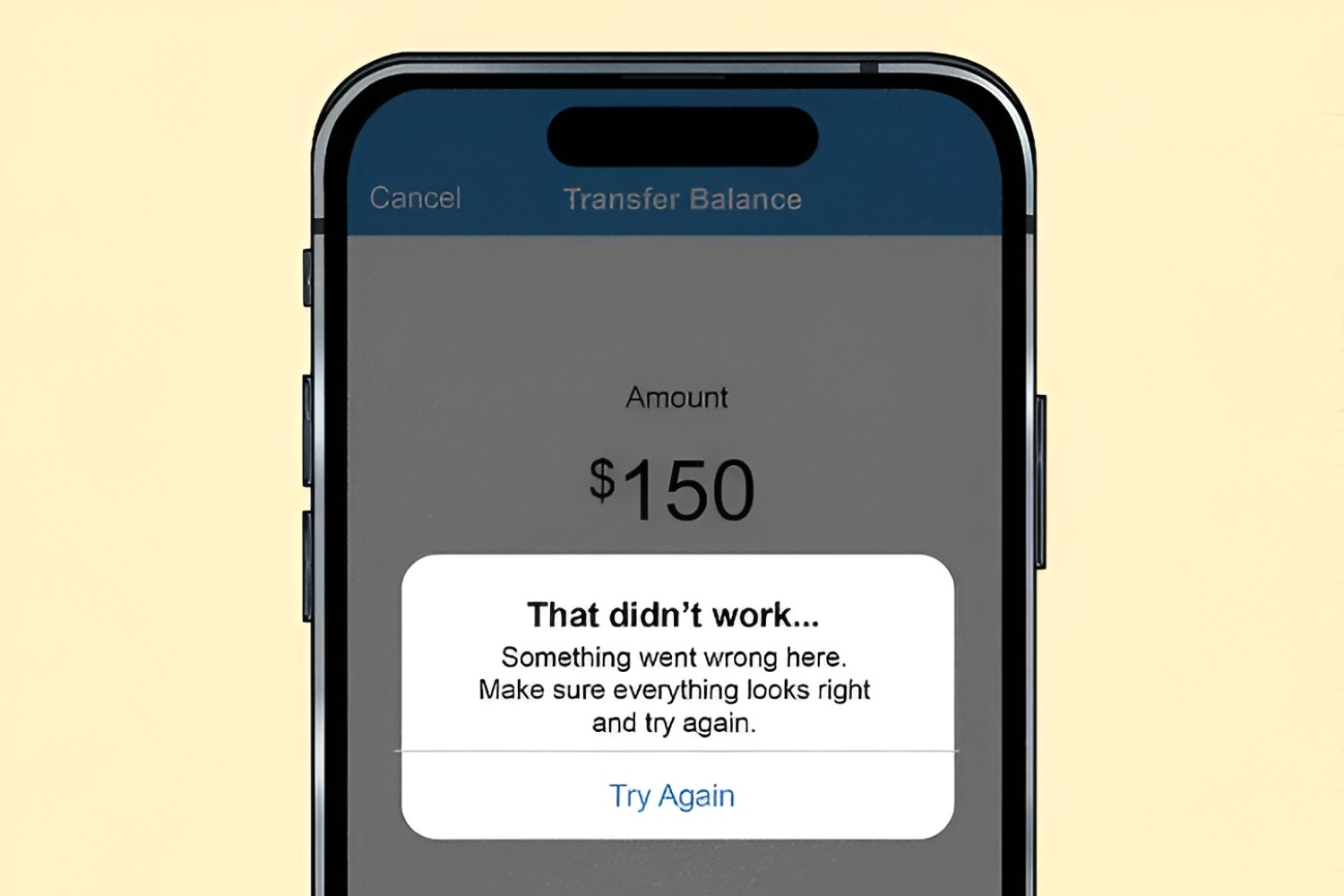
Open the Venmo app and go to the “Me” tab. Tap the “Add or Transfer” button (or “Manage” for some users) under “Wallet.” Enter the amount you want to move, then select your transfer method. Venmo offers a free “Standard” bank transfer that typically arrives within 1-3 business days, or an “Instant” transfer that usually arrives within 30 minutes for a 1.75% fee, with a minimum fee of $0.25 and a maximum of $25. Before you can do this, your bank account must be added and verified within Venmo.
Step 2: Add money from your bank to PayPal
Log into PayPal on the website or app. Go to your “Wallet,” click “Transfer Money,” then choose “Add money from your bank or debit card.” Enter the amount and select your desired transfer speed. Funds added from a linked bank account typically take up to 5 business days to become available, while transfers using an eligible debit card are usually processed in seconds. PayPal does not charge a fee for adding money from a confirmed bank account, but your specific bank or card provider may apply their own fees.
Step 3: Wait for both legs to complete
The total time for the workaround is the sum of both transfers. If you use Venmo’s standard transfer (1-3 business days) and PayPal’s bank add (up to 5 business days), you could wait up to 8 business days total. If you use Venmo Instant (30 minutes) and PayPal debit card (seconds), you could have the money in PayPal within about an hour, though you’ll pay Venmo’s 1.75% instant fee. The name-matching requirement is critical at both hops, so verify all three accounts (Venmo, bank, PayPal) use the exact same legal name.
Transfer limits, fees, and timelines you should know
Before you start moving money, understand the limits. Venmo’s weekly transfer limits to a bank account are $999.99 for unverified accounts and up to $5,000 per individual transfer, with a maximum of $19,999.99 per rolling week for verified accounts. On the PayPal side, limits for adding money via debit card are up to $5,000 per day, $10,000 per week, and $20,000 per month. There is no fee for the standard Venmo bank transfer or for adding money to PayPal from a bank, but Venmo’s Instant transfer costs 1.75% (minimum $0.25, maximum $25). If you need the money quickly, the instant options are worth the fee; if you can wait, the free standard routes will save you money. Also note that when you send money directly from Venmo to another PayPal user, domestic payments are typically instant with no platform fees, but international payments may incur transaction fees unless waived during a limited-time promotion. For your own records, check both your Venmo transaction history and your PayPal activity page after any transfer to confirm the funds arrived correctly.
For the wider topic, see Venmo handle.