Yes, a temporary fix is possible by spraying electrical contact cleaner directly into the switch plunger gap, though this is a short-term solution and may fail completely if the internal leaf spring is mechanically worn out.
The g502 double click fix with contact cleaner
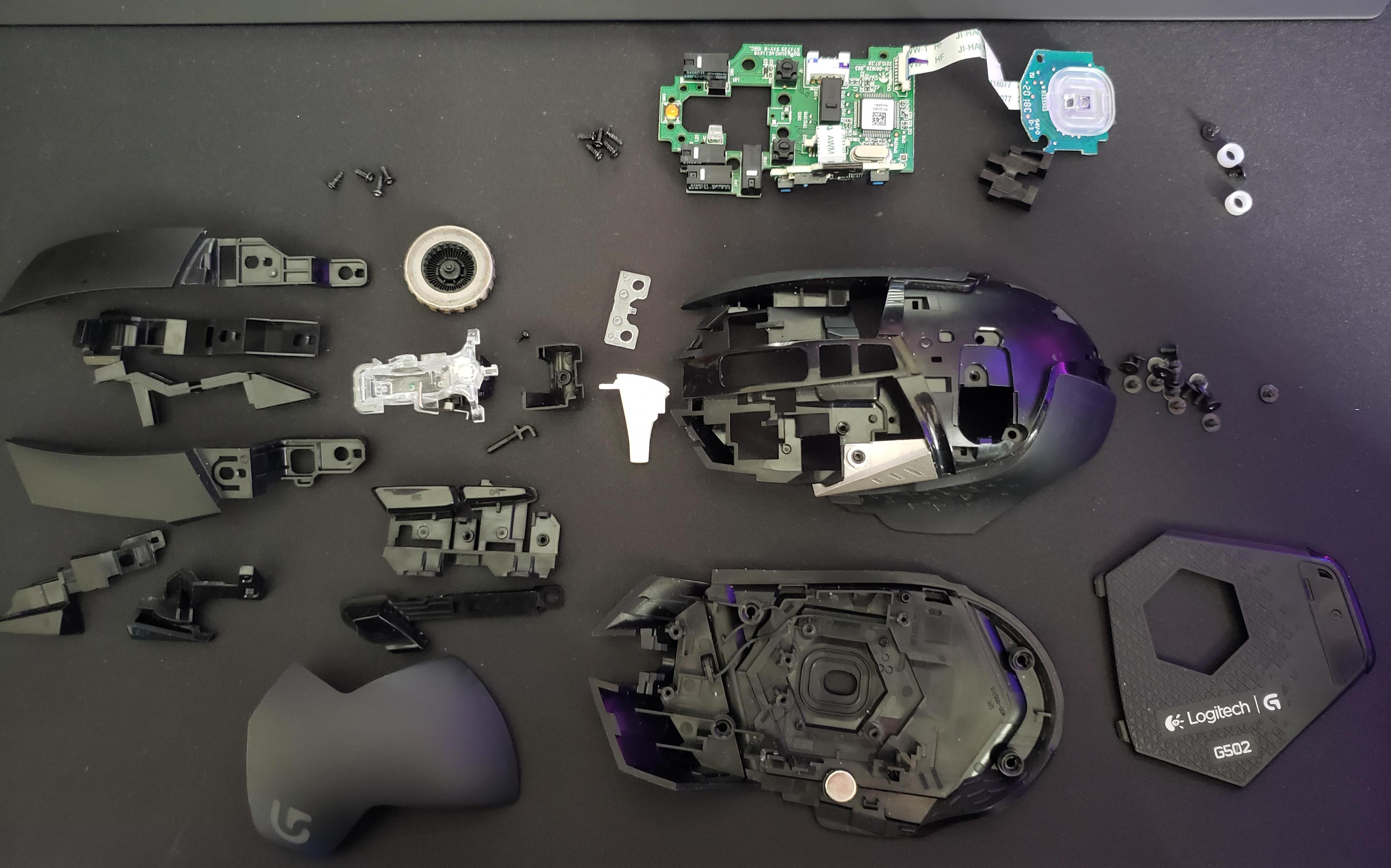
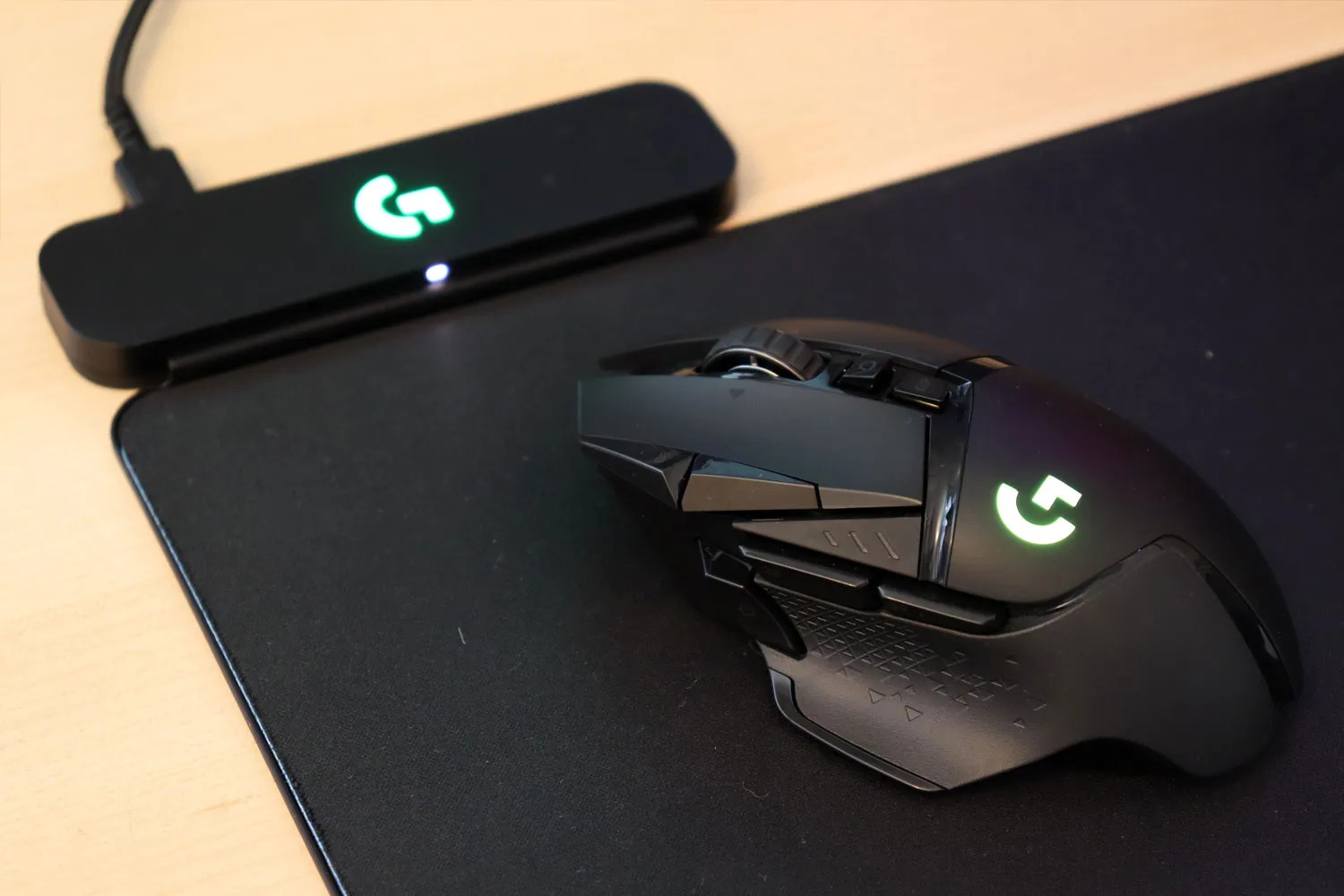
The double-click issue on the Logitech G502 stems from corrosion, debris, or a fatigued metal spring inside the Omron switches, and while soldering in new switches is the permanent cure, you can often restore normal function for weeks or months without touching a soldering iron. To flush out the contamination, you need to access the switch housing without fully disassembling the mouse. First, unplug the mouse and remove the mouse feet using a heat gun or hairdryer to soften the adhesive, then unscrew the screws beneath them. Lift the top shell gently, you do not need to disconnect the ribbon cable for the side buttons or the DPI lights. Once the PCB is exposed, locate the left or right Omron switch that is double-clicking. Insert the thin straw of a can of WD-40 Specialist Contact Cleaner (not the regular blue-and-yellow can) into the tiny gap between the white plastic plunger and the black switch housing. Spray a short burst, about half a second, directly into the gap. Immediately click the switch rapidly twenty to thirty times to work the cleaner into the contacts. Let the mouse dry for ten minutes, then reassemble and test. This method dissolves oxidation and flushes out dust or skin oil that can cause erratic contact bounce.
When spraying makes it worse
A common mistake is using regular WD-40 or isopropyl alcohol. Regular WD-40 leaves a lubricating film that attracts dust and eventually gums up the contacts, making the double-click more frequent. Isopropyl alcohol evaporates too quickly and does not carry away dissolved debris; it can also wash away the factory lubricant inside the switch, leading to a scratchy feel or eventual failure. Even with the correct contact cleaner, a physically fatigued metal spring cannot be fixed by cleaning alone. If the spring inside the switch has lost its tension from millions of clicks, the switch will continue to double-click regardless of how clean the contacts are. In that case, you will need to either replace the switches with a soldering iron or use the software workarounds described below. If you want to attempt a full internal cleaning, you must first disassemble Logitech mouse models carefully, as the ribbon cables for the DPI button and scroll wheel are fragile. For a step-by-step guide on the physical procedure, look up how to take apart a Logitech g502, which details removing the side button PCB and the scroll wheel assembly. Before you start any cleaning, it is also wise to watch a video on how to open a Logitech mouse to avoid cracking the plastic clips that hold the top and bottom shells together.
Software workarounds as a crutch
While you wait for a hardware fix or if the spray method only reduces the double-click without eliminating it, you can mask the symptom using Windows settings or a debounce utility. In Windows, locate the Mouse Properties settings and under the Buttons tab, drag the double-click speed slider all the way to the slowest setting. This makes Windows require a longer pause between clicks to register a double-click, so accidental double-clicks from a bouncy switch are often ignored. For a more precise solution, download X-Mouse Button Control. In its main window, assign a "Double Click" action to the problematic button, then set the "Double Click Speed (ms)" to a value around 500-700 milliseconds. This overrides the physical switch bounce with a software delay, effectively filtering out the spurious second click. These software tweaks do not fix the hardware, but they can keep the mouse usable for months. If you eventually decide to replace the switches, you will need to setup the Logitech g502 in G HUB again after reassembly to restore your custom profiles and DPI settings. Unlike generic mouse repair guides, the specific combination of contact cleaner injection into the Omron switch plunger gap followed by X-Mouse Button Control debounce configuration is a dual approach unique to reviving the G502 without soldering.
For the wider picture, see setting up a Logitech mouse.