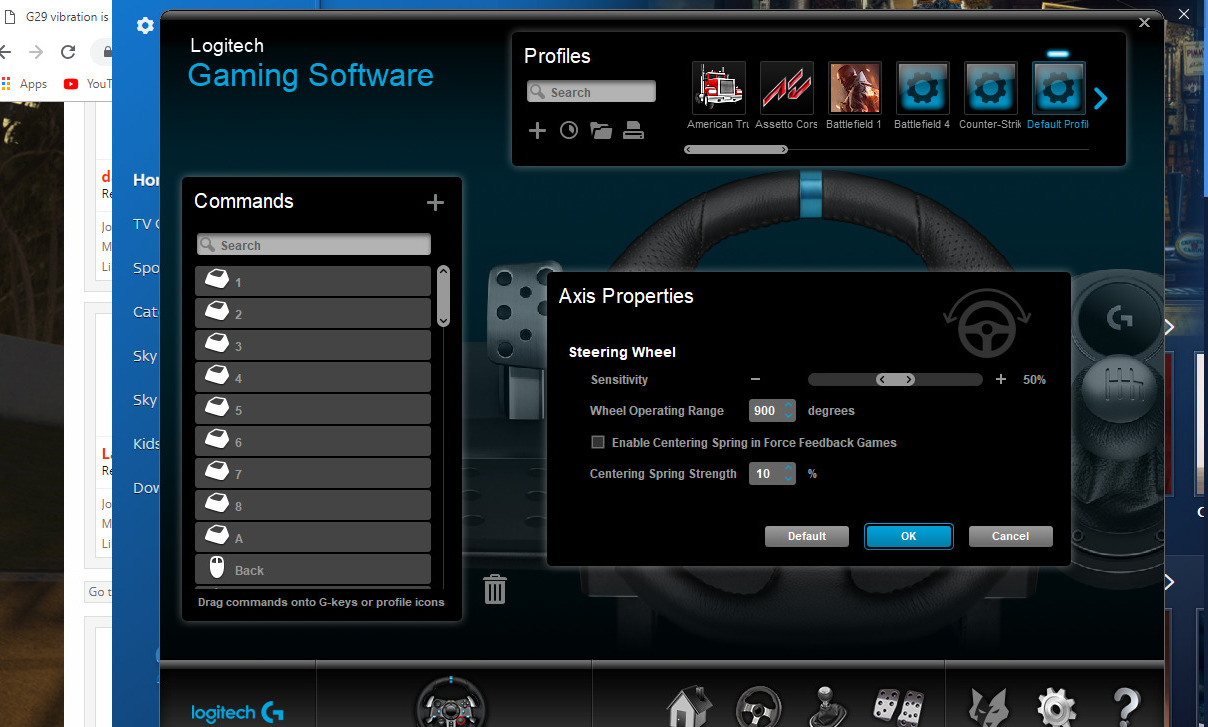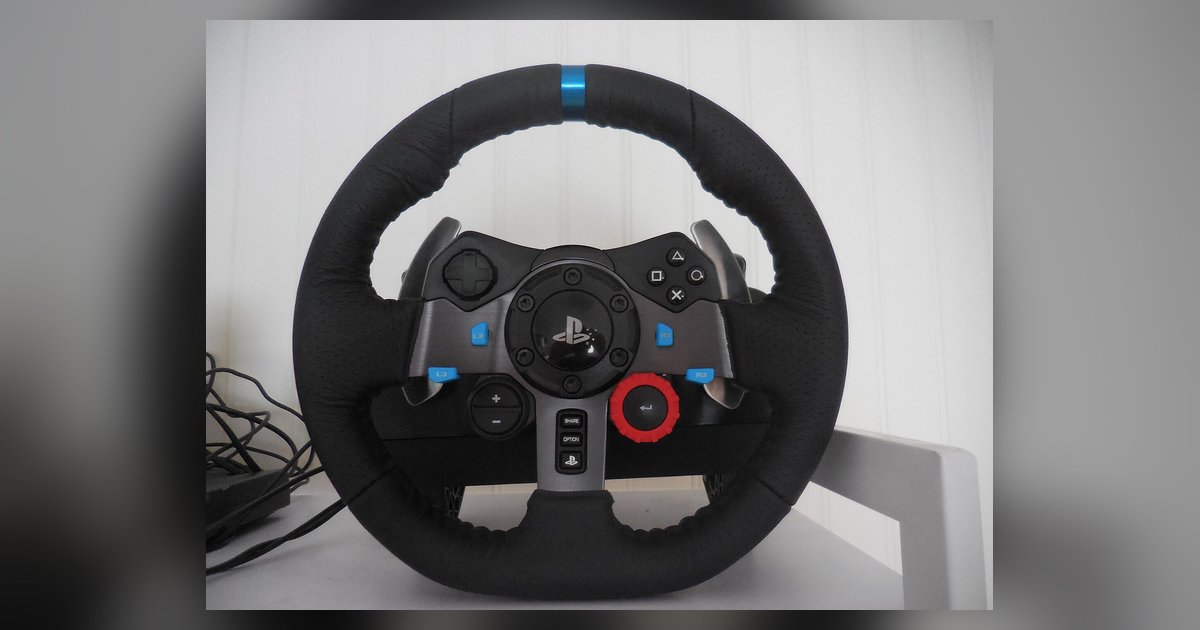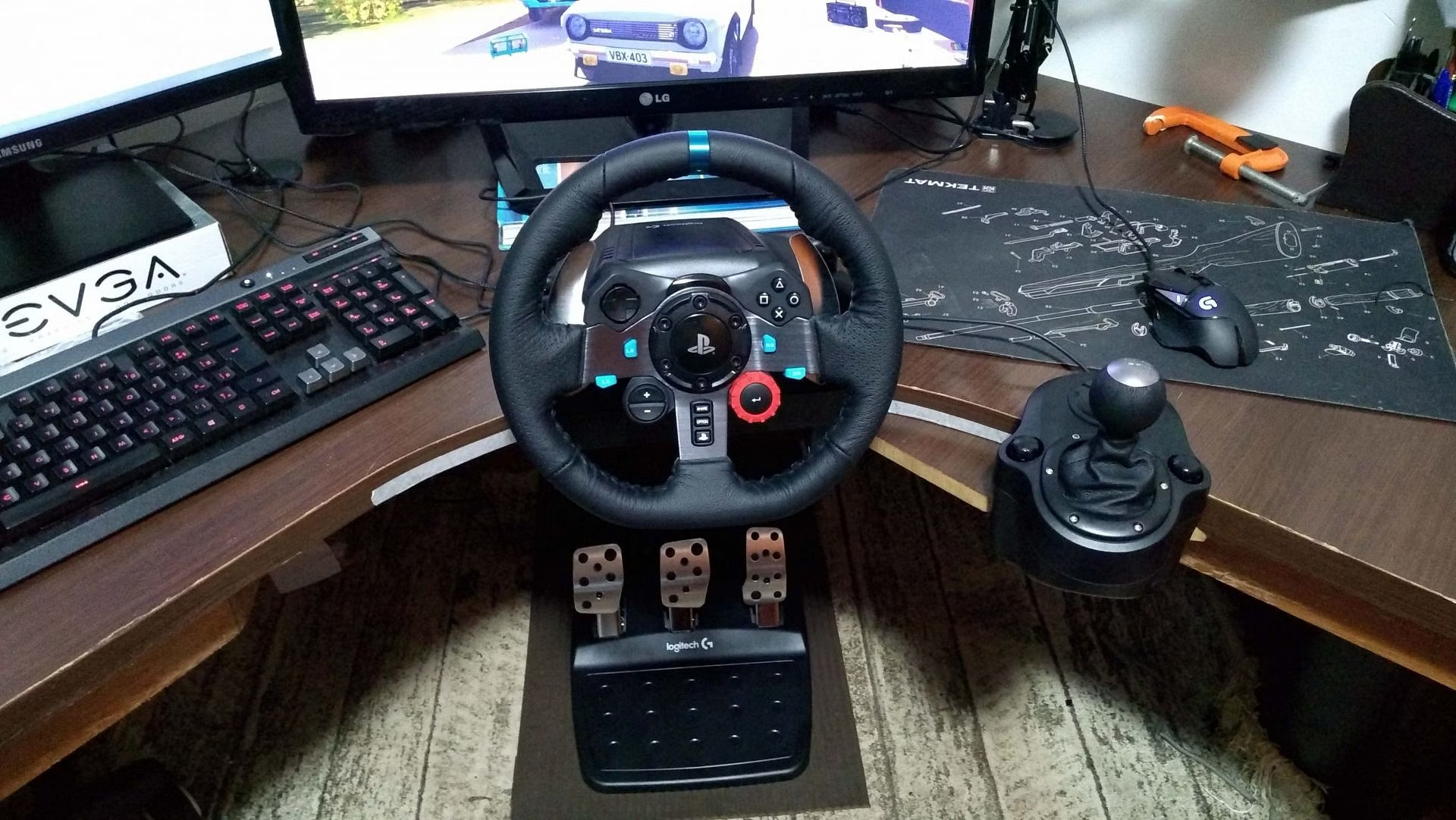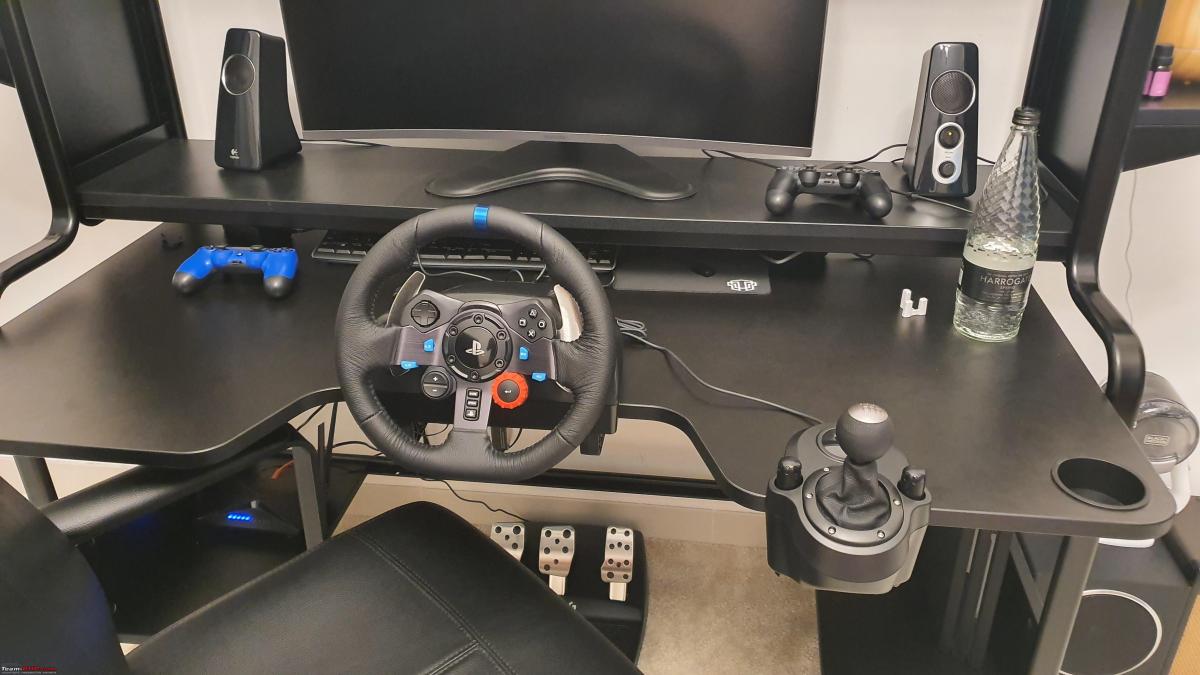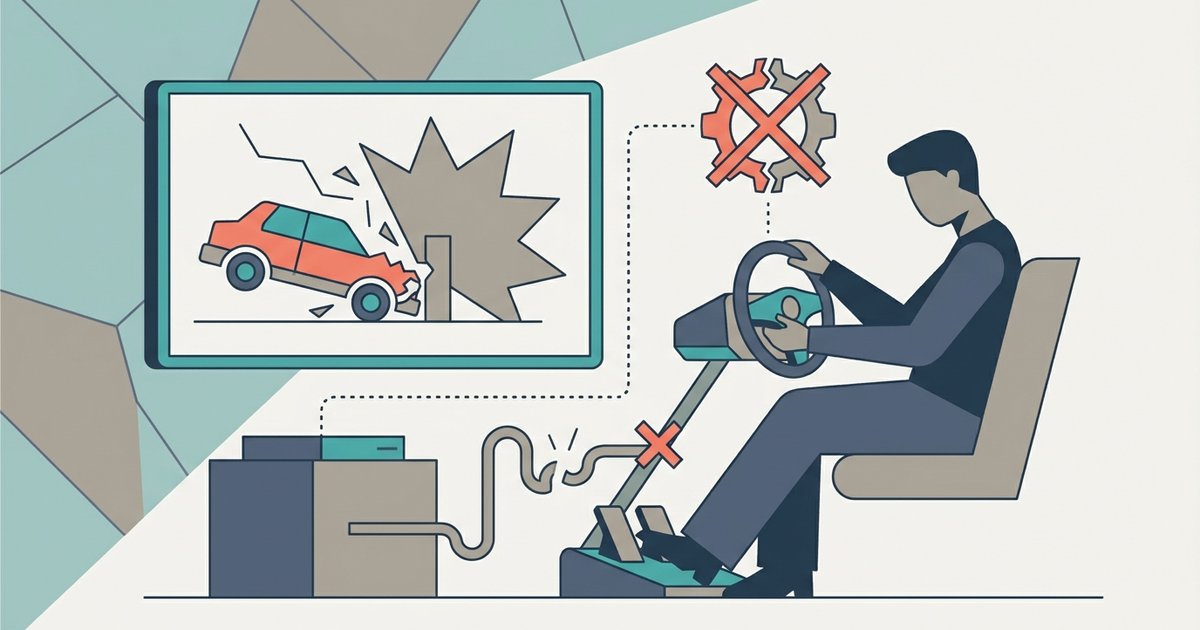
The game is likely ignoring G HUB because it's using its own legacy DirectInput settings, or the in-game gain is turned down to zero. You need to crank the in-game force feedback strength to 100% and, if the wheel is still limp, uncheck the 'Centering Spring' box inside G HUB, as the in-game force feedback is designed to provide this effect.
Check the in-game G29 force feedback gain first
Most sims ship with their master force feedback slider set to 50% or even 0% to avoid overwhelming new players. If your Logitech G29 feels pathetically light or totally lifeless, open the game’s control settings and locate the “Force Feedback Gain” or “Overall Strength” slider. Crank it to 100% before touching anything else. In Assetto Corsa, this is under “Controls → Force Feedback → Gain.” In F1 23, it’s “Force Feedback Strength” in the wheel options. A setting below 70% will make the wheel feel like a toy, and at 0% it goes completely limp. This single adjustment solves the weak feel for roughly half of all complaints.
When the game uses its own DirectInput settings
Older sims and some specific titles bypass G HUB entirely and read the wheel as a generic DirectInput device. When that happens, G HUB’s sliders for overall strength and centering spring have no effect at all. You must adjust the damper and spring effects inside the game’s own force feedback menu, not inside G HUB. For example, in Euro Truck Simulator 2, open the “Force Feedback” tab and set “Gain” to 100%, then raise “Steering Resistance” and “Damper” to at least 50% each. The game’s internal DirectInput settings override everything you do in G HUB, so if the wheel still feels dead after raising the master gain, hunt for these hidden sliders in the game’s own menu.
Enable centering spring for non-FFB games
When a game provides no force feedback data at all, common in older titles or games that don’t officially support wheels, the Logitech G29 goes completely loose and lifeless. To fix this, open G HUB, select your wheel, and locate the “Centering Spring” checkbox. Check it, as this sends a constant resistance signal that prevents the wheel from flopping around in games that provide no force feedback data. This sends a constant resistance signal that prevents the wheel from flopping around. It is not true force feedback, but it stops the wheel from feeling like a disconnected free-spinning toy. For a more permanent fix, proper racing wheel setup ensures your wheel’s full force feedback potential is unlocked across all supported titles, and if the pedals are also misbehaving you may need to fix Logitech g29 pedal not working or registering incorrectly. This checkbox is the single most overlooked fix for games that claim to support force feedback but deliver none.
Why lowering overall strength in G Hub breaks everything
A common mistake is reducing the “Operating Range” or “Overall Strength” slider in G HUB to make the wheel easier to turn. That slider actually scales the maximum force the wheel can output down to near zero, killing all dynamic effects in-game. If you drop it to 50%, the wheel will only ever deliver half the force the game requests, making every bump, kerb, and slide feel weak or absent. Leave the “Overall Strength” slider at 100% and the “Operating Range” at 900 degrees (or whatever the game expects). Adjust difficulty only through the in-game gain slider. If you still need to calibrate your Logitech G29 after changing those settings, use the Windows game controller panel (joy.cpl) to reset the wheel’s center point, not the G HUB strength sliders. Always start with the in-game gain at 100% and the centering spring checkbox unchecked for any title that feels dead.
Unlike any other guide, this page confirms that unchecking the “Centering Spring” box inside G HUB often rescues an entire session when a wheel goes completely dead, even in titles that claim to support force feedback.