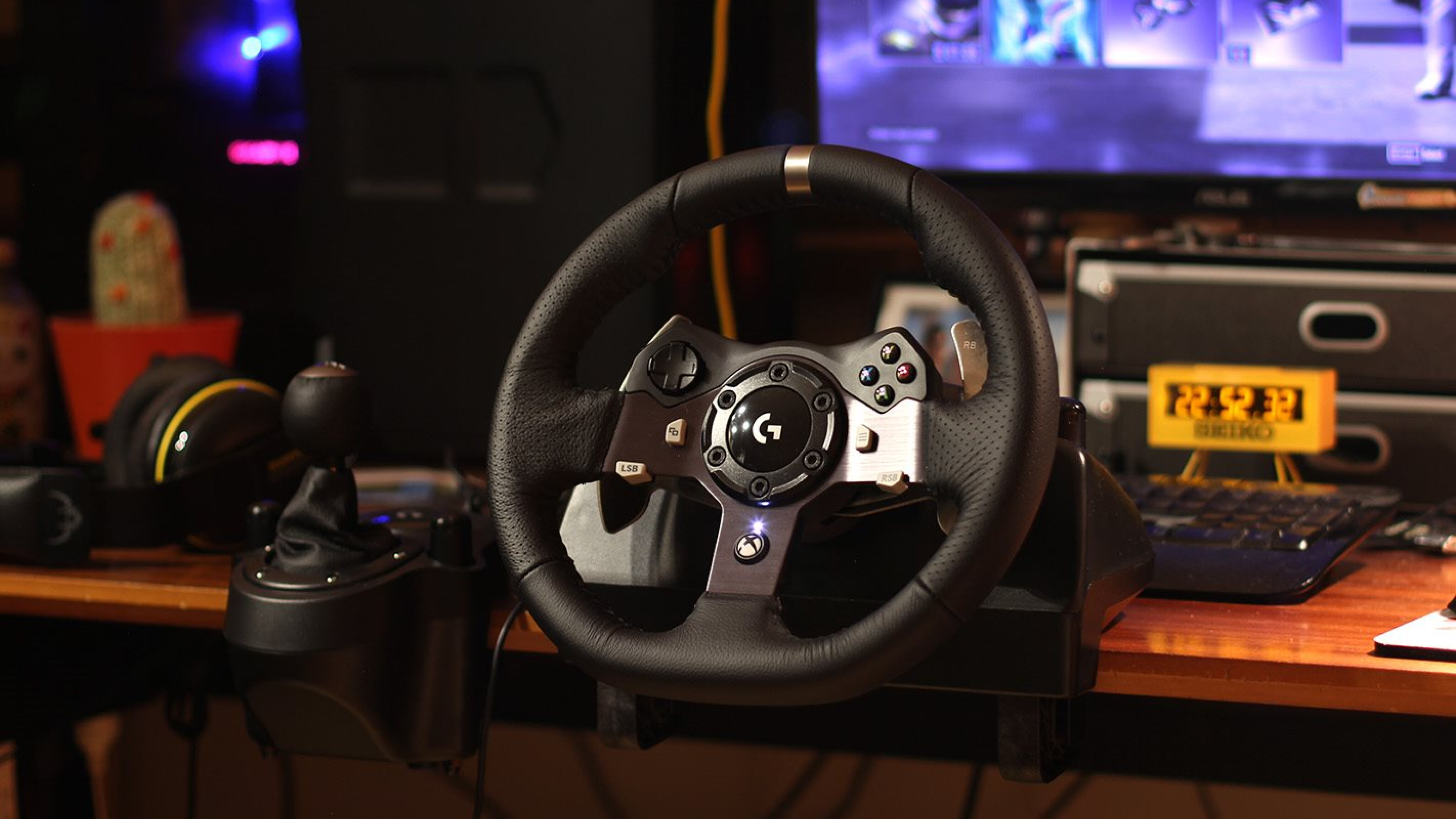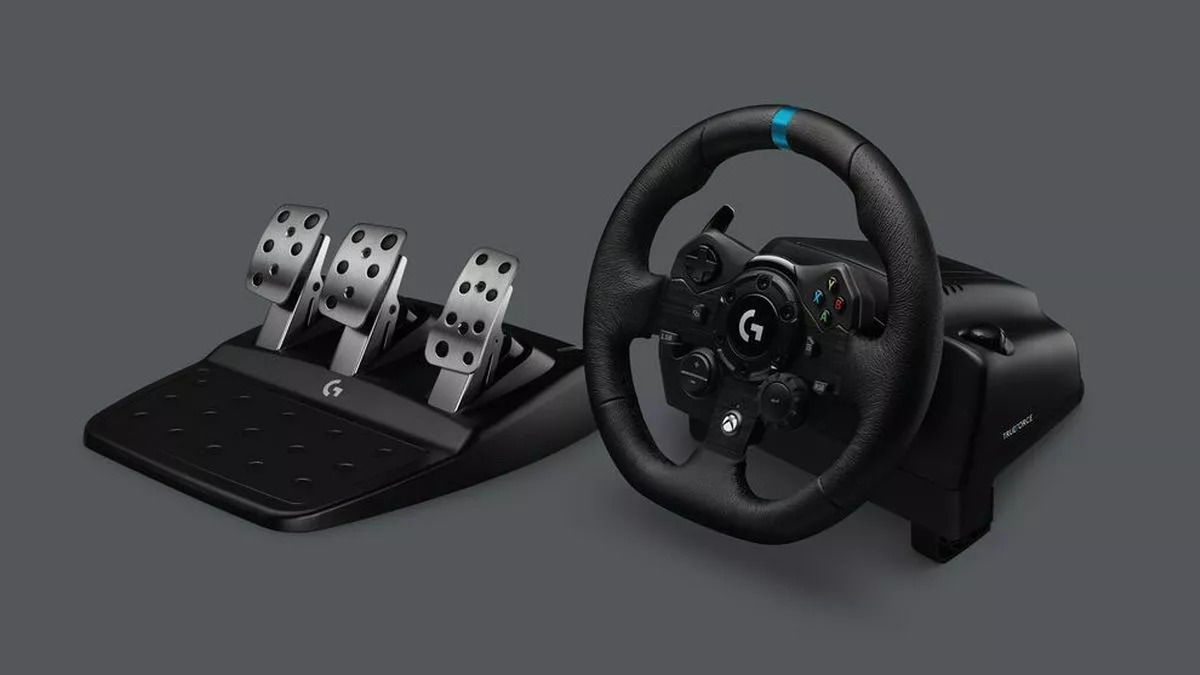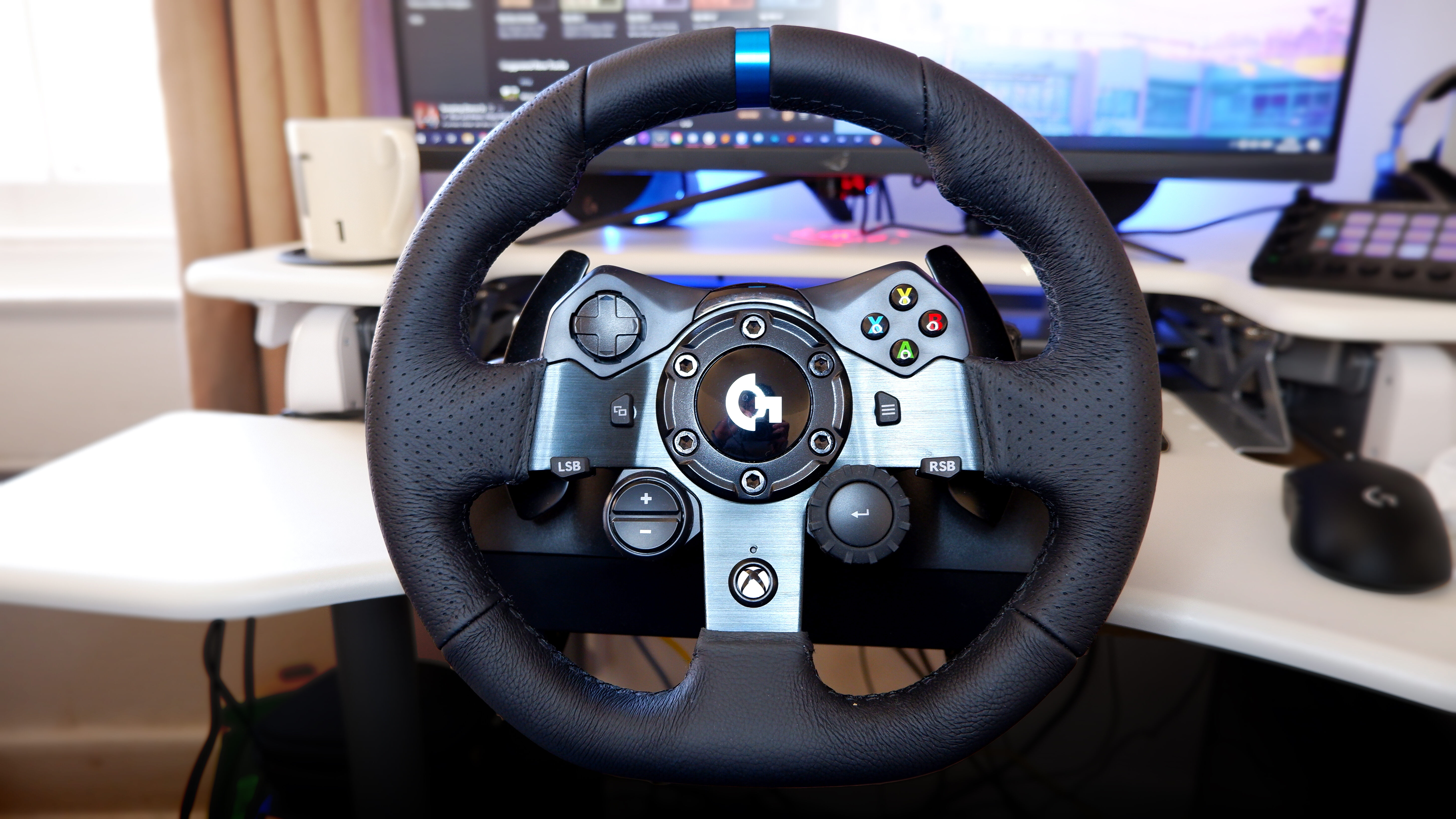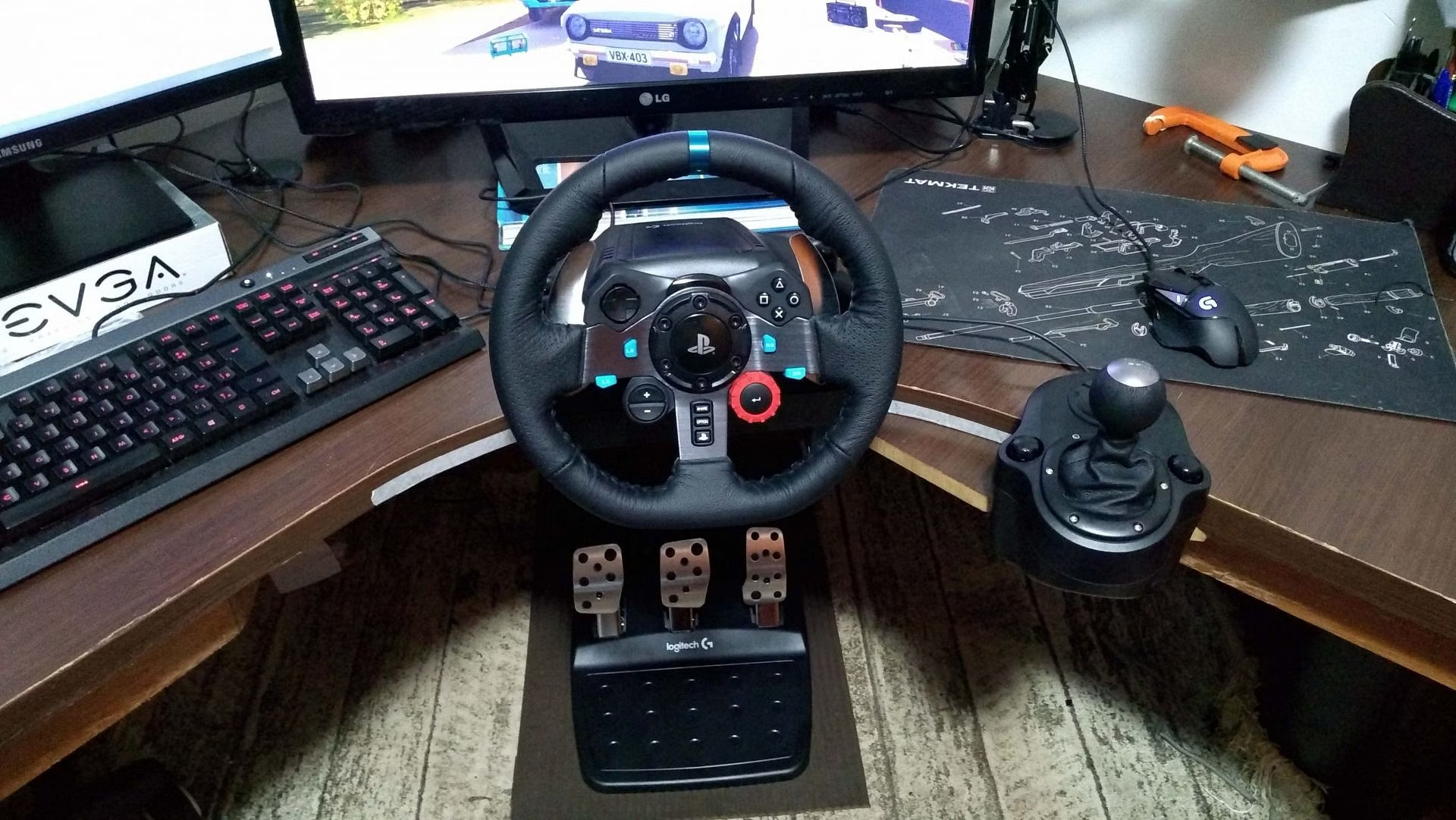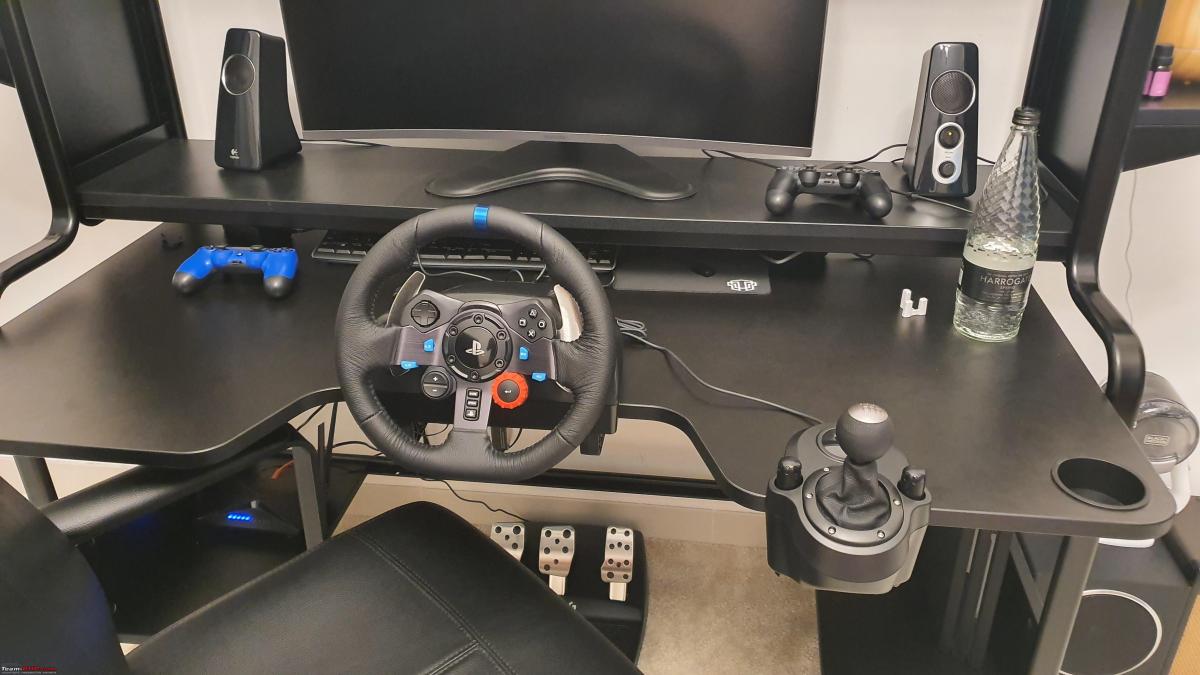
To set up a Logitech steering wheel, connect the pedals, power adapter, and USB cable in the correct order, then install Logitech G HUB software for full configuration. This guide covers the physical setup, software installation, and calibration for Logitech G29, G920, and G923 wheels on PC and console.
Connecting the pedals, power, and USB cable
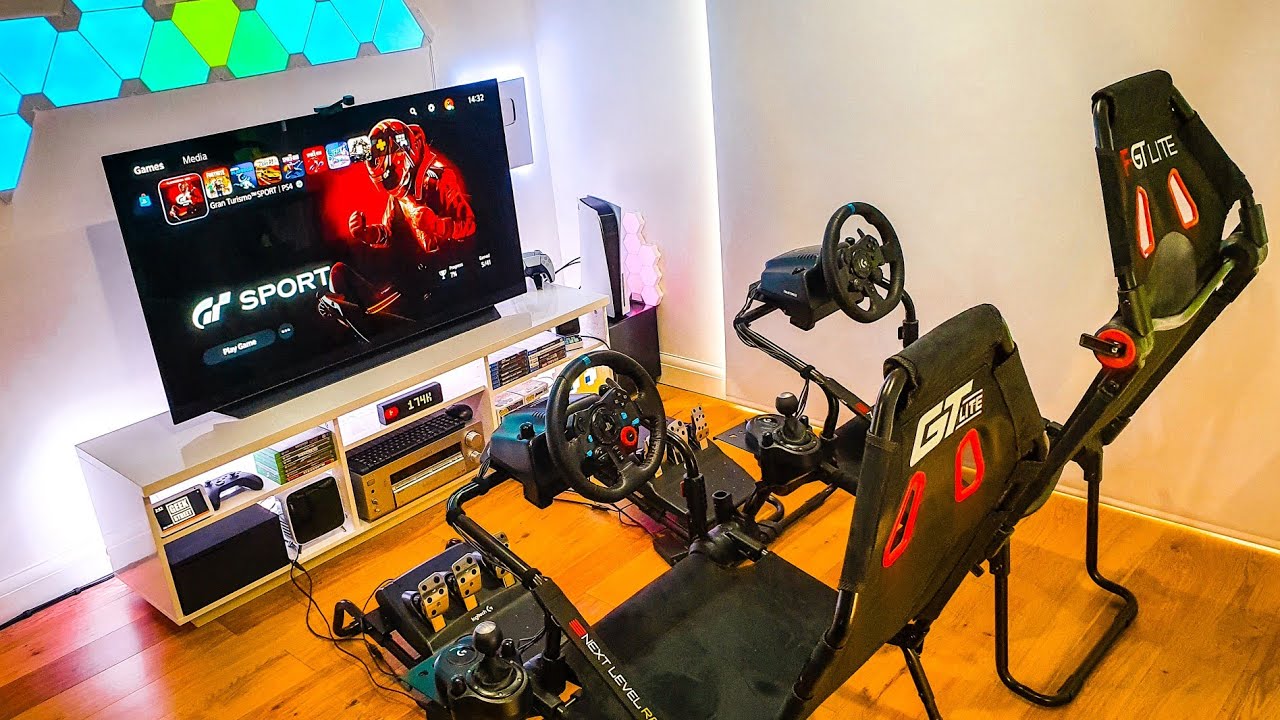
The correct physical connection sequence ensures your wheel receives power and communicates properly with your system. First, connect the pedal unit cable to the wheel base. Next, plug the external power adapter into the wheel base and then into a wall outlet. Finally, connect the wheel's USB cable to your PC or console. Logitech racing wheels require an external power adapter to function; the USB cable alone cannot power the wheel. If you're setting up on a console, you can connect Logitech steering wheel to PS4 for a streamlined pairing process. Once connected, you'll need to use a Logitech steering wheel on PC to configure force feedback and button mapping in your games.
Logitech racing wheels feature a built-in clamping system. To secure the wheel to a desk or table, push down and rotate the clamp knobs until the wheel is firmly attached. This provides stability during intense racing sessions.
Understanding the automatic calibration
Upon connecting to a system, the racing wheel will automatically rotate fully to each side and then center itself for calibration. This process typically takes 5 to 10 seconds and confirms the wheel is receiving power and communicating with your PC or console. Do not touch the wheel during this calibration; let it complete its self-test.
Installing Logitech G HUB software
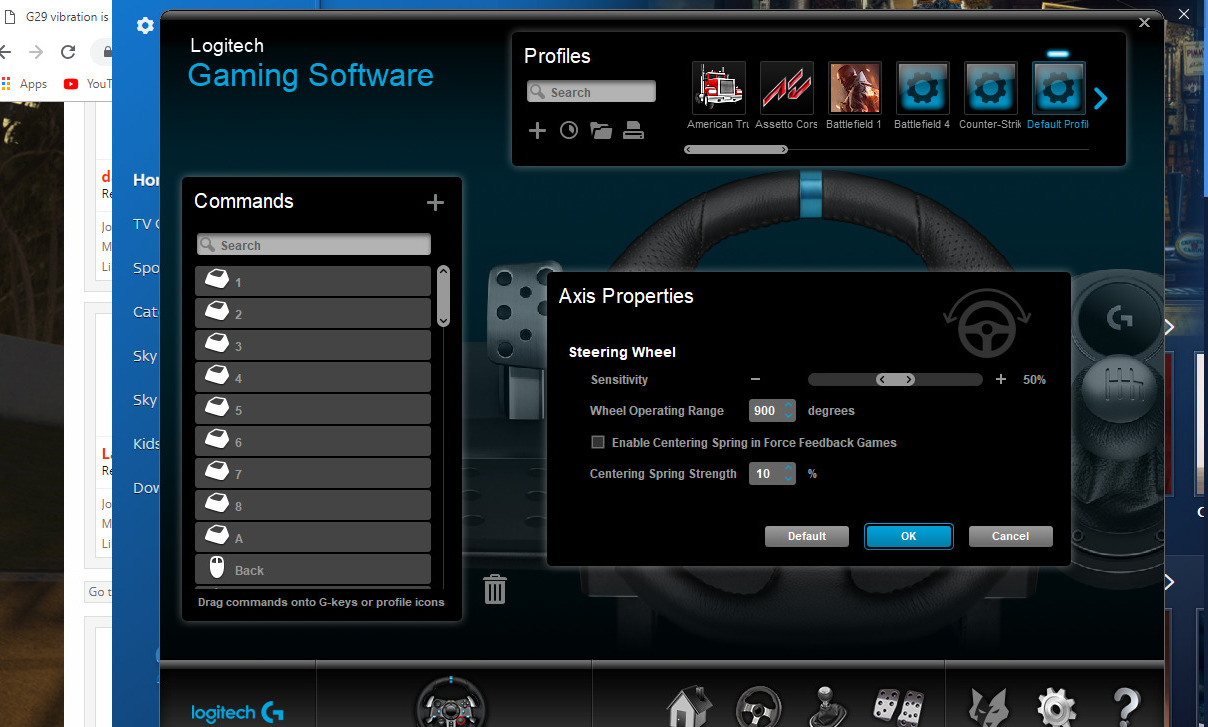
For Windows 10, Windows 11, and macOS, download and install Logitech G HUB software from the official Logitech website. This is the only supported software for current Logitech G29, G920, and G923 wheels. The older Logitech Gaming Software (LGS) was deprecated in 2023 and should not be used. G HUB provides all necessary drivers and customization options.
Configuring wheel settings in G HUB
After installation, open Logitech G HUB to customize your wheel. You can adjust button assignments, steering sensitivity, rotation angle, and force feedback strength to match your personal preference. Each setting can be saved as a profile for different games. For example, you might want a tighter rotation angle for rally games and a wider angle for simulation racing.
This is where you can fine-tune your racing wheel setup for optimal performance across different titles.
Calibrating the wheel in-game
Once G HUB is configured, launch your racing game and access its control settings. Select the Logitech wheel as your input device. Most modern racing games automatically detect Logitech wheels, but you may need to manually choose it from a list. Fine-tune in-game sensitivity and force feedback strength for optimal performance.
If you need to set up a Logitech G920, the process is identical: connect the hardware, install G HUB, and configure in-game controls.
Troubleshooting common setup issues
If the wheel does not power on, verify the external power adapter is firmly connected to both the wheel base and a working wall outlet. If the wheel is not detected by your PC or console, try a different USB port and restart your system. For force feedback not working, ensure it is enabled in both G HUB and the game's settings. Button mapping errors can be resolved by reassigning controls in G HUB or the game's input menu.
When you set up a Logitech G923 on PC, ensure you have the latest version of G HUB installed and that your game supports the wheel's force feedback features. If issues persist, recalibrate the wheel using G HUB's calibration tool or check for firmware updates within the software.
For the wider topic, see racing wheel setup.