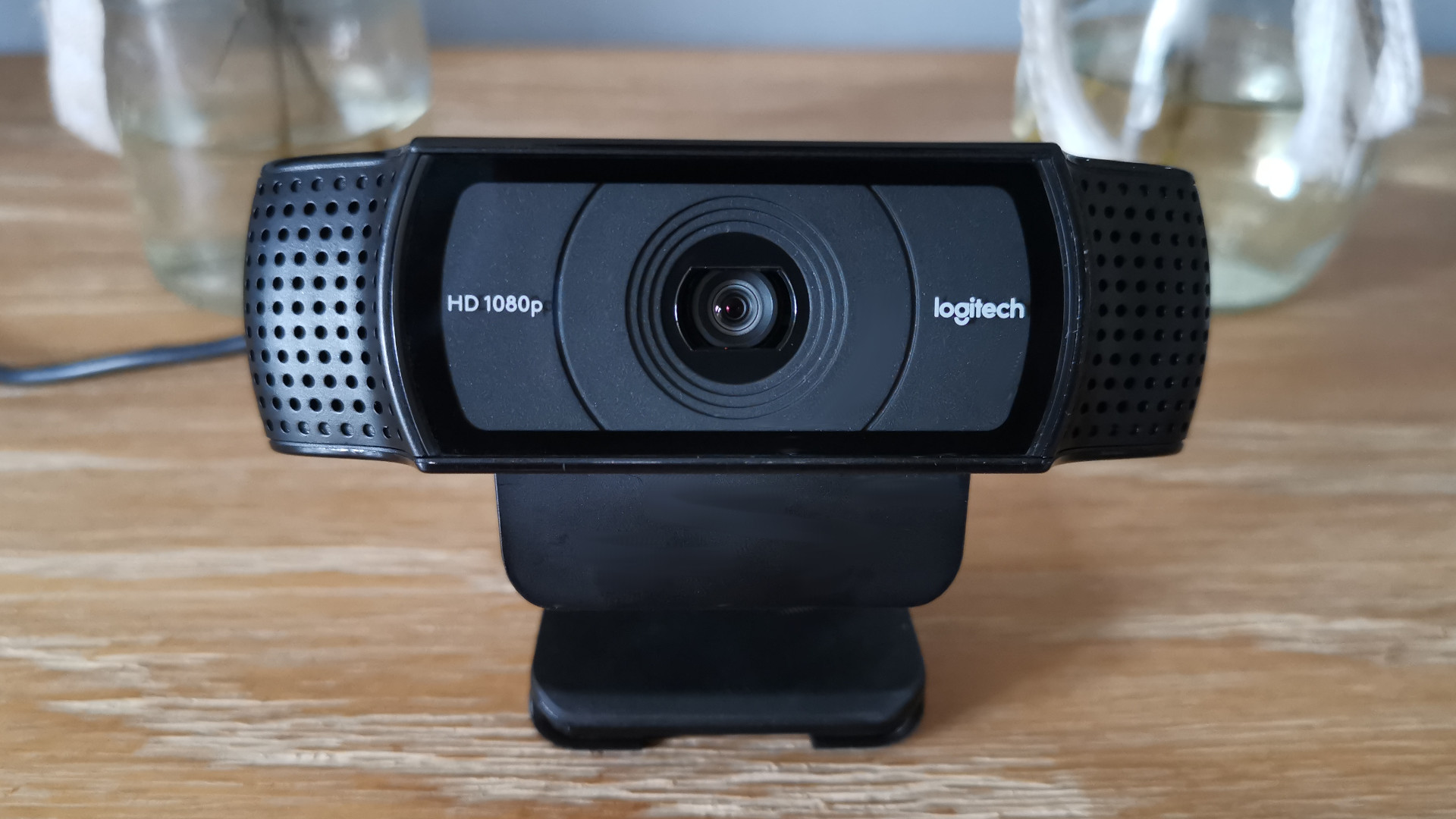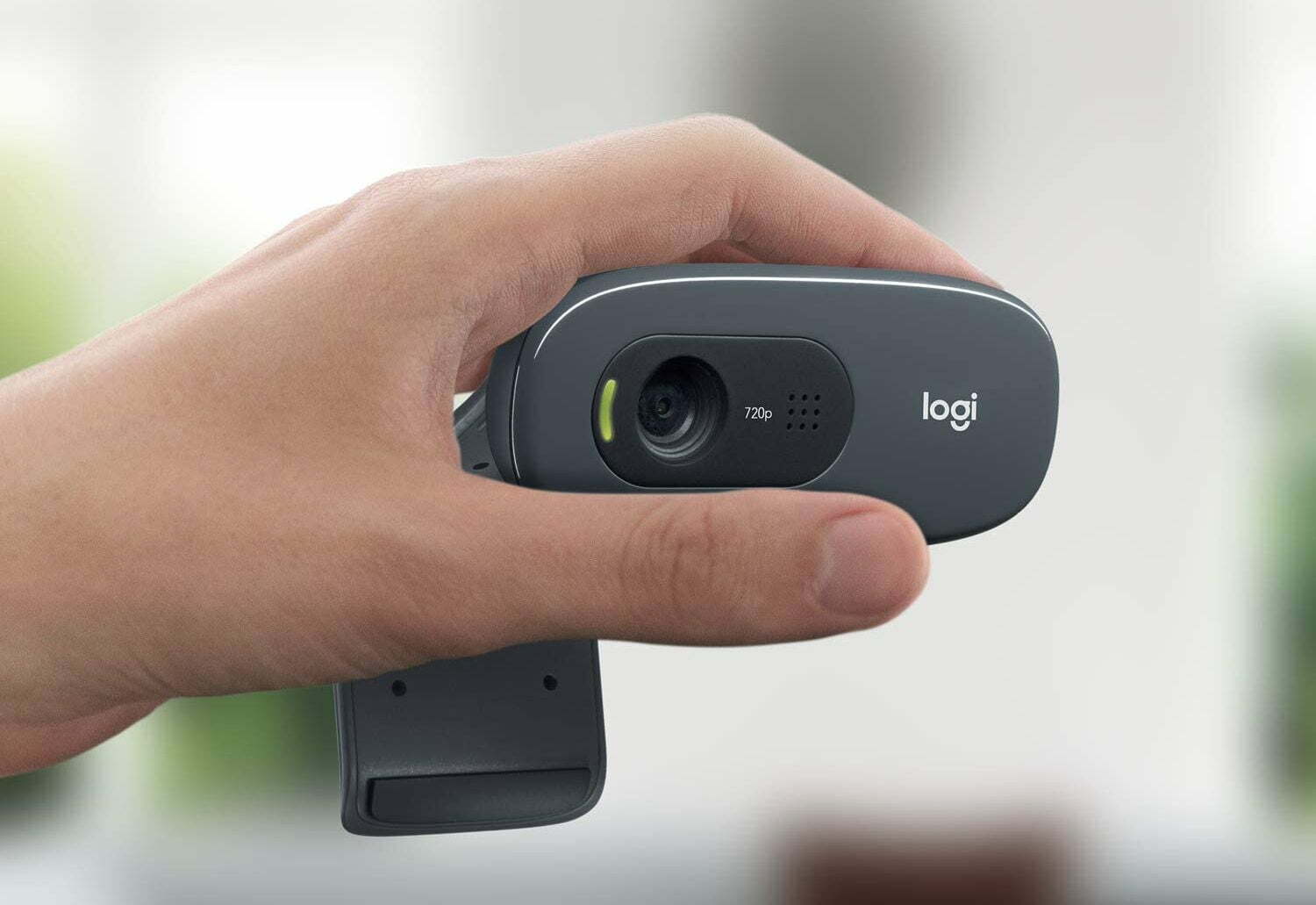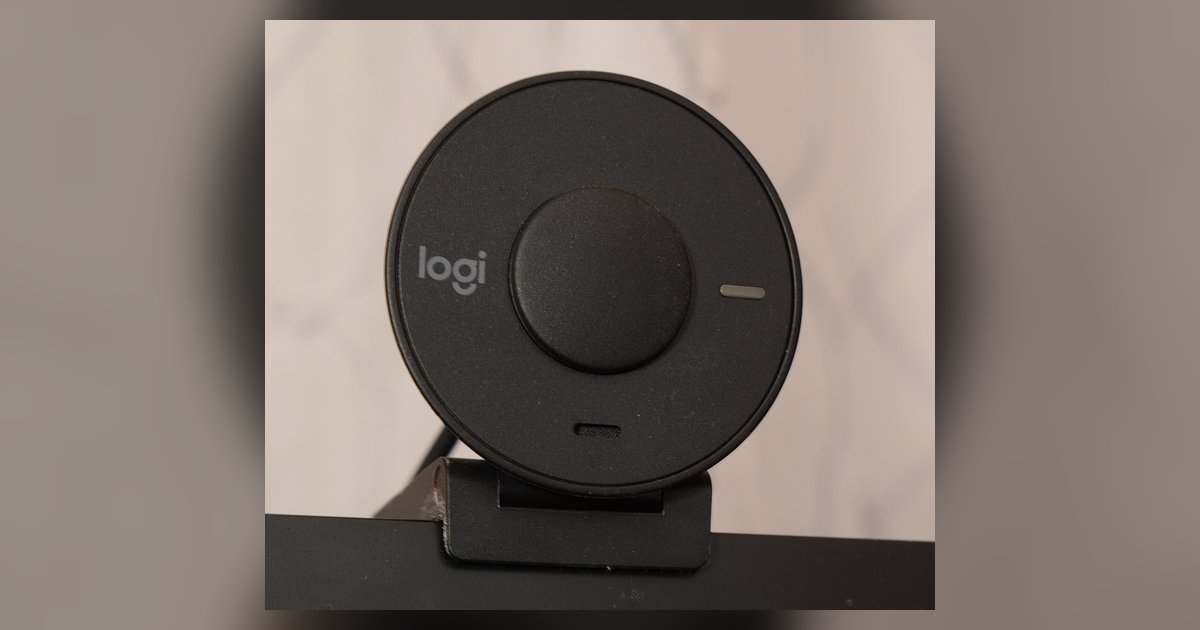
Background blur with Logitech Capture relies on third-party software such as XSplit VCam, which uses CPU-based real-time segmentation, not a dedicated hardware encoder, so it forces your processor to run complex AI models on every frame. If your CPU lacks modern AVX2 instructions or sufficient cores, the effect will always cause high usage, overheating, and stuttering.
Why the Logitech blur effect causes high CPU usage
Real-time background segmentation is a computer vision task that analyzes each pixel’s color, depth, and edge gradients to determine which pixels belong to you versus the wall behind you. Third-party software integrated with Logitech Capture runs this segmentation model on every frame using only your CPU’s general-purpose cores. Unlike hardware-accelerated video encoding, which offloads pixel work to dedicated silicon, the blur effect cannot use those chips. The CPU must execute thousands of matrix multiplications per frame. Modern GPUs handle these operations in parallel. A CPU processes them sequentially across its cores. This is why enabling the effect instantly spikes CPU usage to 80-100% on most systems, even when you are doing nothing else. If you rely on Apple Silicon, the performance story shifts significantly with Logitech background blur working on a Mac through different system-level optimizations.
The minimum processor requirements Logitech doesn't list
Logitech’s official documentation for Capture does not include a background blur feature, so it omits the specific instruction sets and core counts needed for smooth blur. In practice, the segmentation model requires AVX2 instructions to process eight 32-bit floating-point operations per cycle. CPUs released before 2013 lack AVX2. They must fall back to slower SSE instructions, doubling or tripling the processing time per frame. Even if your chip has AVX2, you need at least four physical cores dedicated to the blur pipeline. Two-core processors will peg at 100% usage. Paradoxically, a modern low-end chip like an Intel N100 can handle the blur at 720p, while an older high-end i7-4770 will choke and overheat. The blur remains the heavy operation.
No other guide tells you that the third-party blur model used with Logitech Capture demands AVX2 and four physical cores, which means a cheap modern N100 chip runs it smoothly while a once-premium i7-4770 fails completely.
When lowering settings won't fix the problem
Do not drop the video resolution from 1080p to 720p or reduce the frame rate from 30 fps to 15 fps expecting CPU usage to fall. This does not happen because the segmentation algorithm remains the bottleneck, not the video bitrate or resolution. The AI model processes every pixel of the output frame regardless of resolution. At 720p, it still analyzes 921,600 pixels per frame. Lowering the resolution reduces the total pixel count but does not change the model’s computational complexity per pixel. CPU usage stays near 100% because the model’s math operations are fixed-size for a given model version. Disable the blur entirely. Then switch to a hardware-accelerated alternative like NVIDIA Broadcast or OBS’s GPU-based background removal.
How to blur background on Logitech webcam without overloading your CPU
Book a time to test your processor before a critical meeting. Arrive at your desk 15 minutes early. Open Logitech Capture and enable the background blur effect through integrated third-party software such as XSplit VCam. Open Task Manager and watch your CPU usage for 60 seconds. If usage stays above 80%, skip the built-in blur entirely. Download NVIDIA Broadcast instead if you own an RTX graphics card. If you need to set up a Logitech Brio webcam for blur-free streaming, install OBS Studio and enable its GPU-based background removal filter. When you set up a Logitech C922 Pro Stream webcam, skip third-party blur software and use OBS from the start. The C922’s built-in hardware does not help with blur. The CPU still does all the work. For more comprehensive guidance, see the broader topic of setting up a Logitech webcam.
\nRelated reading: How To Blur Background On Logitech Webcam.