This tag collects articles about setting up, using, and troubleshooting the two most common tools for online meetings: webcams and Zoom. It is written for everyday consumers, people working from home, students in remote classes, or families keeping in touch, who want their video calls to look and sound professional without digging into advanced IT manuals.

The articles cluster around three practical themes. First, camera setup and polish: pieces like “How To Blur Background On Logitech Webcam,” “How To Invert Camera On Logitech Webcam,” and “How To Set Up A NexiGo Webcam” walk you through adjusting your image, while “Does Logitech Background Blur Work On Mac” and “Logitech Capture Background Blur High CPU Usage” help you fix performance hiccups when those features slow down your computer. Second, Zoom basics and management: “How Do I Download Zoom,” “How To Install Zoom On Laptop,” “How To Download Zoom On Windows,” and “How To Host A Zoom Meeting” cover getting the software running and starting your own sessions. Third, account and history oversight: “How To Check Zoom Meeting History” lets you review past calls for record-keeping or security awareness, and “Zoom Free Vs Paid Account Features Comparison” explains what you get without paying, so you can decide whether an upgrade is worth it.

Across all these pieces, the focus is on helping you accomplish a specific task, blurring a messy room, switching your camera’s mirror direction, installing the app, or hosting a clean call. The comparison article, in particular, frames the free tier as a legitimate option, not a workaround, and the meeting history guide supports your own privacy and accountability rather than any hidden surveillance. No article here teaches bypassing, pirating, or hacking; instead, they solve everyday friction so you can join your next video call with confidence.
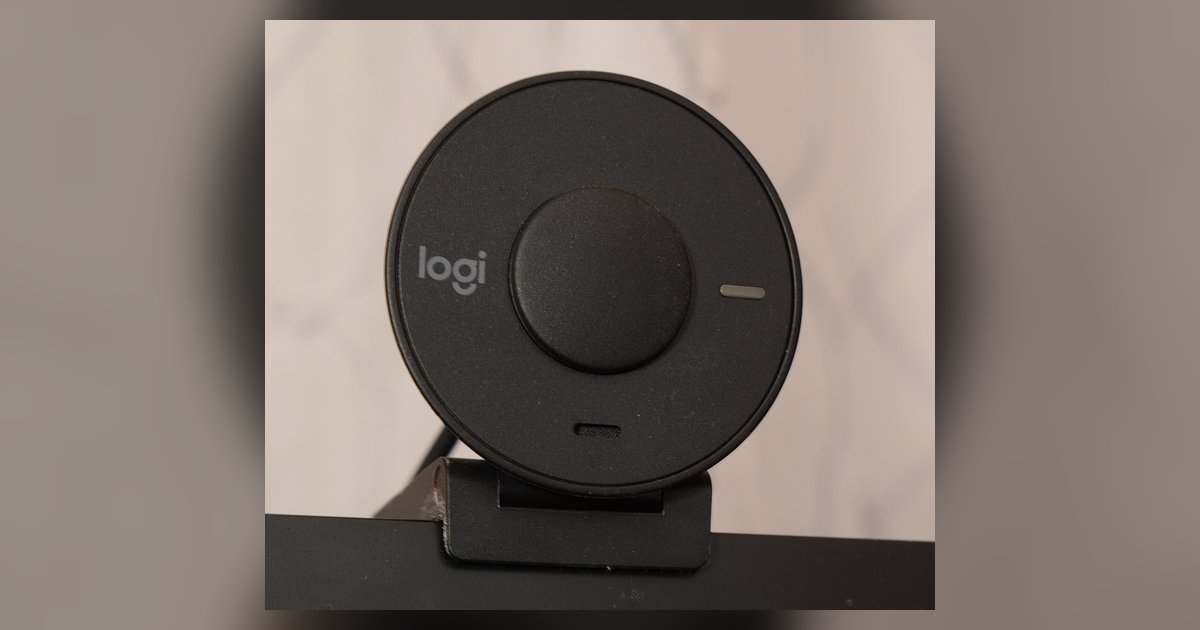
Logitech Capture Background Blur High CPU Usage

Background blur with Logitech Capture relies on third-party software such as XSplit VCam, which uses CPU-based real-time segmentation, not a dedicated hardware encoder, so it forces your processor to run...

Does Logitech Background Blur Work On Mac

No, Logitech's background blur feature does not work on macOS through G Hub. On a Mac you are limited to using software-based blur through your video conferencing app or via...

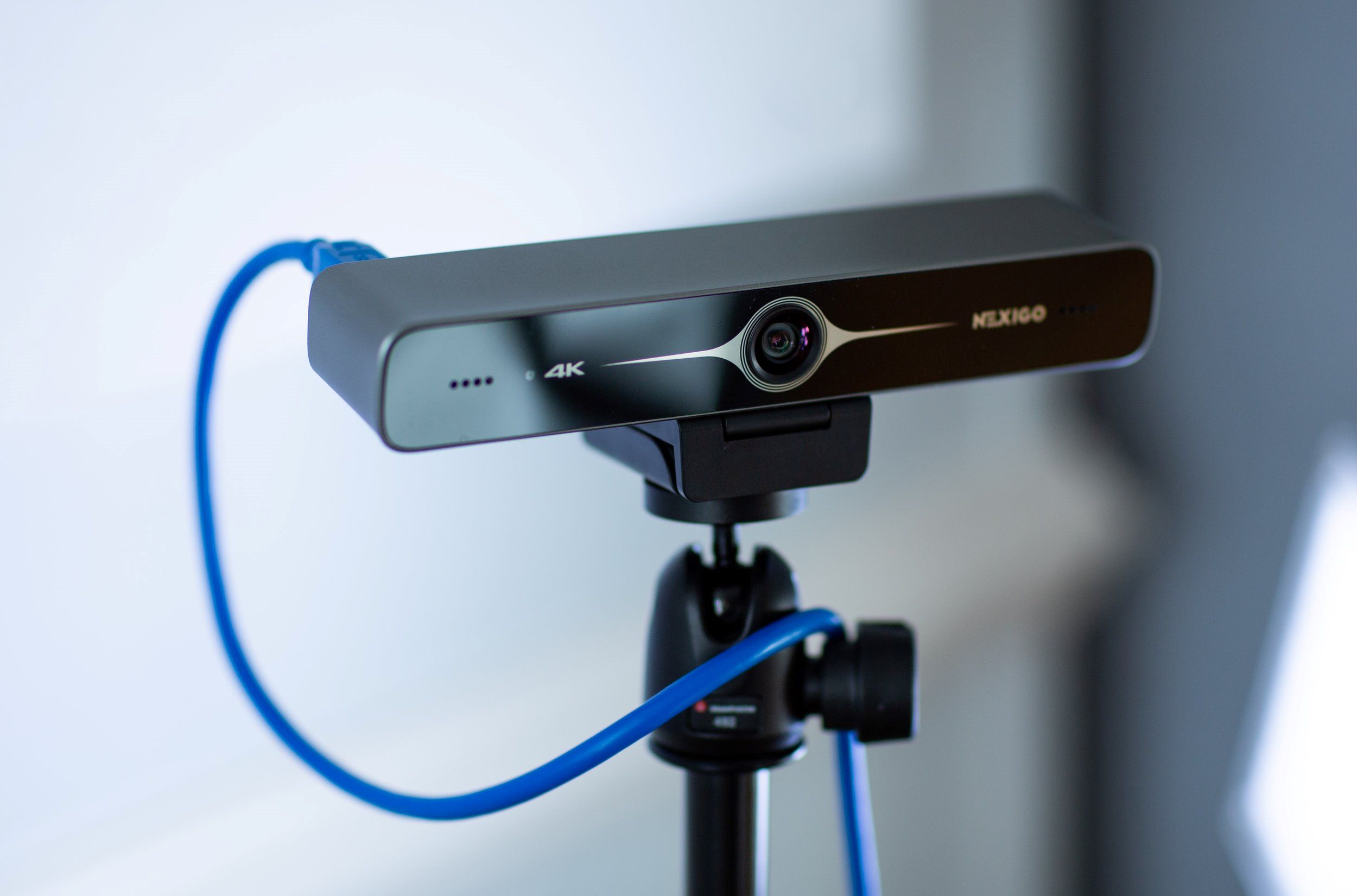
How To Set Up A NexiGo Webcam

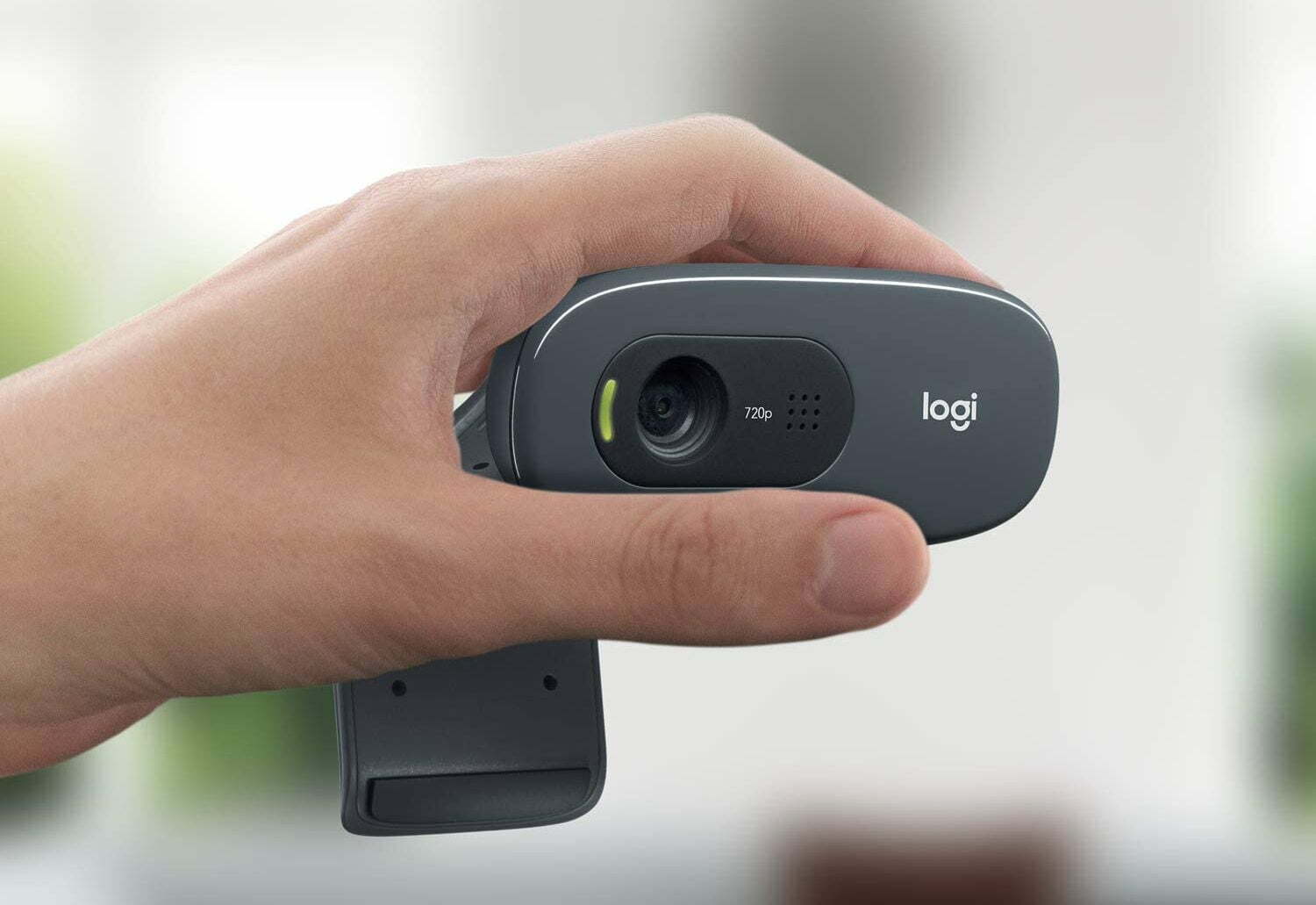
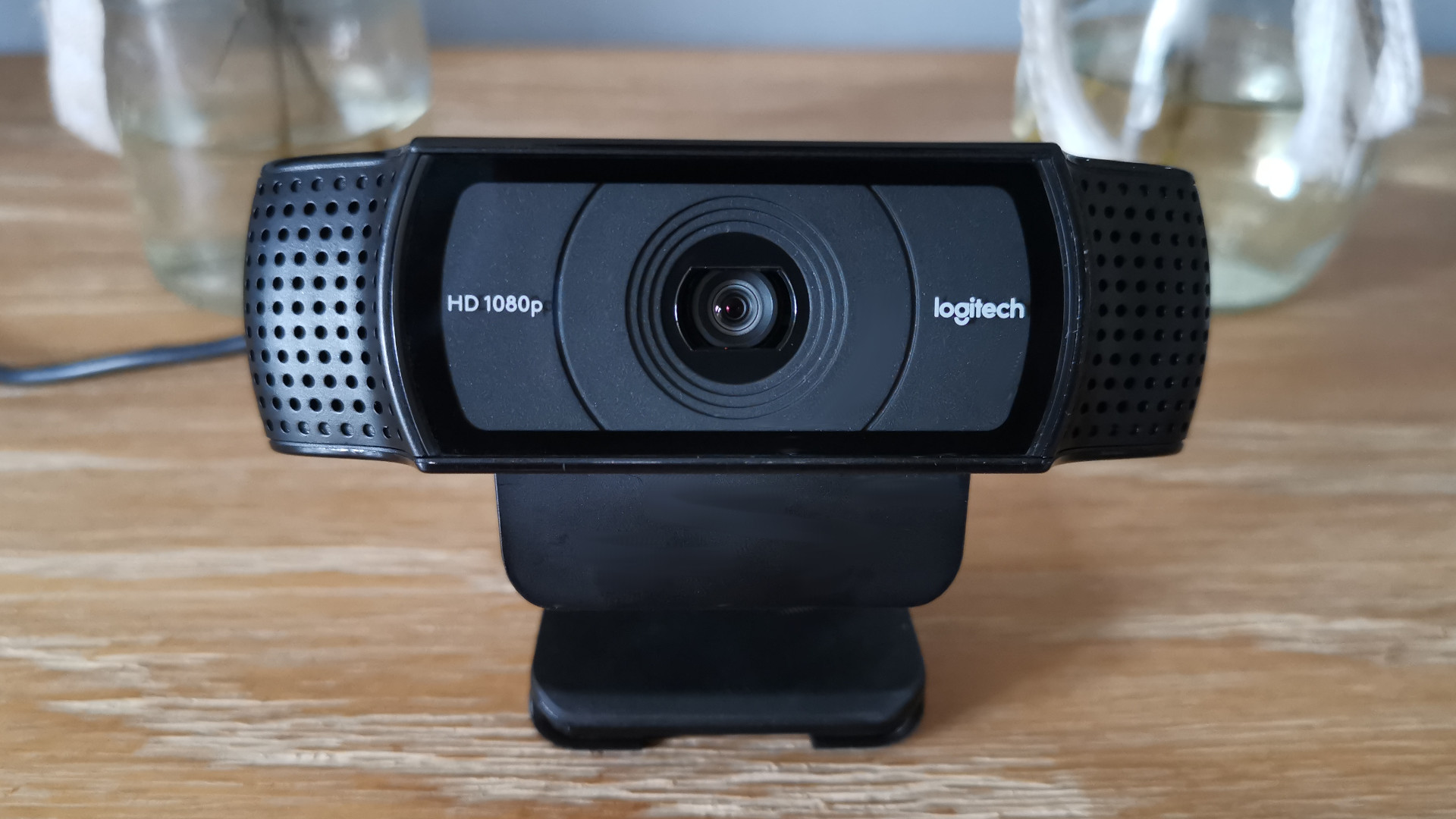
Setting up a NexiGo webcam is a straightforward plug-and-play process: mount the camera, plug it into a USB port, and select it in your video call app. No manual driver...

How To Download Zoom On Windows

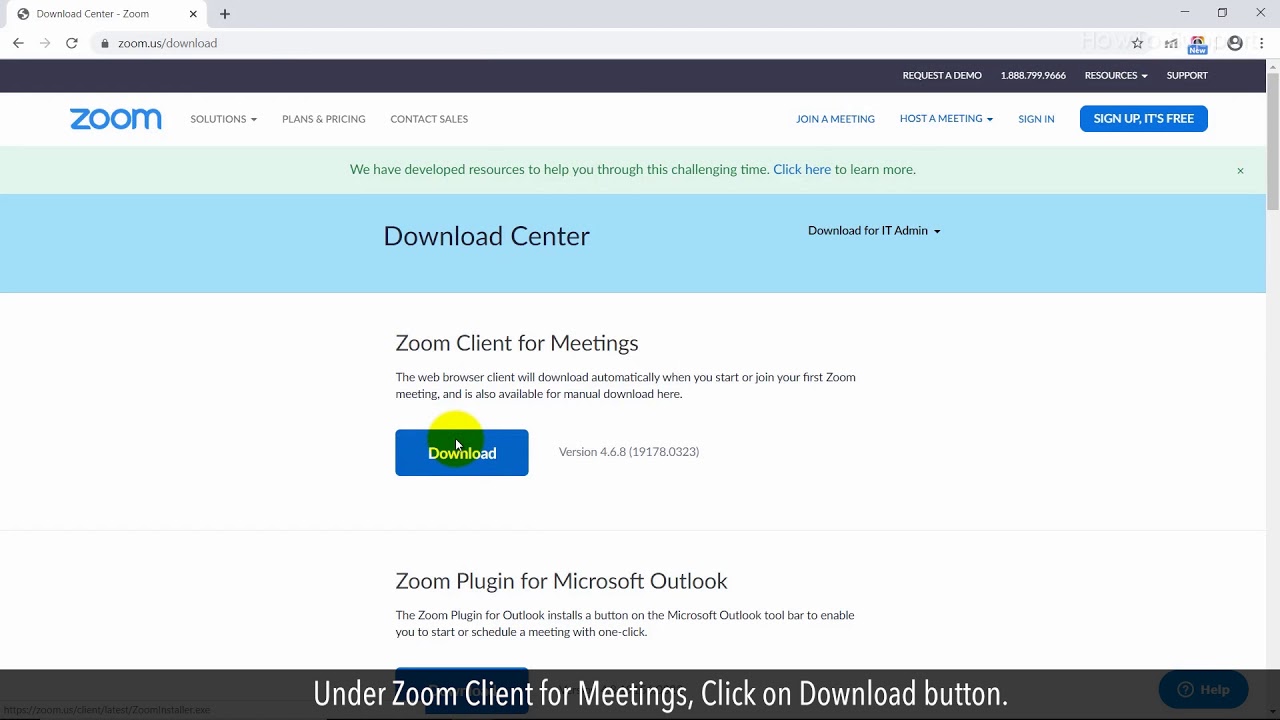
To download Zoom on Windows, go directly to the official Zoom Download Center and click the Download button for the Zoom Workplace desktop app. This is the only secure way...

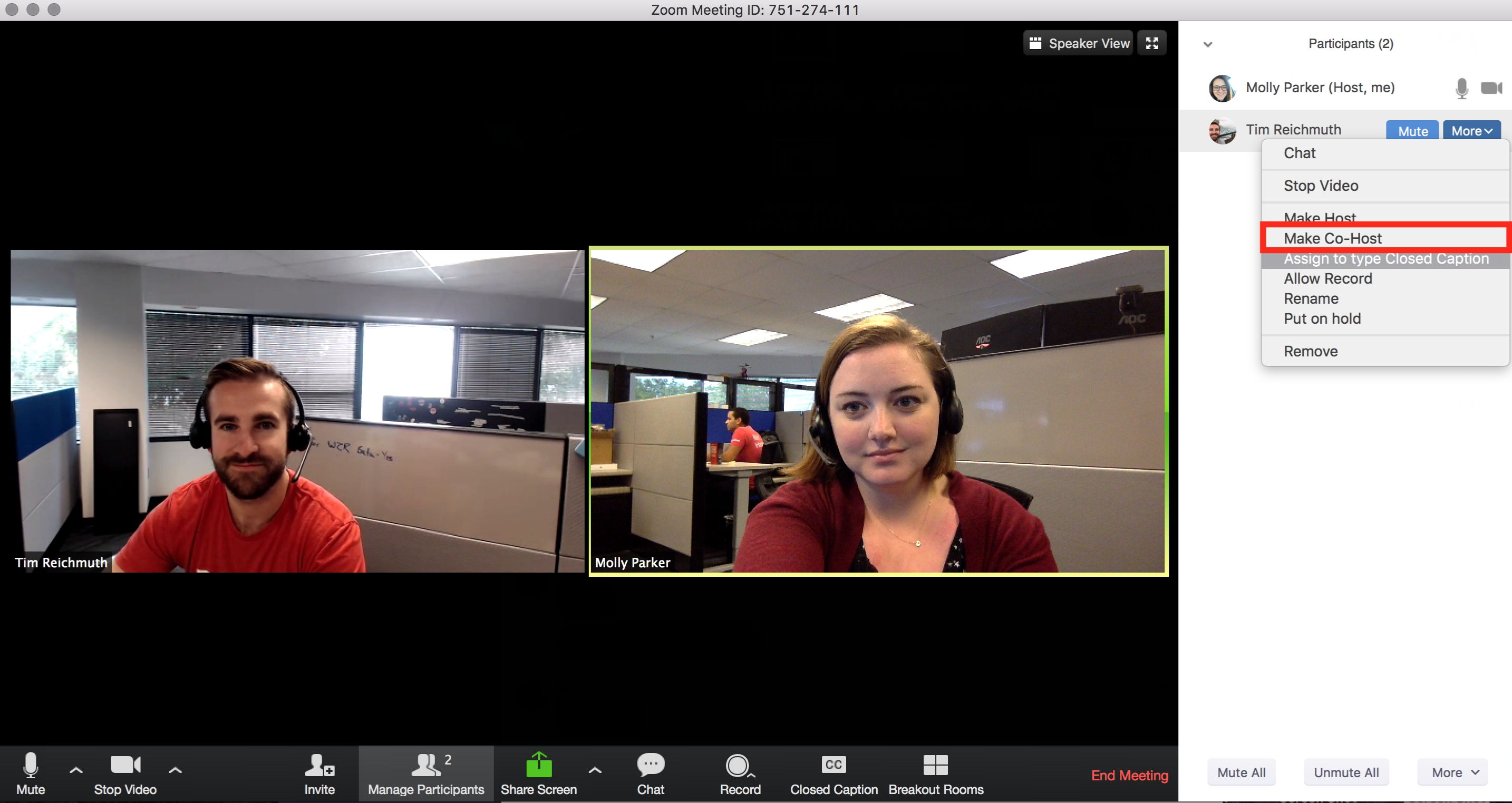
How To Host A Zoom Meeting

To host a Zoom meeting, you can either schedule it in advance or start an instant meeting right away. This guide covers both methods, the requirements you need, and the...

How To Check Zoom Meeting History

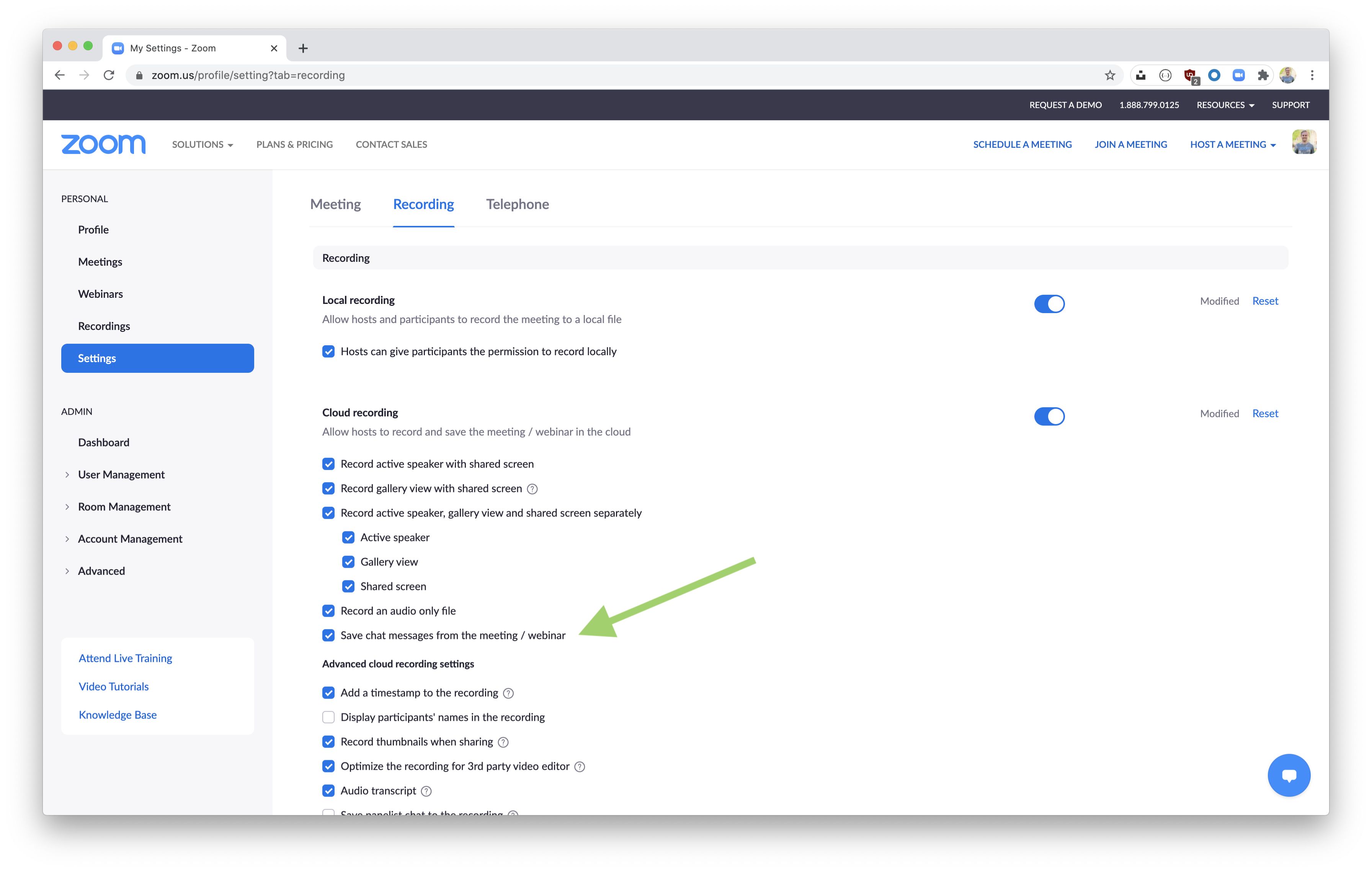
To check Zoom meeting history, sign in to the Zoom web portal and open the Meetings section, this is where you’ll find every past session you hosted. From there, select...

How To Install Zoom On Laptop

To install Zoom on a laptop, download the Zoom Workplace desktop application from the official Zoom Download Center. Whether you use Windows or macOS, the process takes just a few...

How Do I Download Zoom

Download Zoom on your device To download zoom safely, visit the official Zoom website from your browser and avoid third-party download sites. On the download center page, you will see...

How To Invert Camera On Logitech Webcam

To invert your Logitech webcam, you need to adjust the settings within the specific application you are using, not in a universal driver. There is no built-in "invert" button for...

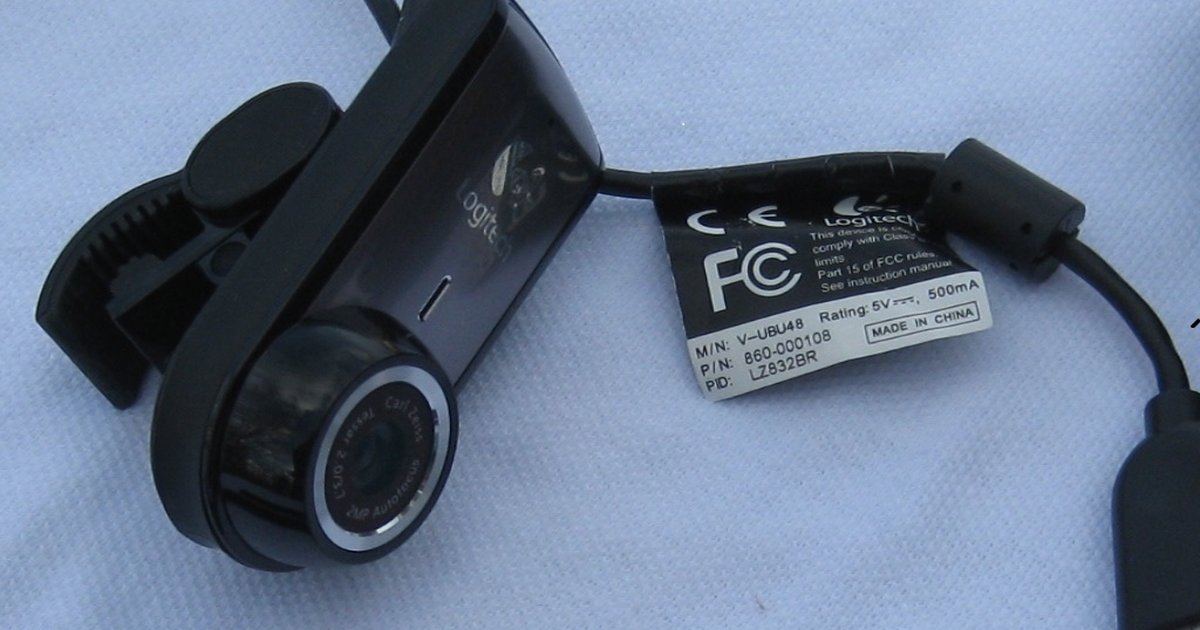
How To Blur Background On Logitech Webcam

To blur background on Logitech webcam, the most direct method is to use the built-in background blur feature within your video call app, such as Zoom, Microsoft Teams, or Google...