To delete a Google Workspace account, you must first back up your data, cancel billing, and remove all associated Google Cloud resources, Marketplace apps, and Android EMM bindings before performing the irreversible deletion from the Admin console. This complete guide walks a super administrator through every prerequisite and final step to permanently close an organization's account.
Before you delete your Google Workspace account: a pre-deletion checklist
Deleting a Google Workspace account is a permanent action that cannot be undone. Before you begin, you must complete several critical prerequisites that are often missed. First, all associated Google Cloud resources must be deleted, including projects, folders, firewall policies, Access Context Manager policies, and tags. Next, every Google Workspace Marketplace app must be removed from the organization. You also need to unlink any Android zero-touch accounts and remove active Android EMM bindings. If you are the only super administrator, you must assign another user the Super Admin role before you can delete your own account. Skipping any of these steps will block the account deletion process.
Step 1: Back up your data with Google Takeout
Before making any changes, you need a complete copy of your organization's data. Google Takeout is the official tool for exporting all critical emails, files, and calendars from your Workspace account. Log in to the Google Takeout website with your super administrator credentials. Select all the Google apps and services you want to back up, such as Gmail, Google Drive, Google Calendar, and Google Contacts. You can customize the export format and delivery method. Click "Create export" to start the process. Depending on the volume of data, this may take several hours or days. Once the export is ready, you will receive an email with a download link. Save the backup files to a secure, offline location and verify that all data has been successfully exported before proceeding.
Step 2: Transfer ownership of files and services
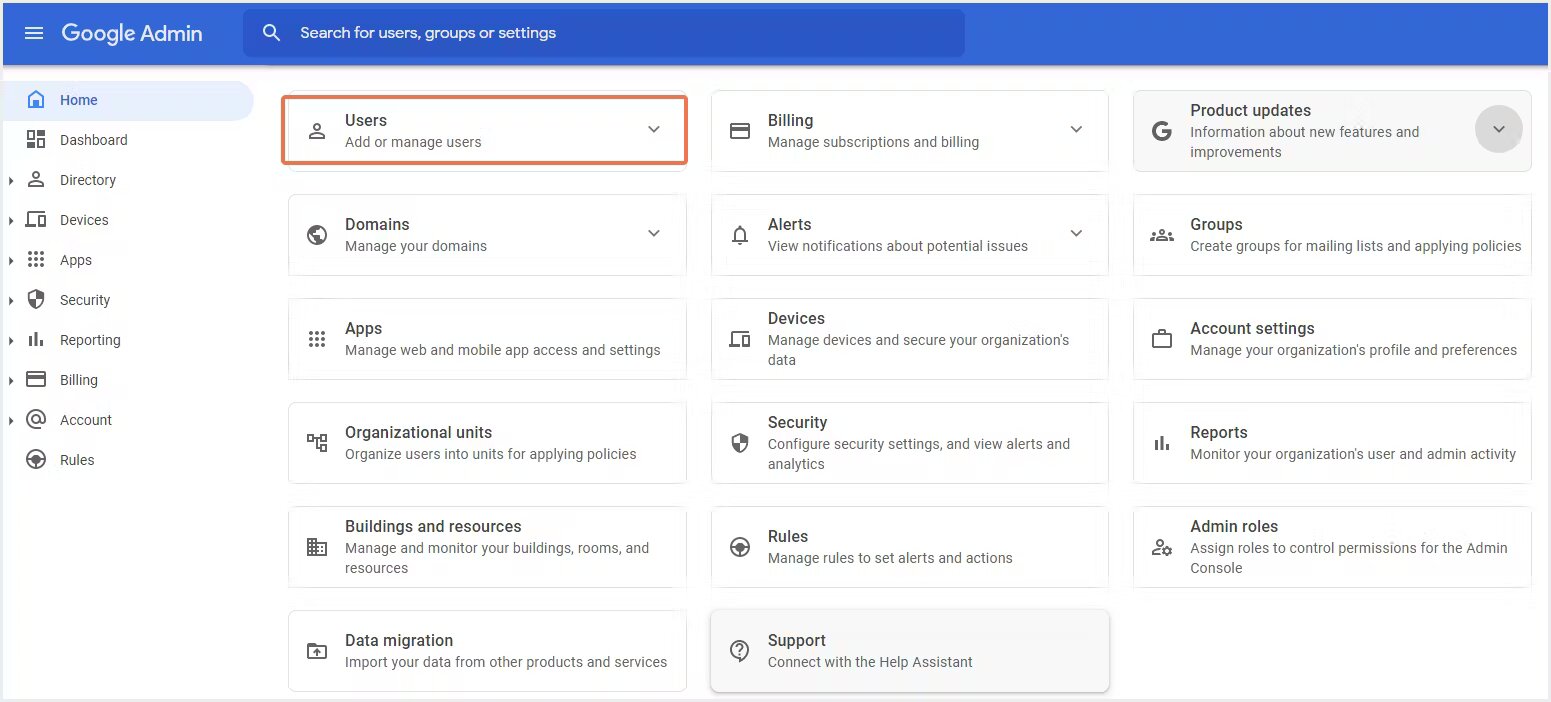
If any team members will continue working after the account is deleted, you must transfer ownership of Google Drive files and connected services. In the Admin console, navigate to Users, select each user, and transfer ownership of their documents and emails to another active account. For services like Google Analytics or Google Ads, log in to each service and reassign ownership or management access to a different user. This ensures business continuity for remaining team members and prevents data loss for ongoing projects. Confirm that the new owners have the necessary permissions to manage the transferred resources.
Step 3: Suspend or delete individual users
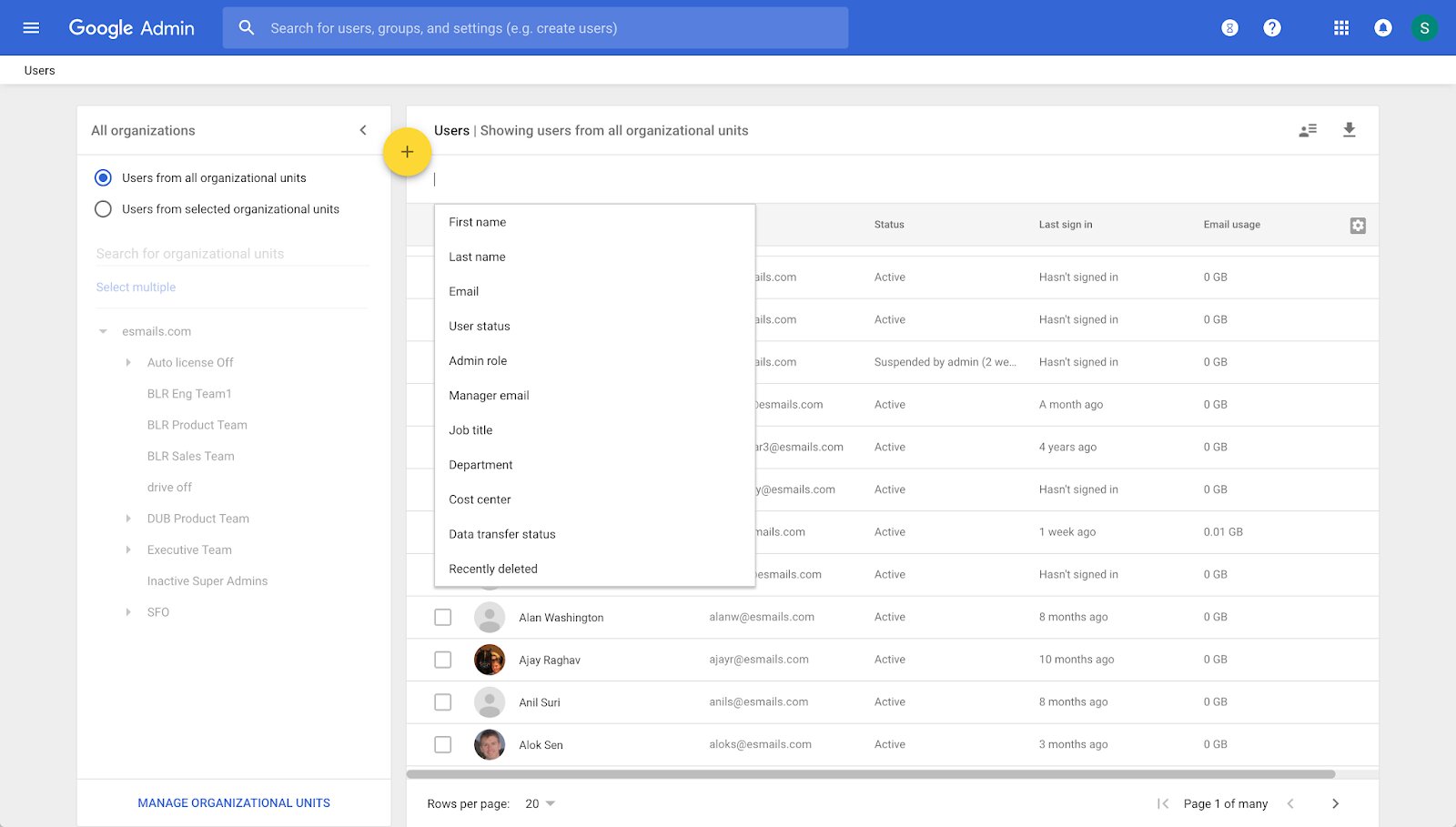
In the Admin console, go to Users and select the user accounts you want to remove. You can either suspend users temporarily or delete them permanently. If you choose to delete, be aware that you have a critical 20-day restoration window after deletion. During those 20 days, you can restore the user and all their associated data. After 20 days, the user and data are permanently lost. Most importantly, do not delete your own super admin account first. If you need to delete the super administrator account, assign the Super Admin role to another user beforehand, then have that user delete your account.
Step 4: Remove custom domains
Before you can delete the Workspace account, you must remove all custom domains. In the Admin console, go to Domains and select the custom domain you want to remove. Click "Remove domain" and follow the prompts. A crucial piece of advice: if you transferred your domain to Google during setup, transfer it back to your domain registrar before removing it from Workspace. This ensures you retain control of the domain for future use. Removing a custom domain will affect any email addresses and website URLs associated with it, so communicate this change to your team and stakeholders. If you also need to remove a personal email address from another provider, you can delete an aol email account.
Step 5: Cancel your subscription and delete the account
This is the final, irreversible sequence. Navigate to Menu > Billing > Subscriptions, select the Google Workspace subscription, and click "Cancel subscription." Follow the prompts to confirm the cancellation. After the subscription is cancelled, return to the Admin console and use the "Delete account" option. Read all warnings carefully and confirm your decision. The account and all associated data will be permanently erased. If you cannot log in to the Admin console to delete the account, for example, due to a locked domain or incomplete setup, you may need to use an official Google support form for domain release.
What happens to your personal Gmail account?
Deleting a Google Workspace account does not affect a personal @Gmail.com account. If you have a separate personal Gmail account that you use independently from your Workspace organization, it will remain active and unchanged. This distinction is important for administrators who want to permanently close their business account without losing access to their personal email or Google services.