If you are a regular user, the fastest way to find my Google Workspace administrator is to contact your organization's internal IT department or help desk. They are the primary point of contact for technical support and can provide you with the administrator's name and contact details. You can also check your email archives for messages from your administrator, as their contact information is often included in account setup notifications or password reset emails. Once you have your credentials, you can access my Google workspace email from any browser. If you need to set up a Google workspace for yourself, that initial welcome email will contain your own admin contact.
How to find my Google Workspace administrator as a regular user
As a non-administrator, you do not have access to the Google Admin console, so you cannot directly view who holds administrator roles. Your organization's IT team is the best resource for this information. They maintain records of all administrator accounts and can guide you on the proper internal communication channels.
To begin your search, follow these steps:
- Contact your internal IT department or help desk via your company's designated support channel (email, phone, or internal messaging platform).
- Ask them for the name and contact information of the Google Workspace administrator responsible for your account or organizational unit.
- If you prefer to find the information yourself, search your email inbox for keywords like "Google Workspace," "admin," or "account setup." Look for emails from your administrator, as their signature often contains their job title and contact details.
- Check for any mass emails or announcements sent by the administrator to all users, as these may include instructions on how to reach them.
If your IT department is unavailable, your email archives are a reliable alternative. Many administrators send welcome emails or policy updates that include their direct contact information. This method is especially useful if you have been with the organization for a while and have received such communications in the past.
How to find other administrators if you are already an admin
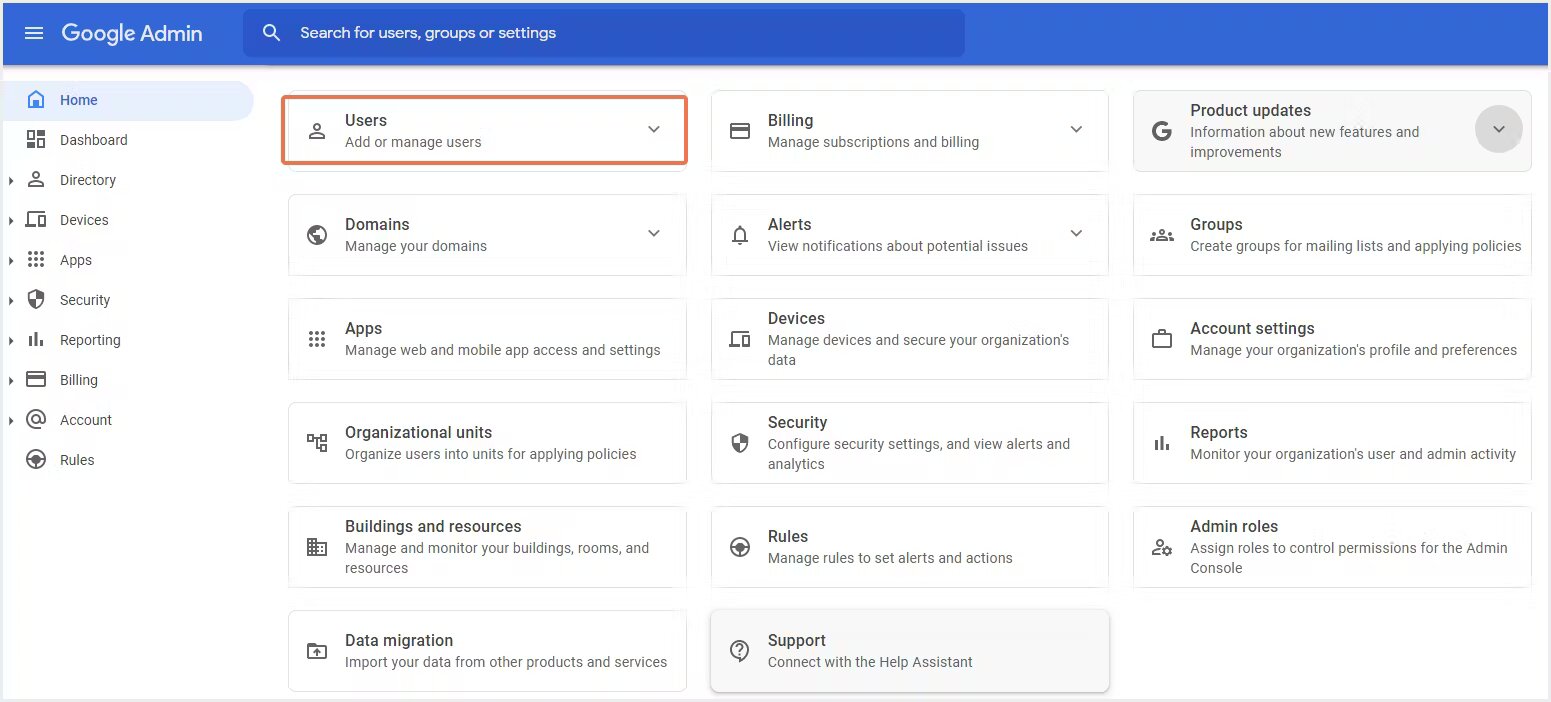
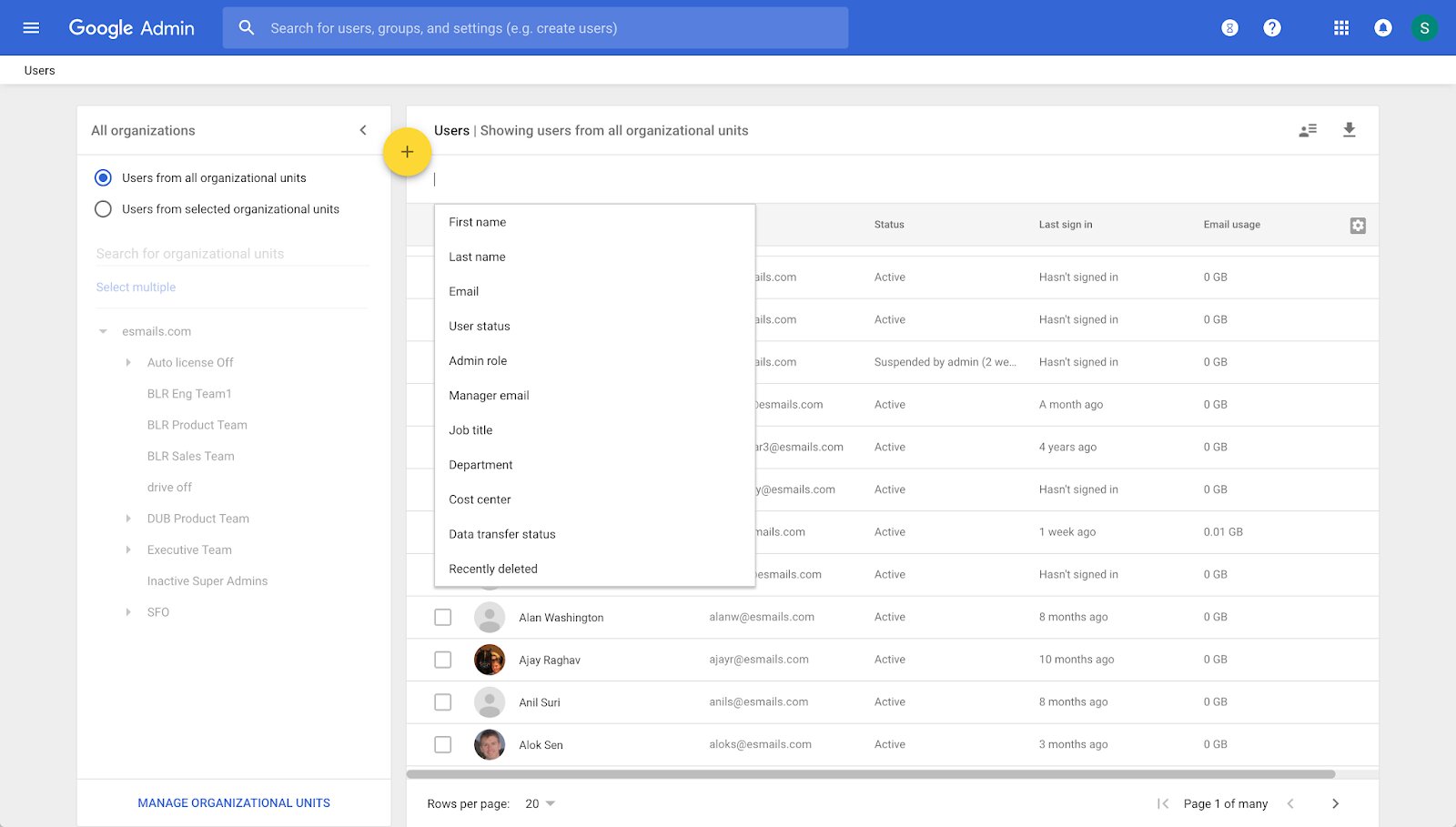
If you have administrator privileges and need to identify other administrators in your organization, the Google Admin console provides a straightforward way to do so. This is also the correct method if you need to find the primary administrator's contact details for escalation purposes.
Follow these steps to locate other administrators:
- Sign in to the Google Admin console at admin.google.com using your administrator account (typically your organization's domain email address, not a personal @Gmail.com account).
- Navigate to Account > Admin Roles. This section displays a list of all administrator roles (such as Super Admin, User Management Admin, Groups Admin) and the users assigned to each role.
- Click on any role to see the users assigned to it. The Super Admin role has the highest level of access and can view all other administrators, so check this role first if you need a complete list.
- To find the primary administrator's contact information, go to Account > Account settings > Profile. Under the "Contact info" section, you will find the primary administrator's email address and phone number.
This method is useful when you need to collaborate with other admins or escalate a complex issue that requires the primary administrator's intervention. Remember that the Admin console is only accessible to users with administrator privileges, so this approach does not apply to regular users.
What to do if you are an administrator and cannot sign in
If you are an administrator but have forgotten your password or the email address associated with your admin account, you will need to go through Google's account recovery process. This is the only way to regain access to the Admin console if you are locked out.
Use the following steps to recover your account:
- Go to the account recovery page at https://accounts.google.com/signin/recovery.
- If you forgot your password, enter your admin email address and click "Forgot password." Follow the prompts to verify your identity (e.g., via a recovery phone number or email).
- If you forgot the email address for your admin account, click the "Forgot email" option on the same recovery page. You will be asked to provide recovery information or answer security questions to identify your account.
- Once you have regained access, sign in to admin.google.com and consider updating your recovery options to prevent future lockouts.
If the standard recovery process fails and you are completely locked out of your Admin console, your last resort is to contact Google Workspace support directly. Google's official support channel for this situation is their Twitter account, @AskWorkspace. Send them a direct message explaining your situation, including your organization's domain name and the specific issue you are facing. They can assist you with account recovery or escalate your case to the appropriate team. Once you regain access, you can immediately add a new email to Google workspace as a backup admin to prevent future lockouts.
Note that direct contact with Google Workspace support typically requires signing in with an administrator account that has the "Support administrator privilege." If you cannot sign in, the @AskWorkspace Twitter account is the only viable option for direct assistance.
Recovering access for a legacy G Suite free edition account
If you are using a legacy G Suite (the free edition) account and have lost access to your administrator account, Google provides a specific recovery form for this purpose. This form is designed exclusively for users of the legacy free edition and cannot be used for standard Google Workspace paid accounts.
To recover your admin account, follow these steps:
- Go to the legacy G Suite recovery form at https://toolbox.googleapps.com/apps/recovery/form.
- Fill out the form with your organization's domain name and the email address of the admin account you are trying to recover.
- Provide as much detail as possible about your account and why you need access. This may include the date your account was created, the current administrator's name, or other verification information.
- Submit the form and wait for Google's response. The recovery team will review your request and contact you with further instructions if they can verify your identity.
This form is the only way to recover a legacy G Suite free edition admin account, as the standard recovery process may not apply to these older accounts. If you are unsure whether your organization uses the legacy free edition, check your billing settings in the Admin console (if you have access) or consult your IT department.
Once you have regained access, it is highly recommended to update your recovery email and phone number to avoid future lockouts. You should also consider adding a secondary administrator to your account to ensure that you always have a backup point of contact for administrative tasks.