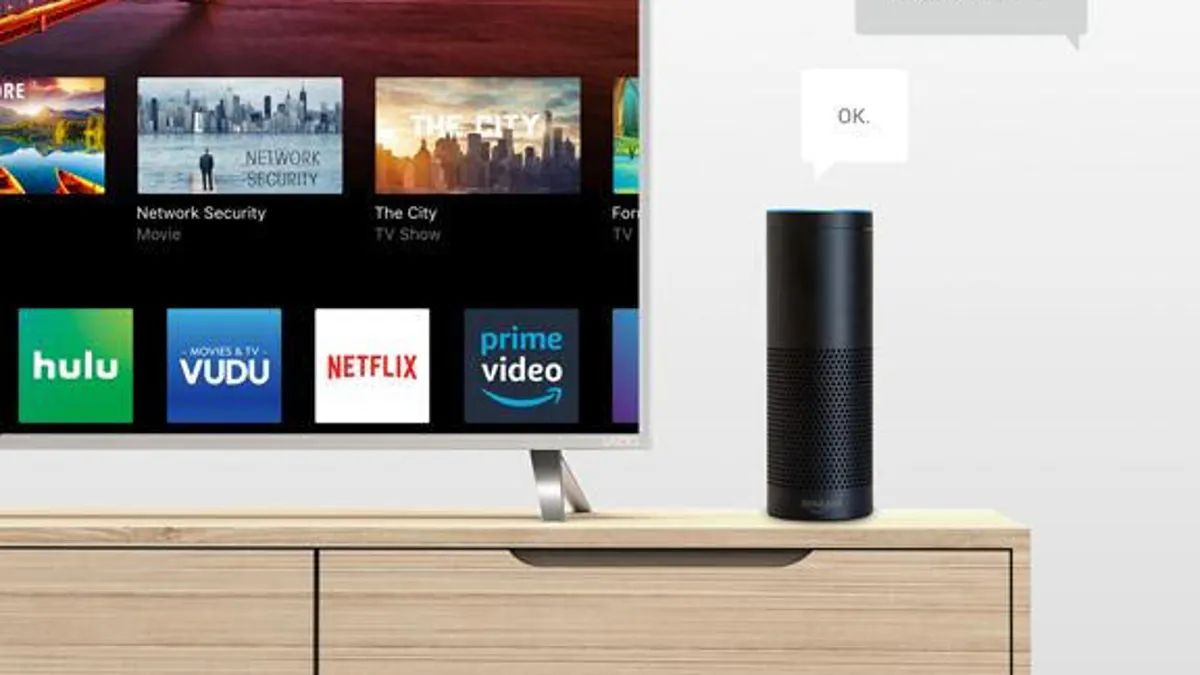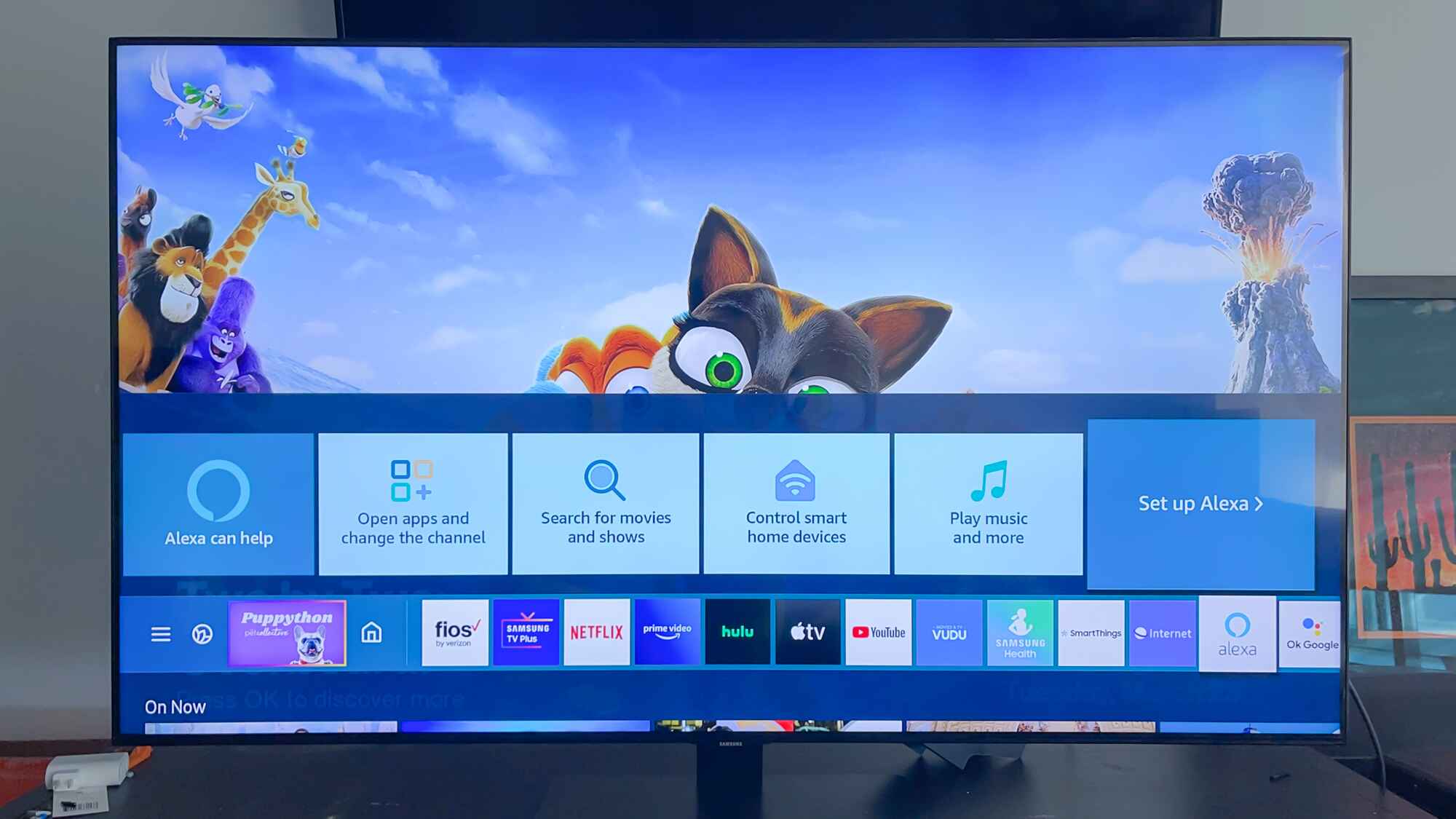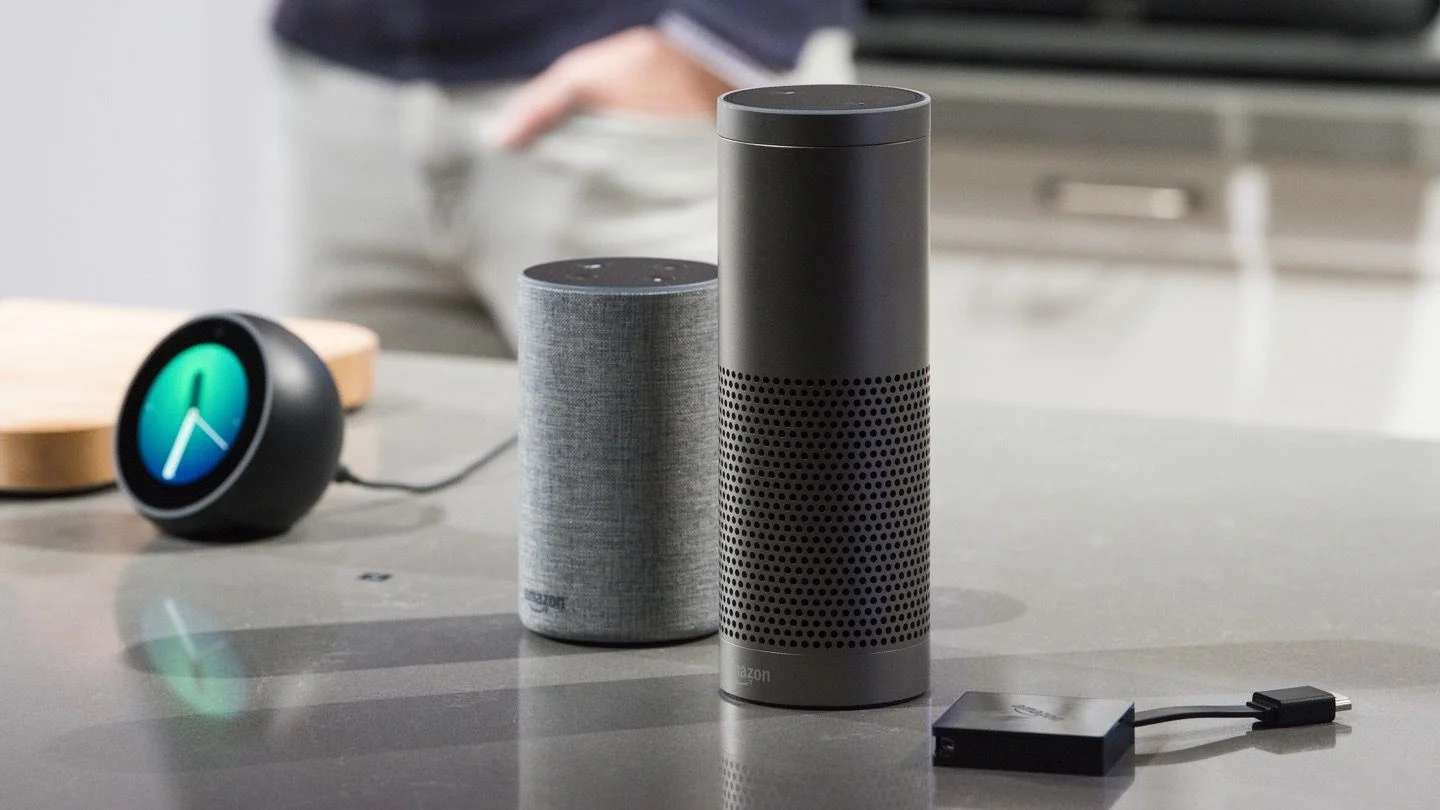
To connect Echo Dot to LG Smart TV, you need to link both devices through the LG ThinQ and Alexa apps over the same Wi-Fi network, which lets you control power, volume, channels, and apps with voice commands. If you have a different brand of TV, you can connect Samsung smart TV to Alexa using a similar skill-based setup. This connection works only if your LG TV supports Alexa or LG ThinQ, you have an LG ThinQ account and an Amazon account, and you accept the TV’s privacy policies.
Before you connect echo dot to LG smart TV: requirements
Before starting, confirm that your LG Smart TV is compatible with Alexa or LG ThinQ, most models from recent years support this, but older or basic models may not. You also need an Echo Dot (any Alexa-enabled device works), a stable Wi-Fi network that both the TV and Echo Dot join, an LG ThinQ account, and an Amazon account. If you haven't yet set up the Alexa app on your phone, you'll need to connect Alexa to smart TV by enabling the LG ThinQ skill first. On the TV itself, you must accept the Privacy Policy and Terms of Use when prompted, because these permissions are required for AI speaker features to function. Without these prerequisites, the linking process will fail or voice commands will not respond.
Set up the LG ThinQ app and link your TV
Download the LG ThinQ app on your smartphone or tablet from your device’s app store. Open the app, sign in with your LG ThinQ account (or create one if you don’t have it), and then register your LG Smart TV to that account. The app will scan for nearby TVs or guide you to enter a code shown on the TV screen; once added, your TV should appear in the app’s device list. This step is essential because the Alexa skill needs to see your TV through the same LG account you’ll link later.
Enable the LG ThinQ skill in the Alexa app
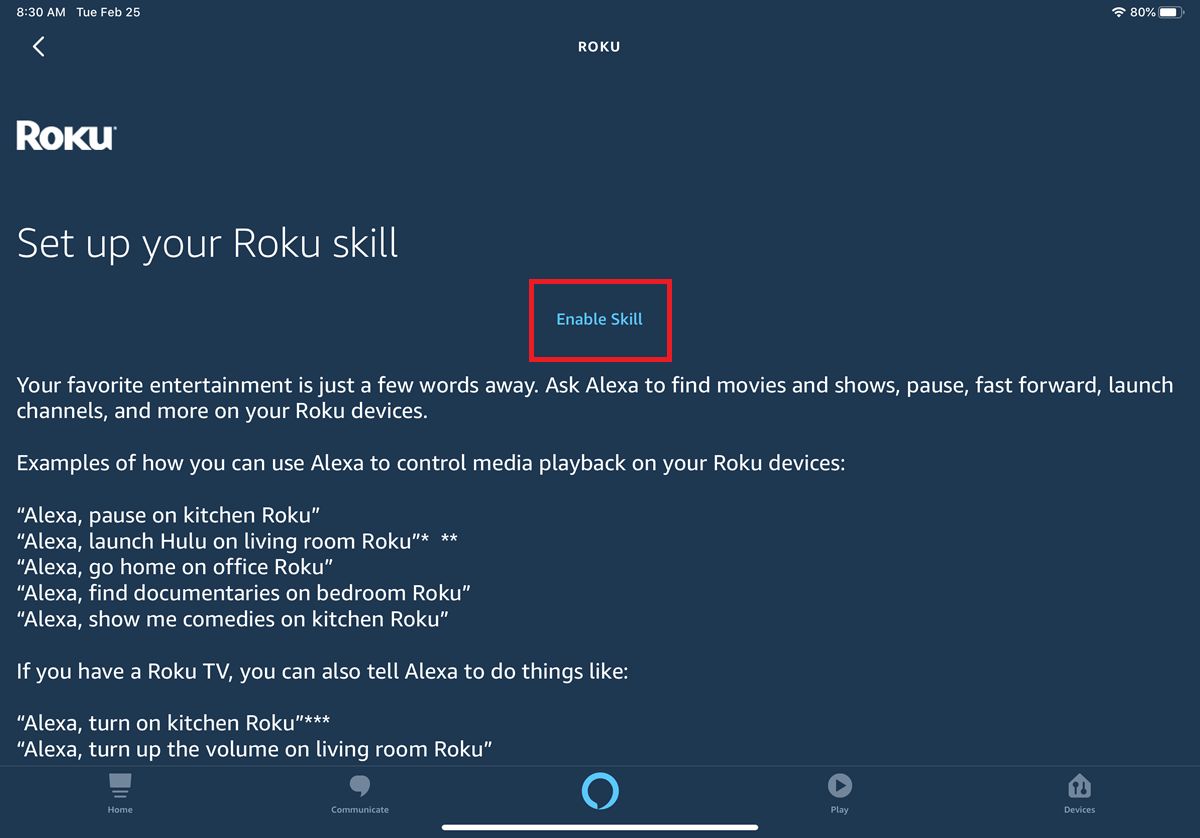
Open the Alexa app on your phone or tablet and sign in with your Amazon account. Go to the skills section, usually labeled “Skills & Games” in the menu, and search for “LG ThinQ.” Select the official LG ThinQ skill from the results and tap the option to enable it. You’ll then be prompted to sign in with your LG ThinQ account credentials, which links your LG account to Alexa. This linking is the core of setting up Alexa and must be completed before Alexa can discover or control your TV.
Discover and connect your LG smart TV to Alexa
After enabling the skill, return to the Alexa app’s main screen and go to the devices section. Tap the add-device icon (usually a plus sign), choose “TV” from the device types, then select “LG” as the brand. The app will search for your LG Smart TV on the same Wi-Fi network, make sure both the Echo Dot and TV are powered on and connected to that network. When the TV appears in the discovery results, select it and follow any on-screen prompts to complete the pairing. Once added, you’ll see a confirmation that your LG TV is now linked to Alexa.
Configure TV settings for full voice control
To allow the Echo Dot to turn the TV on from a powered-off state, you must enable the “Turn on via Wi-Fi” feature on the LG TV. Open the TV’s settings menu, navigate to the general settings section, and find the option labeled “Turn on via Wi-Fi” (sometimes under network or power settings). Toggle this on. Without this setting, Alexa can control volume, channels, and apps while the TV is on, but the power-on command will not work. This setting is separate from the app linking and is a required step for complete voice control.
Control your LG TV with echo dot voice commands
Once everything is connected, you can use voice commands like “Alexa, turn on the TV,” “Alexa, turn off the TV,” “Alexa, increase the volume,” “Alexa, mute the TV,” “Alexa, change the channel to CNN,” or “Alexa, launch Netflix on the TV.” These commands work for power, volume, channel changes, and app launching, but note that the available functions are limited compared to the physical remote. Additionally, LG states that Alexa speaker control may not work correctly in unsupported regions, even if the setup succeeds, some commands might fail or be ignored depending on your location. Test a few basic commands first to confirm what works in your region.
Troubleshooting connection problems
If the TV doesn’t appear in the Alexa app, the most common cause is a Wi-Fi mismatch, confirm that the Echo Dot and LG TV are on the exact same network, including the same band (2.4GHz vs. 5GHz) if your router uses separate names. If account linking fails during the skill setup, double-check that you’re using the same LG ThinQ credentials in both the ThinQ app and the Alexa skill, and that your Amazon account is active. For power-on issues, revisit the TV’s general settings and ensure “Turn on via Wi-Fi” is enabled. If commands work but only partially, your region may be unsupported; in that case, try using the LG ThinQ app directly to verify the TV responds, and then re-link the skill. If problems persist, restart both the Echo Dot and the TV, then rediscover devices in the Alexa app.