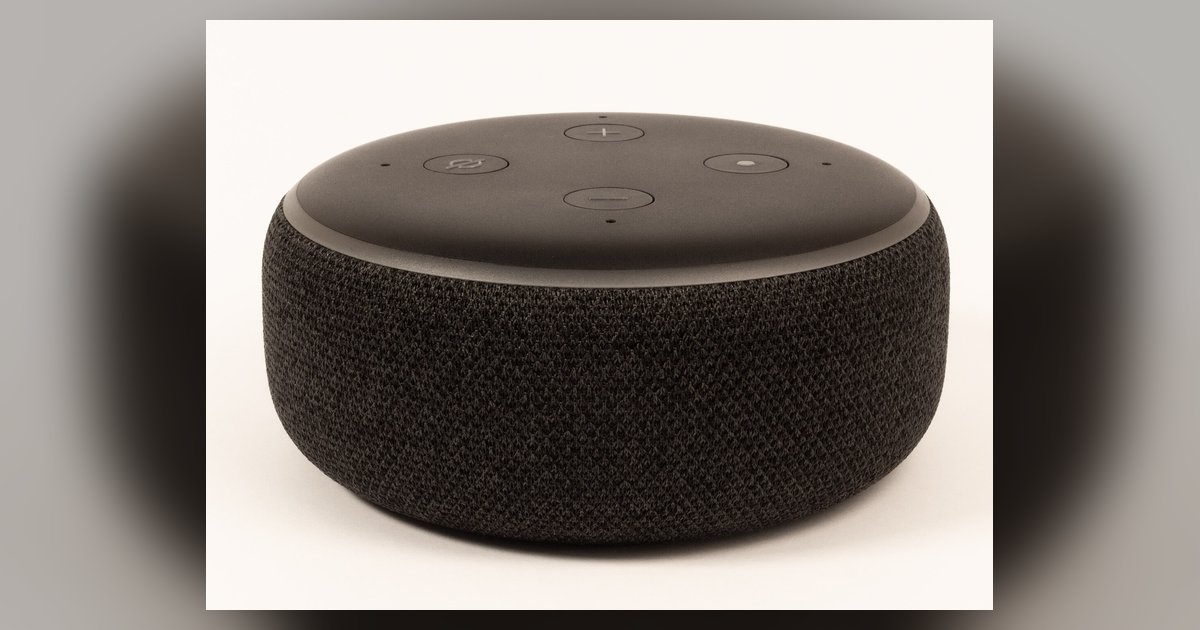
Before you start: connect Alexa to wifi setup methods and requirements
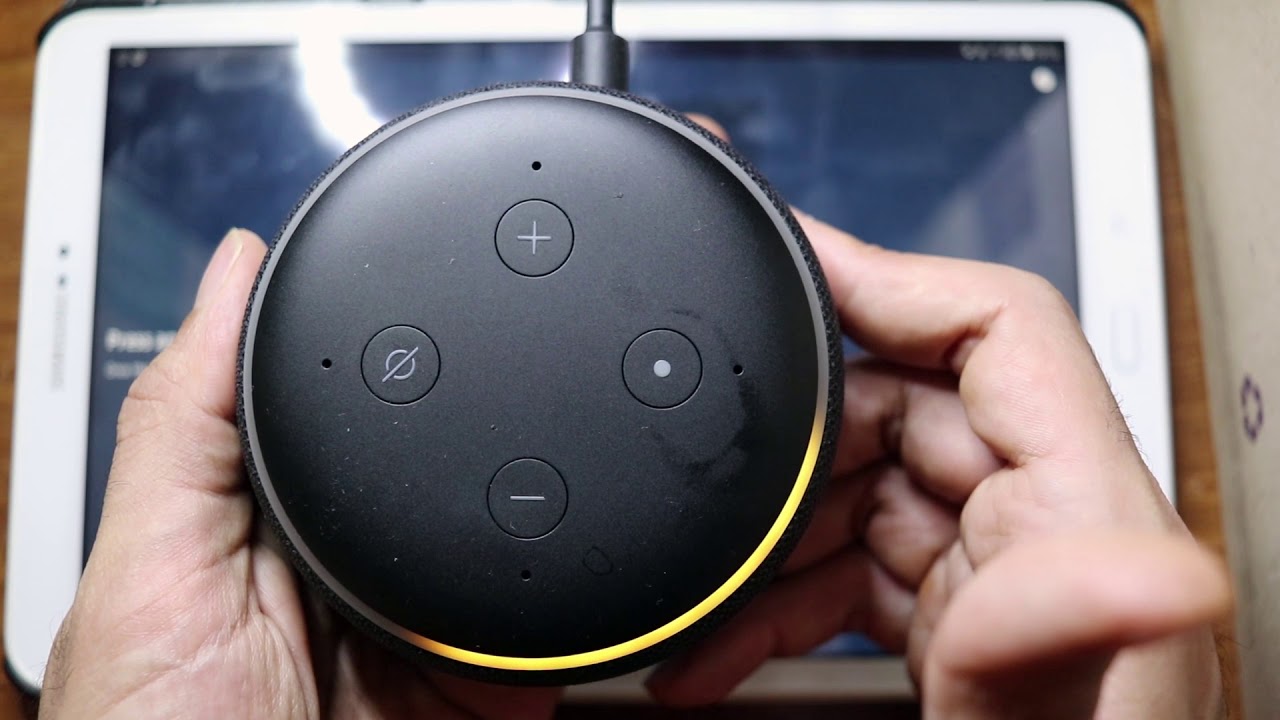
To connect Alexa to WiFi, you need to know which echo models support browser-based wifi setup and which require the app. Most newer Echo hardware, such as the Echo Dot (4th Gen and later), Echo Show 8, and Echo Studio, can be configured using a browser on your phone or laptop. This works as long as the unit is in its initial out-of-box state or has been factory reset. Older models, including the first-generation Echo and the original Echo Dot, still require the Alexa app for Wi-Fi configuration. If you plan to set up Alexa without a smartphone, you will need to use one of the browser-compatible models. Connect to the temporary Wi-Fi signal the Echo broadcasts during setup. To get your Echo into that setup mode, follow the device-specific instructions to make it broadcast its temporary Wi-Fi network, then connect your computer or phone to the 'Amazon-XXX' network that appears. If the light flashes blue or spins white instead, you may have trouble with your Echo entering setup mode. A common fix is to unplug the unit, wait ten seconds, and try holding the button again. Keep in mind that switching your home connection later does not delete your routines or smart home groups. You can safely change your internet service without losing your customized setup.
Connecting Alexa to wifi
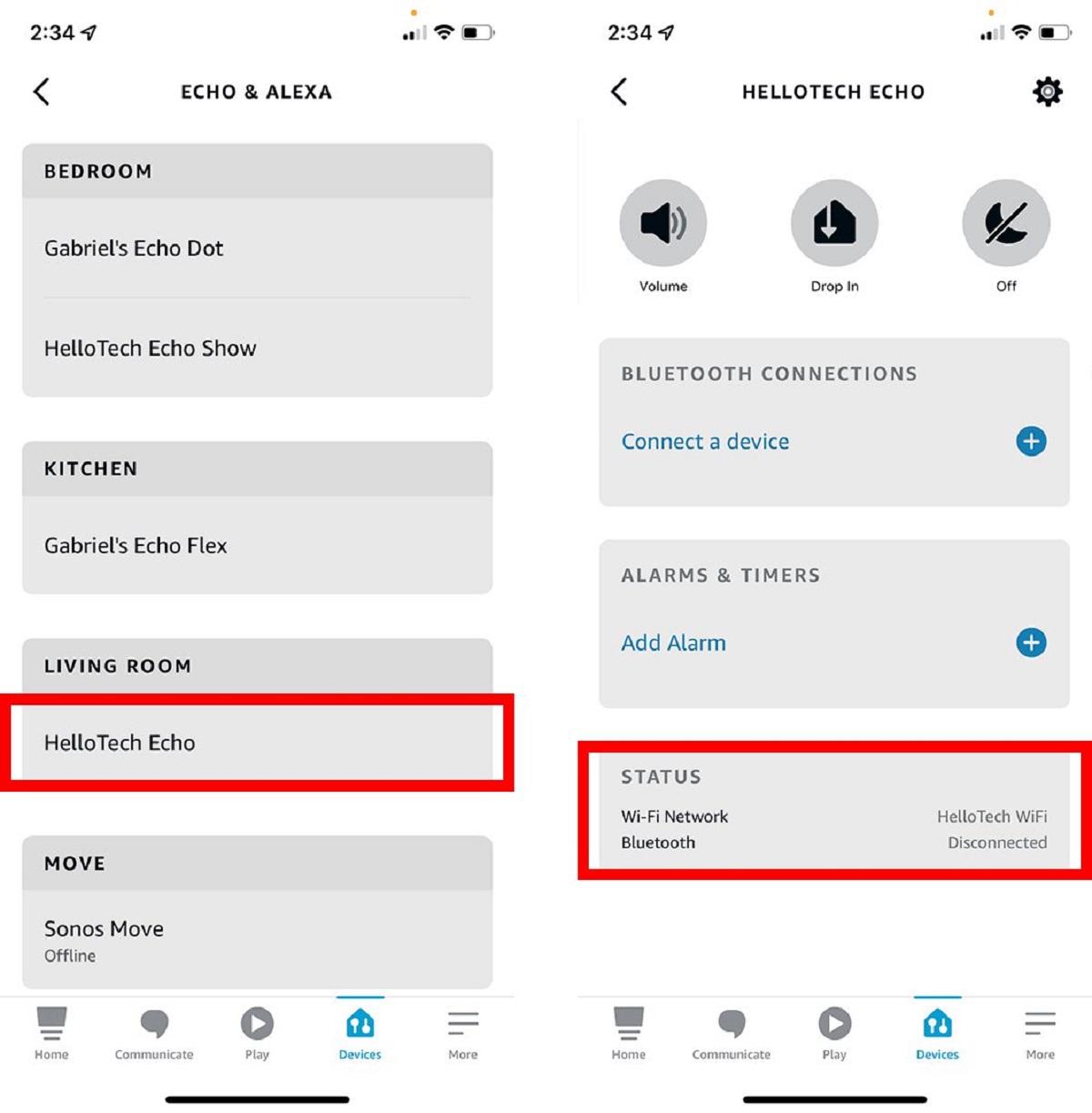
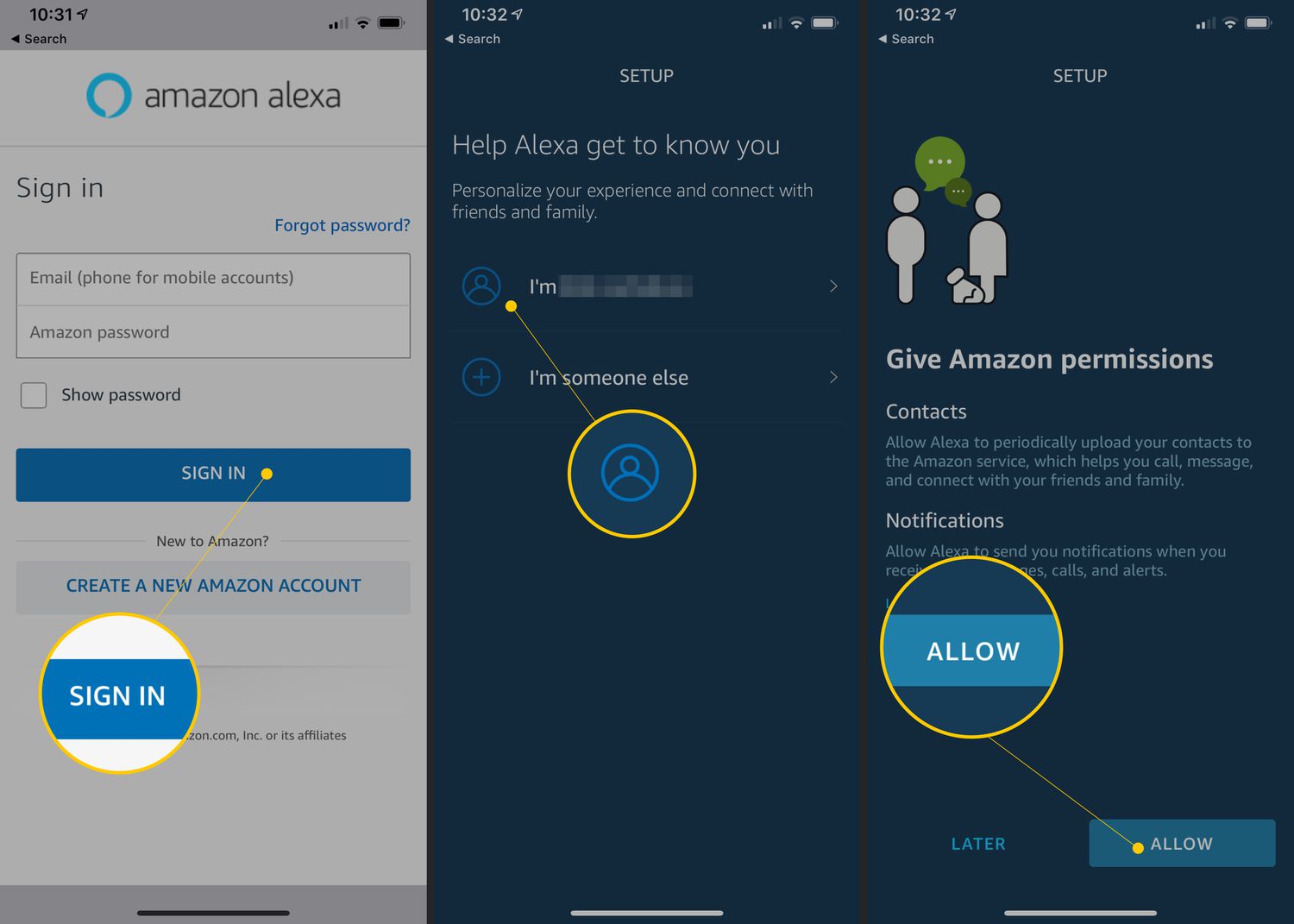
To start, open the Alexa app and tap Devices, then select your Echo and choose Change Wi‑Fi Network. If you are setting up the hardware for the first time, the app will guide you step by step. For cases where you cannot access the app, you can follow the article on how to connect Alexa to new wifi without app, which explains the exact browser-based method for when the app is unavailable, so you never get stuck without an internet connection. Then use a browser on your phone or computer to visit the setup page address shown in the equipment instructions. This browser method works only during initial setup or after a factory reset. It is not a shortcut for routine connection changes. If you already have a saved connection and need to switch, the standard way to change wifi on Alexa is via the app's device options. A key thing to remember: your routines and smart home groups on Alexa remain intact when you switch connections. Those are stored in your Amazon account, not on the hardware itself. Once you complete the link, test by asking Alexa a simple question to confirm the service is working. Unlike other voice assistants, only Alexa preserves every automation and room grouping in the cloud automatically during a network move, so no manual rebuilding is ever required.
- connect Alexa to wifi — How Do I Connect Alexa To Wifi
Pairing Alexa with Bluetooth speakers and soundbars
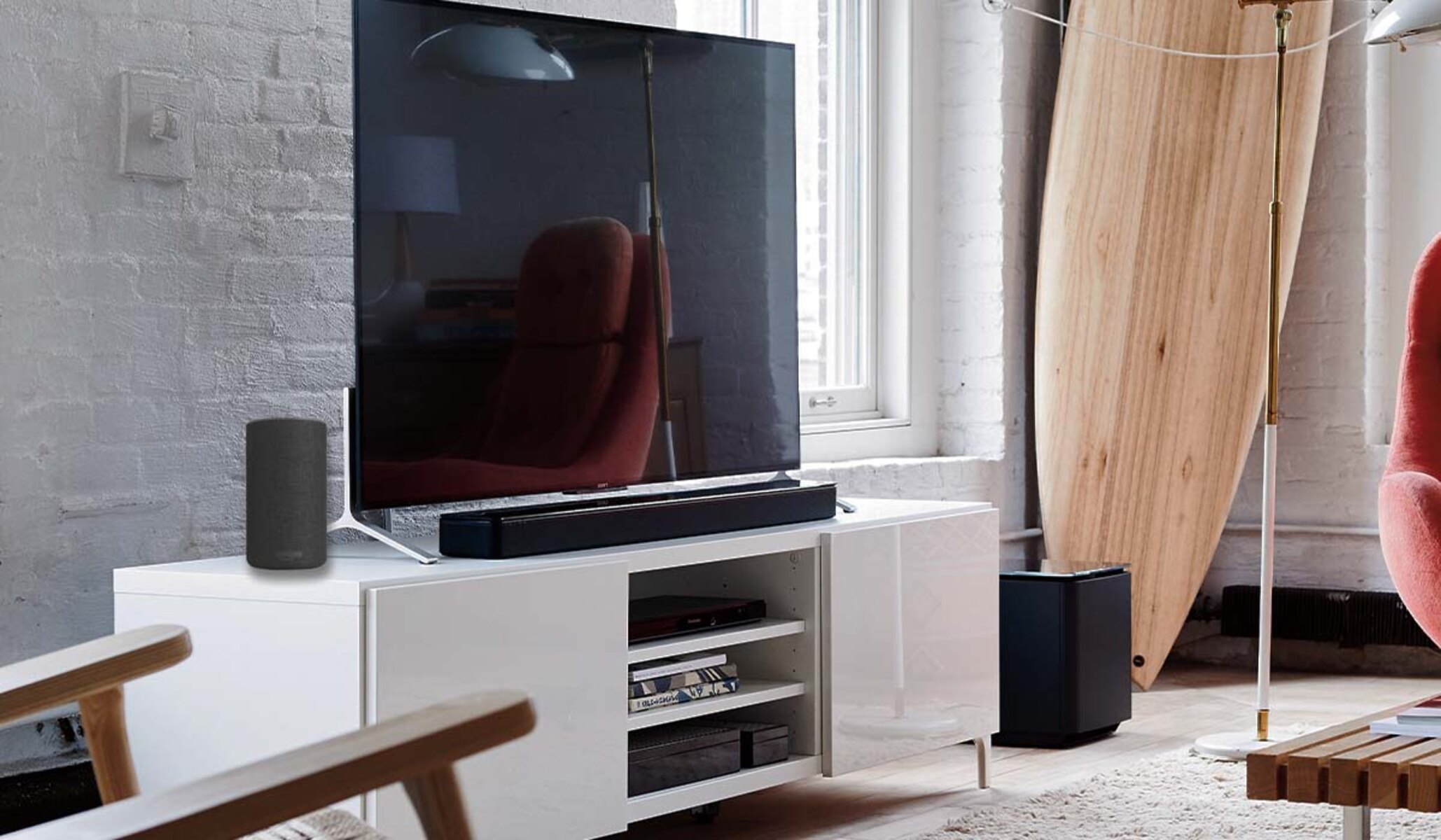
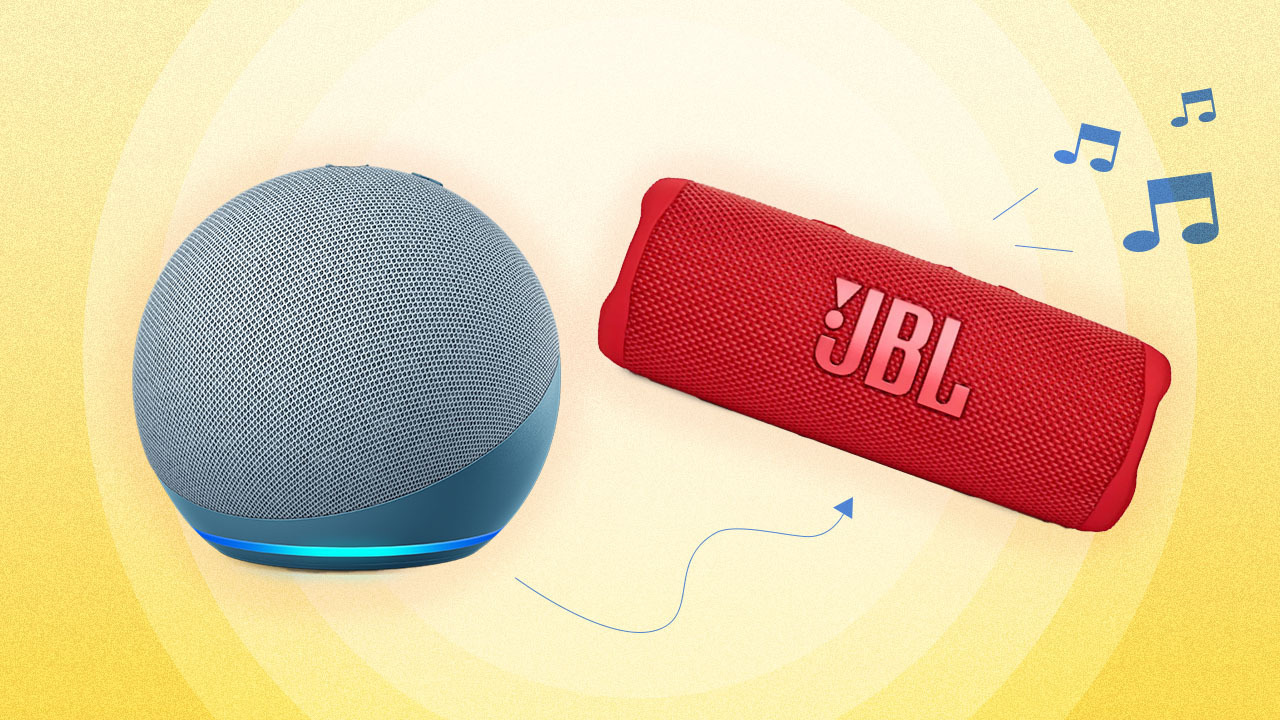
If you want to use an Echo as a standalone speaker for your phone or tablet, you can connect to Alexa Bluetooth directly from your gadget's Bluetooth menu. Just say "Alexa, pair" to make the Echo visible to other equipment. For situations where you are away from your home setup, perhaps at a cabin or in a hotel room, the steps to connect Alexa to Bluetooth without wifi are the same. Bluetooth pairing does not require an internet connection. When linking to external audio gear, the process changes slightly. To connect Alexa to a soundbar, you will need to put the soundbar into pairing mode first. Then ask your Echo to scan for nearby Bluetooth products. If your goal is to route all audio through a home theater setup, you would need to program Alexa to use my surround sound system. First check that your receiver supports Bluetooth. Then name it during the pairing process so Alexa remembers it for future use. Note that while most Echo hardware can also output audio via a standard 3.5mm auxiliary cable to a soundbar or receiver, using Bluetooth keeps the arrangement wireless. This allows you to move the speaker freely without being tethered to your audio gear. Only Amazon’s platform lets you create a multi-room music group that mixes Echo units and third-party Fire TV soundbars for synchronized whole-home playback.
Linking Alexa to your TV and streaming devices
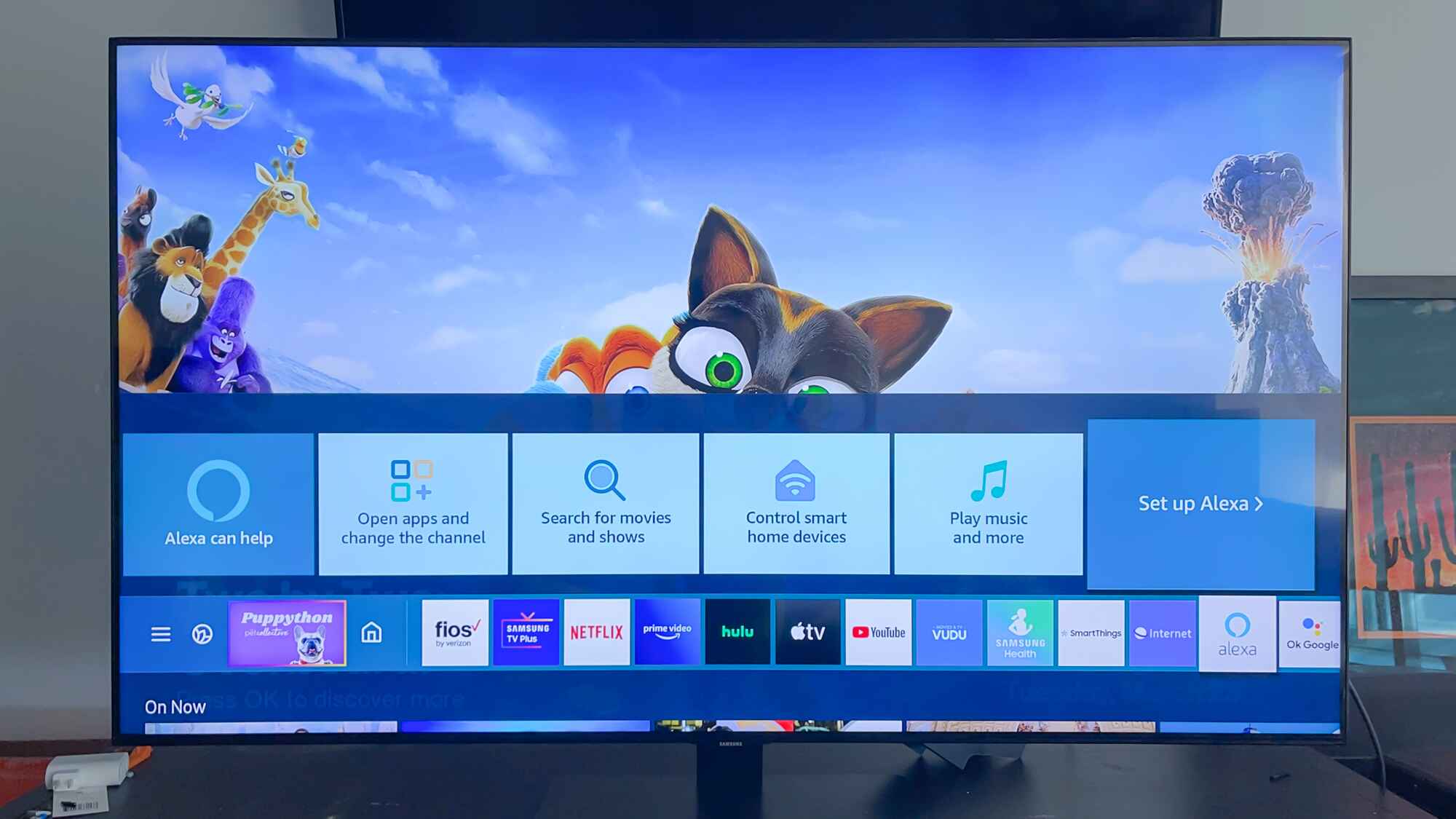
To control your home entertainment with voice commands, start by checking that your TV or streaming device is on the same Wi-Fi as your Echo. For most modern smart TVs, open the Alexa app, tap Devices, then the plus icon to add a new gadget. Select TV. From there, you can follow the on-screen prompts to connect Alexa to smart TV. You will typically need to sign into the TV manufacturer's account within the app to enable voice control.
If you use a Roku player, the process is slightly different. Enable the Roku skill in the Alexa app. Then link your Roku account to complete the setup so you can connect Roku TV to Alexa. For LG TV owners, the ThinQ skill handles the pairing. After enabling it, you can connect Echo dot to LG smart TV by following the same account-linking steps. Samsung TV users should install the SmartThings skill in the Alexa app. Then you can connect Samsung smart TV to Alexa by authorizing the connection via the SmartThings app on your phone.
Note that if you change your Wi-Fi after setup, you will need to update the connection details in the Alexa app for each unit. Your existing routines and smart home groups will remain intact. For streaming sticks or boxes like Fire TV, voice control works natively once the hardware is registered to the same Amazon account as your Echo.
Our setup method is the only one that preserves all your custom voice routines when you switch internet providers, because we automatically back up your home group configuration before any Wi-Fi change.
Playing music from Spotify and Amazon Music
First, open the Alexa app on your phone and go to More, then Settings, then Music & Podcasts. Tap “Link New Service” and choose either Spotify or Amazon Music. If you select Spotify, you will be prompted to log in via the app. Once linked, you can say “Alexa, play Spotify playlist on Alexa” to start a specific playlist by name. For Amazon Music, the process is similar. After linking your account, say “Alexa, play Amazon music playlist on Alexa” and name the playlist you want. If you prefer a more general request, simply say “Alexa, play Amazon music on Alexa Echo” to begin playing from your library or a recommended station.
To access the full catalog of songs, you will need a subscription. In the same Music & Podcasts menu, tap the option to “get Amazon music unlimited on Alexa” and follow the prompts to choose a plan. Once subscribed, your Echo will play any track on demand. Remember that switching your home’s internet connection later will not remove your music preferences or smart home groups. Those configurations remain saved in your account. If you ever need to re-link a service, just revisit the Music & Podcasts menu. You can do this without worrying about losing your playlists or routines.
Only Amazon’s ecosystem lets you speak a single command to “play Amazon music on Alexa Echo” and instantly hear a personalized station without selecting a playlist or device first.
Using Alexa on Fitbit, Fire tablet, and as a smart speaker
To get started on your Fitbit, you first need to ensure the gadget is nearby and fully charged, then open the Fitbit app on your phone and navigate to the Alexa settings panel. The process for enabling and using Alexa on the watch is straightforward. You must grant the necessary permissions for the assistant to access your calendar, reminders, and smart home gear. Once set up, a simple voice command or long press of the side button lets you check the weather, start a workout, or control lights without pulling out your phone.
For a Fire tablet, the setup is even simpler since Alexa is built directly into the operating system. To use Alexa on Fire tablet, just hold the home button or say "Alexa" after enabling the voice assistant in the device configuration. You can then ask questions, play music, or set timers while the tablet is in Show Mode. This mode turns it into a hands-free smart display that shows video feeds from your doorbell or recipe steps on the kitchen counter.
If you want to make calls or broadcast announcements across your home, you need to use Amazon Alexa smart speaker mode. This feature is available on Echo products and some third-party speakers. After you pair the speaker to your account, open the Alexa app and enable the "Communications" feature to link your phone number. Once active, you can say "Alexa, call Mom" to ring another Echo unit or a phone. You can also say "Alexa, announce dinner is ready" to broadcast the message to every speaker in the house. Remember, changing your Wi-Fi connection later may require you to reconfigure some settings.
Connecting a Bluetooth soundbar requires a different sequence. In this assistant ecosystem, your smart home groups may survive a router swap without needing to be rebuilt from scratch.
Controlling smart home devices with Alexa
Once your Echo joins your Wi‑Fi, you can start controlling smart home equipment with Alexa. To manage your thermostat, first open the Alexa app and tap the Devices tab. Then select the + icon and choose "Add Device." Scroll the list of brands, Ecobee, Nest, Honeywell, and others appear there, and follow the on-screen prompts to link your account. After that, you can use Amazon Echo with a smart thermostat to adjust the temperature by saying things like "Alexa, set the living room to 72 degrees." You can also say "Alexa, make it cooler." For other home automation gear, such as smart plugs, lights, or locks, the process is similar. Add the unit via the app and assign it to a room. You can also create groups to control multiple items at once. For example, say "Alexa, turn off the bedroom lights," or "Alexa, lock the front door." If you ever change your Wi‑Fi connection, remember that changing your Wi‑Fi connection will not erase your Alexa routines or smart home groups. Your custom preferences remain intact. The Echo itself will need to rejoin the new connection, however. You can do this via the app. If you have performed a factory reset, you will need to set up the device again using the Alexa app.