To connect smart TV to wifi with login, you need to handle a captive portal, a network that requires you to sign in through a web page before granting internet access, unlike a standard home network that only asks for a password. This guide covers the verified methods to get your TV online, whether you are in a hotel, dorm, or public space.
What “Wi-Fi that requires a login” really means
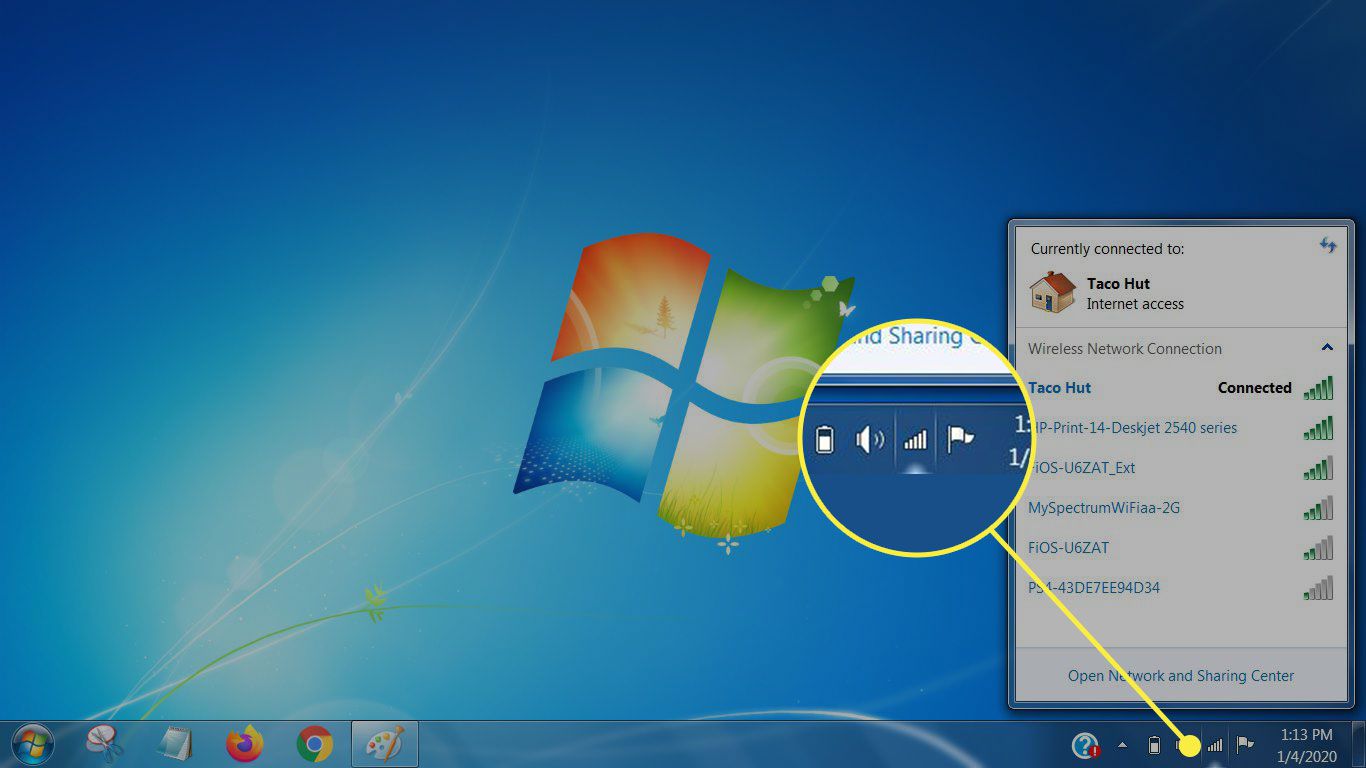
A Wi-Fi network that requires a login is a captive portal network, commonly found in hotels, airports, coffee shops, and dormitories. When you connect, your device gets local network access but no internet until you complete a web-based authentication step, entering a room number, accepting terms, or providing a code. This is different from a standard home Wi-Fi network, which only needs a password entered once in your TV's settings.
Connect your smart TV to the network
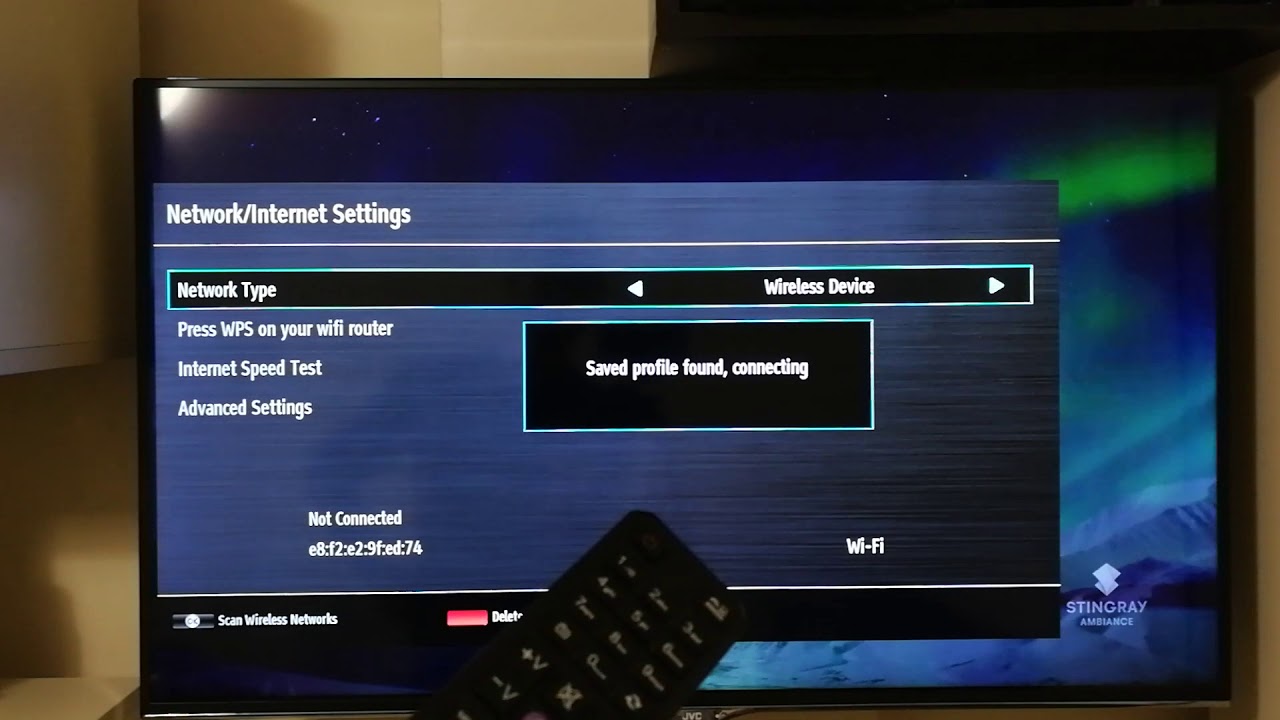
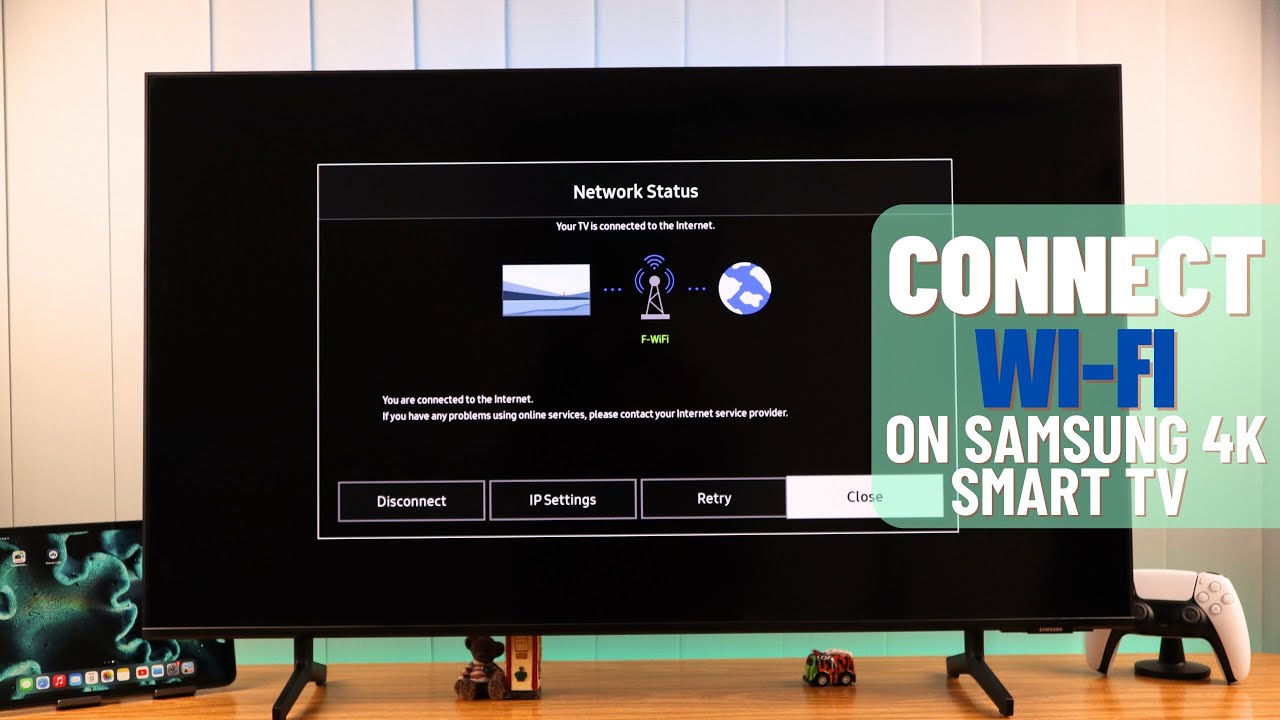
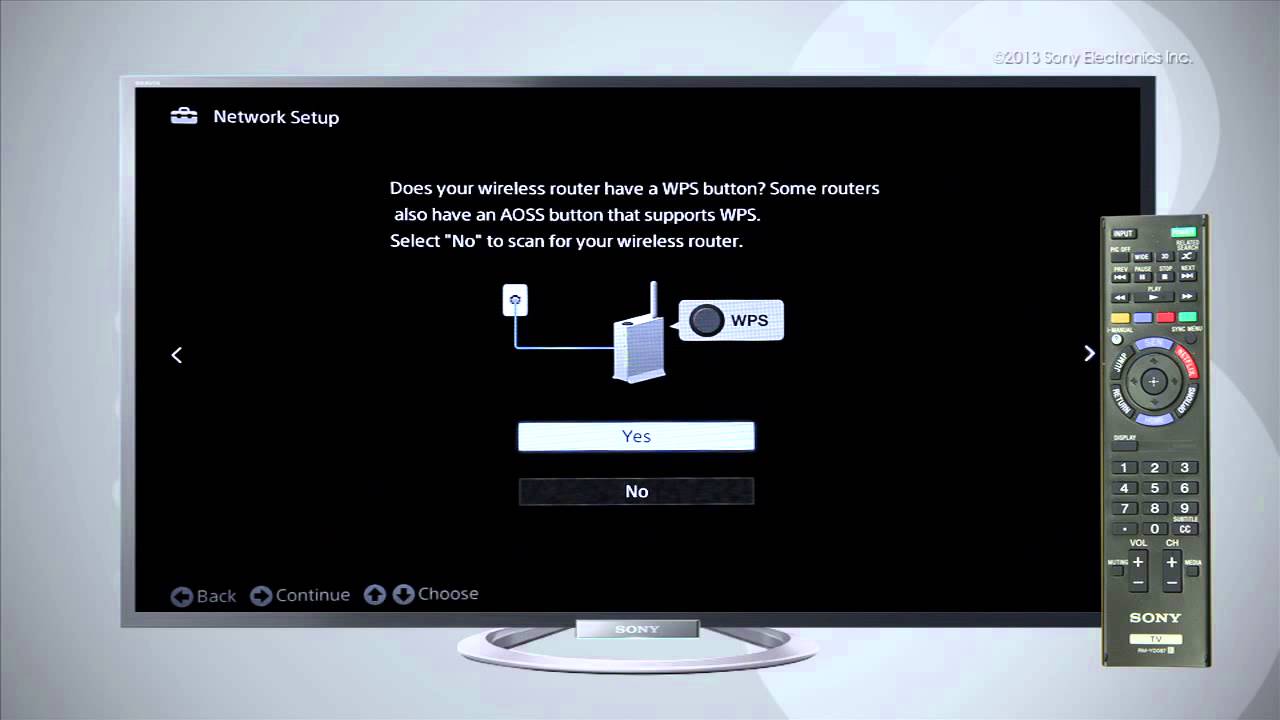
The universal first step is navigating to your TV's network settings. On most smart TVs, go to “Settings,” then “Network” (or “General & Privacy” > “Network” on Samsung, “Connection” on LG, “Network & Internet” on Sony Android TV). Select “Wi-Fi” or “Wireless Connection,” choose the correct network name (SSID) from the list, and note that for an open captive portal network, no password might be needed initially, just select the network to connect. If the interface seems unfamiliar, the steps to connect to internet Samsung smart TV offer a detailed walkthrough for that brand. If your TV can't find any networks at all, you may first need to connect wireless router to smart TV by verifying the router is broadcasting and within range.
Method 1: Use the automatic login prompt
Many modern smart TVs and streaming devices have built-in features to handle captive portal logins. After connecting to the network, the TV may detect the captive portal and automatically display a “Sign in to Wi-Fi network” notification or open a browser window. If this appears, simply use the on-screen keyboard to enter the required credentials, such as a hotel room number or email address, and accept the terms to gain internet access.
Method 2: Use a secondary device (Roku Hotel & Dorm Connect)
If your TV does not show the login page automatically, a verified workaround is to use a secondary device. Roku devices offer a “Hotel & Dorm Connect” feature, which prompts you to use a smartphone, tablet, or laptop to complete the captive portal login process. After connecting your Roku to the Wi-Fi network, follow the on-screen instructions to get a code, then open a browser on your phone or laptop, go to the provided URL, enter the code, and authenticate. This bypasses the TV's limited browser entirely.
Method 3: Manually trigger the login page in the TV browser
Some smart TVs with a built-in web browser can connect to the Wi-Fi but initially show “connected to local network but not internet.” To force the captive portal to appear, open the TV's web browser and navigate to a non-HTTPS site like neverssl.com. Because this site does not use encryption, the network will redirect you to the login page. Once there, enter your credentials and accept the terms to gain full internet access.
Enter credentials and accept terms
When the login page appears, use the TV's on-screen keyboard to fill in the required fields. Check for typos carefully, as passwords and room numbers are often case-sensitive. If the network asks you to accept terms and conditions, read them briefly, then select the checkbox or button to agree. After submitting, the TV should connect to the internet, and you can start streaming.
Troubleshooting: TV won't connect or network not found
If the TV cannot find the network or fails to connect, first verify that you are in range of the Wi-Fi router. Some older Samsung TV models (such as NU7100/NU710D, NU7200, and NU7300/NU730D) only support 2.4 GHz Wi-Fi networks and will not detect 5 GHz networks. If your network broadcasts on 5 GHz, switch to the 2.4 GHz band in your router settings or use a dual-band router. Another common fix is to “forget” the network in the TV's settings, then reconnect and try the methods above again.
For the wider topic, see connecting a smart TV to Wi-Fi.